
1. Introduction
This manual provides essential information for the safe and efficient use of your Fujitsu FMVF75K1BA FMV Desktop F 23.8-inch PC. Please read this manual thoroughly before operating the device and retain it for future reference. This desktop PC is designed for general computing tasks, featuring a 23.8-inch Full HD display, an Intel Core i7 processor, 16GB of RAM, and a 512GB storage drive, running Windows 11 Home.
2. Safety Information
Observe the following safety precautions to prevent damage to the product and ensure user safety:
- Power Supply: Use only the power adapter supplied with the device. Ensure the power outlet is properly grounded.
- Ventilation: Do not block ventilation openings. Maintain adequate space around the PC for proper airflow to prevent overheating.
- Environment: Avoid exposing the PC to extreme temperatures, humidity, dust, or direct sunlight. Operate in a stable, dry environment.
- Liquid and Foreign Objects: Keep liquids and foreign objects away from the PC. If liquid enters the device, immediately disconnect power and contact support.
- Servicing: Do not attempt to service the PC yourself. Refer all servicing to qualified service personnel.
- Cleaning: Disconnect the power cord before cleaning. Use a soft, dry cloth. Do not use liquid or aerosol cleaners.
3. Package Contents
Verify that all items are present in the package:
- Fujitsu FMVF75K1BA FMV Desktop F 23.8-inch PC
- Power Adapter and Power Cord
- Keyboard
- Mouse
- Quick Start Guide (if included)
- Warranty Card (if included)
4. Product Overview
The Fujitsu FMVF75K1BA is an all-in-one desktop PC featuring a 23.8-inch display. Key components include the integrated display, CPU, memory, storage, and various input/output ports.
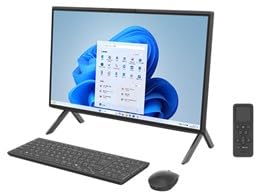
Figure 4.1: Front view of the Fujitsu FMVF75K1BA FMV Desktop F PC. This image shows the integrated display and the sleek design of the all-in-one unit.
4.1 Front Panel
- Display: 23.8-inch Full HD (1920x1080) screen.
- Power Button: Located typically on the bottom right or side of the display bezel.
- Webcam: Integrated at the top center of the display.
4.2 Rear/Side Panels
- USB Ports: For connecting peripherals like keyboard, mouse, external drives.
- HDMI Port: For connecting an external monitor or TV.
- LAN Port: For wired network connection.
- Audio Jacks: For headphones, microphone, or external speakers.
- Power Input: For connecting the power adapter.
5. Setup
Follow these steps for initial setup:
- Unpack: Carefully remove the PC and all accessories from the packaging.
- Position: Place the PC on a stable, flat surface with adequate ventilation space around it.
- Connect Keyboard and Mouse: Plug the USB keyboard and mouse into the available USB ports on the PC.
- Connect Power: Connect the power adapter to the power input port on the PC, then plug the power cord into a grounded electrical outlet.
- Power On: Press the power button to turn on the PC.
- Initial Windows Setup: Follow the on-screen instructions to complete the Windows 11 Home initial setup, including language, region, network connection, and user account creation.
6. Operating Instructions
6.1 Turning On/Off
- To Turn On: Press the power button.
- To Shut Down: Click the Start button, then Power, and select "Shut down".
- To Restart: Click the Start button, then Power, and select "Restart".
- To Sleep: Click the Start button, then Power, and select "Sleep".
6.2 Connecting to a Network
- Wired Connection: Connect an Ethernet cable from your router/modem to the LAN port on the PC.
- Wireless Connection (Wi-Fi):
- Click the Wi-Fi icon in the taskbar.
- Select your desired Wi-Fi network from the list.
- Enter the network security key (password) if prompted.
- Click "Connect". The PC supports IEEE802.11ax (Wi-Fi 6E) for high-speed wireless connectivity.
6.3 Using Microsoft Office + 365
Your PC comes with Microsoft Office + 365. Follow the on-screen instructions upon first launch of any Office application (e.g., Word, Excel) to activate your subscription. An internet connection and a Microsoft account are typically required for activation.
7. Maintenance
7.1 Cleaning
- Screen: Use a soft, lint-free cloth specifically designed for electronics. For stubborn marks, lightly dampen the cloth with water or a screen cleaner. Do not spray cleaner directly onto the screen.
- Chassis: Wipe the exterior surfaces with a soft, dry cloth. Avoid abrasive materials or harsh chemicals.
- Ventilation: Periodically check and gently clean the ventilation openings to prevent dust buildup, which can impede airflow.
7.2 Software Updates
Regularly update your Windows operating system and drivers to ensure optimal performance and security. Windows Update typically handles this automatically, but you can manually check by going to Settings > Windows Update.
7.3 Data Backup
It is highly recommended to regularly back up your important data to an external drive or cloud storage to prevent data loss.
8. Troubleshooting
| Problem | Possible Cause | Solution |
|---|---|---|
| PC does not power on. | Power cable loose, power outlet issue, power adapter fault. | Check all power connections. Try a different power outlet. Ensure the power adapter is functioning. |
| No display on screen. | PC is off, display brightness too low, external monitor not connected (if applicable). | Ensure PC is on. Adjust display brightness. If using an external monitor, check its power and cable connection. |
| Cannot connect to Wi-Fi. | Incorrect password, Wi-Fi adapter off, router issue, out of range. | Verify Wi-Fi password. Check if Wi-Fi is enabled in Windows settings. Restart your router. Move closer to the router. |
| PC is running slow. | Too many programs open, low disk space, malware, outdated drivers. | Close unnecessary applications. Free up disk space. Run a virus scan. Update Windows and drivers. |
9. Specifications
| Model Name | FMVF75K1BA |
| Brand | Fujitsu |
| Display | 23.8-inch, 1920x1080 resolution |
| Processor | Intel Core i7 |
| RAM | 16GB |
| Storage | 512GB |
| Operating System | Windows 11 Home |
| Wireless LAN | IEEE802.11ax (Wi-Fi 6E compatible)/ac/a/b/g/n |
| Ports | USB, HDMI, LAN, Audio Jacks (specific number and type may vary) |
10. Warranty and Support
Your Fujitsu FMVF75K1BA PC is covered by a manufacturer's warranty. Please refer to the warranty card included in your package for specific terms and conditions, including the warranty period and coverage details.
For technical support, service, or warranty claims, please contact Fujitsu customer support through their official website or the contact information provided in your warranty documentation. Have your model number (FMVF75K1BA) and serial number ready when contacting support.
Online Support: Visit the official Fujitsu support website for drivers, FAQs, and further assistance.