
1. Introduction
This manual provides essential instructions for setting up, operating, and maintaining your BLU Bold N4 5G smartphone. The BLU Bold N4 5G is an unlocked device designed for seamless communication and entertainment, featuring a large 6.78-inch curved main display, a secondary 1.74-inch rear display, a powerful 50MP camera system, and running on Android 15.

Image 1.1: Front and rear view of the BLU Bold N4 5G smartphone, showcasing its dual display design and camera module.
2. What's in the Box
Verify that all items are present in your product packaging:
- BLU Bold N4 5G Smartphone
- Clear Rugged Case
- Quick Guide
- Headphones
- USB-C Cable
- Charger (66W Ultra Charger)
- SIM Key
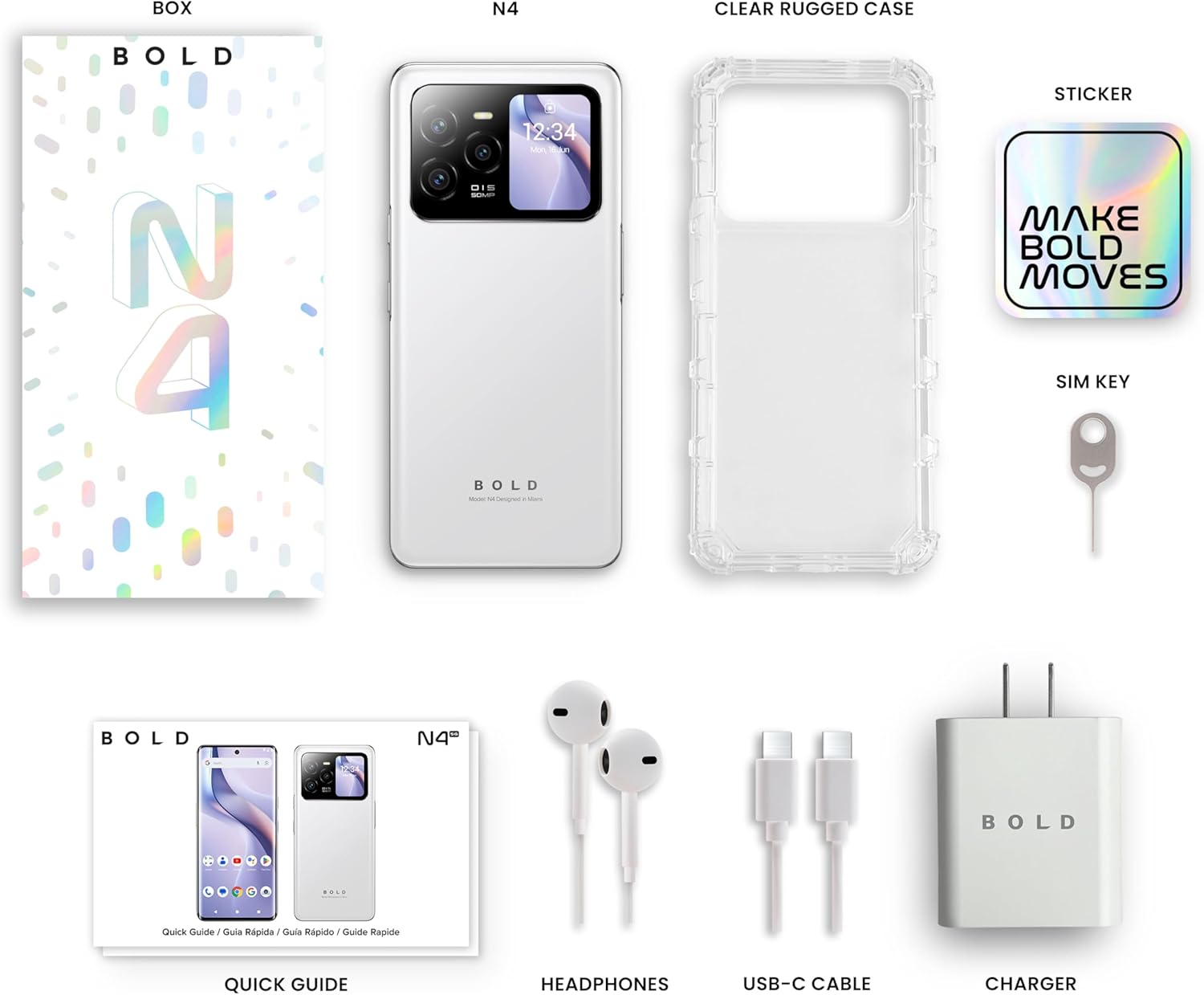
Image 2.1: All included accessories and the BLU Bold N4 5G phone as found in the retail packaging.
3. Setup
3.1. SIM Card Installation
- Locate the SIM tray on the side of your device.
- Insert the provided SIM key into the small hole on the SIM tray to eject it.
- Place your Nano-SIM card(s) into the tray with the gold contacts facing down.
- Carefully reinsert the SIM tray into the phone.
Note: This device is GSM Unlocked and compatible with carriers such as T-Mobile and Metro PCS. It is not compatible with AT&T/Cricket or CDMA networks like Verizon and Sprint. Please consult your service provider for network availability.
3.2. Initial Power On and Setup
- Press and hold the Power button (located on the right side) until the BLU logo appears.
- Follow the on-screen prompts to select your language, connect to Wi-Fi, and set up your Google account.
3.3. Charging the Device
Before first use, it is recommended to fully charge your device. Use the provided 66W Ultra Charger and USB-C cable for optimal charging speed.
- Connect the USB-C cable to the charging port at the bottom of the phone.
- Connect the other end of the cable to the 66W charger, then plug the charger into a power outlet.
- The device supports 66W quick charge technology, allowing it to charge from 0% to 100% in approximately 20 minutes.
4. Operating Your Device
4.1. Main Display (6.78" Curved Display)
The 6.78-inch FHD+ 3D AMOLED Infinity Curved Display offers a 120Hz refresh rate and 1200 x 2652 resolution for a fluid visual experience. Navigate by tapping, swiping, and pinching on the screen.

Image 4.1: The main 6.78-inch curved display of the BLU Bold N4 5G, displaying the home screen with various application icons.
4.2. Rear Display (1.74" Secondary OLED Display)
The 1.74-inch secondary OLED display on the back of the phone provides quick access to functions without needing to open the main screen. It can be used for:
- Selfies: Frame your selfies using the main camera.
- Notifications: View incoming messages and alerts.
- Music Controls: Manage media playback.
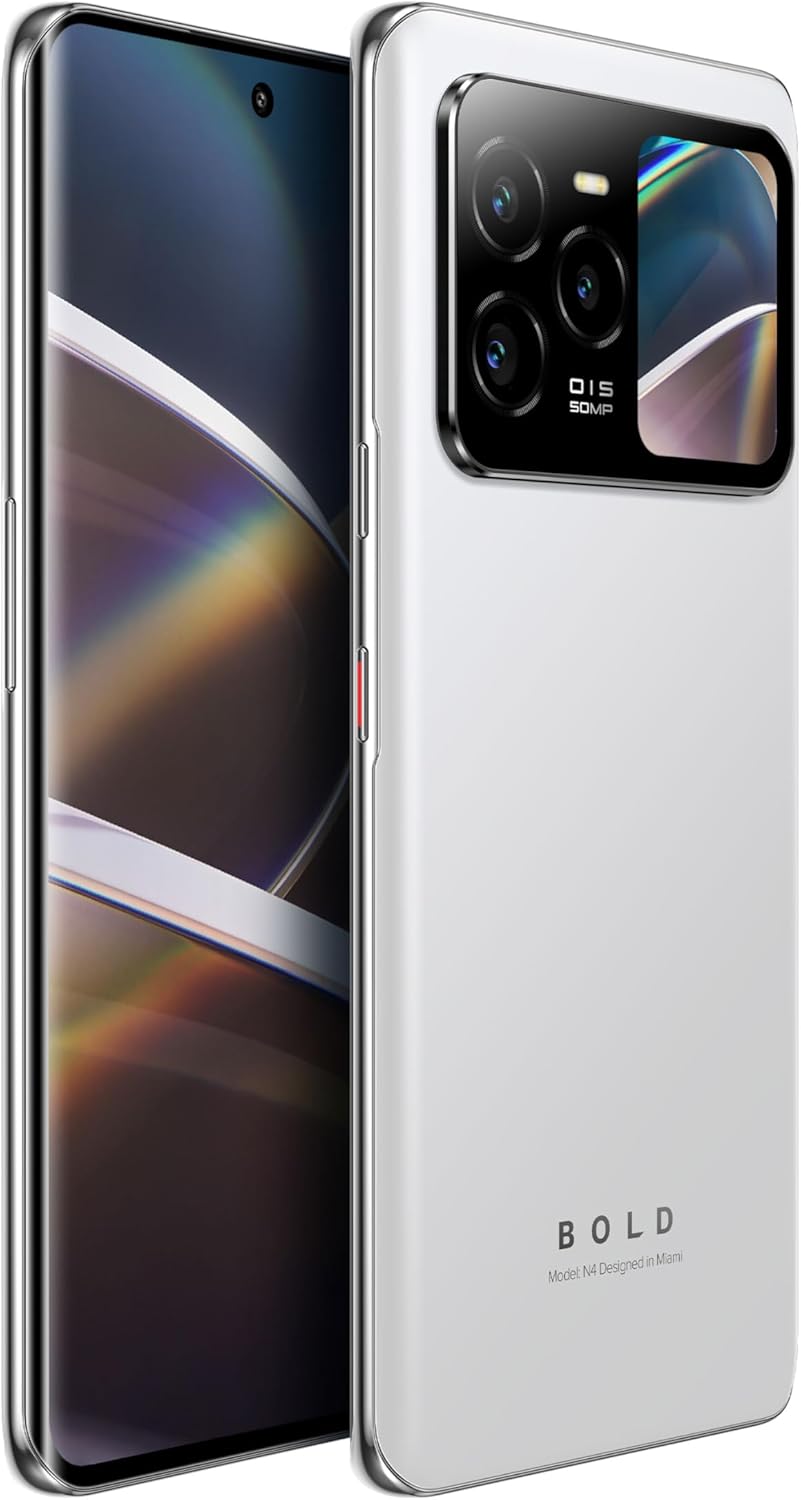
Image 4.2: The BLU Bold N4 5G's rear display actively showing a selfie preview, demonstrating its utility for photography.
4.3. Camera Usage
The BLU Bold N4 5G features a versatile camera system:
- Triple Rear Camera: 50MP AI Super HDR main sensor, 8MP Wide Angle, and 8MP Telephoto lens.
- Front Camera: 16MP Selfie Camera.
- Supports 4K video recording.
To take a photo or record a video, open the Camera app and select your desired mode. Use the rear display for high-quality selfies with the main camera.
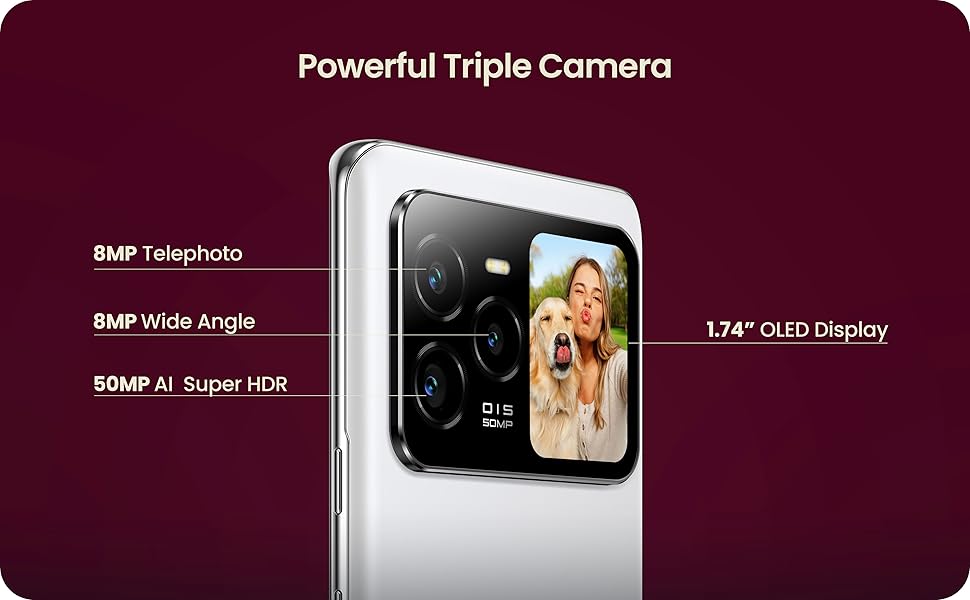
Image 4.3: Close-up of the BLU Bold N4 5G's triple camera module, highlighting the 50MP AI Super HDR, 8MP Wide Angle, and 8MP Telephoto lenses, along with the 1.74" OLED display.
4.4. Security Features
Unlock your device securely and conveniently:
- In-Display Fingerprint Sensor: Register your fingerprint(s) in the Security settings for quick and secure unlocking.
- Face Unlock: Set up face recognition for an alternative biometric unlock method.
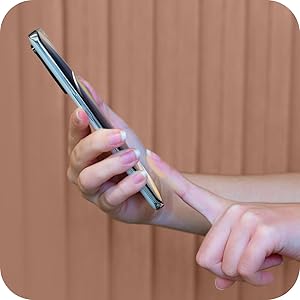
Image 4.4: A hand interacting with the in-display fingerprint sensor on the BLU Bold N4 5G for secure authentication.
4.5. NFC (Near Field Communication)
The BLU Bold N4 5G is NFC enabled, allowing for tap-to-pay functionality and quick pairing with other NFC-compatible devices.
- To use tap-to-pay, ensure NFC is enabled in your phone's settings and set up your preferred payment app.
- Hold the back of your phone near a compatible payment terminal to complete transactions.
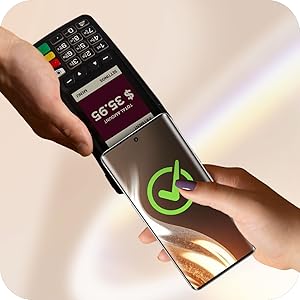
Image 4.5: The BLU Bold N4 5G being used for a contactless payment via NFC at a point-of-sale terminal.
4.6. Android 15 Operating System
Your device runs on Android 15, offering the latest features, security updates, and a user-friendly interface. Explore the Google Play Store for a wide range of applications.

Image 4.6: The official logo for the Android 15 operating system.
5. Maintenance
5.1. Battery Care
The device is equipped with a 5,000mAh battery. To maximize battery life:
- Avoid extreme temperatures.
- Use the original BLU charger and cable.
- Avoid frequently draining the battery completely or charging it to 100% for extended periods.
5.2. Software Updates
Regularly check for and install software updates to ensure your device has the latest features, security patches, and performance improvements. You can usually find this option in Settings > System > System update.
5.3. Cleaning Your Device
Use a soft, lint-free cloth to clean the screen and body of your phone. Avoid using harsh chemicals or abrasive materials.
5.4. Storage Management
Your device comes with 512GB of internal storage. Regularly manage your files, photos, and videos to ensure optimal performance. You can offload data to cloud storage or a computer if needed.
6. Troubleshooting
6.1. Device Not Turning On
- Ensure the battery is charged. Connect the charger and wait a few minutes before attempting to power on.
- Press and hold the Power button for at least 10-15 seconds to perform a forced restart.
6.2. Network Connectivity Issues
- Verify that your SIM card is correctly inserted.
- Check your carrier's network coverage in your area.
- Ensure your device is compatible with your carrier (GSM Unlocked, T-Mobile, Metro PCS compatible; not AT&T/Cricket or CDMA networks).
- Restart your device.
6.3. Charging Problems
- Ensure the charger and USB-C cable are securely connected to both the phone and the power outlet.
- Try using a different power outlet.
- Inspect the charging port for any debris.
7. Specifications
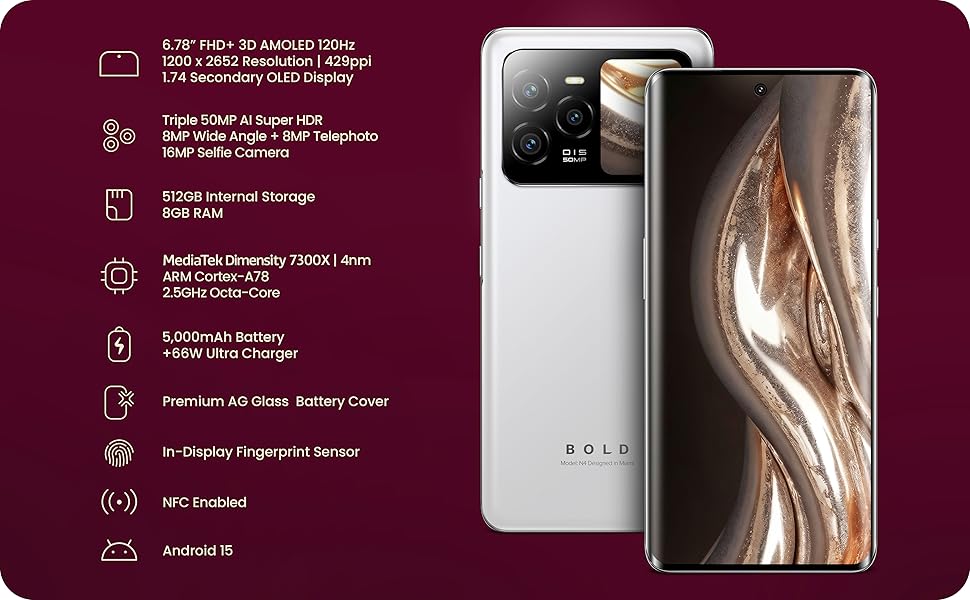
Image 7.1: A visual summary of the BLU Bold N4 5G's key technical specifications.
| Feature | Specification |
|---|---|
| Model Number | N0090WW |
| Operating System | Android 15 |
| Main Display | 6.78" FHD+ 3D AMOLED, 120Hz, 1200 x 2652 Resolution, 429ppi |
| Rear Display | 1.74" Secondary OLED Display |
| Processor | MediaTek Dimensity 7300X | 4nm ARM Cortex-A78 2.5GHz Octa-Core |
| Internal Storage | 512 GB |
| RAM | 8 GB |
| Rear Camera | Triple 50MP AI Super HDR + 8MP Wide Angle + 8MP Telephoto |
| Selfie Camera | 16MP |
| Battery | 5000mAh with 66W Quick Charge |
| Connectivity | 5G Cellular Technology, NFC Enabled, USB Type C |
| Security | In-Display Fingerprint Sensor, Face Unlock |
| Dimensions | 7.32 x 3.94 x 2.05 inches (Package) |
| Item Weight | 1.23 pounds |
8. Warranty and Support
Your BLU Bold N4 5G comes with a US Warranty. For specific warranty terms and conditions, please refer to the warranty card included in your product packaging or visit the official BLU website.
For technical support, troubleshooting assistance, or any other inquiries, please contact BLU customer service. You can find contact information on the official BLU website or through the BLU Store on Amazon: Visit the BLU Store.