1. Introduction
This manual provides essential information for setting up, operating, maintaining, and troubleshooting your Lenovo ThinkPad E16 G3 laptop. Please read this guide thoroughly to ensure proper use and to maximize the performance and longevity of your device. Keep this manual for future reference.
2. Package Contents
Verify that all items are present in your product packaging:
- Lenovo ThinkPad E16 G3 Laptop
- AC Power Adapter and Power Cord
- Quick Start Guide
- Safety and Warranty Information
If any items are missing or damaged, contact your retailer or Lenovo support immediately.
3. Product Overview
The Lenovo ThinkPad E16 G3 is a powerful and versatile laptop designed for productivity and everyday computing. It features a 16-inch WUXGA display, an AMD Ryzen 5 processor, 16GB of DDR5 RAM, and a 512GB SSD, running on Windows 11 Pro.
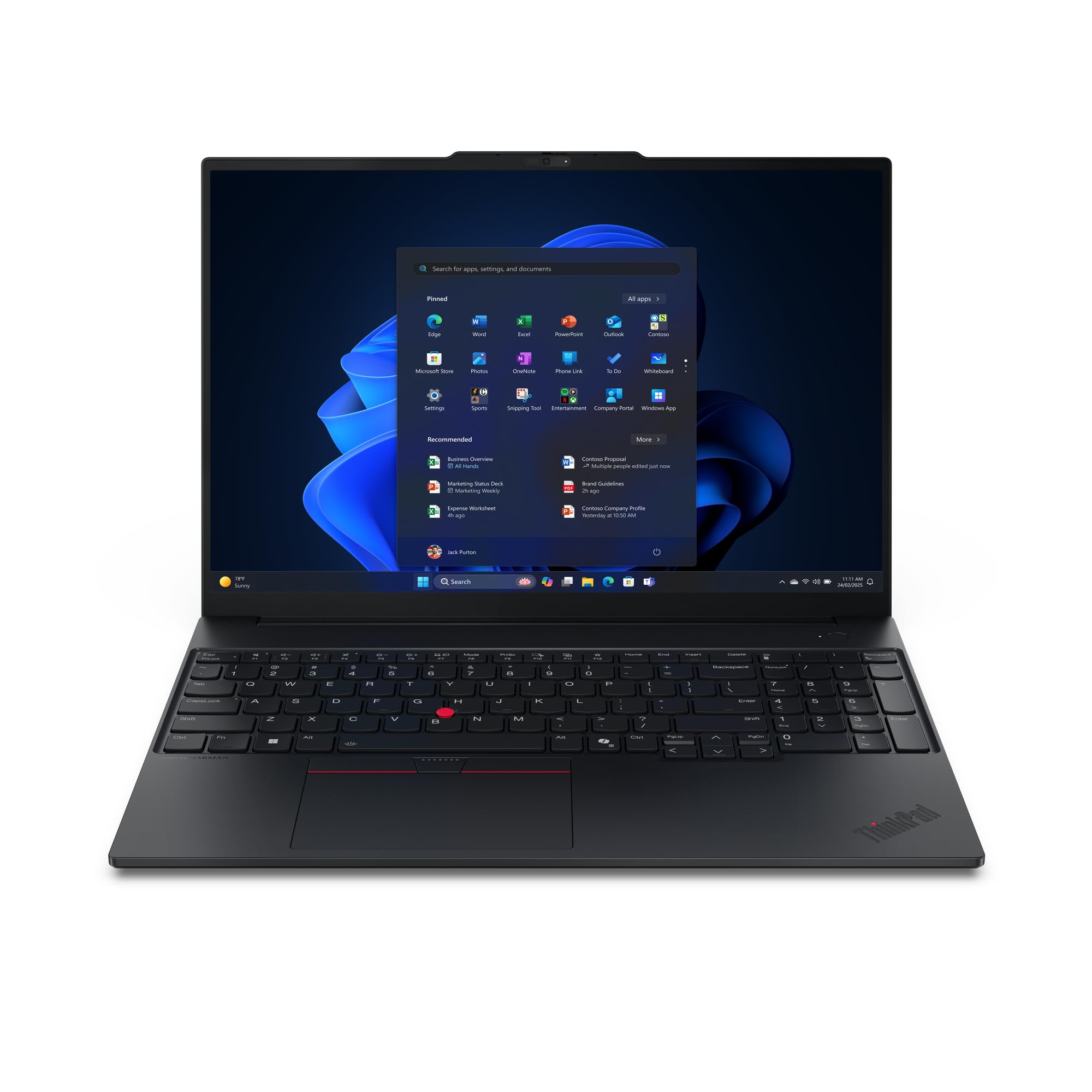
Image 3.1: Front view of the Lenovo ThinkPad E16 G3 Laptop, showcasing its 16-inch display and keyboard.
Key components include the display, keyboard, touchpad, power button, various ports (USB, HDMI, audio jack), and cooling vents. Familiarize yourself with the layout for optimal use.
4. Setup
4.1 Initial Power-On
- Connect the Power Adapter: Plug the AC power adapter into the laptop's power port and then into a wall outlet.
- Open the Display: Carefully lift the display lid.
- Power On: Press the power button, usually located above the keyboard or on the side. The power indicator light will illuminate.
- Windows Setup: Follow the on-screen instructions to complete the Windows 11 Pro initial setup, including language selection, network connection, and user account creation.
4.2 Connecting Peripherals
You can connect external devices such as a mouse, keyboard, external monitor, or USB drives to the available ports on your laptop. Refer to the specifications section for a list of available ports.
5. Operating Instructions
5.1 Power Management
- Power On: Press the power button.
- Shut Down: Click the Start button, then Power > Shut down.
- Restart: Click the Start button, then Power > Restart.
- Sleep: Close the lid or click the Start button, then Power > Sleep.
5.2 Keyboard and Touchpad
The laptop features a full-sized keyboard and a precision touchpad. Use the touchpad for navigation, clicking, and multi-touch gestures. Refer to Windows settings for customizing touchpad sensitivity and gestures.
5.3 Wireless Connectivity
To connect to a Wi-Fi network:
- Click the Wi-Fi icon in the taskbar.
- Select your desired network from the list.
- Enter the network password if prompted.
- Click Connect.
6. Maintenance
6.1 Cleaning Your Laptop
- Screen: Use a soft, lint-free cloth lightly dampened with water or a screen cleaner. Do not spray liquid directly onto the screen.
- Keyboard and Chassis: Use a soft, dry cloth. For stubborn dirt, a slightly damp cloth with mild soap solution can be used, ensuring no liquid enters openings.
- Vents: Periodically clean dust from the cooling vents using compressed air to prevent overheating.
6.2 Battery Care
To prolong battery life:
- Avoid extreme temperatures.
- Do not fully discharge the battery frequently.
- If storing the laptop for an extended period, ensure the battery is charged to about 50-60%.
6.3 Software Updates
Regularly update your operating system and drivers to ensure optimal performance and security. Windows Update can be accessed via Settings > Windows Update.
7. Troubleshooting
This section addresses common issues you might encounter with your laptop.
7.1 No Power
- Ensure the AC adapter is securely connected to both the laptop and a working power outlet.
- Check if the power outlet is functional by plugging in another device.
- Try a different power outlet.
7.2 Display Issues
- Blank Screen: Press the Fn key + F7 (or the appropriate function key with a display icon) to toggle display output.
- Dim Screen: Adjust brightness using the function keys (e.g., Fn + F5/F6).
- External Monitor Not Detected: Ensure the cable is properly connected. Press Fn + F7 to cycle through display modes.
7.3 Wi-Fi Connectivity Problems
- Ensure Wi-Fi is enabled (check the Wi-Fi icon in the taskbar).
- Restart your router and modem.
- Run the Windows Network Troubleshooter (Settings > Network & internet > Advanced network settings > Network troubleshooter).
7.4 Slow Performance
- Close unnecessary applications running in the background.
- Check for and install any pending Windows updates.
- Ensure your storage (SSD) is not critically full.
- Run a virus scan.
8. Specifications
| Feature | Detail |
|---|---|
| Brand | Lenovo |
| Model Number | 21ST0046GE |
| Series | ThinkPad |
| Processor Type | AMD Ryzen 5 |
| Number of Processors | 1 |
| Installed RAM Size | 16 GB (DDR5) |
| Hard Drive Size | 512 GB SSD |
| Display Size | 16 inches |
| Resolution | 1920 x 1200 pixels (WUXGA) |
| Graphics Card | Integrated |
| Operating System | Windows 11 Pro |
| Wireless Type | 802.11ac, 802.11ax, 802.11n |
| Color | Black |
| Item Weight | 2.72 Kilograms |
| Dimensions | 46.5 x 32 x 8.5 cm |
9. Warranty and Support
9.1 Product Warranty
Your Lenovo ThinkPad E16 G3 laptop comes with a standard manufacturer's warranty. Please refer to the separate warranty document included in your package for specific terms, conditions, and duration of coverage. Keep your proof of purchase for warranty claims.
9.2 Technical Support
For technical assistance, driver downloads, or service inquiries, please visit the official Lenovo support website or contact their customer service. You will typically need your product's model number (21ST0046GE) and serial number for support.
Lenovo Support Website: support.lenovo.com


