
TIDRADIO TD-G100
TIDRADIO TD-G100 Nationwide 4G PoC Walkie Talkie Instruction Manual
Model: TD-G100
1. Introduction
The TIDRADIO TD-G100 is a state-of-the-art 4G PoC (Push-to-Talk over Cellular) walkie talkie designed for nationwide communication. Utilizing cellular networks, it offers unlimited range wherever AT&T signal is available, providing clear and instant communication. This manual will guide you through the setup, operation, and maintenance of your TD-G100 device.
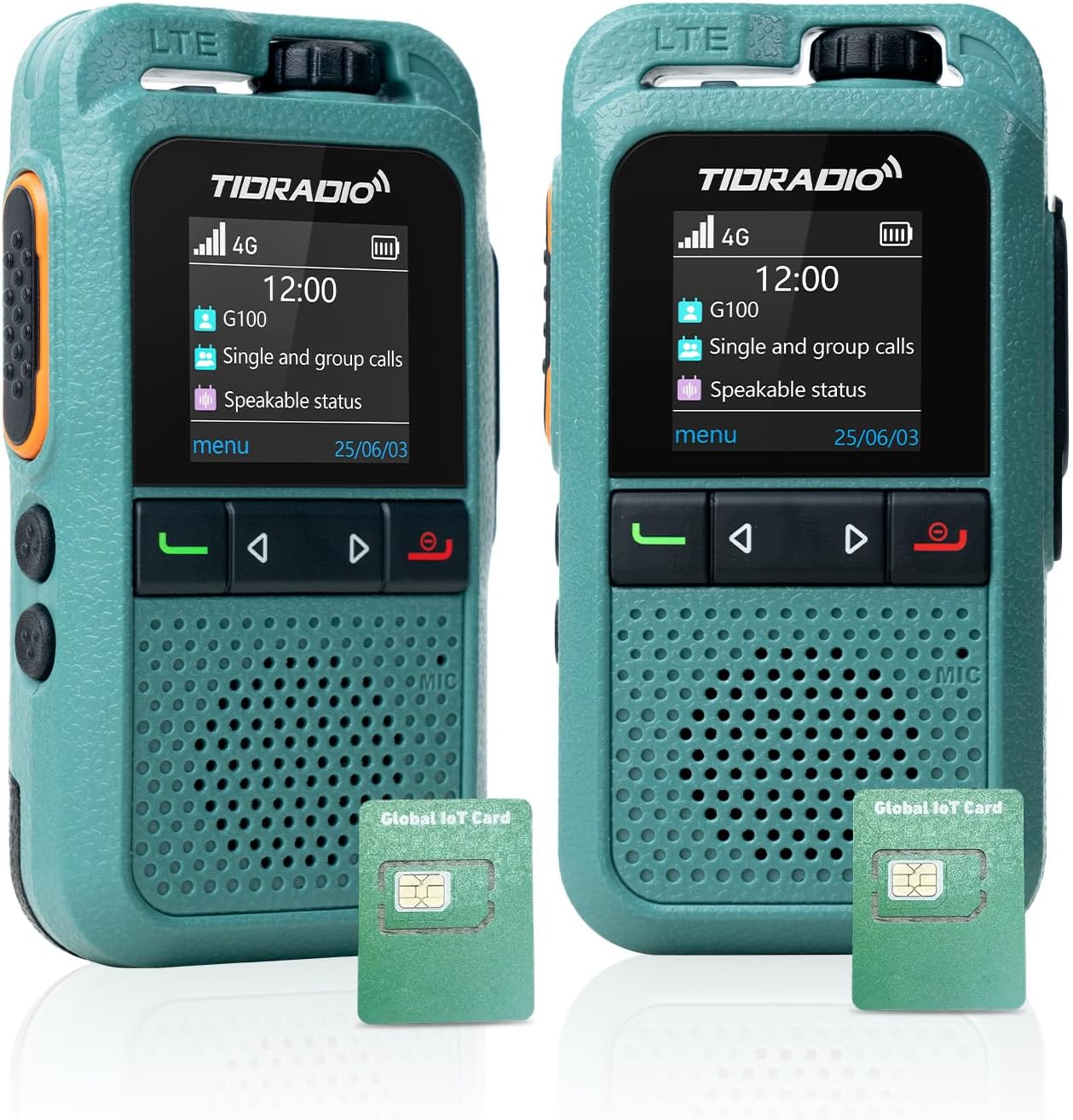
Image: Front view of the TIDRADIO TD-G100 walkie talkie, showcasing its compact design and display.
2. What's in the Box
Your TIDRADIO TD-G100 package includes the following items:
- TIDRADIO TD-G100 Walkie Talkie Unit(s)
- Type-C Charging Cable
- 2 x 12V Batteries (included)
- AT&T SIM Card (pre-installed, with 12 months complimentary data)
- User Manual (this document)
3. Product Overview and Controls
Familiarize yourself with the physical components and controls of your TD-G100 walkie talkie.

Image: Diagram highlighting the key controls of the TD-G100, including Volume Control, PTT Button, Menu/Confirm, Groups list, Single Call, Power on/EXIT Button, Microphone, and Speaker.
- Volume Control: Rotate to adjust the audio output level.
- PTT Button (Push-to-Talk): Press and hold to transmit your voice. Release to listen.
- Menu Button: Access the device menu.
- EXIT Button: Exit current menu or function.
- Navigation Buttons: Use to select menu options.
- Groups List Button: Quickly access your configured talk groups.
- Single Call Button: Initiate a private call with a specific contact.
- Microphone: Speak into the microphone for clear transmission.
- Speaker: Audio output for incoming transmissions.
- Hidden Antenna: The device features an internal antenna for a compact design.
- Shock-Resistant Protection Bar: Provides enhanced durability.
4. Setup Guide
4.1 SIM Card and Battery Installation
The TD-G100 comes with a pre-installed AT&T SIM card. If you need to access or re-install the SIM card or battery, follow these steps:

Image: Illustration showing the pre-installed SIM cards in the TD-G100, highlighting the 1-year free data plan.
- Open the Lock Buckle: Gently push the SIM card slot latch downward to open it.
- Insert SIM Card: Place the SIM card into the designated slot. Ensure correct orientation.
- Close the Lock Buckle: Close the latch and gently push it upward to secure the SIM card.
- Install the Battery: Insert the provided 12V battery into its compartment.
- Secure Battery Cover: Replace the battery cover and ensure it is securely fastened.
4.2 Odmaster App Download and Account Registration
The Odmaster app is essential for managing your TD-G100, including adding friends, creating groups, and managing your data plan. You can download the app by scanning the QR codes below or searching in your device's app market.

Image: Screenshot of the Odmaster app activation tutorial, showing QR codes for Android and iOS app downloads.
- Download App: Scan the QR code for your device's operating system (Android or iOS) or visit odmaster.tid-china.com/odmasterAppDownload.
- Register Account: Open the Odmaster app and register a new account using your phone number or email. You can log in without verification if using email.
- Add Friends: From the app's main interface, you can add friends by scanning their QR code or entering their Odmaster ID.
- Create Group: Create new talk groups within the app. You can name your group and invite friends to join.
4.3 Binding TD-G100 to Odmaster App
To link your TD-G100 walkie talkie to your Odmaster account:

Image: Visual guide for binding the TD-G100 to the Odmaster app, showing the steps to scan the device's QR code.
- Open Odmaster App: Navigate to the "Program" interface and click "Add Poc Radio".
- Scan QR Code: On your TD-G100, power it on and locate the QR code displayed on the screen. Use the Odmaster app to scan this QR code.
- Confirm Binding: Follow the on-screen prompts to confirm the binding. Once successful, your device will be listed in the app.
- Add Groups to Device: From the app, select your bound TD-G100 and add the desired talk groups to it. This will enable communication through these groups on your device.
5. Operating Your TD-G100
5.1 Basic Communication
The TD-G100 supports Full Call, Single Call, and Group Call functions.
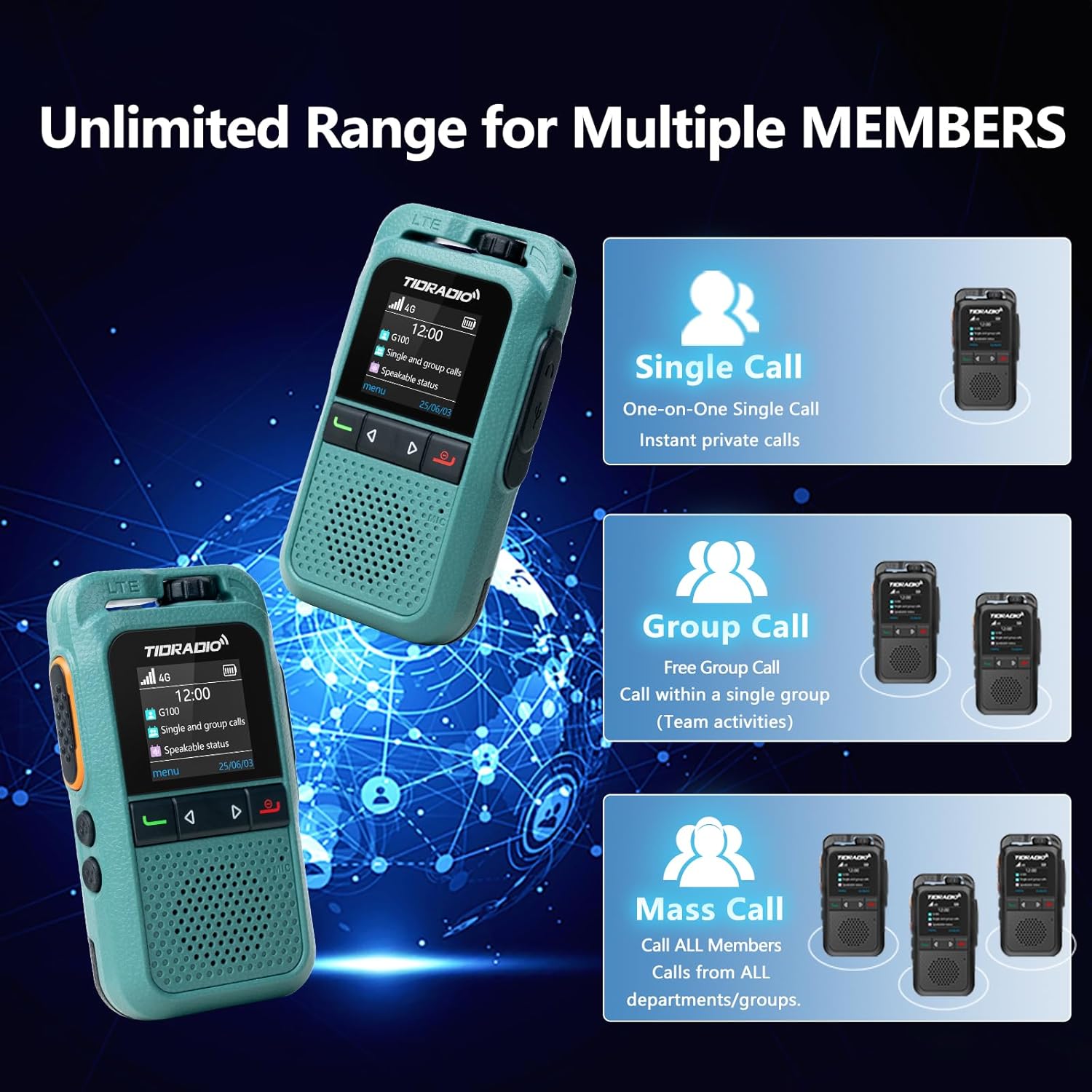
Image: Diagram illustrating the Single Call, Group Call, and Mass Call capabilities of the TD-G100.
- Full Call: To initiate a full call to all members in your current group, select the group using the Groups List button, then press and hold the PTT button to speak. Release to listen.
- Single Call: To make a private call, press the Single Call button, select the desired member from your contacts, then short press the PTT key to confirm. Press and hold the PTT key to speak.
- Group Call: To communicate within a specific group, press the Groups List button, select the desired group, then press and hold the PTT button to speak.
5.2 Auto-Recording Function
The TD-G100 features an auto-recording function that captures all conversations within your groups. This ensures no important calls are missed and allows for reviewing chat history at any time.

Image: Visual representation of the auto-recording function, showing a walkie-talkie and a smartphone displaying chat history.
5.3 One-Click Auto-Update (OTA)
Your TD-G100 supports Over-The-Air (OTA) updates, allowing for seamless firmware optimizations and access to new features without needing a physical connection to a computer. This feature helps extend the device's life and ensures real-time parameter tuning.

Image: Graphic illustrating the OTA update process, emphasizing no computer is needed for effortless upgrades.
6. Maintenance
- Battery Care: The 3000mAh battery provides approximately 24 hours of average use. Charge the device using the provided Type-C charging cable. Avoid overcharging or fully discharging the battery for extended periods to prolong its lifespan.
- Cleaning: Use a soft, dry cloth to clean the device. Do not use harsh chemicals or abrasive cleaners.
- Water Resistance: The TD-G100 has an IP54 waterproof rating, meaning it is protected from dust and splashing water. Avoid submerging the device in water.
- Software Updates: Regularly check for OTA updates through the Odmaster app to ensure your device has the latest features and performance improvements.
7. Troubleshooting
| Problem | Possible Cause | Solution |
|---|---|---|
| No signal / Cannot communicate | Out of AT&T network coverage; SIM card not properly installed; Data plan expired. | Move to an area with AT&T coverage; Re-install SIM card; Renew data plan via Odmaster App. |
| Device not binding to app | Incorrect QR code scanned; App not updated; Device offline. | Ensure correct QR code is scanned; Update Odmaster app; Check device power and network status. |
| Poor audio quality | Weak signal; Obstructions; Volume too low. | Move to an open area; Adjust volume control. |
| Battery not charging | Faulty cable/charger; Incorrect connection. | Ensure Type-C cable is properly connected; Try a different charging cable or adapter. |
8. Specifications
| Feature | Detail |
|---|---|
| Brand | TIDRADIO |
| Model Number | TD-G100 |
| Connectivity Protocol | 4G PoC LTE |
| Talking Range Maximum | 10000 Miles (Network Dependent) |
| Number of Channels | 200 |
| Battery Capacity | 3000mAh |
| Battery Average Life | 24 Hours |
| Charging Interface | Type-C |
| Water Resistance Level | IP54 (Water Resistant) |
| Special Features | 3W Loud Audio Speaker, Auto-recording Conversation, One-Click Auto-Update (OTA), Odmaster APP Support |
9. Warranty and Support
TIDRADIO is committed to providing the best communication experience. For any inquiries or support, please contact us.
- Warranty:
- 30-day free return or replacement
- 90-day quality warranty
- Lifetime after-sales service & OTA updates
- Support Email: support@tidradio.com

Image: A thank you message from TIDRADIO with their support email address.
10. Video Tutorials
For visual guidance on setting up and using your TD-G100, please refer to the official video tutorials below:
How to Use the G100 4G PoC Walkie-Talkie
Video: A comprehensive guide demonstrating the setup and operational procedures for the TIDRADIO TD-G100 4G PoC Walkie-Talkie.
Walkie Talkies Long Range Overview
Video: An overview of the long-range capabilities and general use of TIDRADIO walkie talkies, including the TD-G100 model.
Related documentsTD-G100


Ask a question about this manual
Ask about setup, troubleshooting, compatibility, parts, safety, or missing instructions. Manuals+ will review the question and use this page’s manual context to help answer it.