
1. Introduction
Thank you for choosing the zelotes F18 Wireless Gaming Mouse. This manual provides detailed instructions for setting up, operating, and maintaining your mouse to ensure optimal performance and an enhanced user experience. Please read this manual thoroughly before using the product.
Package Contents
- 1 x zelotes F18 Bluetooth Wireless Mouse
- 1 x USB Receiver
- 1 x USB Charging Cable
- 1 x User Manual (this document)
2. Product Overview
The zelotes F18 is an ergonomic vertical gaming mouse designed for comfort and precision. It features dual-mode connectivity (2.4G USB and Bluetooth), a 5-direction joystick, 11 programmable buttons, adjustable DPI up to 24,000, and a built-in rechargeable battery.
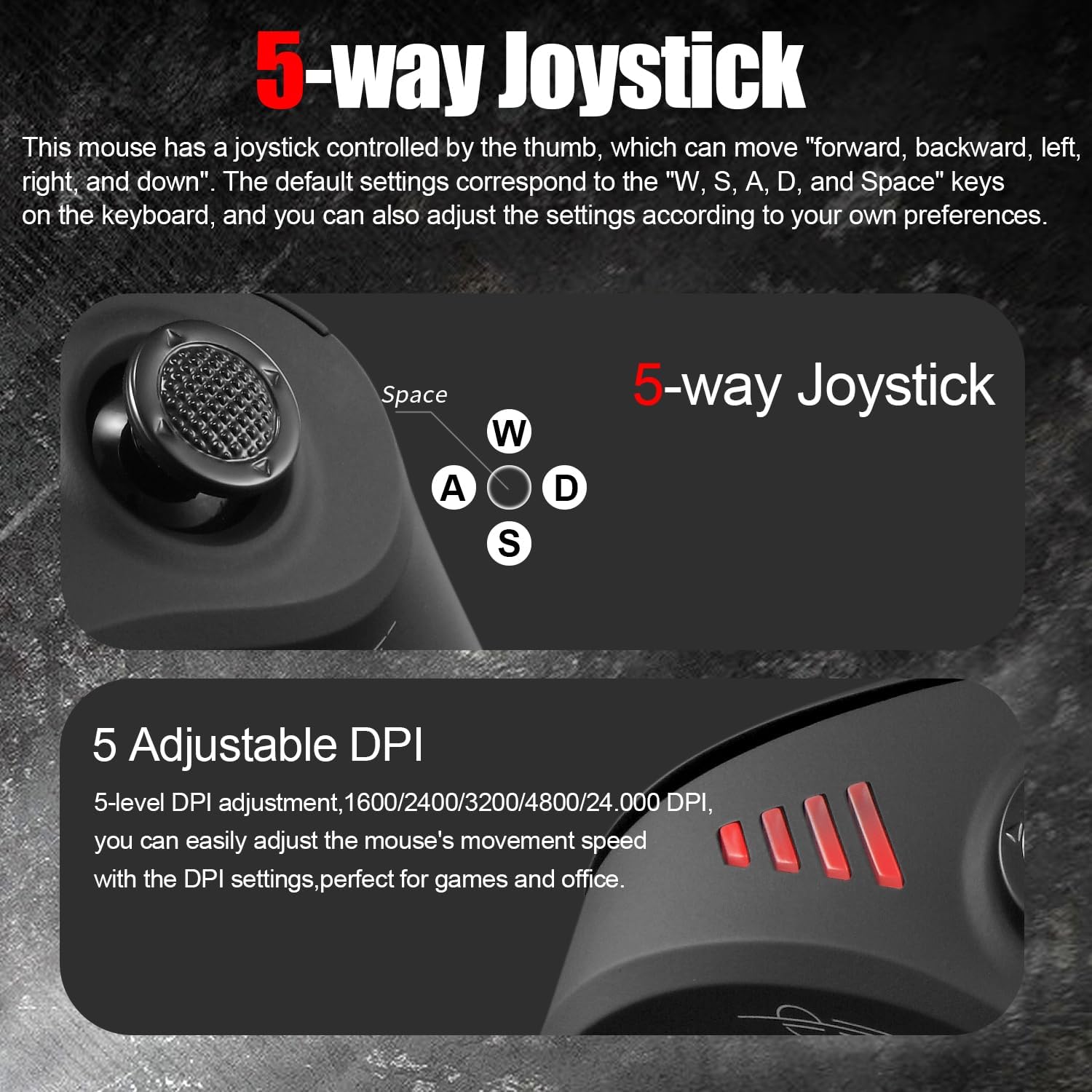
Image: The ergonomic vertical design of the zelotes F18 mouse, promoting a natural wrist posture to reduce strain during extended use.
Key Features
- Ergonomic Vertical Design: Reduces wrist pressure and discomfort.
- 5-Direction Joystick: Thumb-controlled for enhanced navigation and gaming commands.
- Dual-Mode Connectivity: Seamless switching between 2.4G USB receiver and Bluetooth (BT 5.0/3.0).
- Rechargeable Battery: Built-in 800mAh high-capacity battery with USB charging.
- Adjustable DPI: 5 levels (1600/2400/3200/4800/24,000 DPI) for precise control.
- 11 Programmable Buttons: Customize functions for various tasks and games.
- Wide Compatibility: Supports Win11/10/8/7, Mac OS, Chrome OS, Android 5.0+.
Button Layout

Image: A diagram illustrating the 11 programmable buttons on the zelotes F18 mouse, including the left, right, middle, forward, back, DPI, and joystick buttons (W, S, A, D, Space).
- Left Button
- Right Button
- Middle Button (Scroll Wheel)
- Forward Button
- Back Button
- DPI Button
- Joystick (W)
- Joystick (S)
- Joystick (A)
- Joystick (D)
- Joystick (Press/Space Button)
3. Setup
3.1 Initial Charging
Before first use, fully charge the mouse. Connect the provided USB charging cable to the mouse's charging port and to a USB power source (e.g., computer USB port, USB wall adapter).

Image: Illustration of the mouse's charging indicator light and low battery warning. The indicator light illuminates during charging and turns off when fully charged. A rapidly blinking red light indicates low battery.
- Charging Indicator Light: The light will illuminate during charging and turn off when fully charged.
- Low Battery Warning: When the battery level drops to 25%, the mouse will rapidly blink a red light, indicating it requires charging.
- The mouse can be used while charging.
3.2 Connecting the Mouse
The zelotes F18 mouse supports two connection modes: 2.4G USB Wireless and Bluetooth. You can connect to up to three devices simultaneously (one via 2.4G USB and two via Bluetooth) and switch between them.
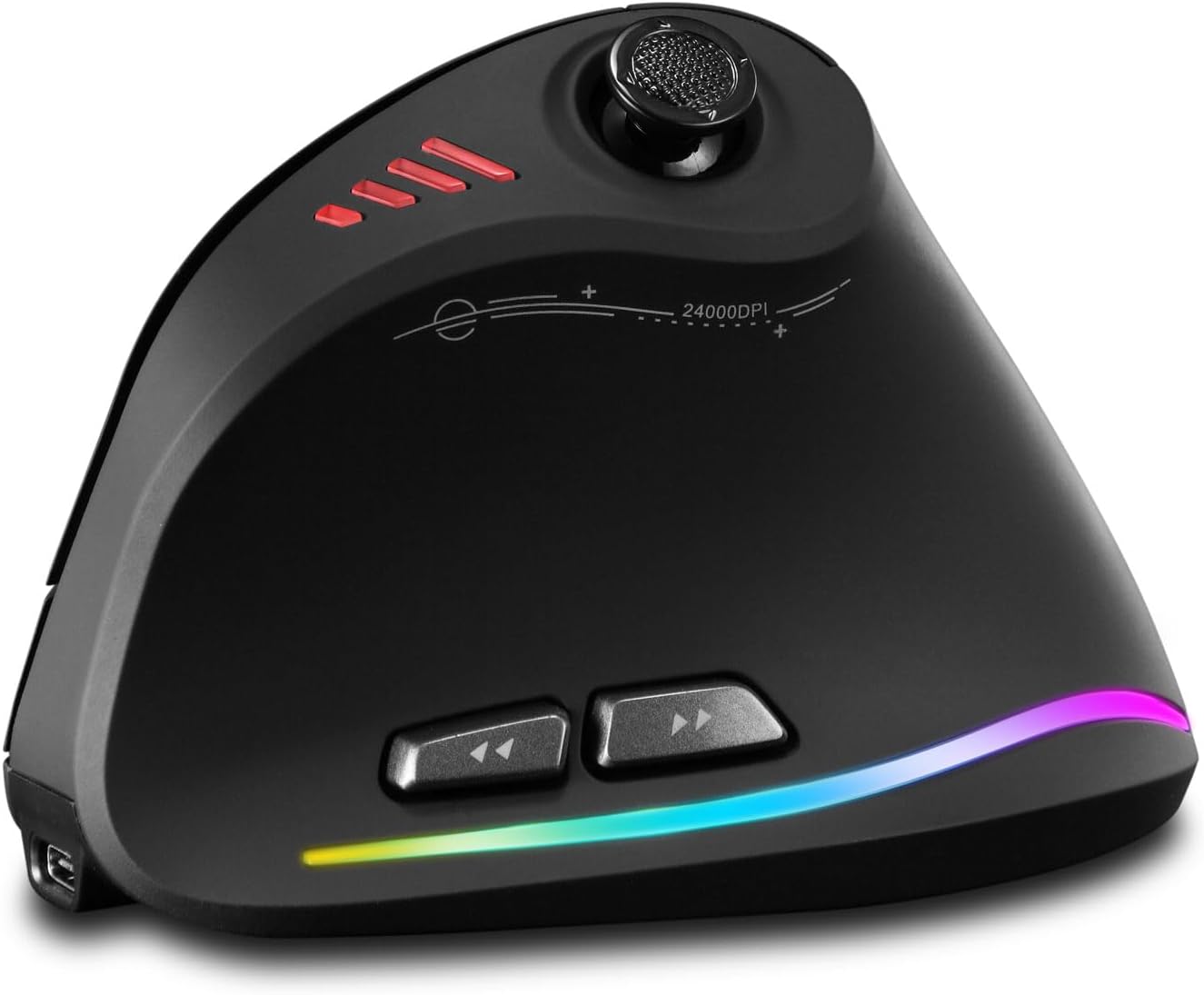
Image: The bottom of the zelotes F18 mouse, highlighting the light switch, Mimi receiver storage, and the Bluetooth/2.4G mode switching button. The indicator light colors (Red for 2.4G, Blue for Bluetooth) are also shown.
2.4G USB Wireless Mode
- Locate the USB receiver stored in the compartment on the bottom of the mouse.
- Plug the USB receiver into an available USB port on your computer.
- Turn on the mouse using the power switch on the bottom.
- Press the connection mode button on the bottom of the mouse until the indicator light turns red. The mouse should connect automatically.
Bluetooth Mode (BT 5.0/3.0)
- Turn on the mouse using the power switch on the bottom.
- Press the connection mode button on the bottom of the mouse until the indicator light turns blue.
- On your device (PC, laptop, tablet), go to Bluetooth settings.
- Search for new devices and select "zelotes F18" (or similar name) to pair.
- The blue indicator light will stop blinking and remain solid once connected.
Switching Between Devices
To switch between connected devices, briefly press the connection mode button on the bottom of the mouse. The indicator light will change color (Red for 2.4G, Blue for Bluetooth 1, Green for Bluetooth 2) to show the active connection.
4. Operating Instructions
4.1 DPI Adjustment
The mouse features 5 adjustable DPI levels: 1600, 2400, 3200, 4800, and 24,000 DPI. Press the DPI button (Button 6) located on the top of the mouse to cycle through the sensitivity settings. This allows you to adjust cursor speed to suit different tasks, from precise editing to fast-paced gaming.

Image: An illustration showing the 5 adjustable DPI levels (1600, 2400, 3200, 4800, 24,000) and how to adjust the mouse's movement speed using the DPI settings.
4.2 Joystick Functionality
The thumb-controlled joystick (Buttons 7-11) provides 5-direction input: forward, backward, left, right, and downward (press). By default, these correspond to the keyboard keys W, S, A, D, and Spacebar respectively. This feature is particularly useful for gaming and navigation.
Image: A close-up of the 5-way joystick on the zelotes F18 mouse, indicating its directional inputs and their default mappings to W, S, A, D, and Spacebar keys.
4.3 Programmable Buttons
The zelotes F18 mouse features 11 programmable buttons. You can customize the functions of these buttons using the dedicated software (available for download from the zelotes official website). This allows for personalized shortcuts and macros, enhancing productivity and gaming performance.
4.4 Forward & Back Buttons
The dedicated forward (Button 4) and back (Button 5) buttons provide quick navigation for web browsing and document editing, improving efficiency.
5. Maintenance
5.1 Cleaning
- Regularly clean the mouse with a soft, dry cloth.
- For stubborn dirt, slightly dampen the cloth with water or a mild cleaning solution. Avoid harsh chemicals.
- Do not allow liquids to enter the mouse's interior.
- Clean the optical sensor on the bottom of the mouse periodically to ensure accurate tracking.
5.2 Battery Care
- Avoid fully discharging the battery frequently to prolong its lifespan.
- Store the mouse in a cool, dry place when not in use for extended periods.
- Use only the provided charging cable or a certified equivalent.
6. Troubleshooting
Mouse Not Responding / Connecting
- Ensure the mouse is powered on.
- Check the battery level and charge the mouse if necessary.
- For 2.4G mode, ensure the USB receiver is securely plugged into a working USB port and the mouse is set to 2.4G mode (red indicator light).
- For Bluetooth mode, ensure Bluetooth is enabled on your device, the mouse is in Bluetooth pairing mode (blue indicator light), and it is paired correctly. Try unpairing and re-pairing if issues persist.
- Try connecting the mouse to a different USB port or another device to rule out port or device-specific issues.
Cursor Movement is Erratic or Inaccurate
- Clean the optical sensor on the bottom of the mouse.
- Ensure you are using the mouse on a suitable surface (non-reflective, non-transparent).
- Adjust the DPI settings to a lower value if the cursor is too fast or jumpy.
Buttons Not Functioning
- Ensure the mouse is properly connected.
- If using custom button assignments, check the software settings.
- Restart your computer or device.
Software/Driver Download Issues
- If experiencing slow download speeds or disconnections for the customization software, try again during off-peak hours or check your internet connection.
- Ensure you are downloading the correct software for the F18 model from the official zelotes website.
7. Specifications
| Feature | Detail |
|---|---|
| Model Number | F18 |
| Connectivity | 2.4G USB Wireless, Bluetooth (BT 5.0/3.0) |
| DPI Levels | 1600 / 2400 / 3200 / 4800 / 24,000 DPI |
| Buttons | 11 Programmable Buttons (including 5-direction joystick) |
| Battery Capacity | 800mAh Rechargeable |
| Product Dimensions | 110 x 72 x 75 mm (approx. 4.33 x 2.83 x 2.95 inches) |
| Product Weight | 130g (approx. 4.58 oz) |
| Compatibility | Win11, Win10, Win8, Win7, Mac OS, Chrome OS, Android 5.0 or higher |
| Movement Detection | Optical |
8. Warranty and Support
For warranty information, technical support, or to download the latest drivers and customization software, please visit the official zelotes website or contact your retailer. Keep your purchase receipt as proof of purchase for warranty claims.
Manufacturer: zelotes


