
1. Introduction
The Redragon K556 HE Rapid Trigger Gaming Keyboard is engineered for high-performance gaming and efficient typing. Featuring Hall Effect magnetic switches, customizable actuation points, and advanced connectivity options, this keyboard provides a responsive and durable user experience. This manual provides detailed instructions for setup, operation, maintenance, and troubleshooting to ensure optimal performance.

Image 1.1: Redragon K556 HE Rapid Trigger Gaming Keyboard with RGB lighting.
2. Setup
2.1 Package Contents
- Redragon K556 HE Rapid Trigger Gaming Keyboard
- Detachable USB-A to USB-C Cable
- Keycap/Switch Puller
- Spare Switches
- User Manual (this document)
2.2 Connectivity Options
The K556 HE keyboard supports multiple connection modes:
- Wired USB-C: Connect the keyboard directly to your computer using the provided USB-A to USB-C cable. This mode offers the lowest latency with an 8,000Hz hyper-polling response.
- 2.4GHz Wireless: Utilize the included 2.4GHz receiver for a stable wireless connection.
- Bluetooth: Pair the keyboard with up to three Bluetooth-enabled devices.
A switch on the back of the keyboard allows selection between 2.4GHz, Bluetooth, and Off modes. The USB-C port is located on the front of the keyboard for wired connection and charging.
2.3 Software Installation
To unlock the full customization potential of your K556 HE keyboard, including actuation point adjustment, PRCS technology, and RGB lighting effects, install the professional software. The software is available as a standard desktop client (Windows-exclusive) or via web-based driver support for other operating systems. Visit the official Redragon website for download and further information.

Image 2.1: Overview of the Redragon K556 HE professional software interface.
3. Operating Instructions
3.1 Key Layout and Functions
The K556 HE features a 104-key layout, including a full Numpad and dedicated directional keys. Many keys have secondary functions accessible via the Function (Fn) key.

Image 3.1: Detailed view of the 104-key layout and key features.
3.2 RGB Lighting Customization
The keyboard features vibrant RGB backlighting. You can cycle through various lighting modes and colors using the Fn key in combination with specific keys (e.g., L1-L5 as indicated on the keycaps). More advanced customization, including per-key lighting and dynamic effects, is available through the professional software.
3.3 Hall Effect Magnetic Switches and Rapid Trigger
The K556 HE utilizes Hall Effect magnetic switches for hyper-fast actuation and extended lifespan. The Rapid Trigger technology, enabled via software, allows for precise actuation point adjustment between 0.1mm and 3.4mm. This dynamic activation/deactivation feature is crucial for competitive gaming, enabling quicker key presses and resets.
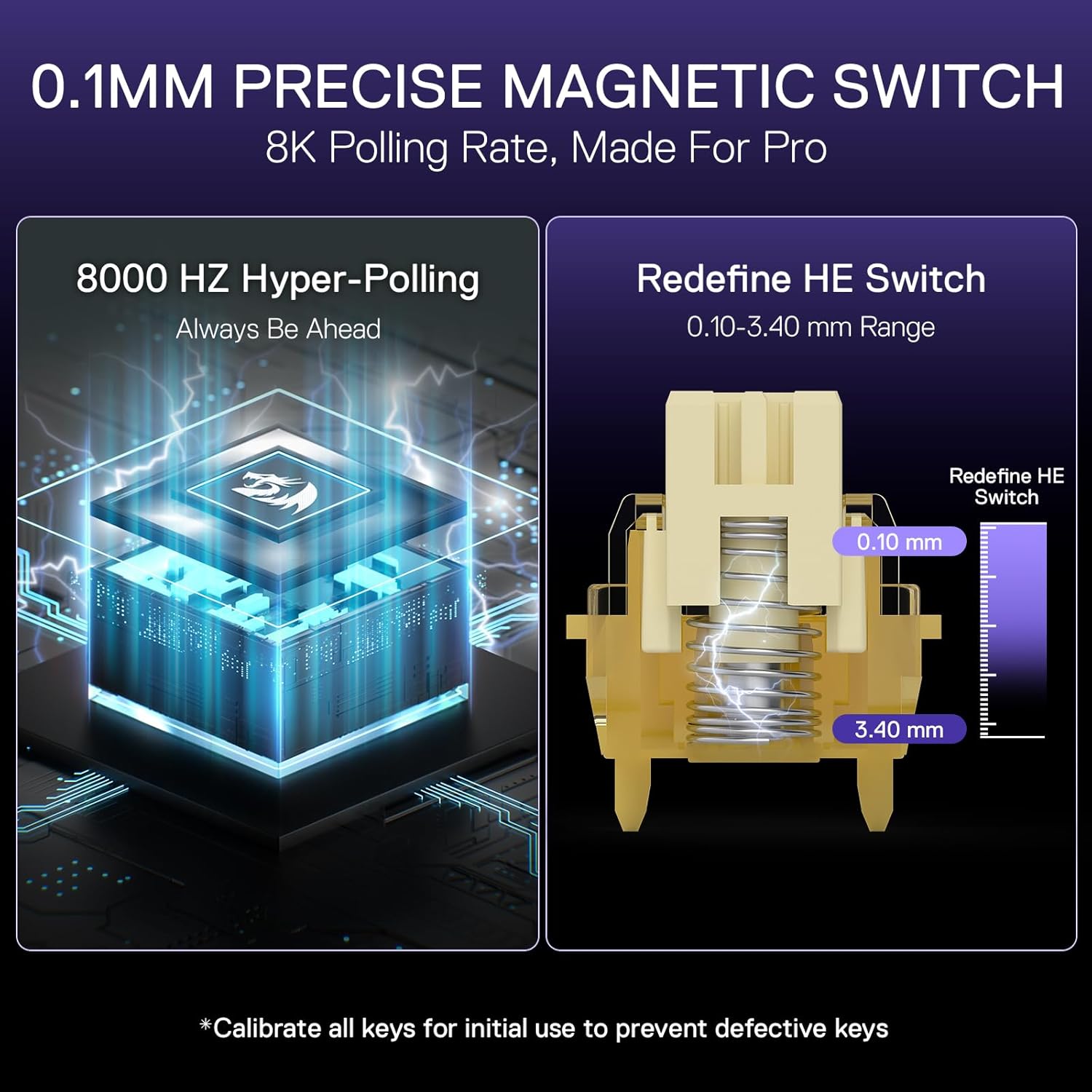
Image 3.2: Illustration of the 0.1mm precise magnetic switch and actuation range.
3.4 PRCS Technology (4 Modes)
The revolutionary PRCS (Precision Response Control System) technology offers 4 distinct modes to enhance gaming performance by eliminating redundant inputs and optimizing key responses. This feature is configurable through the software.

Image 3.3: Visual representation of PRCS technology in action.
3.5 8K Hyper-Polling
Experience ultra-low latency with the native 8,000Hz hyper-polling rate, transmitting inputs up to 8 times faster (0.125ms lowest latency) in wired mode. This ensures your actions are registered almost instantaneously.
3.6 2 Actions In 1 Tap
The professional software allows assigning two different movements to a single key based on varying actuation pressure. This feature simplifies complex skill combinations, providing a strategic advantage in games.
3.7 Device Switching
Easily switch between connected devices (Bluetooth 1, 2, 3, 2.4GHz, or wired) using the dedicated switch on the keyboard or through specific Fn key combinations, as detailed in the software or quick start guide.

Image 3.4: Comparison of actuation distances for gaming and working modes.
4. Maintenance
4.1 Keycap and Switch Replacement
The K556 HE features hot-swappable switches, allowing for easy replacement or customization. Use the provided keycap/switch puller to carefully remove keycaps and switches. When replacing, ensure the new switch is aligned correctly before gently pressing it into place.
4.2 Cleaning
To maintain optimal performance and appearance, regularly clean your keyboard. Use a soft brush or compressed air to remove dust and debris from between the keycaps. For deeper cleaning, remove keycaps and wipe the keyboard surface with a damp cloth. Ensure the keyboard is disconnected from power before cleaning.
5. Troubleshooting
- Keyboard not responding: Ensure the USB-C cable is securely connected or that the 2.4GHz receiver/Bluetooth connection is active. Try restarting your computer.
- RGB lighting not working: Check Fn key combinations for lighting control. Ensure the software is installed and configured correctly.
- Keys not registering: If individual keys are not working, try removing and re-inserting the switch using the provided puller. Ensure the switch is fully seated.
- Connectivity issues: For wireless modes, ensure the keyboard is charged and within range of the receiver/device. Re-pair Bluetooth devices if necessary.
6. Specifications
| Feature | Detail |
|---|---|
| Model Name | K556 HE (Devarajas) |
| Keyboard Description | 104 Keys HE Magnetic Switch Rapid Trigger Gaming Keyboard |
| Connectivity Technology | USB-C |
| Special Feature | Aluminum Alloy Board, Magnetic Switch, Noise Dampening Kit, Rapid Trigger |
| Material | Aluminum |
| Item Weight | 2.33 pounds |
| Package Dimensions | 17.83 x 6.81 x 2.2 inches |
| Compatible Devices | PC |
| Included Components | Keycap/Switch Puller, Spare Switches |
7. Warranty and Support
For warranty information, technical support, or to access the latest software and drivers, please visit the official Redragon website or contact Redragon customer service. Keep your purchase receipt for warranty claims.


