
1. Introduction
This manual provides essential information for setting up, operating, and maintaining your Aepuosem A10Blak-Auto Focus Projector. Please read thoroughly before use to ensure optimal performance and longevity of your device.
2. Package Contents
Verify that all items listed below are included in your package:
- A10 Touchscreen Projector *1
- Remote Control*1 (2*AAA Batteries Required NOT Included)
- Power Cord
- User Manual
- NOTE: Please ensure to connect 4K devices, such as a TV stick, utilizing HDMI for video playback. Please note that videos labeled as 4K will be displayed at a native resolution of 1080P, commonly referred to as "4K supported."
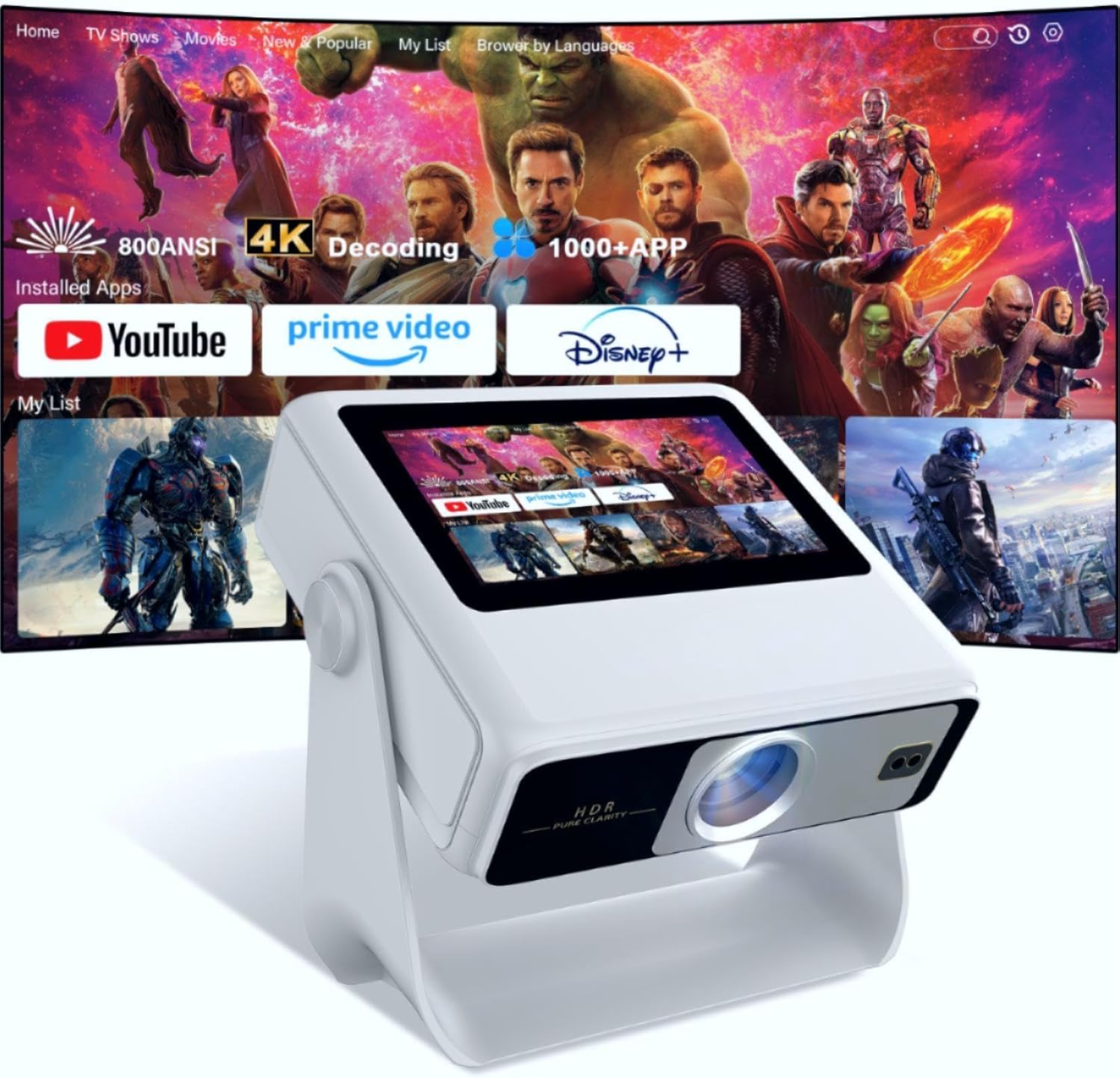
Image 2.1: Aepuosem A10Blak Projector and included accessories.
3. Product Overview
3.1 Physical Components
The A10Blak projector features a smart touchscreen display and a flexible 180° rotating mount for versatile placement.
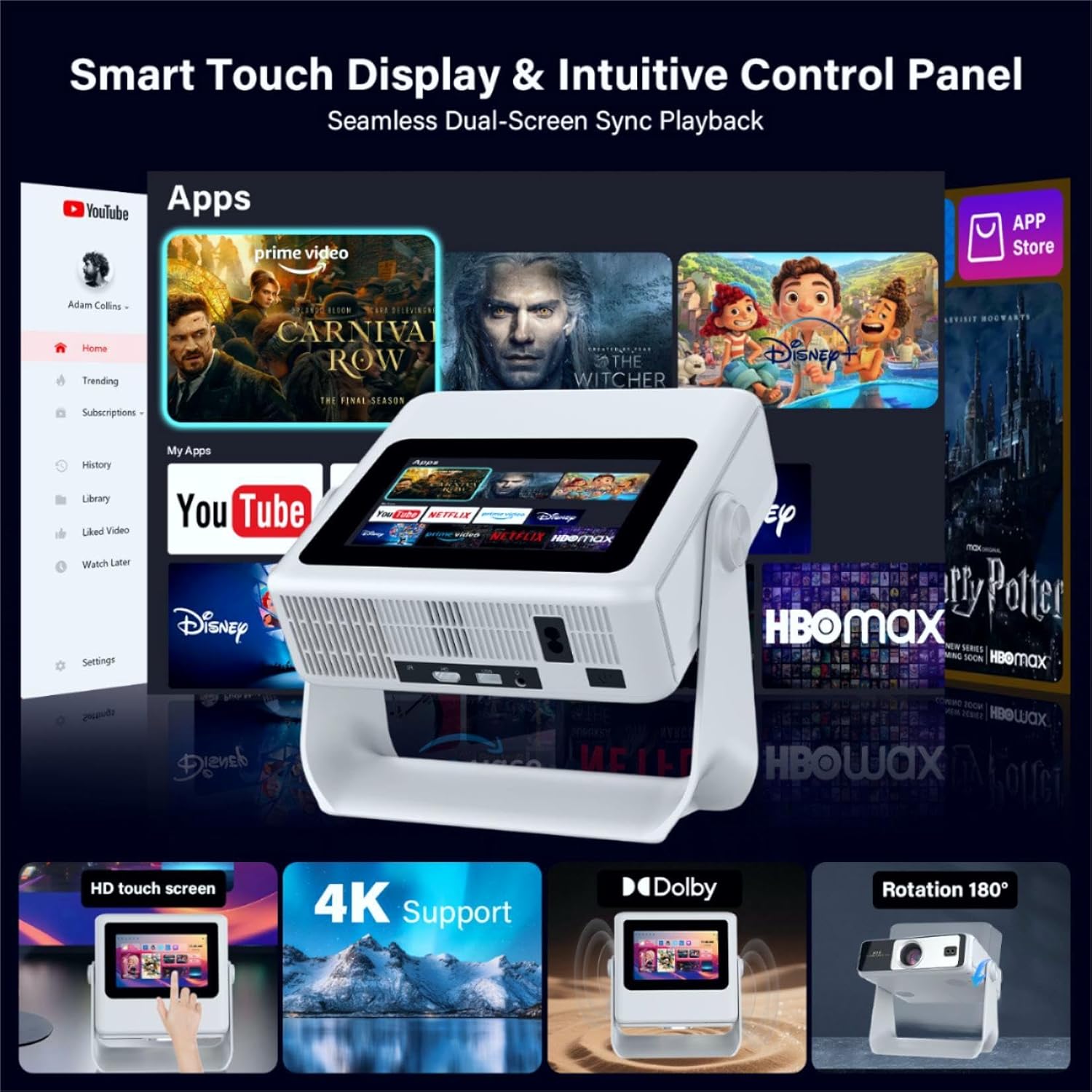
Image 3.1: The A10Blak projector showcasing its smart touch display and intuitive control panel.
3.2 Ports and Connections
The projector is equipped with various ports for connecting external devices:
- HDMI Port: For connecting devices like PS5, Xbox, Switch, TV boxes, and laptops.
- USB Port: For connecting phones, USB flash drives, and hard drives.
- 3.5mm Audio Jack: For connecting external speakers or headphones.
- Power Input: For connecting the power cord.

Image 3.2: Rear view of the A10Blak projector highlighting its multiple input ports.
4. Setup
4.1 Power Connection
- Connect the power cord to the projector's power input.
- Plug the other end of the power cord into a suitable electrical outlet.
- The projector will automatically power on or can be turned on using the power button.
4.2 Initial Placement and Adjustment
The A10Blak projector features a 180° flexible angle, allowing projection onto walls or ceilings. It also includes smart auto-adjustments for optimal image display.
Video 4.1: Demonstration of the projector's 180° rotatable design and flexible placement options.

Image 4.2: Visual representation of the projector's 4 smart auto-adjustments: Auto Focus, Auto Vertical Keystone, Auto Screen Alignment, and 50%-100% Zoom.
4.3 Auto Focus & Keystone Correction
The projector automatically adjusts focus and keystone. If manual adjustment is needed, use the remote control:
- Press the dedicated focus button on the remote control.
- Adjust until the image is clear.
- The projector also features auto 4-point and 4-side keystone correction for perfect alignment.
Video 4.3: Overview of the projector's auto-focus capabilities and built-in app store.
5. Operating Instructions
5.1 Smart Touchscreen & Navigation
The projector features a 7-inch smart touchscreen for direct control. This display syncs instantly to the main projection with zero lag.
- Direct Touch Control: Tap to select movies, adjust settings, or navigate the interface.
- Remote Control: Use the included remote as an alternative control method.
- Note: Some applications may disable swipe gestures. Use the bottom-left navigation bar for content selection in such cases. Play/fast forward and other core functions remain seamless.
Video 5.1: Demonstration of the touchscreen interface and its responsiveness.
5.2 Built-in Apps & Streaming
The A10Blak projector comes with over 1000 built-in apps and live channels, fully compatible with popular platforms like Netflix, Prime Video, and Disney+.
- Accessing Apps: Navigate through the touchscreen or remote to select desired streaming applications.
- Downloading Apps: Additional apps can be downloaded online directly from the projector's interface.

Image 5.2: The projector's interface showing a wide selection of built-in streaming applications.
Video 5.3: Navigation through the smart projector's user interface to select and launch applications.
5.3 Dual-Band WiFi 6 & Screen Mirroring
The projector supports WiFi 6 and 2.4G/5G dual bands for fast and stable wireless streaming. It also allows screen mirroring from phones and laptops.
- Connecting to WiFi: Access network settings to connect to your preferred WiFi network.
- Screen Mirroring: Use the screen mirroring function to project content from your mobile devices or laptops.

Image 5.4: The A10Blak projector utilizing WiFi 6 for seamless screen mirroring from a smartphone.
5.4 Bluetooth Connectivity
Easily pair the projector with Bluetooth speakers, headphones, or soundbars to enhance your audio experience.
- Pairing: Go to Bluetooth settings on the projector to search for and connect to your Bluetooth audio devices.
5.5 Display Size and Angle
Enjoy a large display ranging from 60 to 250 inches. The 180° swivel lens offers ultimate flexibility for projecting onto various surfaces.

Image 5.5: The projector demonstrating three operating modes: Standard, Energy Saving, and High Brightness for various viewing environments.
6. Features
- 800 ANSI Lumens & 4K HDR Support: Premium LCD cinema-grade optical engine with HDR10 dynamic optimization, offering 98% color gamut coverage and reduced blue light exposure.
- Native 1080P Resolution: Delivers crisp details for a cinema-grade viewing experience.
- Long-lasting LED Lamp: Provides a reliable 5,000 hours of consistent performance.
- Sealed Optical Design: Blocks dust at the source for a longer lifespan.

Image 6.1: The A10Blak projector highlighting its Native 1080P resolution and 4K decoding support for crisp, vivid colors.
7. Maintenance
Regular maintenance ensures optimal performance and extends the lifespan of your projector.
- Lens Cleaning: Gently clean the projector lens with a soft, lint-free cloth. Avoid abrasive materials or harsh chemicals.
- Ventilation: Ensure the projector's ventilation ports are clear of obstructions to prevent overheating.
- Storage: When not in use, store the projector in a cool, dry place away from direct sunlight and extreme temperatures.
8. Troubleshooting
If you encounter issues with your projector, refer to the following common solutions:
- No Power: Ensure the power cord is securely connected to both the projector and the power outlet.
- Blurry Image: Use the auto-focus function or manually adjust the focus via the remote control until the image is clear.
- No Sound: Check the volume settings on the projector and any connected external audio devices. Ensure Bluetooth devices are properly paired.
- Connectivity Issues: Verify your WiFi connection in the network settings. For screen mirroring, ensure both devices are on the same network.
- Remote Not Responding: Check the batteries in the remote control and replace if necessary.
For further assistance, please contact customer support.
9. Specifications
| Feature | Specification |
|---|---|
| Brand | Aepuosem |
| Model | A10Blak |
| Display Resolution | 1920 x 1080 (Native 1080P, 4K Support) |
| Brightness | 800 ANSI Lumens |
| Connectivity Technology | 3.5mm Jack, Bluetooth, HDMI, USB, Wi-Fi (WiFi 6, 2.4G/5G Dual Bands) |
| Special Features | Built-in APP Store (Netflix, Prime Video, YouTube, etc.), HDR10 Dynamic Optimization, Eye Protect, Auto Focus & Auto Keystone, Bidirectional Bluetooth, 180° Flexible Stand, Dual Fans, Sealed Optical Engine |
| Recommended Uses | Business, Education, Gaming, Home Cinema |
| Item Weight | 3.5 pounds |
| Product Dimensions | 9.84 x 2.68 x 10.24 inches |
| Color | White |
10. Warranty and Support
Aepuosem is committed to long-term customer satisfaction.
- Protection Plan: Enjoy a comprehensive 2-year protection plan.
- Customer Assistance: Lifetime customer assistance is provided.
- Professional Support: Dedicated professional support is available 24/8.
- Contact: For support inquiries, please email AEPUOSEM@outlook.com.