
1. Introduction
This manual provides detailed instructions for the installation, operation, and maintenance of your SIXWIN 8.1-inch Motorcycle GPS Navigation System. This device integrates Wireless CarPlay and Android Auto functionalities, offering seamless smartphone connectivity, navigation, and entertainment on your motorcycle. Please read this manual thoroughly before use to ensure proper operation and safety.
2. Package Contents
Verify that all items listed below are included in your package:
- 8.1-inch Motorcycle CarPlay Screen Unit
- Power Cable (ACC Power Cable)
- Handlebar Mounting Brackets and Hardware
- User Manual
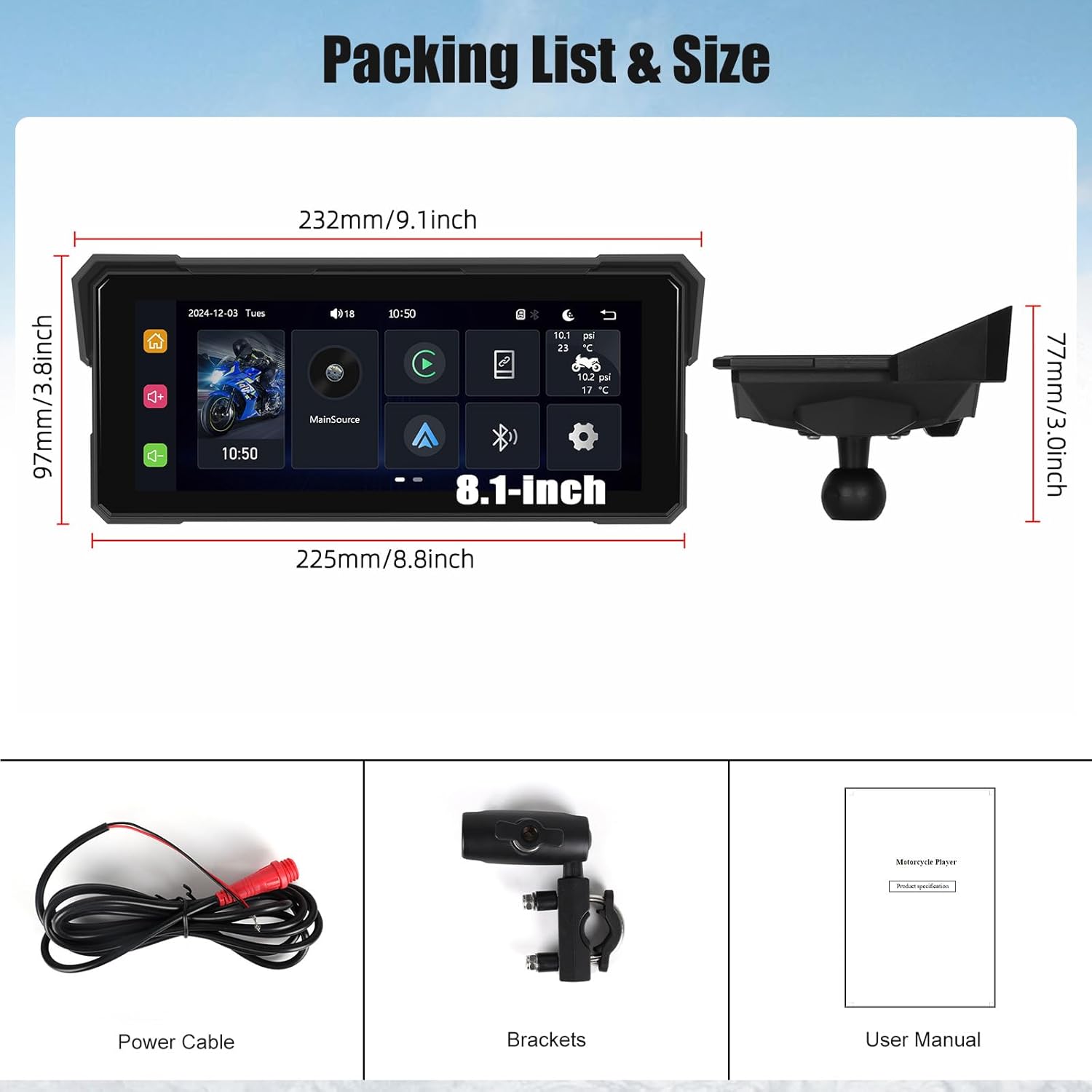
Image: The package includes the 8.1-inch screen, a power cable, various mounting brackets, and a user manual.
Unboxing Video
Video: This video demonstrates the unboxing process of the YZW Motorcycle CarPlay Screen, showing all included components.
3. Specifications
- Screen Size: 8.1 Inches IPS Touchscreen
- Connectivity: Wireless CarPlay, Android Auto, Dual Bluetooth
- Waterproof Rating: IP68
- Mounting Type: Handlebar Mount
- Special Feature: Hands-Free Calling, Voice Assistant (Siri/Google Assistant)
- Audio Output Mode: Stereo
- Vehicle Service Type: Motorcycle
4. Setup and Installation
The SIXWIN Motorcycle GPS Navigation System is designed for easy installation on most motorcycle handlebars. Follow these steps for a secure setup:
- Mounting the Bracket: Attach the provided handlebar mounting brackets to a suitable position on your motorcycle's handlebar. Ensure the bracket is securely tightened using the supplied tools. The bracket features swivel points for adjustable positioning.
- Attaching the Screen: Connect the 8.1-inch screen unit to the mounted bracket. The design allows for stable and secure attachment.
- Power Connection: Connect the power cable to the screen unit. The other end of the power cable (red and black wires) should be connected to a switched 12V accessory power source and ground on your motorcycle. This ensures the unit powers on and off with your motorcycle's ignition.

Image: This image illustrates the easy installation process, highlighting the bracket kits and tools used to securely attach the screen to the motorcycle handle.
Installation Video
Video: This video provides a visual guide for installing a 7-inch wireless motorcycle screen, demonstrating the mounting and wiring steps.
5. Operating Instructions
5.1 Power On/Off
The system will automatically power on when your motorcycle's ignition is turned on, provided it is wired to a switched power source. To manually turn off the screen, press and hold the power button located on the unit.
5.2 Wireless CarPlay & Android Auto Connection
This system allows for wireless connection to your smartphone via Apple CarPlay or Android Auto. This enables access to maps, music, messages, and other apps directly on the screen.
- Ensure Bluetooth is enabled on your smartphone.
- On the SIXWIN screen, select either 'CarPlay' or 'Android Auto'.
- Your phone should detect the device (e.g., 'CAR-BT_4DAF'). Select it to pair.
- Confirm the pairing code on both devices.
- Once paired, your smartphone interface will appear on the screen.

Image: The screen displays both Wireless CarPlay and Android Auto interfaces, showing various app icons for navigation, music, and communication.
Wireless CarPlay Connection Video
Video: This video demonstrates the process of connecting a smartphone to the screen via Wireless CarPlay, showing the pairing steps and interface.
Wireless Android Auto Connection Video
Video: This video illustrates how to connect an Android smartphone to the screen using Wireless Android Auto, including the pairing and interface display.
5.3 Bluetooth Hands-Free Calling
Connect your helmet or headphones to the system via Bluetooth for hands-free calling, voice navigation, and music playback.
- On the SIXWIN screen, select 'BT' for Bluetooth settings.
- Ensure your helmet/headphones are in pairing mode.
- Select your device from the list on the screen to pair.
- Once connected, you can answer calls directly from the screen without handling your phone.

Image: The screen displays a dial pad and call options, demonstrating the Bluetooth hands-free calling feature while riding.
Bluetooth Connection Video
Video: This video shows the steps to connect a smartphone via Bluetooth to the motorcycle CarPlay screen, including pairing and call functionality.
5.4 Navigation
Utilize your preferred navigation apps (e.g., Google Maps, Apple Maps) through CarPlay or Android Auto for clear, turn-by-turn directions displayed on the 8.1-inch screen.

Image: The screen displays GPS navigation alongside music playback, illustrating the multitasking capabilities of the system.
5.5 Music Playback
Access your music library or streaming services (e.g., Spotify, Apple Music) directly from the screen. Control playback, skip tracks, and adjust volume easily.
5.6 Voice Assistant (Siri/Google Assistant)
Use voice commands to control navigation, make calls, send messages, and play music, keeping your hands on the handlebars for safer riding.

Image: The screen shows prompts for Siri and Google Voice Assistant, indicating the system's support for voice commands.
5.7 Screen Mirroring (Airplay/Android Cast)
The system supports Airplay and Android Cast, allowing you to mirror your smartphone's screen directly onto the 8.1-inch display.

Image: This image demonstrates the steps for Airplay and Android Cast, showing how to mirror a smartphone screen onto the motorcycle display.
5.8 Adjusting Brightness
The 8.1-inch IPS touchscreen offers clear visibility. Adjust the screen brightness through the settings menu to suit various lighting conditions.
6. Maintenance
6.1 Waterproof Rating
The SIXWIN Motorcycle GPS Navigation System boasts an IP68 waterproof rating, ensuring clear visibility and functionality even in rainy weather. It is also dustproof, shockproof, and rust-resistant.

Image: The screen is shown operating effectively in various weather conditions, including rain and snow, demonstrating its IP68 waterproof and weather-resistant properties.
6.2 General Care
- Clean the screen with a soft, damp cloth. Avoid abrasive cleaners.
- Ensure all connections are secure to maintain waterproof integrity.
- Periodically check mounting brackets for tightness.
7. Troubleshooting
- No Power: Check the power cable connections to the motorcycle battery and the screen unit. Ensure the motorcycle ignition is on if wired to a switched source.
- Cannot Connect CarPlay/Android Auto: Ensure Bluetooth is enabled on your phone and the screen. Try restarting both devices and re-attempting the pairing process.
- Poor Screen Visibility: Adjust the screen brightness in the settings. Ensure the screen is positioned to minimize glare from direct sunlight.
- Audio Issues: Verify that your Bluetooth helmet or headphones are properly paired and connected. Check the volume settings on both the screen and your audio device.
8. Warranty & Support
For warranty information, technical support, or service inquiries, please refer to the contact information provided with your purchase or visit the official SIXWIN website. Keep your proof of purchase for warranty claims.