
1. Introduction
This manual provides detailed instructions for the installation, operation, and maintenance of your Biorunn Android 13 DUDU7 10.36 Inch Car Stereo. Please read this manual thoroughly before using the product to ensure proper function and to prevent damage. Keep this manual for future reference.
2. Safety Information
- Always consult a professional for installation if you are unsure about any steps. Incorrect installation can lead to damage to the unit or your vehicle.
- Do not operate the device in a manner that distracts you from driving. Always prioritize road safety.
- Avoid exposing the unit to extreme temperatures, direct sunlight for prolonged periods, or excessive moisture.
- Use only the provided accessories and wiring harnesses. Using incompatible components may cause damage.
- Before performing any maintenance or cleaning, ensure the vehicle's ignition is off and the unit is powered down.
3. Package Contents
Verify that all items listed below are included in your package:
- 1 x Biorunn DUDU7 Car Stereo Unit
- 1 x Frame Kit (Vehicle Specific)
- 1 set Wire Harness
- 1 x Microphone
- 1 x RCA Cable (with 4G Card Slot)
- 1 x 4G Antenna
- 1 x GPS Antenna
- USB Cables (4-pin and 6-pin)
4. Product Overview
The Biorunn DUDU7 is an advanced Android 13 car stereo system featuring a 10.36-inch 2K screen (2000x1200 resolution), 12GB RAM, and 256GB ROM. It supports wireless/wired Car-Play and Android Auto, Dual Band GPS, 4G LTE, 5G Wi-Fi, and Bluetooth connectivity.
4.1. Rear Panel Component Identification
Refer to the diagram below for identification of the ports and connections on the rear panel of the DUDU7 unit.

Figure 4.1: DUDU7 Rear Panel Connections. Labels include Protocol Serial (Can-bus), 4-pin USB, 6-pin USB, Reverse video cable, RCA Cable (4G Card Slot), 360 panoramic device, Radio Antenna, WiFi, GPS Antenna, 4G Antenna, Cooling fan, Type-C, Coaxial Optical Audio Out, Modified Amplifier, and MIC.
5. Installation Guide
5.1. Vehicle Compatibility
This unit is designed for Chevrolet Suburban, Tahoe, and GMC Yukon models from 2014 to 2020. It is intended for vehicles without a factory amplifier. If your vehicle has a factory amplifier, an additional Optical Fiber Box is required (sold separately). Please verify your vehicle's center console dimensions and shape before installation.
5.2. Pre-Installation Check
- Disconnect the vehicle's battery to prevent electrical shorts.
- Ensure you have all necessary tools (e.g., trim removal tools, screwdrivers).
5.3. General Installation Steps
- Carefully remove the original car stereo and trim panels using appropriate tools.
- Connect the provided wire harness to the vehicle's wiring. Ensure all connections are secure.
- Connect the GPS antenna, 4G antenna, and microphone to the corresponding ports on the DUDU7 unit.
- If installing a reverse camera or 360 panoramic device (optional), connect their respective cables.
- Mount the DUDU7 unit into the dashboard opening using the provided frame kit.
- Reconnect the vehicle's battery.
- Test the unit's functionality before fully reassembling the dashboard.
- Reinstall all trim panels.
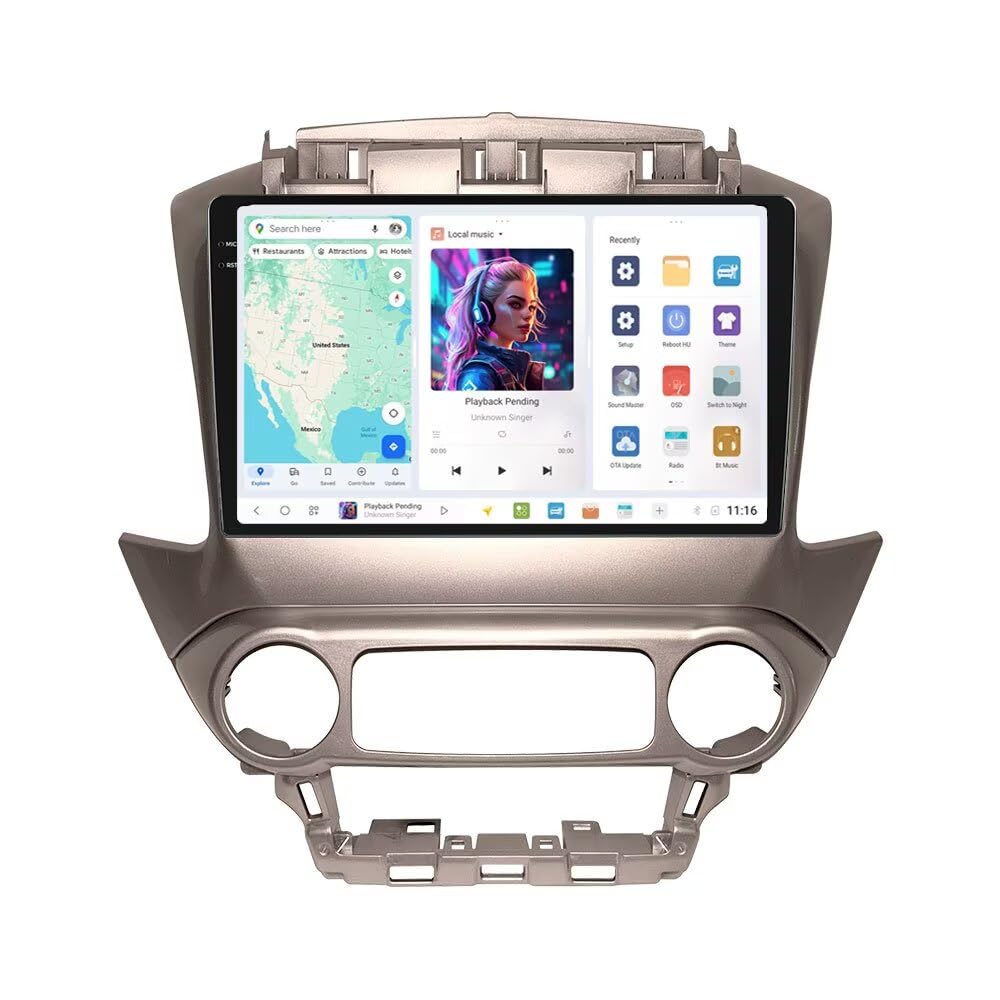
Figure 5.1: Comparison of the vehicle's dashboard before and after the installation of the Biorunn DUDU7 car stereo.
6. Operating Instructions
6.1. Power On/Off
- The unit typically powers on automatically with the vehicle's ignition.
- To manually power off or restart, press and hold the power button (if available) or use the software options in the system settings.
6.2. DUDU OS Interface
The DUDU7 operates on DUDU OS (Android 13), offering both Simplified and Enthusiast modes for user interface customization.

Figure 6.1: Overview of DUDU OS, showcasing Simplified Mode for ease of use and Enthusiast Mode for customizable module combinations.
- Simplified Mode: Designed for straightforward operation with essential functions easily accessible.
- Enthusiast Mode: Allows for customizable module combinations and layouts to personalize your experience.
6.3. Wireless/Wired Car-Play and Android Auto
The unit supports both wireless and wired connections for Apple Car-Play and Android Auto, allowing seamless integration with your smartphone.

Figure 6.2: Display of Car-Play and Android Auto interfaces on the DUDU7 screen, demonstrating smartphone integration.
- Connection: Connect your smartphone via USB cable for wired connection or enable Bluetooth and Wi-Fi on your phone and the unit for wireless connection. Follow the on-screen prompts to establish the connection.
- Functions: Access phone calls, navigation (maps), music, and messages directly from the car stereo interface.
6.4. GPS Navigation
The DUDU7 features Dual Band GPS (L1+L5) with a 6-mode positioning chip for enhanced accuracy and signal reliability.

Figure 6.3: Illustration of Dual Band GPS L1+L5 technology for improved positioning accuracy.
- Usage: Open the pre-installed navigation application or download your preferred GPS app from the app store.
- Accuracy: The dual-frequency system provides lane-level navigation and positioning accuracy up to 1 meter.
7. Features and Functions
7.1. DUDU OS Customization
- Themes and Wallpapers: Download free themes and import dynamic wallpapers to personalize the interface.
- Layouts: Change layouts for left and right-hand drive configurations.
- Custom Gestures: Configure full-screen custom gestures for various functions like home, back, multitasking, app shortcuts, volume control, and mute.
- Navigation Bar: Customize the display position (left/bottom) and content of the navigation bar.
7.2. DSP Audio Technology
The DUDU7 incorporates AKM7739 DSP Velvet Audio Technology and TDA7808 digitally enhanced amplifiers for an immersive acoustic experience.

Figure 7.1: Internal components highlighting the AKM7739 DSP and TDA7808 amplifiers for enhanced audio quality.
- Supports DTS 5.1 panoramic sound and sound correction system.
- Features OpAmp 5532 for enhanced audio quality and a 10000µF filter capacitance.
7.3. 360 Panorama (Optional)
If equipped with the optional 360 chips and 360 panoramic camera, the unit can display a 360-degree view around the vehicle to assist in avoiding blind spots and potential risks.

Figure 7.2: Examples of 360 panorama view modes, including Reverse, Pull Over, Starting, and Turning patterns.
- Requires installation of 4 cameras.
- Features 3D surround mode, which automatically activates when the car starts.
7.4. Extended Rear Entertainment System
The unit supports connection to a rear TYPE-C touch-screen convenience screen, allowing the front screen to display navigation while the rear screen provides entertainment. This functionality requires a separate TYPE-C extension cable and compatible touch-screen.
8. Maintenance
- Cleaning: Use a soft, dry cloth to clean the screen and exterior. For stubborn marks, a slightly damp cloth with a mild, non-abrasive cleaner can be used, then wipe dry immediately. Do not spray cleaners directly onto the unit.
- Software Updates: The unit supports Online OTA (Over-The-Air) updates. Regularly check for and install updates to ensure optimal performance and access to new features. Navigate to System Settings > About Device > Software Update.
9. Troubleshooting
If you encounter issues, refer to the following common problems and solutions:
| Problem | Possible Cause | Solution |
|---|---|---|
| Unit does not power on | Loose power connection, blown fuse, vehicle battery issue. | Check wiring harness connections. Inspect vehicle fuses. Ensure vehicle battery is charged. |
| No sound | Speaker wires disconnected, volume too low, incorrect audio source selected. | Verify speaker connections. Adjust volume. Select correct audio input. Check amplifier connection if applicable. |
| GPS signal weak or inaccurate | GPS antenna improperly placed or faulty, environmental interference. | Ensure GPS antenna has a clear view of the sky. Check antenna connection. Try relocating the antenna. |
| Car-Play/Android Auto not connecting | Incorrect USB cable, Bluetooth/Wi-Fi off, phone software issue. | Use original or certified USB cable. Ensure Bluetooth and Wi-Fi are enabled on both devices. Restart phone and unit. |
| Touchscreen unresponsive | System freeze, screen protector interference. | Restart the unit. Remove and reapply screen protector if present. |
If the problem persists after attempting these solutions, please contact customer support.
10. Specifications
| Feature | Specification |
|---|---|
| Brand | Biorunn |
| Model Name | DUDU7 |
| Operating System | DUDU OS (Android 13) |
| Processor | UIS7870 |
| Screen Size | 10.36 inches |
| Display Type | QLED |
| Screen Resolution | 2000x1200 |
| RAM | 12GB |
| Internal Storage | 256GB |
| Connectivity Technology | Bluetooth, USB, Wi-Fi (5G), 4G LTE |
| GPS | Dual Band GPS (L1 L5 B1 B2a E1 E5a) |
| Audio Processor | DSP (AKM7739), TDA7808 Amplifier |
| Special Features | Wireless/Wired Car-Play, Android Auto, Touchscreen, Free Themes, DIY Wallpapers, OTA Updates |
| Vehicle Service Type | Car (Chevrolet Suburban Tahoe GMC Yukon 2014-2020) |
11. Warranty and Support
11.1. Warranty Information
This Biorunn DUDU7 Car Stereo comes with a 1-Year Warranty from the date of purchase. This warranty covers manufacturing defects and malfunctions under normal use. It does not cover damage caused by improper installation, misuse, accidents, or unauthorized modifications.
11.2. Technical Support
For technical assistance, troubleshooting, or warranty claims, please contact the seller or manufacturer. Provide your product model number (DUDU7) and purchase details when seeking support.

Figure 11.1: Information regarding technical support, advising users to contact the seller for assistance.
The manufacturer, Shenzhen Rongnan International Electronics Co., Ltd., aims to provide timely support for any issues you may encounter.