
1. Introduction
Thank you for choosing the ATTACK SHARK R11 Ultra 8K Carbon Fiber Wireless Gaming Mouse. This manual provides detailed instructions for setting up, operating, maintaining, and troubleshooting your new gaming mouse. Please read this manual thoroughly before use to ensure optimal performance and longevity of your device.
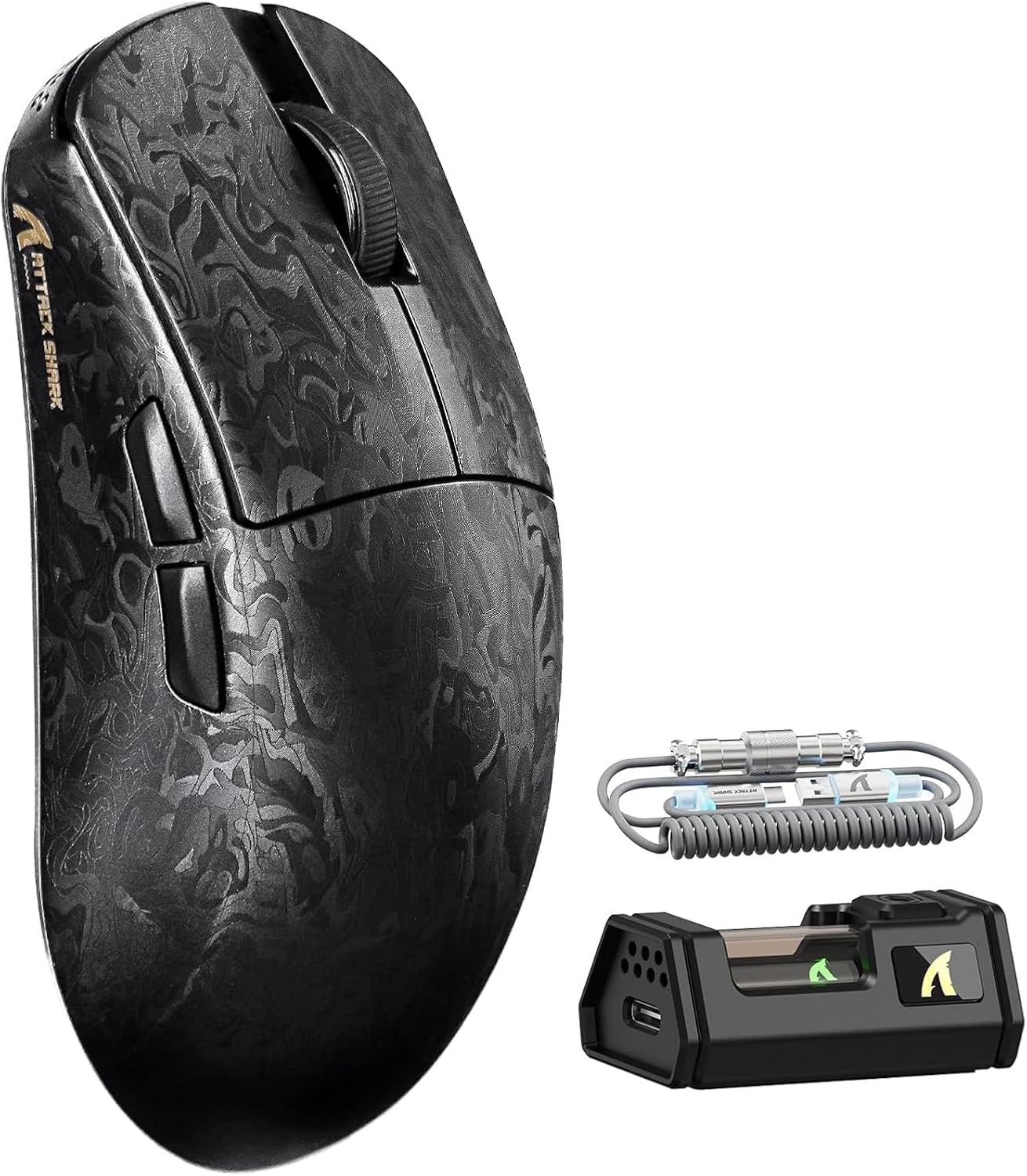
Image 1.1: The ATTACK SHARK R11 Ultra mouse with its 8K receiver and coiled cable.
2. Package Contents
Verify that all items are present in your package:
- ATTACK SHARK R11 Ultra Wireless Gaming Mouse
- 8K Wireless Receiver
- USB-C to USB-A Coiled Cable
- User Manual (this document)
- Additional PTFE Mouse Feet (optional)
- Grip Tape (optional)
3. Product Overview
The ATTACK SHARK R11 Ultra is a high-performance gaming mouse designed for precision and speed. It features a lightweight carbon fiber composite shell, a PixArt PAW3950MAX sensor, and a Nordic 52840 MCU for stable, low-latency connectivity across multiple modes.

Image 3.1: Front, top, and side views of the R11 Ultra mouse, highlighting its unique carbon fiber pattern.
Key Features:
- Ultra-Lightweight Design: Weighs approximately 49g ± 3g, constructed from injection-molded carbon fiber composite material.
- High-Precision Sensor: Equipped with PixArt PAW3950MAX sensor, offering up to 42,000 DPI, 50G acceleration, and 750 IPS tracking speed.
- Advanced Connectivity: Triple-mode connectivity (2.4GHz wireless with 8K polling rate, Bluetooth, and wired mode with 1K polling rate).
- Durable Switches: Features premium F-switch encoder for scroll wheel (rated 2 million rotations) and Omron optical microswitches for buttons (rated 70 million clicks).
- Long-lasting Battery: Integrated 300mAh battery with low power consumption management.
- Customization: Supports AI-enhanced cloud driver and downloadable software for DPI, polling rate, button mapping, and macro customization.

Image 3.2: An overview of the R11 Ultra's core technologies and design elements.
4. Setup Instructions
4.1 Charging the Mouse
Before first use, it is recommended to fully charge the mouse. Connect the USB-C end of the coiled cable to the mouse and the USB-A end to a powered USB port on your computer or a USB charger. The transparent 8K receiver has an LED indicator that shows the battery status.

Image 4.1: Internal view of the R11 Ultra's 300mAh battery, illustrating its power management system.
4.2 Connectivity Modes
The R11 Ultra supports three connection modes: 2.4GHz Wireless, Bluetooth, and Wired. A switch on the bottom of the mouse allows you to select the desired mode.

Image 4.2: The bottom of the mouse, indicating the mode selection switch and DPI button.
2.4GHz Wireless Mode:
- Insert the 8K wireless receiver into an available USB-A port on your computer.
- Slide the mode switch on the bottom of the mouse to the '2.4G' position.
- The mouse should automatically connect. The receiver's LED will indicate connection status.
Bluetooth Mode:
- Slide the mode switch on the bottom of the mouse to the 'BT' position.
- On your computer or device, navigate to Bluetooth settings and search for new devices.
- Select 'ATTACK SHARK R11 Ultra' from the list of available devices to pair.
Wired Mode:
- Connect the USB-C end of the coiled cable to the mouse and the USB-A end to your computer.
- The mouse will automatically switch to wired mode and begin charging.
5. Operating Instructions
5.1 DPI Adjustment
The mouse features a dedicated DPI button on its underside (refer to Image 4.2). Press this button to cycle through preset DPI levels. For fine-tuning and a wider range of DPI settings (up to 42,000 DPI), use the official software.
5.2 Polling Rate
The 2.4GHz wireless mode supports an 8KHz polling rate for ultra-low latency. Wired mode operates at 1KHz. Polling rate can be adjusted via the software.

Image 5.1: Visual representation of the 8000Hz polling rate capability.
5.3 Button Customization and Macros
The R11 Ultra's buttons are programmable. Utilize the dedicated software to remap buttons, assign macros, and configure other advanced settings to suit your preferences.
6. Software and Drivers
The ATTACK SHARK R11 Ultra mouse utilizes an AI-enhanced cloud driver or downloadable software for comprehensive customization. This intuitive interface allows you to:
- Adjust DPI settings in increments of 50.
- Modify polling rates.
- Customize button assignments.
- Create and manage macros.
- Configure other sensor and performance settings.
The software automatically detects your device and provides access to these settings. Refer to the official ATTACK SHARK website for the latest software downloads and cloud driver access.
Video 6.1: An official product video demonstrating the features and performance of the ATTACK SHARK R11 Ultra 8K Wireless Gaming Mouse, including its high DPI capabilities and responsiveness.
7. Maintenance
7.1 Cleaning
To maintain the performance and appearance of your mouse:
- Use a soft, dry cloth to wipe the surface of the mouse.
- For stubborn dirt, slightly dampen the cloth with water or a mild cleaning solution. Avoid harsh chemicals.
- Clean the optical sensor regularly with a cotton swab to ensure accurate tracking.
7.2 Storage
When not in use, store the mouse in a cool, dry place away from direct sunlight and extreme temperatures. Avoid placing heavy objects on the mouse.
8. Troubleshooting
If you encounter issues with your ATTACK SHARK R11 Ultra mouse, refer to the following common problems and solutions:
| Problem | Possible Cause | Solution |
|---|---|---|
| Mouse not responding | Low battery, incorrect mode, connection issue | Charge the mouse. Ensure the mode switch is set correctly (2.4G, BT, or Wired). Re-pair Bluetooth or re-insert 8K receiver. |
| Lag or stuttering | Interference, low battery, outdated firmware | Ensure receiver is close to mouse. Charge mouse. Update mouse firmware via software. Avoid other 2.4GHz devices nearby. |
| DPI not changing | DPI button malfunction, software conflict | Try adjusting DPI via software. Reinstall software if necessary. |
| Buttons not working | Software configuration, physical damage | Check button assignments in software. If issue persists, contact customer support. |
If the problem persists after attempting these solutions, please contact ATTACK SHARK customer support for further assistance.
9. Specifications
| Feature | Specification |
|---|---|
| Model | R11 Ultra |
| Sensor | PixArt PAW3950MAX Optical Sensor |
| DPI Range | Up to 42,000 DPI (adjustable in 50 DPI increments) |
| Polling Rate | 8000Hz (2.4GHz Wireless), 1000Hz (Wired) |
| Acceleration | 50G |
| Tracking Speed | 750 IPS |
| Frame Rate | 20,000 FPS |
| Connectivity | Wired (USB-C), 2.4GHz Wireless, Bluetooth |
| MCU | Nordic 52840 Chipset |
| Switches | Omron Optical Microswitches (70 million clicks) |
| Encoder | F-switch encoder (2 million rotations) |
| Battery Capacity | 300mAh |
| Weight | Approx. 49g ± 3g |
| Dimensions | 6.81 x 4.17 x 2.91 inches (Package Dimensions) |
| Coating | Nano-metallic ice-cool coating |
10. Warranty and Support
ATTACK SHARK products are designed for quality and performance. For warranty information, technical support, or service inquiries, please refer to the warranty card included with your product or visit the official ATTACK SHARK website. Keep your proof of purchase for warranty claims.
Video 10.1: An official product video showcasing the ATTACK SHARK R11 Ultra 8K Carbon Fiber Wireless Gaming Mouse in action, highlighting its design and responsiveness.


