Introduction
This user manual provides comprehensive instructions for the Bigme B6 Color E-reader. Please read this manual carefully before using the device to ensure proper operation and to maximize its features. Keep this manual for future reference.
Product Overview
Key Features
- Display: 6-inch color E-paper display (1448 x 1072 pixels) designed for an eye-friendly reading experience. Features blue light zero and flicker-free technology, certified by TÜV Rheinland for comfortable reading.
- Memory & Storage: Equipped with 4GB RAM and 64GB internal storage, allowing for the storage of numerous e-books and documents.
- Operating System: Runs on Android 14, providing access to a wide range of applications.
- Processor: Features an Octa-core CPU for quick response and efficient performance.
- Design: Slim, compact, and lightweight black body for easy portability.
- Front Light: 36-level adjustable front light for comfortable reading in various lighting conditions.
- Connectivity: Supports Bluetooth and Wi-Fi for seamless data transfer and online access.
- File Compatibility: Supports over 19 e-book formats including PDF, TXT, EPUB, EPUB3, HTML, HTM, AZW3, FB2, DOC, DOCX, MOBI, OEB, CBR, RPC, RPC, RTF, DJVU, ZIP.
- Audiobook Support: Allows for audiobook playback.
Package Contents
The Bigme B6 Color E-reader package includes the following items:
- Bigme B6 Color E-reader Main Unit
- Protective Case
- User Manual (this document)

Image: Front and back view of the Bigme B6 Color E-reader. The device is black and features a slim design.

Image: Illustration of the Bigme B6 Color E-reader package contents, including the device, protective case, and user manual.
Setup
Initial Charge
Before first use, fully charge your Bigme B6 E-reader. Connect the device to a power source using the provided USB cable. The charging indicator will show the charging status.
Power On/Off
- To Power On: Press and hold the power button located on the side/top of the device until the screen lights up.
- To Power Off: Press and hold the power button until a power-off menu appears on the screen. Select "Power Off".
- To Sleep/Wake: Briefly press the power button to put the device into sleep mode or wake it up.
Initial Setup Wizard
Upon first power-on, the device will guide you through an initial setup wizard. This typically includes:
- Language selection
- Wi-Fi network connection
- Date and time settings
- Account login (optional, for app stores or cloud services)
Follow the on-screen prompts to complete the setup.
Operating Instructions
Navigation and Interface
The Bigme B6 features an intuitive touch interface. Navigate through menus and content by tapping, swiping, and pinching on the screen.
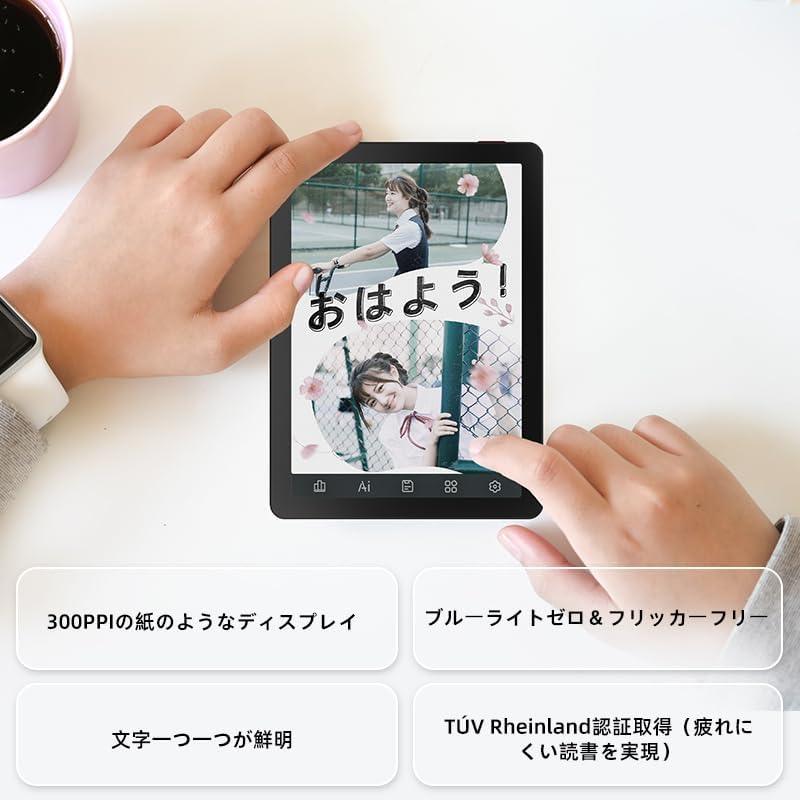
Image: A hand holding the Bigme B6 E-reader, highlighting its display features such as 300PPI, blue light zero, and clear text rendering.

Image: The Bigme B6 E-reader displaying its interface with customizable touch buttons at the bottom of the screen.
Reading E-books
- Opening Books: Tap on a book cover from your library to open it.
- Turning Pages: Tap the left or right side of the screen, or swipe horizontally, to turn pages.
- Adjusting Font/Light: Tap the center of the screen to bring up the reading menu. From here, you can adjust font size, font style, line spacing, and the 36-level front light.
- Highlighting and Notes: Press and hold on text to select it. Options for highlighting, adding notes, or looking up definitions will appear.
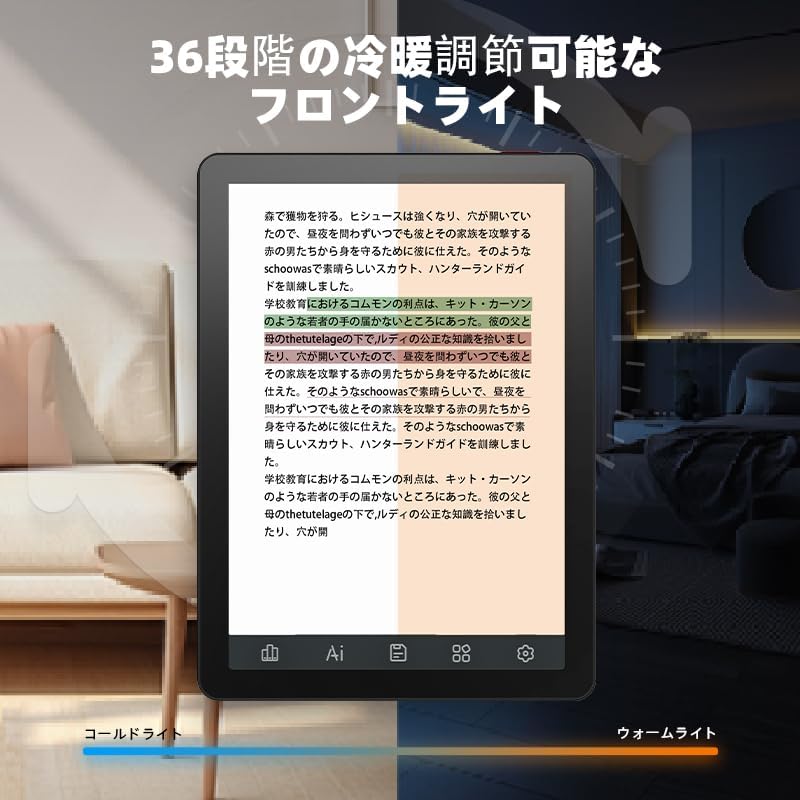
Image: The Bigme B6 E-reader displaying text with an illustration of adjustable front light levels, from cold light to warm light.

Image: The Bigme B6 E-reader displaying text with color elements, demonstrating the ability to read in color and highlight content.
Managing Your Library
The device supports various e-book formats, allowing you to expand your library without complex file conversions.

Image: The Bigme B6 E-reader displaying its storage capacity of 4GB RAM and 64GB, indicating it can store tens of thousands of books.

Image: The Bigme B6 E-reader displaying a list of supported e-book formats, emphasizing its ability to expand the library without file conversion.
Connectivity and Data Transfer
- Wi-Fi: Connect to Wi-Fi networks for downloading books, browsing the internet, and syncing data. Go to Settings > Wi-Fi to manage connections.
- Bluetooth: Pair with Bluetooth headphones or speakers for listening to audiobooks. Go to Settings > Bluetooth to manage devices.
- USB Transfer: Connect the device to a computer using a USB cable to transfer files directly.

Image: The Bigme B6 E-reader next to a pair of headphones, illustrating its audiobook functionality.

Image: The Bigme B6 E-reader shown alongside a laptop, demonstrating seamless data synchronization capabilities.
Maintenance
Cleaning the Device
- Use a soft, lint-free cloth to clean the screen and body of the device.
- Do not use abrasive cleaners, alcohol, or chemical solvents, as these can damage the screen or finish.
- Avoid spraying cleaners directly onto the screen. Apply to the cloth first.
Storage
- Store the device in a cool, dry place, away from direct sunlight and extreme temperatures.
- When not in use for extended periods, ensure the device is charged to about 50% to preserve battery health.
Software Updates
Periodically check for software updates to ensure optimal performance and access to new features. Updates can usually be found in the device's settings menu under "System Update" or "About Device".
Troubleshooting
Common Issues and Solutions
| Issue | Possible Cause | Solution |
|---|---|---|
| Device does not turn on | Low battery; System crash | Charge the device for at least 30 minutes. If still unresponsive, perform a forced restart by holding the power button for 10-15 seconds. |
| Screen is unresponsive | Temporary software glitch | Restart the device. Ensure the screen is clean and dry. |
| Cannot connect to Wi-Fi | Incorrect password; Router issue; Device Wi-Fi off | Double-check the Wi-Fi password. Restart your router. Toggle Wi-Fi off and on in device settings. |
| Books not appearing in library | Unsupported format; Incorrect file location | Ensure the book format is supported (refer to specifications). Verify files are in the correct folder on the device. |
If you encounter issues not listed here or if the suggested solutions do not resolve the problem, please contact Bigme customer support.
Specifications
| Feature | Detail |
|---|---|
| Model Name | JP-B6 |
| Display Size | 6 inches |
| Display Technology | E-Ink, Color E-paper |
| Display Resolution | 1448 x 1072 pixels |
| RAM | 4GB |
| Internal Storage | 64GB |
| Operating System | Android 14 |
| Processor | Octa-core CPU (Mediatek) |
| Connectivity | Bluetooth, Wi-Fi |
| Color | Black |
| Product Dimensions | 15.66 x 13.86 x 0.58 cm |
| Item Weight | 215 grams |
| Included Components | User Manual, Protective Case, E-reader main unit |
Warranty and Support
For warranty information and customer support, please refer to the documentation included with your purchase or visit the official Bigme website. Keep your proof of purchase for warranty claims.
Online Resources:
- Bigme Official Website: www.bigme.com
- For further assistance, contact your retailer or the Bigme customer service team.


