
1. Introduction
Thank you for choosing the T-Wolf T61 60% Wired Mechanical Gaming Keyboard. This manual provides detailed instructions for setting up, operating, and maintaining your keyboard to ensure optimal performance and longevity. Please read this manual carefully before using the product.
2. Product Overview
2.1 Key Features
- Mechanical Switches: Delivers precise tactile feedback and long-lasting performance.
- Wired USB Connection: Stable USB 2.0 plug-and-play interface; no drivers required.
- 60% Compact Layout: Functional design that saves space while maintaining key usability.
- Multi-Key Rollover: Supports simultaneous key presses without input errors, ensuring precise performance during intense typing or gaming sessions.
- RGB Backlit: Customizable vibrant RGB backlighting for enhanced aesthetics.
- Low-Noise Operation: Moderate sound level suitable for various environments.
- Spill-Resistant Design: Helps protect against light spills (not waterproof).
2.2 Package Contents
- 1 x T-Wolf T61 60% Wired Mechanical Gaming Keyboard
- 1 x User Manual (this document)
2.3 Keyboard Diagram
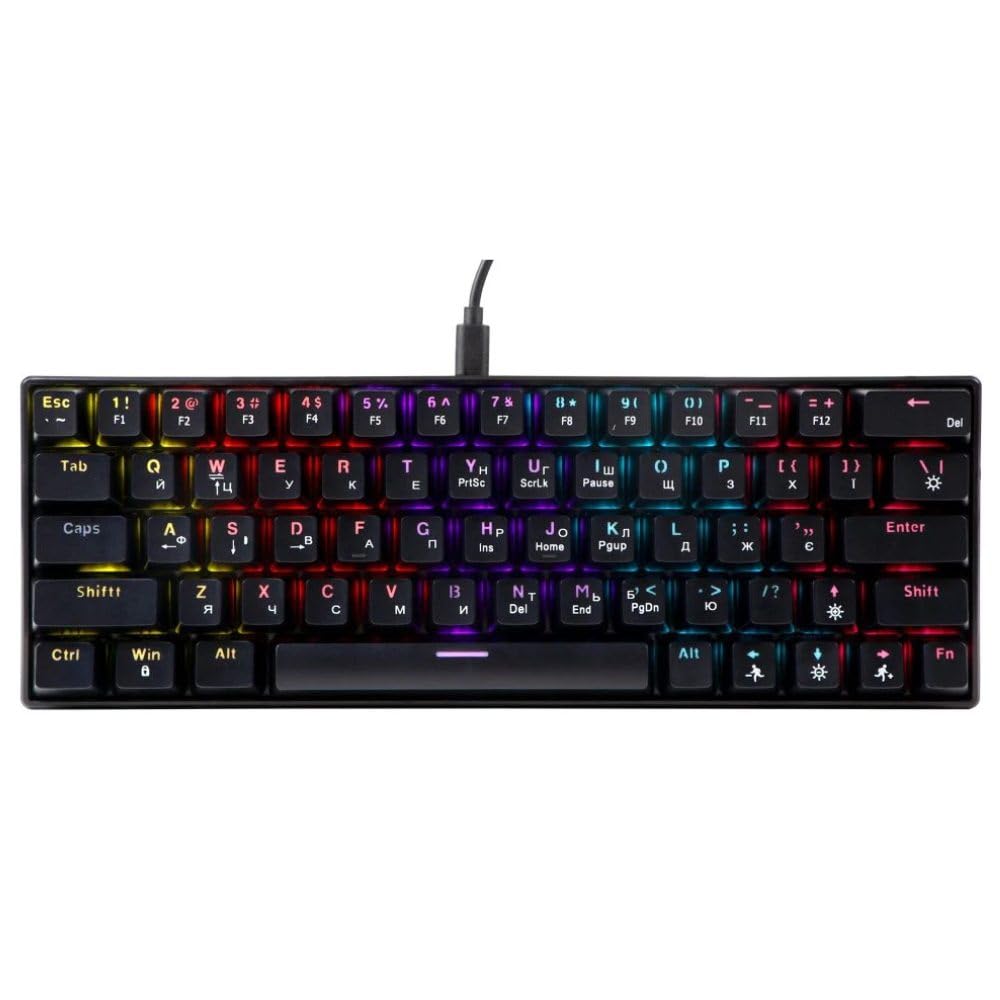
An image showing the T-Wolf T61 60% Wired Mechanical Gaming Keyboard, highlighting its compact layout and design.
3. Setup
- Unpack the Keyboard: Carefully remove the keyboard and all accessories from the packaging.
- Connect to Your Device: Locate an available USB port on your computer (PC, laptop) or gaming console. Insert the USB connector of the T-Wolf T61 keyboard into the USB port.
- Automatic Driver Installation: The keyboard is plug-and-play. Your operating system will automatically detect and install the necessary drivers. This process may take a few moments.
- Ready for Use: Once the drivers are installed, the keyboard is ready for immediate use.
4. Operating Instructions
The T-Wolf T61 keyboard functions as a standard QWERTY layout keyboard. Its 60% compact design means some functions are accessed via key combinations.
4.1 RGB Backlighting Control
The keyboard features customizable RGB backlighting. Specific key combinations are used to change lighting modes and effects. Refer to the keyboard's function layer markings for exact controls, typically involving the Fn key combined with other keys (e.g., Fn + \| for mode changes, Fn + [{ or Fn + ]} for brightness/speed adjustments).
- Changing Lighting Modes: Press Fn + \| to cycle through various RGB lighting effects.
- Adjusting Brightness: Use Fn + [{ to decrease brightness and Fn + ]} to increase brightness.
- Adjusting Speed: Use Fn + ;: to decrease effect speed and Fn + '" to increase effect speed.
4.2 Multi-Key Rollover
The T61 keyboard supports multi-key rollover, allowing multiple keys to be pressed simultaneously without ghosting or missed inputs. This feature is particularly beneficial for fast typing and complex gaming commands.
5. Maintenance
Proper maintenance ensures the longevity and performance of your keyboard.
- Cleaning: Use a soft, dry cloth to wipe the surface of the keyboard. For deeper cleaning, use a can of compressed air to remove dust and debris from between the keycaps. For stubborn dirt, a slightly damp cloth with a mild cleaning solution can be used, ensuring no liquid enters the keyboard.
- Spill-Resistant Design: While the keyboard features a spill-resistant design to protect against light spills, it is not waterproof. In case of a spill, immediately disconnect the keyboard from your device, gently wipe away any liquid, and allow it to air dry completely before reconnecting.
- Storage: Store the keyboard in a cool, dry place away from direct sunlight and extreme temperatures.
6. Troubleshooting
If you encounter issues with your T-Wolf T61 keyboard, please refer to the following common solutions:
- Keyboard Not Responding:
- Ensure the USB cable is securely connected to both the keyboard and your device.
- Try connecting the keyboard to a different USB port.
- Test the keyboard on another computer to rule out a device-specific issue.
- Restart your computer.
- RGB Backlighting Not Working/Incorrect:
- Ensure the keyboard is properly powered.
- Cycle through the RGB modes using the designated key combinations (e.g., Fn + \|).
- Adjust brightness settings (e.g., Fn + [{ / Fn + ]}).
- Keys Not Registering or Double-Typing:
- Clean the affected keycap and switch area using compressed air to remove any debris.
- Ensure no software conflicts are present (e.g., other keyboard drivers or utilities).
If the problem persists after trying these steps, please contact customer support.
7. Specifications
| Feature | Description |
|---|---|
| Brand | T-WOLF |
| Model | T61 |
| Connectivity Technology | Wired USB |
| Keyboard Description | Mechanical |
| Number of Keys | 65 |
| Keyboard Layout | QWERTY |
| Special Features | RGB Backlit, Multi-Key Rollover, Low-Noise Operation, Spill-Resistant Design |
| Compatible Devices | PC, laptop, gaming consoles |
| Material | Metal, Plastic |
| Color | Black |
| Country of Origin | China |
8. Warranty and Support
The T-Wolf T61 keyboard comes with a standard manufacturer's warranty. Please refer to the warranty card included with your purchase or contact your retailer for specific warranty terms and conditions.
For technical support, troubleshooting assistance, or warranty claims, please contact the retailer where you purchased the product or visit the official T-Wolf website for support resources.


