
1. Introduction
Welcome to your new CP PLUS CP-E44Q Smart Wi-Fi CCTV Camera. This manual provides detailed instructions to help you set up, operate, and maintain your device, ensuring optimal performance and security.
The CP-E44Q is designed for indoor surveillance, offering advanced features such as 4MP Quad HD resolution, 360° pan and tilt functionality, two-way audio, motion detection with tracking, and IR night vision. It integrates with the ezyKam+ mobile app for remote control and alerts, and supports voice control via Alexa and Google Home.

Image 1.1: Front view of the CP PLUS CP-E44Q Smart Wi-Fi CCTV Camera.
2. What's in the Box
Please verify that all the following components are included in your package:
- CP PLUS CP-E44Q Camera
- Power Adaptor
- USB Type-C Cable
- User Manual QR Card
- Mounting Screws
3. Setup
3.1 Physical Installation
- Choose Location: Select a suitable indoor location for your camera. Ensure the area has a stable 2.4GHz Wi-Fi signal and is within reach of a power outlet.
- Placement: Place the camera on a flat, stable surface, or use the provided mounting screws to secure it to a wall or ceiling.
- Power Connection: Connect the camera to the power adaptor using the USB Type-C cable, then plug the adaptor into a power outlet. The camera will power on and initiate its startup sequence.
3.2 App Installation and Configuration (ezyKam+)
The CP-E44Q camera is controlled via the ezyKam+ mobile application. Follow these steps to set up the app and connect your camera:
- Download App: Download the ezyKam+ app from the Apple App Store (for iOS devices) or Google Play Store (for Android devices).
- Register/Login: Open the ezyKam+ app and register for a new account or log in if you already have one.
- Add Device: On the app's home screen, tap the "+" icon to add a new device.
- Select Model: Choose the CP-E44Q model from the list of available devices.
- Connect to Wi-Fi: Enter your 2.4GHz Wi-Fi network name and password when prompted. Ensure your smartphone is also connected to the same 2.4GHz Wi-Fi network. Confirm the details.
- Scan QR Code: The app will generate a QR code. Hold your smartphone with the QR code approximately 15-20 cm (6-8 inches) in front of the camera lens until the camera scans it.
- Confirmation: Listen for a voice prompt from the camera indicating successful connection. Once heard, tap "Heard the Beep" in the app. Wait for the camera's indicator light to turn steady blue, signifying that the configuration is complete.
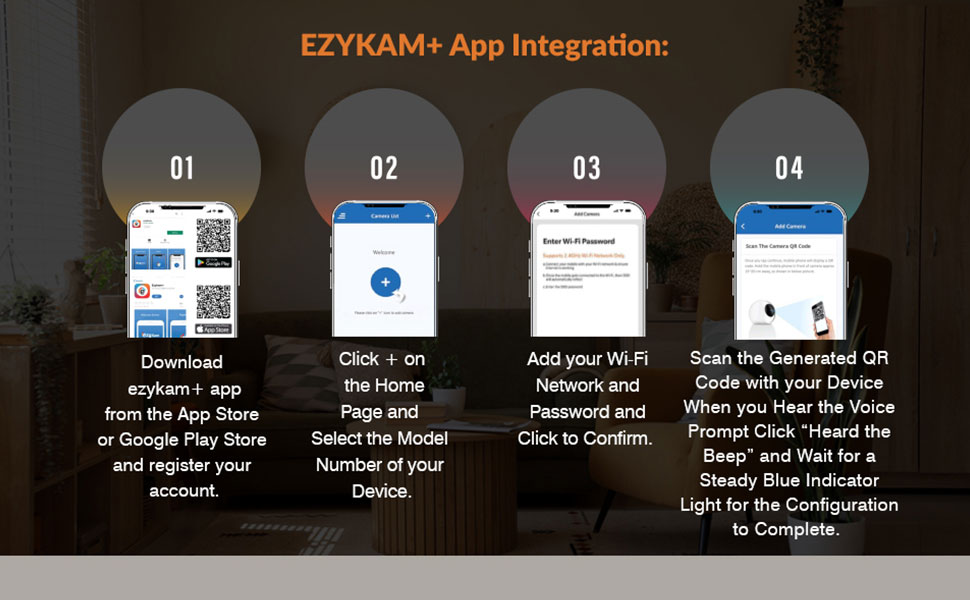
Image 3.1: Visual guide for EZYKAM+ App integration and setup steps.
4. Operating
4.1 360° Pan & Tilt View
The camera offers full 360° horizontal and 85° vertical rotation. Use the ezyKam+ app to remotely control the camera's movement, allowing you to monitor different areas and eliminate blind spots.

Image 4.1: The camera's 360° pan and tilt capability for comprehensive coverage.
4.2 Two-Way Audio
The CP-E44Q features a built-in microphone and speaker, enabling two-way communication. Through the ezyKam+ app, you can listen to the camera's surroundings and speak through the camera to interact with individuals in the monitored area.
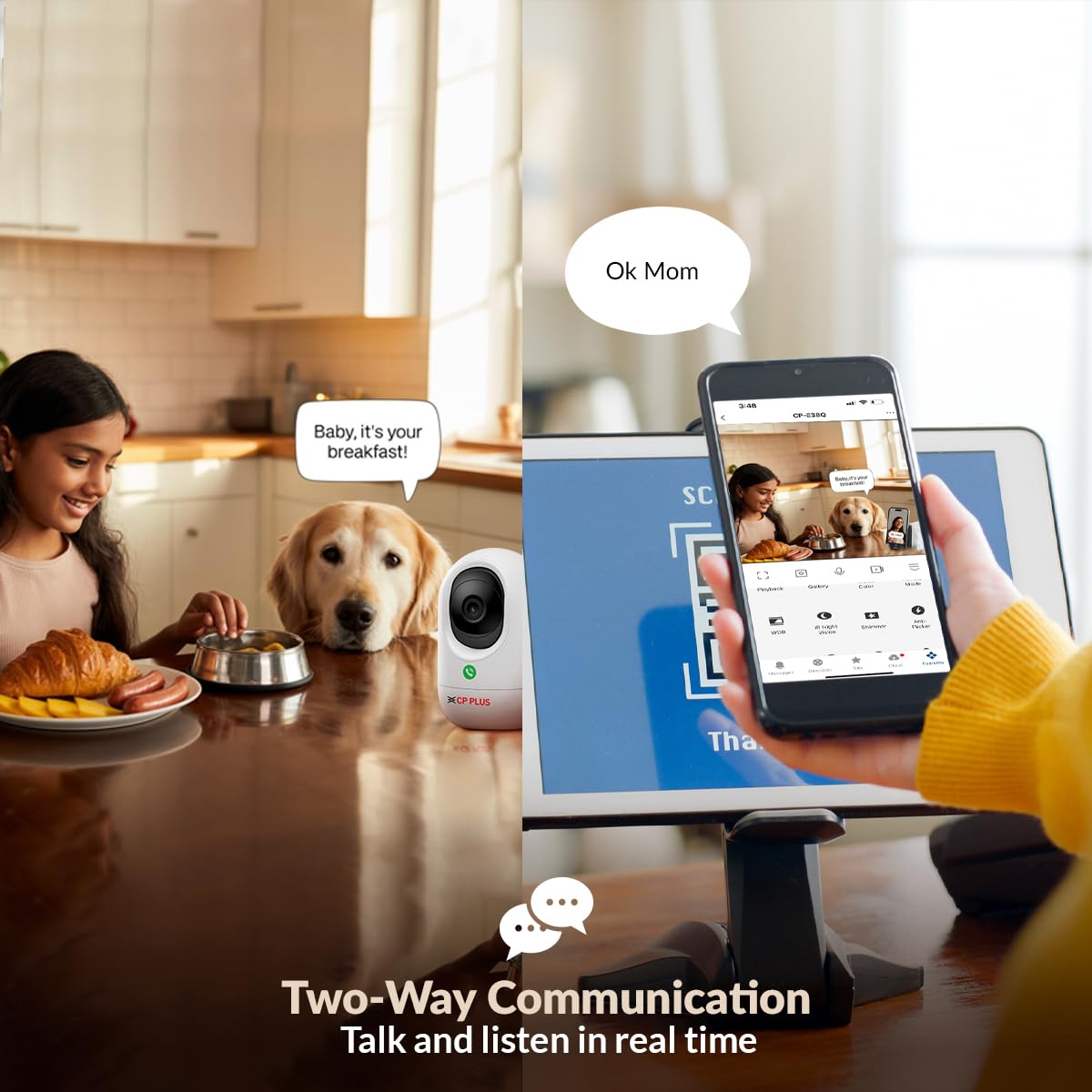
Image 4.2: Illustration of the two-way communication feature.
4.3 Press to Call Feature
A unique feature of this model is the 'Press to Call' button located on the camera. When pressed, it allows individuals near the camera to initiate a video call directly to your ezyKam+ app, facilitating quick and easy communication.
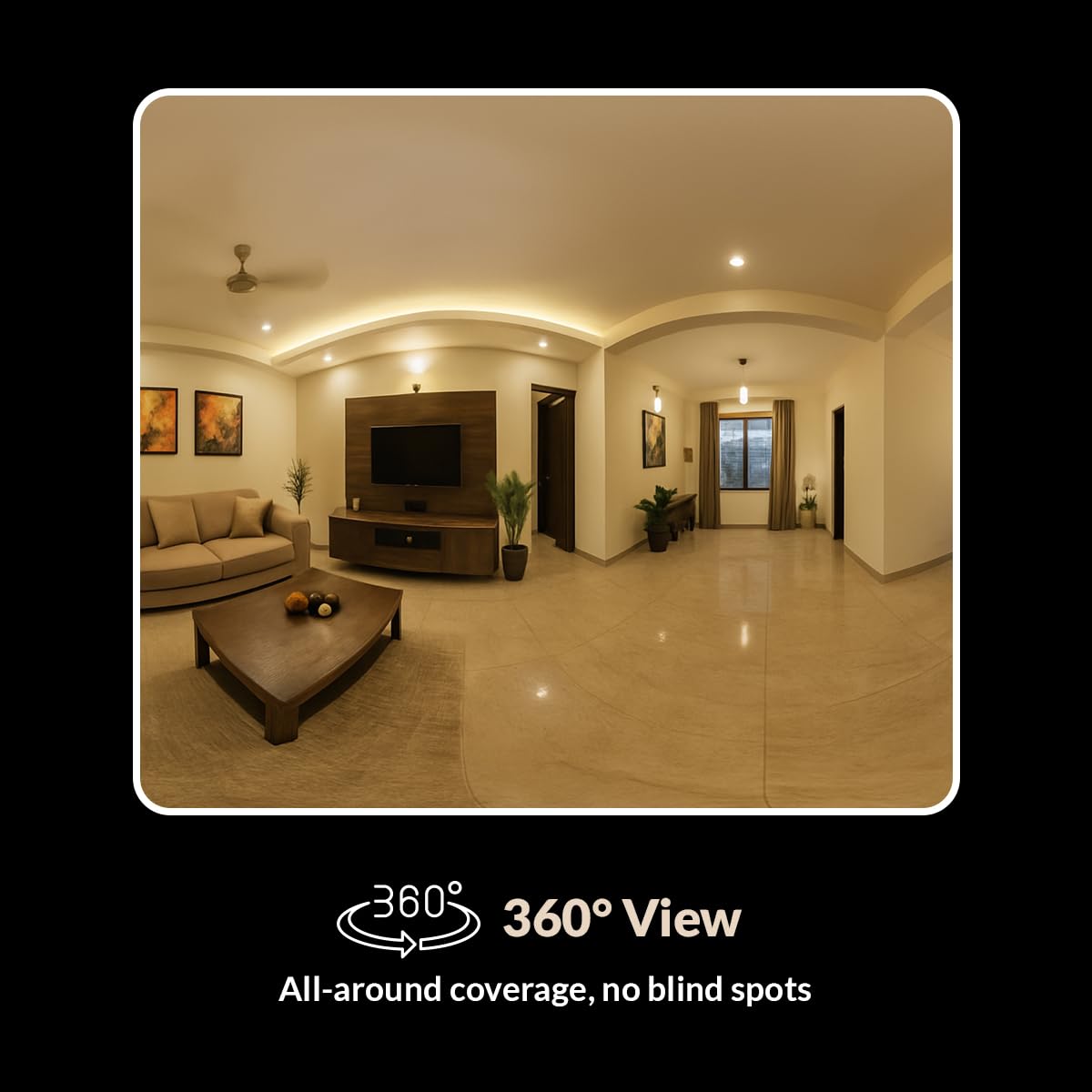
Image 4.3: The 'Press to Call' button for direct video communication.
4.4 AI Motion Detection & Tracking
The camera is equipped with AI-powered motion detection and tracking. It can intelligently identify human movement, track the subject within its field of view, and send real-time alerts to your smartphone via the ezyKam+ app.

Image 4.4: Overview of the Smart Detection Suite features.
4.5 IR Night Vision
The CP-E44Q provides clear black-and-white video footage in low-light conditions, with an effective range of up to 15 meters. This ensures continuous surveillance even in complete darkness.
4.6 Privacy Mode
To ensure privacy when needed, you can activate the Privacy Mode through the ezyKam+ app. This mode temporarily pauses recording and disables live view, providing peace of mind.

Image 4.5: Privacy Mode feature in the ezyKam+ app.
4.7 Cloud Recording & Local Storage
For secure storage and remote access, the camera supports cloud recording (subscription may be required). Alternatively, you can insert a microSD card (up to 256GB, not included) for local video storage, eliminating monthly cloud costs.

Image 4.6: Cloud Recording for secure and accessible footage.
4.8 Voice Control Integration
The CP-E44Q is compatible with Amazon Alexa and Google Home. You can link your camera to these smart home platforms for convenient hands-free control using voice commands.
5. Maintenance
- Cleaning: Gently wipe the camera lens and body with a soft, dry, lint-free cloth. Avoid using liquid cleaners, solvents, or abrasive materials, as these can damage the camera's components.
- Firmware Updates: Regularly check the ezyKam+ app for available firmware updates. Installing updates ensures your camera has the latest features, security enhancements, and bug fixes.
- Network Stability: Ensure your Wi-Fi network remains stable and strong to prevent interruptions in camera operation and video streaming.
- Power Cycle: If the camera experiences connectivity issues or becomes unresponsive, perform a power cycle by unplugging the power adapter, waiting for 10 seconds, and then plugging it back in.
6. Troubleshooting
| Problem | Possible Cause | Solution |
|---|---|---|
| Camera is offline or disconnected. | Weak Wi-Fi signal, incorrect Wi-Fi password, power interruption. | Check Wi-Fi signal strength. Verify Wi-Fi password in the ezyKam+ app. Power cycle the camera (unplug and replug). Ensure the camera is within Wi-Fi range. |
| Poor video quality. | Dirty lens, low network bandwidth, insufficient lighting. | Clean the camera lens with a soft cloth. Ensure stable internet connection. Adjust camera placement for better lighting. |
| Motion alerts not received. | Motion detection disabled, incorrect app notification settings. | Verify motion detection settings and sensitivity in the ezyKam+ app. Check your smartphone's notification settings for the ezyKam+ app. |
| Two-way audio not working. | Microphone/speaker permissions not granted, volume too low. | Ensure microphone and speaker permissions are granted to the ezyKam+ app on your smartphone. Check volume settings within the app and on your phone. |
7. Specifications
- Product Dimensions: 7.3 x 7.3 x 11.9 cm
- Item Weight: 172 g
- Item Model Number: CP-E44Q
- Connectivity Technology: Wireless (Wi-Fi)
- Connectivity Protocol: Wi-Fi (2.4GHz)
- Power Source: Corded Electric
- Indoor/Outdoor Usage: Indoor
- Special Features: 2 Way Audio, Cry Detection, HD Resolution, Motion Sensor, Night Vision
- Compatible Devices: Smartphone (Android, iOS)
- Controller Type: Amazon Alexa, Google Home
- Manufacturer: AIL DIXON Technologies, CP PLUS
- Importer: Aditya Infotech Ltd.
8. Warranty and Support
Your CP PLUS CP-E44Q camera is manufactured by AIL DIXON Technologies and imported by Aditya Infotech Ltd.
For detailed warranty information, technical support, or service inquiries, please refer to the contact information provided on the User Manual QR Card included in your product packaging. You may also visit the official CP PLUS website for further assistance.
- Manufacturer: CP PLUS (AIL DIXON Technologies, Shed No .: 1 to 4,YSR EMC Kopparthy, YSR Kadapa, YSR District, Kadapa(Cuddapah), Andhra Pradesh-516003)
- Importer: Aditya Infotech Ltd. (F-28, Okhla Industrial Area Phase-1, New Delhi-110020)


