
1. Product Overview
The iDPRT SP460BT is a compact thermal label printer designed for efficient label printing. It supports both Bluetooth and USB connectivity, offering versatility for various operating systems and devices. This printer utilizes direct thermal technology, eliminating the need for ink or toner, making it a cost-effective solution for shipping labels, barcodes, and other label printing needs.
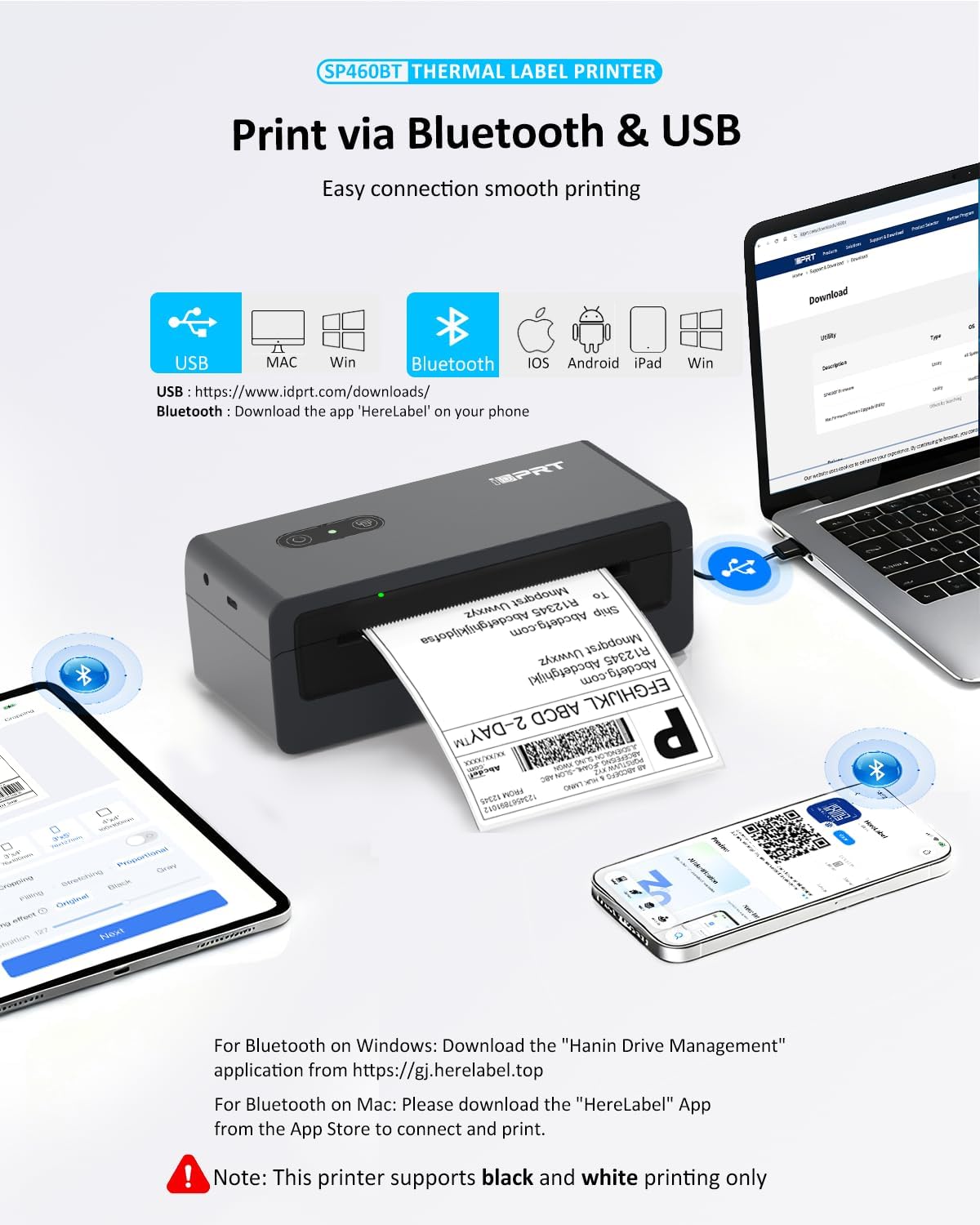
Figure 1: iDPRT SP460BT Thermal Label Printer. This image shows the printer from a front-side angle, highlighting its compact design.
2. What's in the Box
Upon unboxing, verify that all components are present:
- 1 x SP460BT label printer
- 50 sheets thermal labels (4'' x 6'')
- 1 x USB C cable for Mac
- 1 x Power Cord
- 1 x USB Flash Drive

Figure 2: Package contents including the printer, power cord, USB C cable, USB flash drive, and sample labels.
3. Setup Guide
3.1 Physical Setup
- Place the printer on a stable, flat surface.
- Connect the power adapter to the printer and plug it into a power outlet.
- Load thermal labels into the printer. Ensure the paper is face up and properly aligned. The printer supports label widths from 1.25" to 4.3".

Figure 3: Illustration of loading fanfold labels into the printer. The labels should be inserted face up.

Figure 4: Diagram showing the adjustable label guides for various label widths (1.25" to 4.33").
3.2 Driver and App Installation
The iDPRT SP460BT printer offers both USB and Bluetooth connectivity. Follow the instructions below based on your operating system and preferred connection method.
3.2.1 USB Connection (Windows & macOS)
- Visit the official iDPRT driver download page: https://www.idprt.com/Driver
- Search for "SP460BT" and download the appropriate driver for your operating system (Windows or Mac).
- Install the downloaded driver by following the on-screen instructions.
- Connect the printer to your computer using the provided USB cable.

Figure 5: Steps for downloading and installing the printer driver for USB connection on PC or laptop.
3.2.2 Bluetooth Connection (iOS & Android)
- Download the 'HereLabel' app from your device's app store or by scanning the QR code in the manual. You can also visit https://herelabel.top/download/.
- Enable Bluetooth on your mobile device.
- Open the 'HereLabel' app and connect to the "SP460BT-XXXX" printer.

Figure 6: Step-by-step guide for connecting the printer via Bluetooth using the 'HereLabel' app on a mobile device.
3.2.3 Bluetooth Connection (macOS)
For wireless printing on macOS, the 'HereLabel' app is required.
- Plug in the label printer's power cable.
- Enable Bluetooth on your Mac and connect to "SP460BT-XXXX".
- Download the "HereLabel" app from the App Store.
- Open the "HereLabel" app, tap "Document Printing," and edit or print your PDF file.
Note: Direct printing via Bluetooth is not supported on macOS without the 'HereLabel' app.

Figure 7: Instructions for printing via Bluetooth on a Mac, emphasizing the use of the 'HereLabel' application.
3.2.4 Bluetooth Connection (Windows)
For Bluetooth connectivity on Windows, the "Hanin Drive Management" software is required.
- Download "Hanin Drive Management" from https://herelabel.top/download/.
- Install the software and follow the instructions to connect your printer via Bluetooth.
4. Operating Instructions
4.1 Loading Labels
The printer supports both fanfold and roll labels with widths ranging from 1.25" to 4.3".
- Open the printer cover by pressing the release button.
- Insert the thermal labels, ensuring the printable side is facing up.
- Adjust the label guides to fit the width of your labels snugly, preventing misalignment.
- Close the printer cover. The printer will automatically detect and calibrate the label size.
Video 1: Demonstrates the process of opening the printer, loading a roll of thermal labels, adjusting the guides, and closing the cover. It also shows the printer automatically feeding the label to the correct starting position.
4.2 Printing Labels
Once connected and labels are loaded, you can proceed with printing:
- From Mobile App (HereLabel): Select your document or image within the app, choose the label size (e.g., 4"x6"), adjust settings if needed, and initiate printing.
- From Computer (USB/Bluetooth): Open your label file (e.g., PDF) in your preferred application. In the print dialog, select the iDPRT SP460BT as your printer. Ensure the paper size is set to 4"x6" (100x150mm) or the custom size matching your labels.
Note: The printer supports black and white printing only. Thermal printers are optimized for clear text, barcodes, and simple black-and-white graphics, not high-resolution photos or detailed JPG images.

Figure 8: Comparison of print settings interfaces for the HereLabel app, Windows, and Mac driver printing, highlighting label size selection.
5. Maintenance
Regular maintenance ensures optimal performance and extends the life of your thermal printer.
- Cleaning the Print Head: Use an alcohol swab or a specialized thermal print head cleaning pen to gently wipe the print head. This should be done periodically to remove dust and adhesive residue.
- Cleaning the Platen Roller: Clean the rubber platen roller with an alcohol swab to remove any paper dust or adhesive buildup.
- Exterior Cleaning: Wipe the exterior of the printer with a soft, damp cloth. Avoid using harsh chemicals.
- Storage: Store the printer in a clean, dry environment away from direct sunlight and extreme temperatures.
6. Troubleshooting
- No Print Output or Blank Labels:
- Ensure thermal labels are loaded correctly, with the printable side facing up.
- Verify that the label size setting in your printing software or app matches the physical labels (e.g., 4"x6" or 100x150mm).
- Check for any paper jams and clear them.
- Connectivity Issues:
- For USB: Ensure the USB cable is securely connected to both the printer and your computer. Reinstall drivers if necessary.
- For Bluetooth: Ensure Bluetooth is enabled on your device and the printer is paired. Restart the printer and your device. For Windows, ensure "Hanin Drive Management" is installed. For macOS, ensure the "HereLabel" app is used for wireless printing.
- Poor Print Quality:
- Clean the print head as described in the Maintenance section.
- Ensure you are using high-quality thermal labels.
- Adjust print density settings in your software if available.
7. Specifications
| Feature | Detail |
|---|---|
| Model Name | SP460BT (Item model number: JCSP460BT) |
| Printing Technology | Thermal |
| Connectivity Technology | Bluetooth, USB |
| Maximum Media Size | 4x6 inches |
| Supported Media Sizes | 1.25" to 4.3" (40mm-110mm) width |
| Maximum Black and White Print Resolution | 203 DPI |
| Max Print Speed Monochrome | 100mm/s (approx. 35 ppm) |
| Printer Output | Monochrome |
| Compatible Devices | Laptops, PC, Smartphones (Android, iOS, Windows, macOS, ChromeOS) |
| Product Dimensions | 7.1"D x 3.1"W x 2.6"H (18 x 7.8 x 6.6 cm) |
| Item Weight | 15.5 ounces |
| Special Feature | Inkless, Lightweight, Portable |
8. Warranty and Support
iDPRT offers a 1-year warranty for the SP460BT thermal label printer.
For any inquiries, technical assistance, or support, please contact iDPRT customer service. Support is available via email, phone, or remote assistance.

Figure 9: iDPRT provides comprehensive support through phone, live chat, video guides, remote assistance, and email.


