
1. Introduction
This manual provides detailed instructions for the installation, operation, and troubleshooting of your vilcome USB 3.0 to Dual HDMI Adapter. Please read this manual thoroughly before using the product to ensure proper functionality and to avoid any issues.
2. Product Overview
The vilcome USB 3.0 to Dual HDMI Adapter is designed to expand your display capabilities, allowing you to connect two external monitors to your computer via a single USB 3.0 port. It features a 4-in-1 design, including two HDMI ports, one USB 3.0 data transfer port, and one USB-C port for power supply to the adapter.
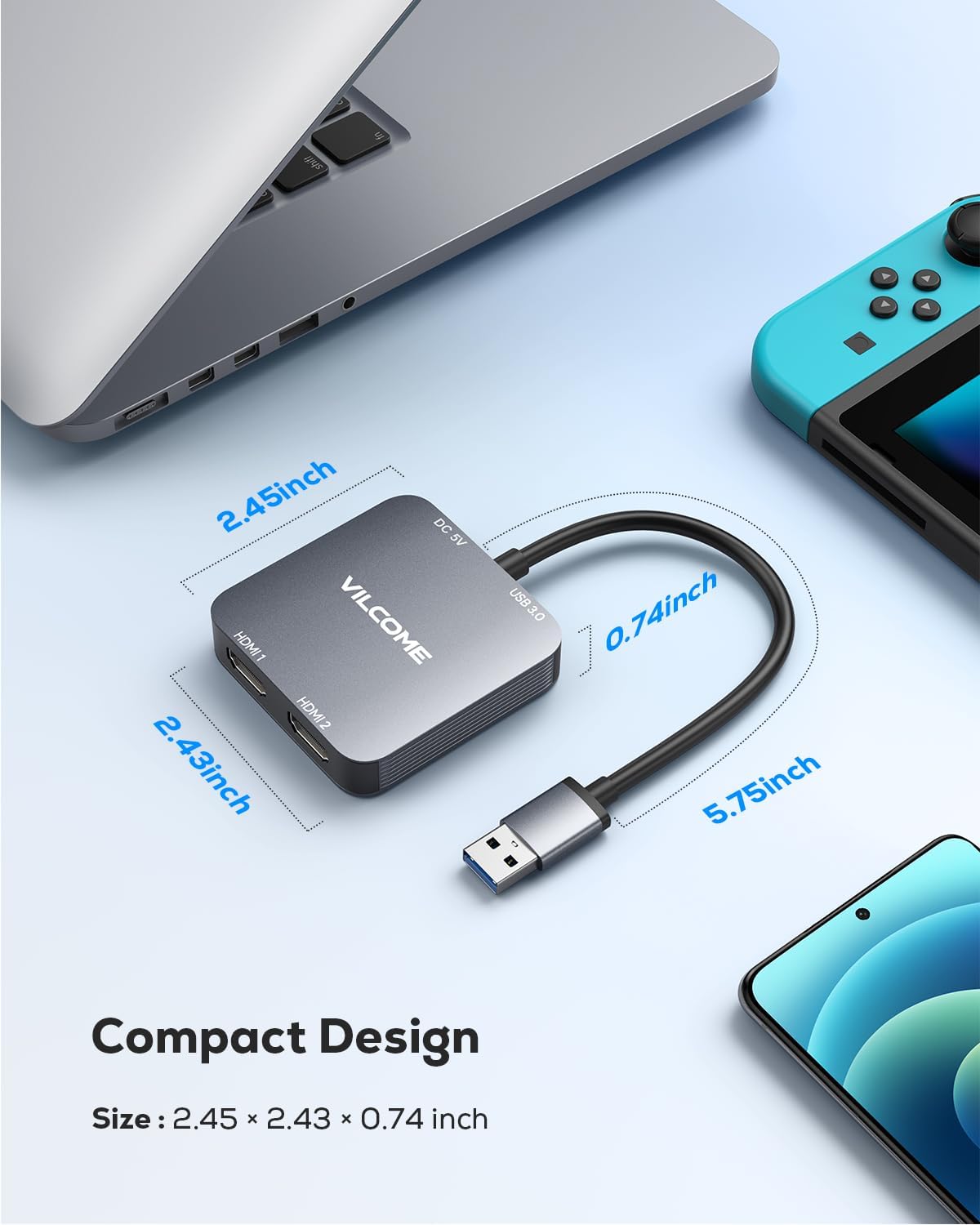
Image: The vilcome USB 3.0 to Dual HDMI Adapter, highlighting its compact design and available ports: two HDMI outputs, one USB 3.0 input, and a USB-C power input.
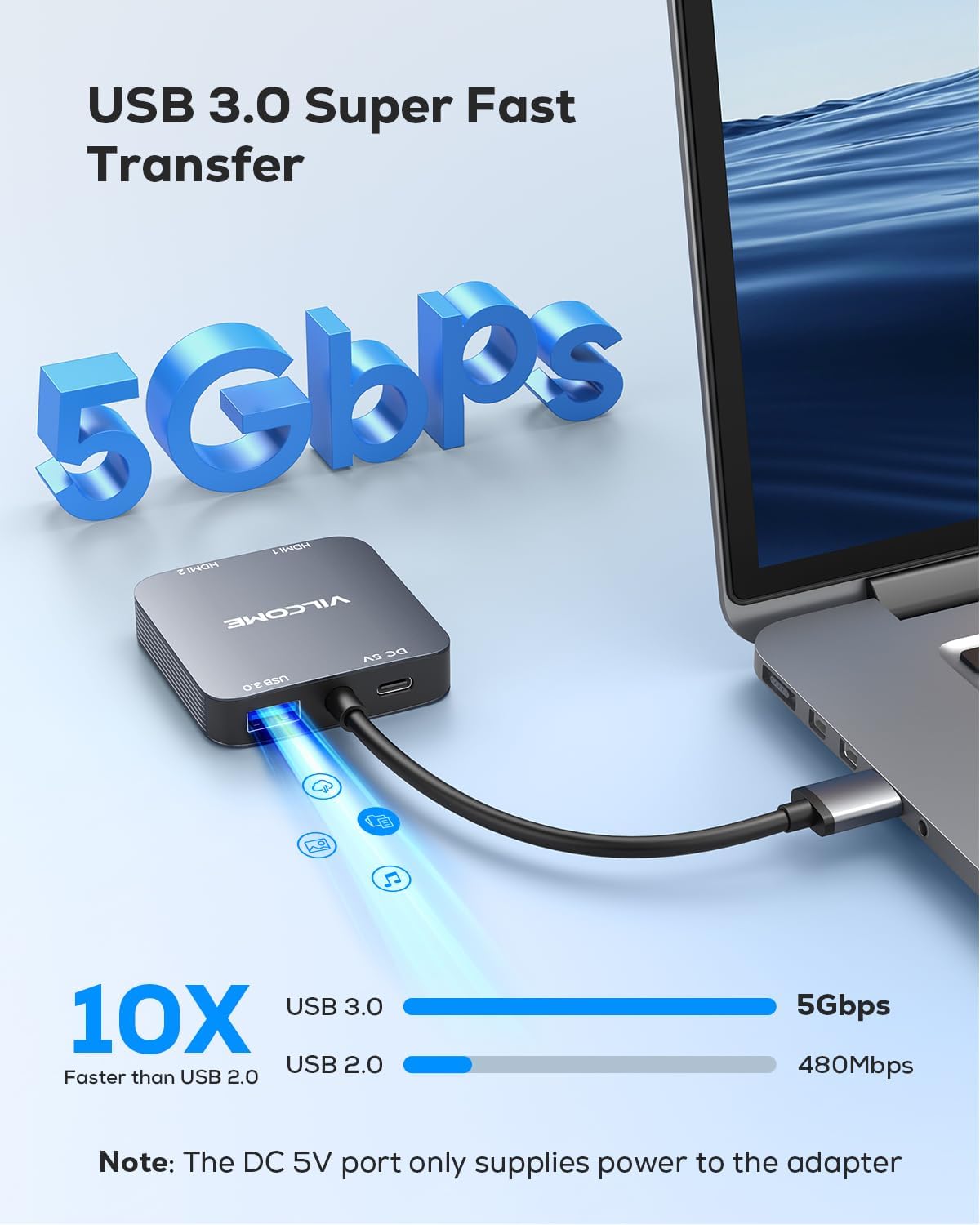
Image: A detailed view of the adapter's compact dimensions, measuring approximately 2.45 x 2.43 x 0.74 inches, making it portable and space-efficient.
3. Setup Instructions
3.1 Driver Installation
This adapter requires a driver installation to function correctly. The driver installation process varies slightly by operating system:
- Windows (11/10/8/8.1/7): When the adapter is first plugged into a Windows computer, the driver installation should initiate automatically. Follow the on-screen prompts to complete the installation.
- Mac OS (10.15 and later): Driver installation is required. Please refer to the manufacturer's website for the latest driver download and installation instructions.
- Chrome OS & Android (5.1 and later): Driver installation may be required. Follow system prompts or refer to the manufacturer's website.
Note: If the automatic driver installation does not occur on Windows, or if you need to manually install the driver, please visit the official vilcome support website for driver downloads.
3.2 Connecting the Adapter
- Connect the USB 3.0 plug of the adapter to an available USB 3.0 port on your computer.
- Connect your HDMI monitors to the HDMI 1 and HDMI 2 ports on the adapter using standard HDMI cables.
- If additional power is needed for stable operation, connect a USB-C power cable (not included) to the USB-C power port on the adapter and to a power source.
- After connecting, ensure the driver is installed as described in Section 3.1. Your system should detect the connected displays.
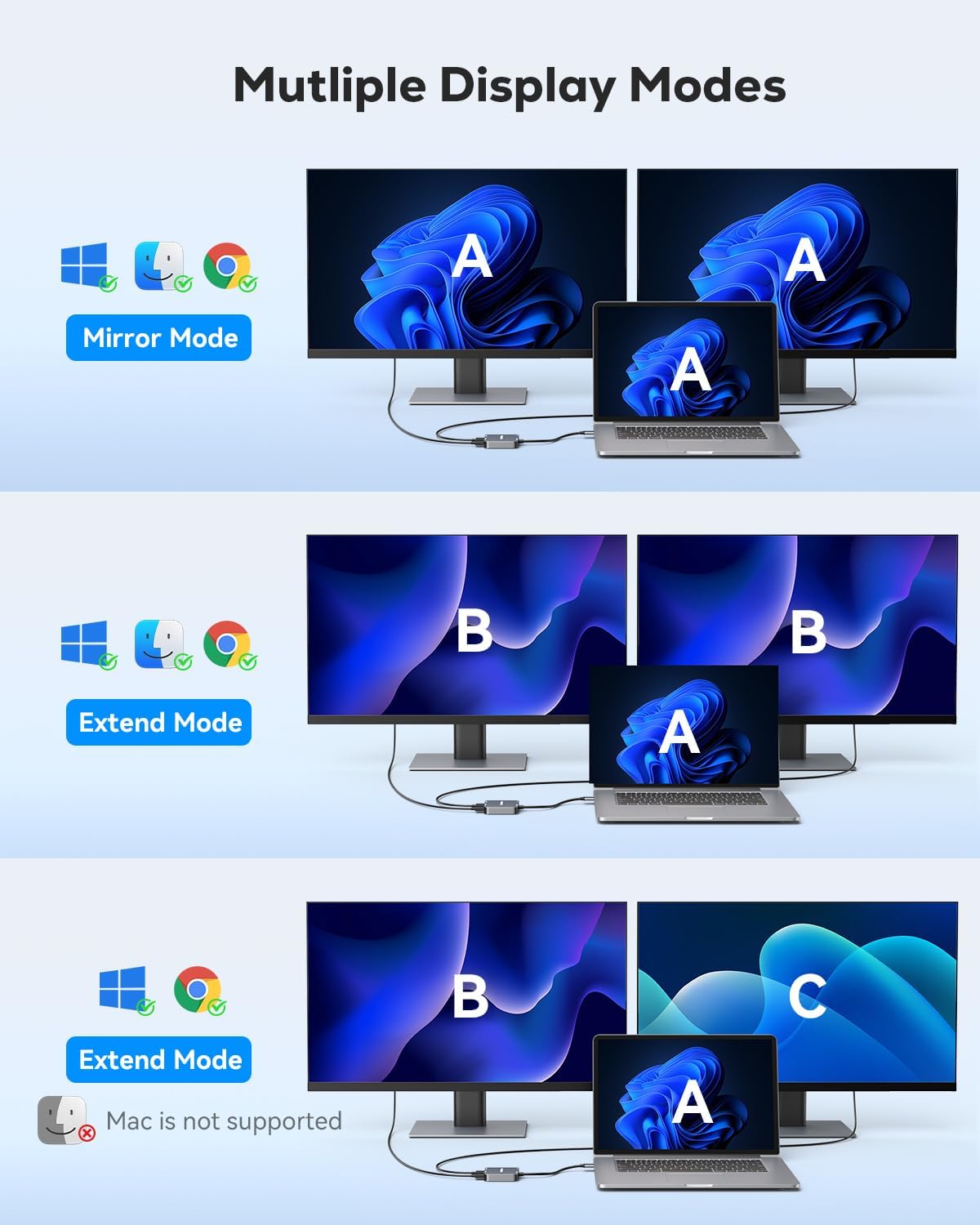
Image: An illustration demonstrating the connection of the vilcome USB to Dual HDMI Adapter to a laptop, extending the display across two external monitors.
4. Operating Instructions
4.1 Display Modes
The adapter supports various display modes depending on your operating system:
- Windows: Supports Mirror Mode (A-A-A), Extend Mode I (A-B-B), and Extend Mode II (A-B-C). This allows for flexible multi-tasking and expanded workspaces.
- Mac OS, Chrome OS, Android: Due to system limitations, these operating systems primarily support Mirror Mode (A-A-A) and Extend Mode I (A-B-B). Full A-B-C extend mode is not supported.
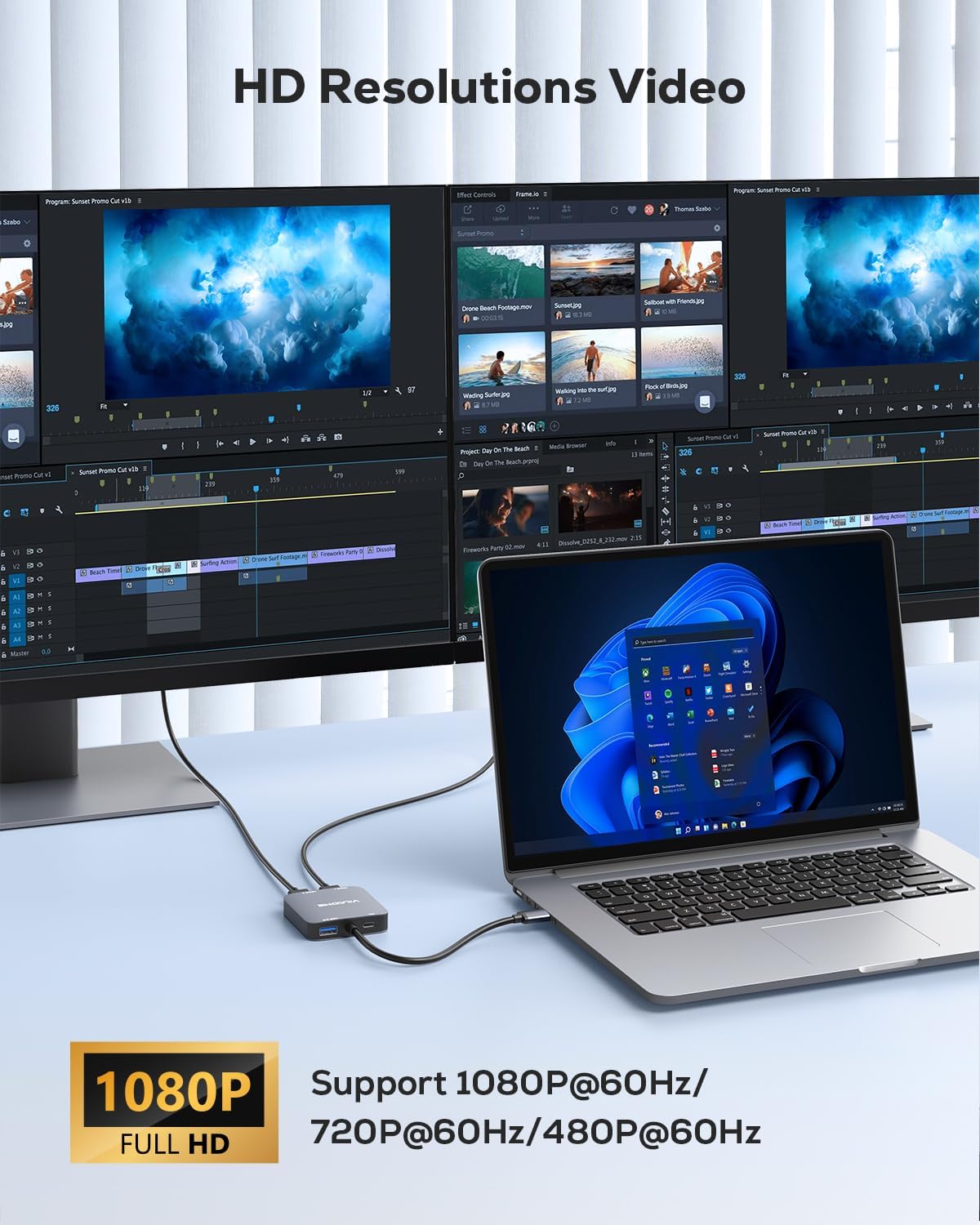
Image: Visual representation of different display modes: Mirror Mode (A-A-A), Extend Mode I (A-B-B), and Extend Mode II (A-B-C), illustrating how content is displayed across the laptop and two external monitors.
4.2 Resolution Support
The two HDMI ports support media display at resolutions up to 1920x1080@60Hz (Full HD) and 3D display. Ensure your monitors and HDMI cables support these resolutions for optimal performance.

Image: A setup showing a laptop connected to two external monitors, both displaying high-definition content, demonstrating the adapter's dual display capability.
4.3 USB 3.0 Data Transfer
The integrated USB 3.0 port offers data transmission speeds of up to 5Gbps, allowing for quick transfer of large files and data.

Image: The adapter's USB 3.0 port, illustrating its capability for high-speed data transfer at 5Gbps, significantly faster than USB 2.0.
4.4 USB-C Power Port
The USB-C port on the adapter is for power supply only. It ensures stable operation of the adapter, especially when connecting multiple high-resolution displays or power-intensive devices.
5. System Compatibility
The vilcome USB 3.0 to Dual HDMI Adapter is compatible with the following operating systems:
- Windows 11 / 10 / 8 / 8.1 / 7
- Mac OS 10.15 and later
- Chrome OS
- Android 5.1 and later
Unsupported Systems: iOS, Linux, and Unix systems are not supported by this adapter.
Important: Driver installation is required for all compatible systems to ensure full functionality.
6. Specifications
| Feature | Description |
|---|---|
| Model | USB to Dual HDMI Adapter |
| Connector Type | USB 3.0 Input, Dual HDMI Output, USB 3.0 Data Port, USB-C Power Input |
| Max Resolution | 1920x1080@60Hz (Full HD) |
| USB 3.0 Data Transfer Speed | Up to 5Gbps |
| Power Input | USB-C (for adapter power only) |
| Compatible Devices | Laptops, Desktops, Monitors, HDTVs, Projectors |
| Supported OS | Windows 11/10/8/8.1/7, Mac OS 10.15+, Chrome OS, Android 5.1+ |
| Color | Gray |
7. Troubleshooting
7.1 No Display on External Monitors
- Check Driver Installation: Ensure the correct driver is installed for your operating system. Reinstall the driver if necessary.
- Verify Connections: Make sure all cables (USB 3.0 from computer to adapter, HDMI from adapter to monitors, and USB-C power to adapter if used) are securely connected.
- Power Supply: If using high-resolution monitors or experiencing instability, connect a USB-C power source to the adapter's power port.
- Monitor Input: Confirm your monitors are set to the correct HDMI input source.
- System Display Settings: Check your computer's display settings to ensure the external monitors are detected and configured for either mirror or extend mode.
7.2 Driver Installation Issues
- Manual Download: If the driver does not auto-install on Windows, or for Mac OS, visit the official vilcome support website to download the latest driver.
- Antivirus/Firewall: Temporarily disable your antivirus or firewall during driver installation, as they might interfere. Remember to re-enable them afterward.
- Administrator Rights: Ensure you have administrator privileges on your computer to install drivers.
7.3 Mac OS Mirror Mode Only
- This is a limitation of the Mac OS system itself, not the adapter. Mac OS typically supports only mirror mode or A-B-B extend mode with this type of adapter. Full A-B-C extend mode is not available.
8. Warranty and Support
The vilcome USB 3.0 to Dual HDMI Adapter comes with a 2-year warranty from the date of purchase. This warranty covers manufacturing defects and ensures the product performs as described under normal use.
For technical support, warranty claims, or further assistance, please contact vilcome customer service through the retailer where you purchased the product or visit the official vilcome website for contact information.