
1. Introduction
Thank you for choosing the GRECELL T200 240W Portable Power Station. This manual provides essential information for the safe and efficient operation of your device. Please read it thoroughly before use and retain it for future reference.
Safety Warnings
- Do not disassemble, repair, or modify the unit.
- Keep away from fire or extreme temperatures.
- Avoid exposure to water or high humidity.
- Do not drop or subject to strong impacts.
- Keep out of reach of children.
2. Product Overview
The GRECELL T200 is a compact and portable power station designed to provide reliable power for various devices, featuring a 153.6Wh LiFePO4 battery and multiple output options.

Figure 2.1: Main view of the GRECELL T200 Portable Power Station.
Components and Ports
The GRECELL T200 features a user-friendly interface with clearly labeled ports and controls.

Figure 2.2: Front panel of the GRECELL T200 showing output and input ports.
- Power Button: Turns the unit on/off and activates the display.
- Light Button: Cycles through LED light modes (50% brightness, 100% brightness, flash, SOS, off). Long press to turn off all lights.
- Output Ports: 1x DC (12.8V 8A), 2x USB-A (18W), 1x USB-C (100W), 1x USB-C (30W).
- Input Ports: 1x USB-C (100W), 1x DC (12-26V).
- LCD Display: Shows battery level, input/output wattage, and ECO mode status.
- Integrated Stand: Located at the bottom, pulls out to hold a phone or tablet.
- Adjustable LED Light: Provides illumination with multiple modes and adjustable angles.
3. Setup
Unboxing and Initial Charge
Upon receiving your GRECELL T200, it is recommended to fully charge the unit before first use. This ensures optimal battery performance.
Video 3.1: GRECELL 240W Power Station Unboxing. This video demonstrates the unboxing process and initial setup of the power station.
What's in the Box
Verify that all components are present in the packaging:

Figure 3.1: Included items: GRECELL 240W Power Station, USB-C Charging Cable, DC to Cigarette Lighter Outlet, and User Manual.
- 1x GRECELL 240W Power Station (Model T200)
- 1x USB-C Charging Cable
- 1x DC to Cigarette Lighter Outlet (Output)
- 1x User Manual
Note: A wall charger is not included and must be purchased separately for AC charging.
4. Operating Instructions
Powering On/Off
Press the power button once to turn on the unit and activate the LCD display. Press and hold the power button for 1.5 seconds to turn off the unit.
Charging External Devices
Connect your devices to the appropriate output ports (USB-A, USB-C, or DC). The LCD display will show the current output wattage. The unit supports simultaneous charging of multiple devices.

Figure 4.1: The power station actively charging a laptop and a smartphone.
Video 4.1: Demonstration of charging multiple devices simultaneously using the GRECELL T200.
Using the LED Light
Press the light button to cycle through the following modes:
- 50% Brightness
- 100% Brightness
- Flash (strobe)
- SOS (Morse code for emergency)
- Off
Long press the light button for 1.5 seconds to turn off all lights directly from any mode.

Figure 4.2: The power station's LED light can be adjusted to various angles for optimal illumination.
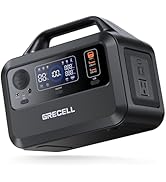
Figure 4.3: The adjustable LED light provides versatile lighting options for different scenarios.
Using the Phone/Tablet Stand
Pull out the integrated stand located at the bottom of the unit to securely hold your smartphone or tablet while charging or viewing content.

Figure 4.4: The integrated phone/tablet stand in use.
5. Charging the Power Station
The GRECELL T200 offers multiple charging methods to ensure you always have power when you need it.

Figure 5.1: Multiple charging methods for the GRECELL T200.
USB-C Bidirectional Fast Charging (100W)
Connect a compatible USB-C PD charger (not included) to the USB-C input port. This method supports fast charging the power station in approximately 1.5 hours.
Solar Charging
Connect a compatible 100W solar panel (not included) to the DC input port. Charging time will vary depending on sunlight intensity and solar panel efficiency.

Figure 5.2: The power station connected to a solar panel for charging.
Video 5.1: GRECELL 240W Portable Power Station Solar Generator. This video illustrates the solar charging capability of the power station.
Car Charging
Use the provided DC to Cigarette Lighter Outlet cable to charge the power station from your vehicle's 12V car outlet.
6. Maintenance
LiFePO4 Battery Technology
The GRECELL T200 utilizes Lithium Iron Phosphate (LiFePO4) batteries, known for their longer lifespan (3000+ cycles) and enhanced safety compared to traditional lithium-ion batteries. This technology provides stable performance and increased durability.

Figure 6.1: Visual representation of LiFePO4 battery technology.
Advanced Safety Features
The power station is equipped with a Battery Management System (BMS) that provides comprehensive protection, including:
- Overvoltage Protection
- Undervoltage Protection
- Short Circuit Protection
- Overload Protection
- Over-temperature Protection
Storage Guidelines
Store the power station in a cool, dry place away from direct sunlight and extreme temperatures. For long-term storage, it is recommended to charge the unit to 50-80% every 3-6 months to maintain battery health.
7. Troubleshooting
If you encounter issues with your GRECELL T200, refer to the following common problems and solutions:
| Problem | Possible Cause | Solution |
|---|---|---|
| Unit does not turn on | Battery is completely drained. | Connect to a power source and charge for at least 30 minutes. |
| Devices not charging | Output port not activated or cable is faulty. | Ensure the unit is on and the specific output port is active. Try a different cable. |
| Slow charging speed | Using a non-PD compatible charger or solar input is insufficient. | Use a 100W USB-C PD charger. For solar, ensure direct sunlight and optimal panel angle. |
| LED light not working | Light function is off or unit is off. | Press the light button to cycle modes. Ensure the power station is on. |
If the problem persists, please contact GRECELL customer support.
8. Specifications
| Feature | Detail |
|---|---|
| Model Name | T200 |
| Battery Type | LiFePO4 |
| Capacity | 153.6Wh / 48000mAh |
| Rated Power | 240W |
| USB-C Output 1 | 100W Power Delivery (PD) |
| USB-C Output 2 | 30W |
| USB-A Output | 2x 18W |
| DC Output | 12.8V 8A |
| DC Input | 12-26V (Supports up to 100W solar input) |
| Dimensions (L x W x H) | 13.58" x 12.99" x 11.25" (Note: Product dimensions from spec are likely for packaging, using image dimensions for actual unit: approx. 8.18in x 4.56in x 4.56in) |
| Weight | 4.5 lbs (approx.) |
| Special Features | Adjustable LED light, Phone/Tablet stand, Portable |
9. Warranty and Support
Warranty Information
The GRECELL T200 Portable Power Station comes with a 2-Year Manufacturer Warranty. Please retain your proof of purchase for warranty claims.
Customer Support
For technical assistance, troubleshooting, or warranty inquiries, please contact GRECELL customer support through the retailer where you purchased the product or visit the official GRECELL website.
