
1. Product Overview
The SPIKECAM Z9 is a compact, computer-free body camera designed for personal security, recording high-definition video and audio. It features night vision, an SOS sound function, and versatile mounting options, making it suitable for various activities such as security, running, and biking.

Image: Front view of the SPIKECAM Z9 Body Camera, showcasing its compact design.
Package Contents
Before use, please ensure all items are present in the package:
- SPIKECAM Z9 Main Camera
- USB Cable
- User Manual
- Type C OTG Adapter
- Standard Back Clip
- 360° Rotational Back Clip
- Mini Tripod
- Bike Mount
- Lanyard Cord
- TF Card Reader
- 64GB Micro SD Card (pre-installed)
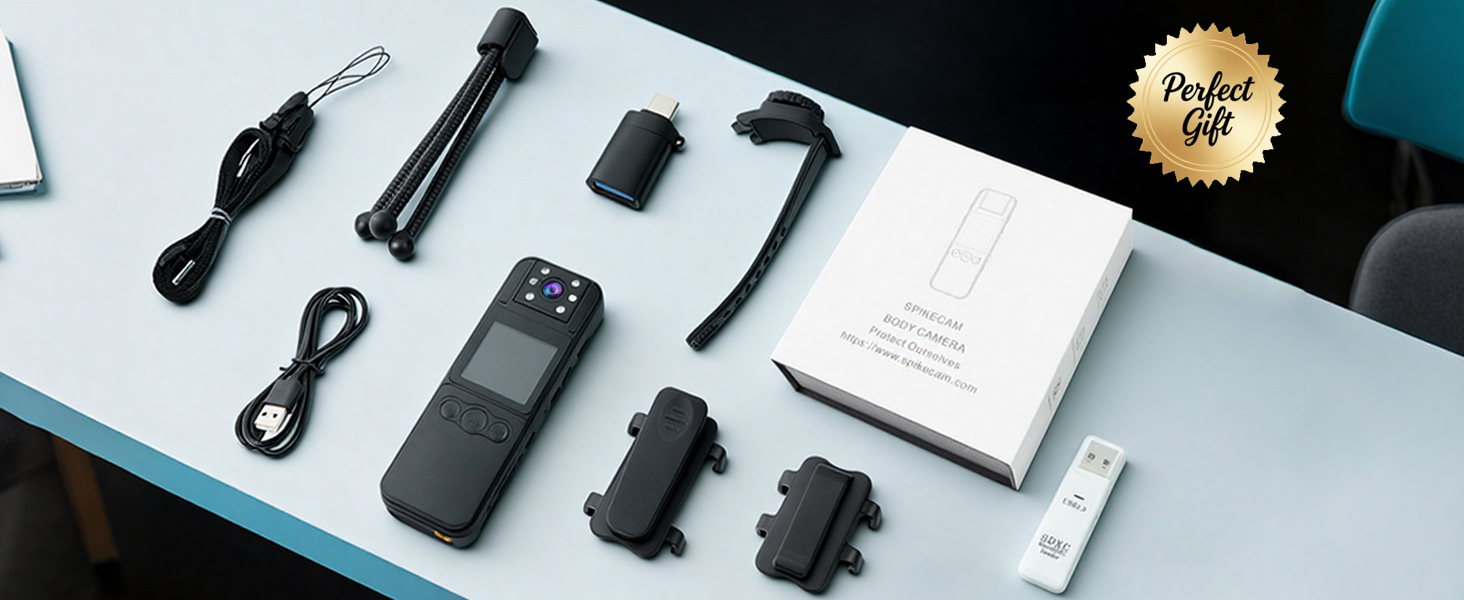
Image: A flat lay of all included accessories: camera, clips, cables, tripod, bike mount, and card reader.
2. Setup
Charging the Device
Before first use, fully charge the SPIKECAM Z9. Connect the camera to a USB power source using the provided USB cable. The charging indicator light will show the charging status and turn off when fully charged.
Inserting the Micro SD Card
The camera comes with a 64GB Micro SD card pre-installed. If you need to replace or upgrade the card (supports up to 512GB), ensure the camera is powered off. Locate the Micro SD card slot, gently insert the card with the contacts facing the correct direction until it clicks into place. To remove, press the card gently until it springs out.

Image: The SPIKECAM Z9 connected to a laptop, illustrating the Micro SD card slot and card insertion.
Attaching the Clips and Mounts
The SPIKECAM Z9 includes two types of back clips and additional mounts for versatile attachment:
- Standard Clip: For fixed attachment to clothing, bags, or other surfaces.
- 360° Rotational Clip: Allows for flexible camera positioning and angle adjustment.
- Bike Mount: Securely attach the camera to bicycle handlebars.
- Mini Tripod: For stable placement on flat surfaces.
To attach a clip, align the clip with the grooves on the back of the camera and slide it until it locks into place. Ensure it is securely fastened before use.
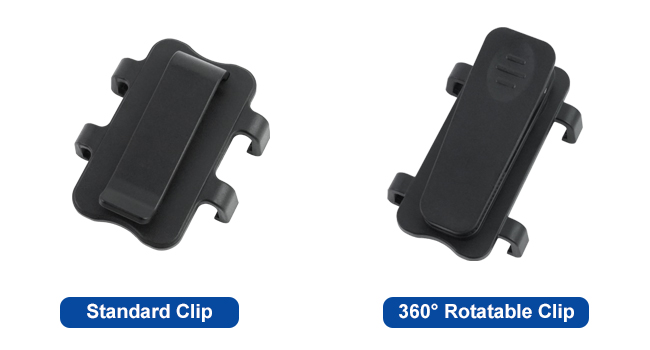
Image: A visual comparison of the standard clip and the 360° rotatable clip.
3. Operating Instructions
Power On/Off
- Power On: Press and hold the Power button for a few seconds until the screen illuminates.
- Power Off: Press and hold the Power button until the device shuts down.
Video Recording
To start video recording, press the Record button. The recording indicator (usually a red dot on the screen) will appear. Press the Record button again to stop recording. Videos are saved as 1080P MP4 files.

Image: A person wearing the SPIKECAM Z9, illustrating its use for continuous 1080P video recording.
Photo Capture
Switch to photo mode (refer to the on-screen menu or dedicated button if available). Press the Shutter button to take a still image. Photos are saved as JPEG files with an effective resolution of 4 MP.
Night Vision
The camera features night vision for recording in low-light conditions. Activate night vision through the camera's menu settings. The camera will automatically adjust to capture clearer images in the dark.

Image: Demonstration of night vision, showing a dark indoor scene with enhanced visibility.
SOS Function
In an emergency, activate the SOS function. This typically involves pressing and holding a designated SOS button (refer to your device's physical layout). The camera will emit a loud alarm sound and flash red LED lights to attract attention.
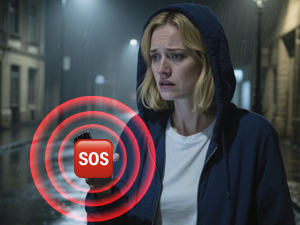
Image: Visual representation of the SOS siren feature being activated on the camera.
Playback and Data Transfer
You can review recorded footage directly on the camera's 1.5-inch LCD screen. Navigate through files using the control buttons. For larger viewing or data backup, connect the camera to a computer using the USB cable or use the provided Type C OTG adapter to connect to a compatible mobile phone. The TF Card Reader can also be used to access files directly from the Micro SD card on a computer.

Image: A user reviewing recorded video on a smartphone via the OTG function.
4. Maintenance
Cleaning
Use a soft, dry cloth to clean the camera body. For the lens, use a specialized lens cleaning cloth and solution. Avoid using harsh chemicals or abrasive materials that could damage the device.
Storage
Store the camera in a cool, dry place away from direct sunlight and extreme temperatures. Ensure the battery is partially charged (around 50%) if storing for extended periods to maintain battery health.
Battery Care
The camera is powered by a nonstandard battery. To maximize battery life, avoid fully discharging the battery frequently. Charge the device regularly, especially if it has not been used for a long time.
5. Troubleshooting
Camera Not Turning On
- Ensure the battery is charged. Connect the camera to a power source and try again.
- Press and hold the Power button for a longer duration (5-10 seconds).
Recording Issues (e.g., not saving, corrupted files)
- Check if the Micro SD card is properly inserted.
- Ensure there is sufficient storage space on the Micro SD card.
- Format the Micro SD card (this will erase all data, so back up important files first).
- Use a high-speed Micro SD card (Class 10, U1, V30 recommended).
Poor Video/Photo Quality
- Clean the camera lens.
- Ensure adequate lighting for optimal recording, or activate night vision in dark environments.
Device Freezes or Becomes Unresponsive
- Perform a soft reset by pressing and holding the Power button until the device restarts.
- If a reset button is available (often a small pinhole), use a thin object to press it.
6. Specifications
| Feature | Specification |
|---|---|
| Brand | SPIKECAM |
| Model Number | Z9 |
| Video Capture Resolution | 1080p |
| Effective Still Resolution | 4 MP |
| Photo Sensor Technology | CMOS |
| Screen Size | 1.5 Inches |
| Viewing Angle | 110 Degrees |
| Flash Memory Type | Micro SD (64GB included, up to 512GB supported) |
| Video Capture Format | MP4 |
| Supported Audio Format | WAV |
| Battery Average Life | 6 Hours |
| Features | Night Vision, SOS Sound |
| Connectivity Technology | USB |
| Water Resistance Level | Water Resistant |
| Item Dimensions (D x W x H) | 0.67"D x 1.38"W x 4.13"H |
7. Warranty and Support
Warranty Information
The SPIKECAM Z9 Body Camera comes with a 1-year limited warranty from the date of purchase, covering manufacturing defects. Additionally, SPIKECAM offers a lifetime clip protection plan, allowing for a replacement clip at any time if it breaks.
Please retain your proof of purchase for warranty claims.
Customer Support
For technical assistance, troubleshooting not covered in this manual, or warranty inquiries, please contact SPIKECAM customer support through their official website or the contact information provided with your product packaging.


