
1. Introduction
The TP-Link BE6300 Dual-Band Wi-Fi 7 Range Extender RE403BE is designed to expand your existing Wi-Fi network, eliminating dead zones and providing seamless coverage throughout your home. When paired with a compatible Wi-Fi 7 router, it leverages advanced technologies like Multi-Link Operation (MLO), Multi-RUs, and 4K-QAM for enhanced performance. This extender offers 6-stream, dual-band Wi-Fi with 6.3 Gbps of total bandwidth and extends coverage up to 2800 sq. ft., supporting up to 64 devices. It also features a 2.5 Gbps Ethernet port for high-speed wired connections and supports EasyMesh for creating a unified whole-home mesh Wi-Fi network. This device is built with advanced security features, adhering to the U.S. Cybersecurity and Infrastructure Security Agency’s (CISA) Secure-by-Design pledge.
2. What's in the Box
- 1 x RE403BE Wi-Fi 7 Range Extender
- 1 x Quick Installation Guide
3. Product Overview
Familiarize yourself with the components and indicators of your RE403BE range extender.

Image: Front view of the TP-Link RE403BE Wi-Fi 7 Range Extender, highlighting the Power Indicator, Signal Indicator, 2.4 GHz Indicator, 5 GHz Indicator, Port Indicator, Reset button, WPS button, and 2.5 Gbps Port.
- Power Indicator: Shows the power status of the device.
- Signal Indicator: Displays the strength of the signal received from your router.
- 2.4 GHz Indicator: Indicates activity on the 2.4 GHz Wi-Fi band.
- 5 GHz Indicator: Indicates activity on the 5 GHz Wi-Fi band.
- Port Indicator: Shows the status of the Ethernet port connection.
- Reset Button: Used to restore the device to factory default settings.
- WPS Button: For quick and easy setup using Wi-Fi Protected Setup.
- 2.5 Gbps Port: Provides a high-speed wired connection for devices.
4. Setup
Setting up your TP-Link RE403BE range extender is a straightforward process. You can use either the WPS button method or the TP-Link Tether app.
4.1. Using the WPS Button
- Plug the RE403BE extender into a power outlet near your main router.
- Wait for approximately one minute until the Power LED on the extender turns solid blue.
- Press the WPS button on your main router.
- Within two minutes, press the WPS button on your RE403BE extender.
- The Signal LED on the extender should turn solid blue, indicating a successful connection.
- Relocate the RE403BE to an optimal location between your router and the Wi-Fi dead zone. Ensure the Signal LED remains solid blue for the best coverage.
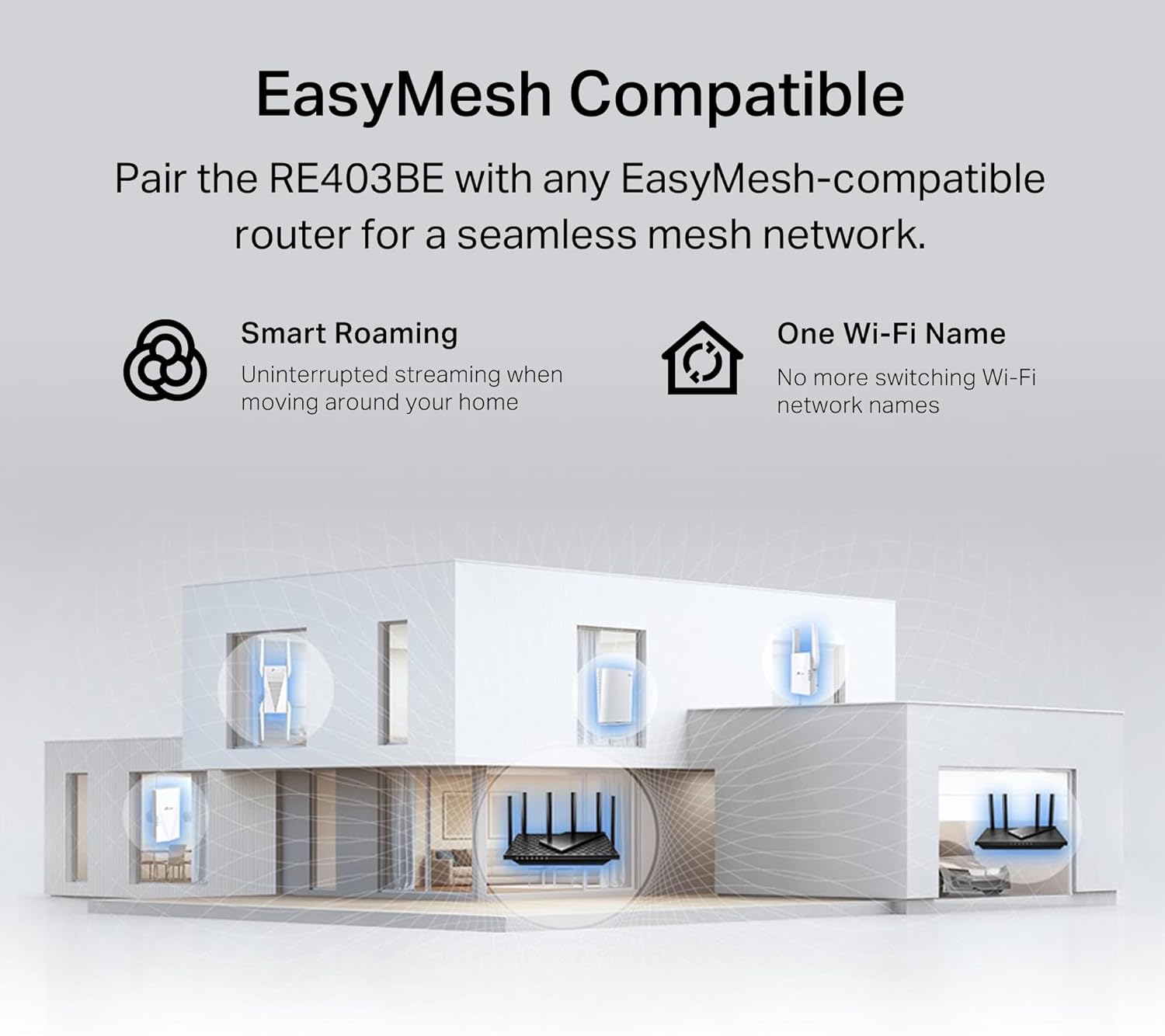
Image: A visual guide demonstrating the effortless one-touch setup using the WPS button on both the RE403BE extender and the main router, followed by relocation based on the smart signal indicator.
4.2. Using the TP-Link Tether App
- Download the TP-Link Tether app from the App Store (for iOS) or Google Play (for Android).
- Plug the RE403BE extender into a power outlet near your main router.
- Open the Tether app and follow the on-screen instructions to add a new device.
- Select 'Add a Range Extender' and choose your RE403BE model.
- Connect your smartphone to the extender's temporary Wi-Fi network (e.g., 'TP-Link_Extender').
- Follow the app's prompts to select your main Wi-Fi network and enter its password.
- Once configured, relocate the RE403BE to an optimal location. The app will guide you to find the best spot using its signal indicator.

Image: A smartphone displaying the TP-Link Tether app interface for managing the RE403BE, showing network status, connected clients, and main/extended network details. QR codes for app download are also visible.
5. Operating Modes
The RE403BE can operate in two primary modes:
5.1. Range Extender Mode
In this mode, the RE403BE wirelessly connects to your existing router to boost and extend its signal, reaching areas previously out of range. This eliminates Wi-Fi dead zones and ensures smooth internet access for up to 64 devices.

Image: A diagram showing a home layout with a router and the RE403BE extender, illustrating how the extender expands Wi-Fi coverage up to 2800 sq. ft. to eliminate dead zones.
5.2. Access Point Mode
You can connect the RE403BE to your router via an Ethernet cable to convert your existing wired network into a high-speed dual-band wireless signal. This is ideal for devices that require a stable wired connection or to create a new Wi-Fi hotspot.

Image: A diagram illustrating the use of the 2.5 Gbps Ethernet port on the RE403BE for wired connections, showing both Range Extender Mode and Access Point Mode scenarios.
6. Key Features
- Next-Gen Wi-Fi 7 Performance: When paired with a Wi-Fi 7 router, the RE403BE utilizes Multi-Link Operation (MLO), Multi-RUs, 160 MHz bandwidth, and 4K-QAM for optimized signal distribution and high performance on the latest Wi-Fi 7 devices.
- 6-Stream, Dual-Band Wi-Fi with 6.3 Gbps Total Bandwidth: Extends your router's performance with speeds up to 5764 Mbps (5 GHz band) and up to 574 Mbps (2.4 GHz band), supporting seamless 4K/8K streaming, AR/VR gaming, and fast downloads/uploads.
- Maximized Coverage up to 2800 Sq. Ft.: Four optimally positioned antennas with Beamforming technology boost signal strength, reliability, and range, providing seamless whole-home Wi-Fi coverage and eliminating dead zones for up to 64 devices.
- Ultra-Fast 2.5 Gbps Ethernet Port: Experience smoother streaming, faster downloads, and lower latency for your connected devices with the 2.5 Gbps LAN port. Ideal for pairing with a multi-gig modem for gig+ internet.
- EasyMesh-Compatible: Easily expand your network for seamless, whole-home coverage by connecting the RE403BE to any EasyMesh-compatible router. This allows for smart roaming and a single Wi-Fi network name across your home.
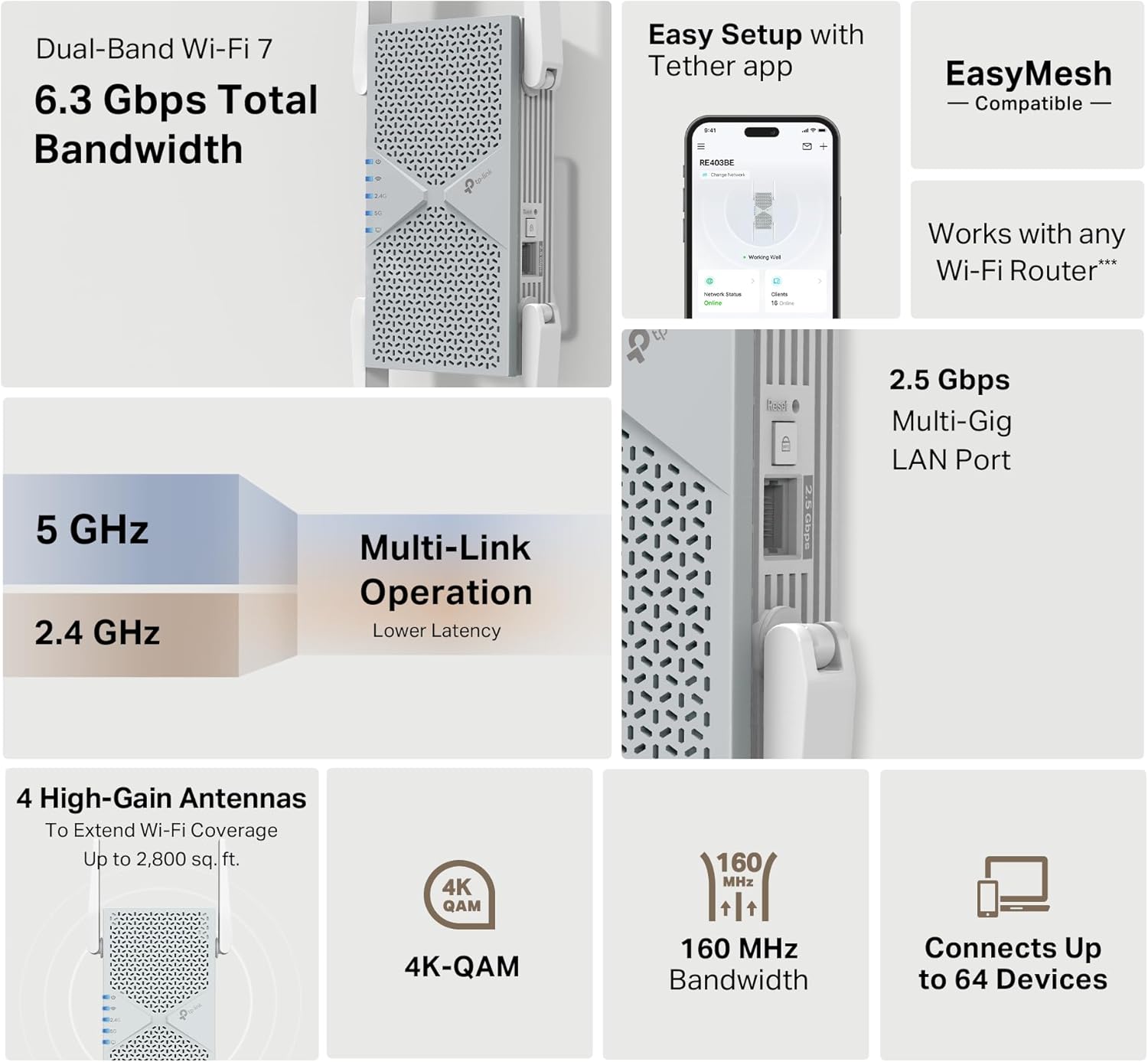
Image: An infographic showcasing the key features of the TP-Link RE403BE, including Dual-Band Wi-Fi 7, 6.3 Gbps Total Bandwidth, Easy Setup with Tether app, EasyMesh Compatibility, 2.5 Gbps Multi-Gig LAN Port, 4 High-Gain Antennas for 2800 sq. ft. coverage, 4K-QAM, 160 MHz Bandwidth, and connectivity for up to 64 devices.
7. Security and Management
The RE403BE incorporates robust security features and convenient management options:
- Advanced Security: Supports WPA3 encryption, two-factor authentication (2FA), and IP address and MAC address filtering to protect your network.
- Secure-by-Design Pledge: TP-Link is a signatory of the U.S. Cybersecurity and Infrastructure Security Agency’s (CISA) Secure-by-Design pledge, ensuring the device is designed, built, and maintained with advanced security as a core requirement.
- Tether App Management: The TP-Link Tether app provides features for network status monitoring, firmware updates, parental controls, and blocking unwanted users.
- LED Control: You can control the LED indicators on the device, useful for minimizing light disturbance in certain environments.

Image: An image detailing TP-Link's commitment to cybersecurity and privacy, highlighting their Secure-by-Design pledge with CISA and the HomeShield service for router security, IoT protection, web protection, intrusion prevention, basic parental controls, and antivirus protection.
8. Specifications
| Feature | Detail |
|---|---|
| Wireless Type | 802.11ac, 802.11be, 802.11ax, 802.11g, 802.11n |
| Brand | TP-Link |
| Model Number | RE403BE |
| Item Weight | 14.4 ounces |
| Package Dimensions | 8.03 x 5.63 x 4.72 inches |
| Color | White |
| Data Transfer Rate | 6300 Megabits Per Second |
| Frequency Band Class | Dual-Band (2.4 GHz and 5 GHz) |
| Special Features | Access Point Mode, Guest Mode, LED Indicator, QoS, WiFi Mesh |
| Operating Temperature | 32°F to 104°F (0°C to 40°C) |
| Operating Humidity | 10%-90% non-condensing |
9. Important Notes
- No 6 GHz Band Support: This dual-band Wi-Fi 7 range extender operates on the 2.4 GHz and 5 GHz bands only and does not support the 6 GHz band.
- Does Not Increase Speed: Wireless extenders are designed to increase or improve Wi-Fi coverage, not to directly increase internet speed. Improving signal reliability can affect overall throughput.
- Wi-Fi 7 Features: The use of Wi-Fi 7 (802.11be) features, including Multi-Link Operation (MLO), 4K-QAM, and Multi-RU, requires client devices to also support these corresponding features.
- EasyMesh Compatibility: TP-Link EasyMesh-compatible products can network with other devices that use EasyMesh. However, compatibility issues may arise due to firmware conflicts from different vendors. The EasyMesh-compatible function is still under development for some models and will be supported in subsequent software updates. This product is compatible with standardized EasyMesh technology but has not obtained the Wi-Fi EasyMesh™ certification.
- Router Compatibility: The product may not be compatible with routers or gateways with altered, open-source, non-standard, or outdated firmware.
10. Troubleshooting
If you encounter issues with your RE403BE, consider the following:
- No Internet Access: Ensure the extender is properly connected to your router and the Signal LED is solid blue. Check your main router's internet connection.
- Weak Signal: Relocate the extender to a position halfway between your router and the desired coverage area. Use the Tether app's signal indicator to find an optimal location.
- Connection Drops: Verify that your router's firmware is up to date. If using EasyMesh, ensure both the router and extender are fully compatible and updated.
- Unable to Join Mesh Network: If you are trying to enable EasyMesh and encounter issues, ensure your main router supports EasyMesh/OneMesh and has it enabled. You may need to press the WPS button on both devices again or try moving the extender closer to the main router (within 10 feet/3 meters) during setup. If problems persist, contact technical support.
- Resetting the Device: If all else fails, you can reset the extender to factory default settings by pressing the Reset button (refer to Product Overview for location).
11. Support
For further assistance, technical support, or to manage your device, please use the TP-Link Tether app. The app provides network status, firmware updates, and direct access to support resources.
You can download the Tether app from the Apple App Store or Google Play Store.


