
1. Introduction
This manual provides essential instructions for setting up, operating, and maintaining your Genérico BOSSNEY 10.1-inch Tablet RB-2003. Please read this manual thoroughly before using your device to ensure proper functionality and longevity.
2. Package Contents
Upon unboxing, please verify that all items listed below are present:
- Genérico BOSSNEY 10.1-inch Tablet RB-2003
- Protective Case
- Keyboard
- Charging Cable (Type-C)
- Power Adapter (if included, not explicitly stated but implied with charging cable)
- User Manual (this document)
3. Product Overview
Familiarize yourself with the physical components of your tablet.
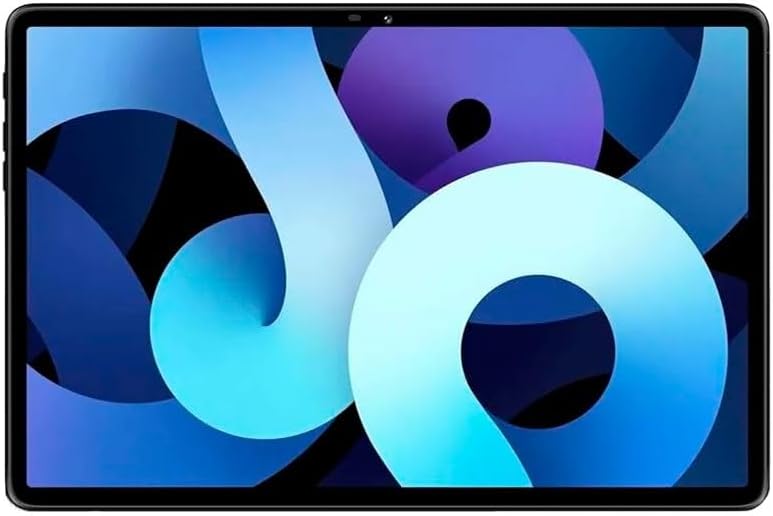
Figure 3.1: Front view of the Genérico BOSSNEY 10.1-inch Tablet RB-2003, showcasing its 10.1-inch HD display.
3.1 Buttons and Ports
- Power Button: Located on the side, used to turn the tablet on/off or put it to sleep/wake.
- Volume Buttons: Adjust the audio volume.
- USB Type-C Port: For charging and data transfer.
- 3.5mm Headphone Jack: For connecting wired headphones.
- Speaker Grilles: For audio output.
- Front Camera: Located above the screen, for video calls and selfies. (26 MP)
- Rear Camera: Located on the back, for taking photos and videos. (13 MP)
- MicroSD Card Slot: For expanding storage.

Figure 3.2: Detail of the tablet's rear camera module, featuring a 13 MP main camera.
4. Setup
4.1 Charging the Tablet
- Connect the USB Type-C cable to the tablet's charging port.
- Connect the other end of the cable to the power adapter, then plug the adapter into a wall outlet.
- Allow the tablet to charge fully before first use. The battery indicator on the screen will show charging status.
4.2 Powering On/Off
- To Power On: Press and hold the Power button until the screen lights up.
- To Power Off: Press and hold the Power button, then select "Power Off" from the options that appear on the screen.
- To Restart: Press and hold the Power button, then select "Restart" from the options.
4.3 Initial Setup
When you power on the tablet for the first time, you will be guided through an initial setup process:
- Select your preferred language.
- Connect to a Wi-Fi network.
- Sign in with your Google account or create a new one.
- Follow the on-screen prompts to complete the setup, including setting up security features like a PIN, pattern, or password.
5. Operating Instructions
5.1 Navigating the Android Interface
- Home Screen: The main screen where you can access apps and widgets.
- App Drawer: Swipe up from the home screen to view all installed applications.
- Notification Panel: Swipe down from the top of the screen to view notifications and quick settings.
- Navigation Bar: Typically at the bottom of the screen, containing Back, Home, and Recent Apps buttons.
5.2 Connecting to Wi-Fi
- Go to Settings > Network & Internet > Wi-Fi.
- Toggle Wi-Fi On.
- Select your desired network from the list and enter the password if prompted.
5.3 Using the Cameras
Your tablet is equipped with a 26 MP front camera and a 13 MP rear camera.
- Open the Camera application.
- Tap the shutter button to take a photo.
- Switch between front and rear cameras using the camera switch icon.
- Select video mode to record videos.
5.4 Using the Keyboard and Protective Case

Figure 5.1: The tablet integrated with its included keyboard case, enhancing productivity.
The included protective case and keyboard transform your tablet into a portable workstation. Simply attach the tablet to the case, and the keyboard will connect automatically, typically via Bluetooth or a physical connector.
- Ensure the keyboard is charged if it's a Bluetooth model.
- Pair the keyboard via Bluetooth if necessary (check keyboard's specific instructions).
- Use the keyboard for typing and the trackpad (if available) for navigation.
6. Maintenance
6.1 Cleaning the Tablet
- Use a soft, lint-free cloth to clean the screen and body of the tablet.
- For stubborn smudges, lightly dampen the cloth with water or a screen cleaner specifically designed for electronics.
- Avoid using harsh chemicals, abrasive materials, or excessive moisture.
6.2 Battery Care
- Avoid fully discharging the battery frequently.
- Do not expose the tablet to extreme temperatures, as this can degrade battery life.
- Use only the provided or certified charging accessories.
7. Troubleshooting
If you encounter issues with your tablet, refer to the following common solutions:
- Tablet not turning on: Ensure the battery is charged. Connect the charger and wait a few minutes before attempting to power on again.
- Screen frozen or unresponsive: Press and hold the Power button for about 10-15 seconds to force a restart.
- Wi-Fi connection issues: Check if Wi-Fi is enabled in settings. Restart your router and the tablet. Forget the network and reconnect.
- Apps crashing: Clear the cache of the problematic app (Settings > Apps > [App Name] > Storage > Clear Cache). If the issue persists, reinstall the app.
- Slow performance: Close unnecessary background apps. Clear cache and temporary files. Consider performing a factory reset as a last resort (backup your data first).
8. Specifications
Detailed technical specifications for the Genérico BOSSNEY 10.1-inch Tablet RB-2003:
| Feature | Specification |
|---|---|
| Brand | Genérico |
| Model Name | RB-2003 |
| Screen Size | 10.1 Inches |
| Operating System | Android 12 |
| RAM | 8 GB |
| Storage | 512 GB |
| Processor Brand | ARM |
| Graphics Card | Integrated |
| Connectivity | Wi-Fi |
| Main Camera | 13 MP |
| Front Camera | 26 MP |
| Battery Capacity | 10,000 mAh |
| Included Accessories | Protective Case, Keyboard |
Note: Specifications are subject to change without prior notice.
9. Warranty and Support
For warranty information and technical support, please refer to the documentation provided at the time of purchase or contact your retailer. Keep your proof of purchase for warranty claims.
