
Introduction
This manual provides detailed instructions for the F3 External DVD/CD Reader and Writer, Model DVD-RW-MUJ F3-16. This device offers versatile media reading and writing capabilities for CDs and DVDs, along with an integrated SD card reader, connecting via USB 3.0 or Type-C interfaces. Please read this manual thoroughly before using the product to ensure proper operation and longevity.
Product Overview
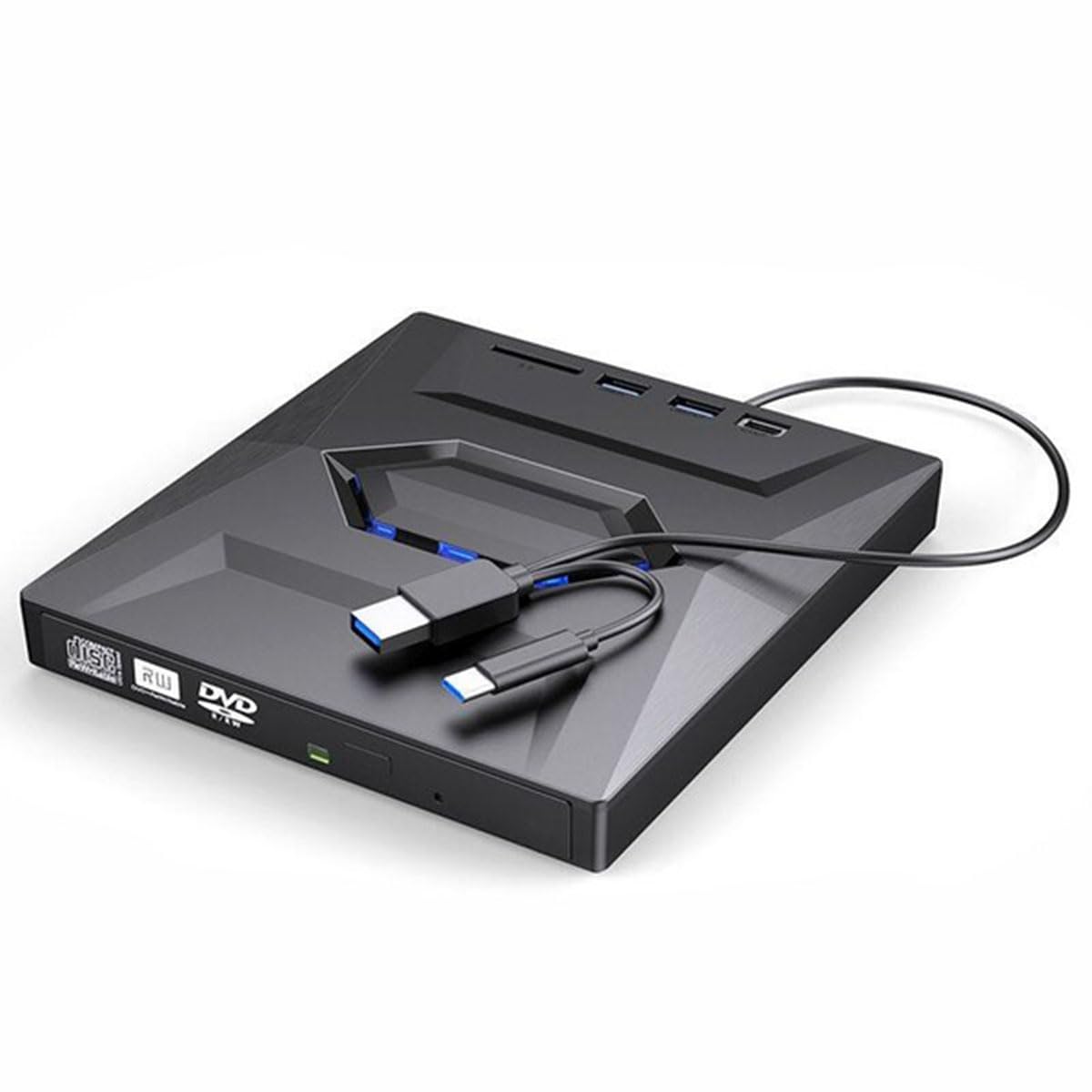
Image: The F3 External DVD/CD Reader and Writer, showing its compact design and various connectivity ports including USB and Type-C.
Setup Instructions
- Unpack the Device: Carefully remove the F3 External DVD/CD Reader and Writer from its packaging.
- Connect to Your Computer:
- Locate an available USB 3.0 or Type-C port on your computer.
- Connect the appropriate cable from the external drive to your computer's port. The device is plug-and-play and typically does not require driver installation on supported operating systems.
- Power Connection (if applicable): For some systems or demanding operations, an additional power source might be required. If your device includes a separate power cable, connect it to a power outlet.
- System Recognition: Your operating system (Windows XP, 7, 10, 11, Linux, or Mac) should automatically detect and install the necessary drivers. A notification will usually appear once the device is ready for use.
Operating Instructions
Reading CDs and DVDs
- Open the Disc Tray: Press the eject button on the front of the drive or use the eject command from your computer's operating system.
- Insert Disc: Carefully place a CD or DVD onto the disc tray with the label side facing up.
- Close the Disc Tray: Gently push the tray back into the drive until it clicks into place.
- Access Disc Content: Your computer's operating system should recognize the disc. You can usually access its content through "My Computer" or "This PC" (Windows) or Finder (Mac).
Writing CDs and DVDs
To write data to a CD or DVD, you will need compatible burning software (e.g., Windows Media Player, Nero, Roxio, or macOS built-in utilities). Ensure you are using a blank, writable disc (CD-R, CD-RW, DVD-R, DVD+R, DVD-RW, DVD+RW, DVD-DL).
- Insert Blank Disc: Open the disc tray and insert a blank writable CD or DVD.
- Launch Burning Software: Open your preferred disc burning software on your computer.
- Select Burning Options: Follow the software's instructions to select the files you wish to burn and choose the desired burning speed and format.
- Start Burning: Initiate the burning process. Do not interrupt the drive or computer during this process.
- Eject Disc: Once burning is complete, the software will notify you, and you can eject the disc.
Using the SD Card Reader
- Insert SD Card: Locate the SD card slot on the device. Gently insert your SD card until it clicks into place.
- Access Card Content: Your computer's operating system should recognize the SD card as a removable drive. You can access its content through "My Computer" or "This PC" (Windows) or Finder (Mac).
- Eject SD Card: Before removing the SD card, always safely eject it through your operating system to prevent data corruption.
Specifications
| Feature | Detail |
|---|---|
| Brand | F3 |
| Model | DVD-RW-MUJ F3-16 |
| Interface | USB 3.0 / Type-C |
| Writing Speed (DVD) | 8x |
| Writing Speed (CD) | 24x |
| Reading Speed (CD-ROM) | 24x |
| Reading Speed (DVD-ROM) | 8x |
| Supported Operating Systems | Windows XP, 7, 10, 11, Linux, Mac |
| Function | Read/Write CD/DVD discs |
| Material | ABS |
| Cache Capacity | 2MB |
| Installation Method | External |
| Supported Disc Types | DVD-ROM, DVD-RW, DVD+RW, DVD+R, DVD-R, CD-ROM, CD-RW, CD+RW, CD+R, DL |
| Card Reader | 1 Slot for SD Card |
Troubleshooting
- Device Not Recognized:
- Ensure the USB/Type-C cable is securely connected to both the drive and the computer.
- Try connecting to a different USB/Type-C port on your computer.
- Restart your computer.
- Check your computer's Device Manager (Windows) or System Information (Mac) to see if the device is listed.
- Disc Not Reading/Writing:
- Ensure the disc is clean and free of scratches or smudges.
- Verify that the disc type is supported by the drive (e.g., DVD-R, CD-RW).
- Try a different disc to rule out a faulty disc.
- Ensure your burning software is up-to-date and configured correctly for writing operations.
- Slow Performance:
- Ensure you are connected to a USB 3.0 port for optimal speed, if available.
- Close unnecessary applications running in the background.
Maintenance
- Cleaning the Exterior: Use a soft, dry cloth to wipe the exterior of the drive. Avoid abrasive cleaners or solvents.
- Cleaning the Lens: If you experience consistent reading errors, a disc drive cleaning kit (available separately) can be used to clean the internal laser lens. Follow the cleaning kit's instructions carefully.
- Storage: When not in use, store the drive in a clean, dry, and dust-free environment.
- Handling Discs: Always handle discs by their edges to avoid fingerprints and scratches. Store discs in protective cases.
Warranty and Support
For warranty information and technical support, please refer to the documentation provided with your purchase or contact the retailer or manufacturer directly. Keep your proof of purchase for warranty claims.