
Introduction
This manual provides essential information for setting up, operating, and maintaining your Cricket Icon 6 (SL219C) smartphone. Please read this guide thoroughly to ensure proper use and to maximize your device's capabilities. The Cricket Icon 6 (SL219C) is designed to offer a reliable and user-friendly experience with its 6.5-inch HD+ display, 4GB RAM, and 64GB internal storage.
What's in the Box
Upon opening your Cricket Icon 6 package, you should find the following items:
- Cricket Icon 6 Smartphone
- USB-C Cable
- SIM Ejector Tool
Note: A power adapter may be sold separately.
Device Overview
Familiarize yourself with the physical components of your Cricket Icon 6 smartphone.
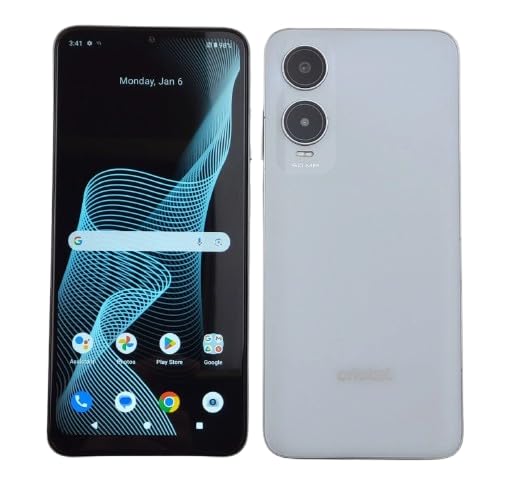
Figure 1: Front view of the Cricket Icon 6 (SL219C) smartphone, showcasing its 6.5-inch HD+ display and sleek white design.
Key Components:
- Front Camera: Located at the top of the display, used for selfies and video calls (5MP).
- Display: 6.5-inch HD+ screen for viewing content.
- Volume Buttons: Typically on the side, used to adjust media and call volume.
- Power/Lock Button: Usually on the side, used to turn the device on/off or lock/unlock the screen.
- USB-C Port: Located at the bottom, used for charging and data transfer.
- Speaker: Located at the bottom or front for audio output.
- Microphone: For voice input during calls or recordings.
- SIM/microSD Card Tray: Located on the side, requires the SIM ejector tool to open.
- Rear Camera: Located on the back, used for taking photos and videos (13MP).
- Flash: Next to the rear camera, provides illumination for photos in low light.
Setup
1. Installing the SIM Card and microSD Card
- Locate the SIM/microSD card tray on the side of your phone.
- Insert the SIM ejector tool into the small hole on the tray and push gently until the tray pops out.
- Place your Nano-SIM card into the designated slot with the gold contacts facing down. If using a microSD card for expanded storage, place it in its slot.
- Carefully reinsert the tray into the phone until it clicks into place.
2. Charging the Battery
- Connect the USB-C cable to the phone's USB-C port.
- Connect the other end of the USB-C cable to a compatible USB power adapter (sold separately) and plug it into a wall outlet.
- Allow the phone to charge until the battery indicator shows a full charge before initial use.
3. Powering On/Off
- To Power On: Press and hold the Power/Lock button until the Cricket logo appears.
- To Power Off: Press and hold the Power/Lock button, then select "Power off" from the options on the screen.
4. Initial Setup Wizard
Follow the on-screen prompts to complete the initial setup, which includes selecting your language, connecting to a Wi-Fi network, setting up your Google account, and configuring security options.
Operating Your Device
Making Calls
- Tap the Phone icon on the home screen.
- Enter the phone number using the dial pad or select a contact from your address book.
- Tap the Call button to initiate the call.
Sending Messages
- Tap the Messages icon.
- Tap the Start chat or New message button.
- Enter the recipient's number or select from contacts, then type your message.
- Tap the Send button.
Using the Camera
- Tap the Camera icon.
- Frame your shot using the 13MP rear camera or switch to the 5MP front camera for selfies.
- Tap the Shutter button to take a photo or record a video.
Connecting to Wi-Fi
- Go to Settings > Network & internet > Wi-Fi.
- Toggle Wi-Fi On.
- Select your desired network from the list and enter the password if prompted.
Browsing the Internet
- Tap the Chrome or preferred browser icon.
- Enter a website address in the address bar or use the search function.
Maintenance
Battery Care
- To prolong the life of your high-capacity lithium battery, avoid extreme temperatures.
- Do not leave the phone charging for extended periods after it has reached 100%.
- For optimal performance, try to keep the battery charge between 20% and 80%.
Cleaning Your Device
- Use a soft, lint-free cloth to gently wipe the screen and body of the phone.
- Avoid using harsh chemicals, abrasive cleaners, or aerosol sprays.
- Ensure no moisture enters ports or openings.
Software Updates
Periodically check for software updates to ensure your device has the latest features and security enhancements. Go to Settings > System > System update.
Troubleshooting
If you encounter issues with your Cricket Icon 6, try the following common solutions:
- Device Not Responding: Press and hold the Power/Lock button for about 10-15 seconds to force a restart.
- Poor Signal/No Network:
- Ensure your SIM card is correctly inserted.
- Toggle Airplane Mode on and off.
- Restart your device.
- Check network settings under Settings > Network & internet > Mobile network.
- Apps Crashing/Freezing:
- Close and reopen the app.
- Clear the app's cache and data via Settings > Apps > [App Name] > Storage & cache.
- Update the app from the Google Play Store.
- Battery Draining Quickly:
- Reduce screen brightness.
- Disable unused features like Wi-Fi, Bluetooth, GPS when not needed.
- Identify and close power-intensive apps running in the background.
- Factory Reset (Last Resort): If problems persist, you may need to perform a factory reset. This will erase all data on your phone. Back up important data before proceeding. Go to Settings > System > Reset options > Erase all data (factory reset).
Specifications
Detailed technical specifications for the Cricket Icon 6 (SL219C) smartphone:
| Feature | Detail |
|---|---|
| Model Name | Cricket Icon 6 (SL219C) |
| Operating System | Android |
| Display | 6.5 Inches HD+ LCD (1560 x 720 resolution) |
| Processor | MediaTek Helio, 2.2 GHz |
| RAM | 4 GB |
| Internal Storage | 64 GB (expandable via microSD) |
| Rear Camera | 13 MP |
| Front Camera | 5 MP |
| Video Capture Resolution | 1080p at 30 fps |
| Battery Capacity | 3400 mAh |
| Connectivity | 4G LTE, GSM, Wi-Fi, Bluetooth, GPS |
| SIM Card Slot | Single SIM |
| Connector Type | USB Type C |
| Water Resistance | Not Water Resistant |
| Color | White |
Warranty and Support
Your Cricket Icon 6 (SL219C) is eligible for return or exchange within 30 days of delivery, as per the retailer's policy. For specific warranty details beyond this period, please refer to the documentation provided with your purchase or visit the official Cricket Wireless website.
For further assistance, technical support, or to view frequently asked questions, please visit the official Cricket Wireless support page or contact their customer service directly.
Online Support: www.cricketwireless.com/support


