
1. Introduction
The Google Pixel 9a with Gemini is an advanced Android smartphone designed by Google. It integrates the Gemini AI assistant to enhance productivity and creativity. This device features a high-quality camera for exceptional photos, an all-day battery, and a durable design, supported by 7 years of software updates.
2. Getting Started
2.1. What's in the Box
- Google Pixel 9a Cell Phone
- 1m USB-C cable (USB 2.0)
- SIM Tray Ejector
2.2. Device Overview
Familiarize yourself with the physical components of your Pixel 9a smartphone.
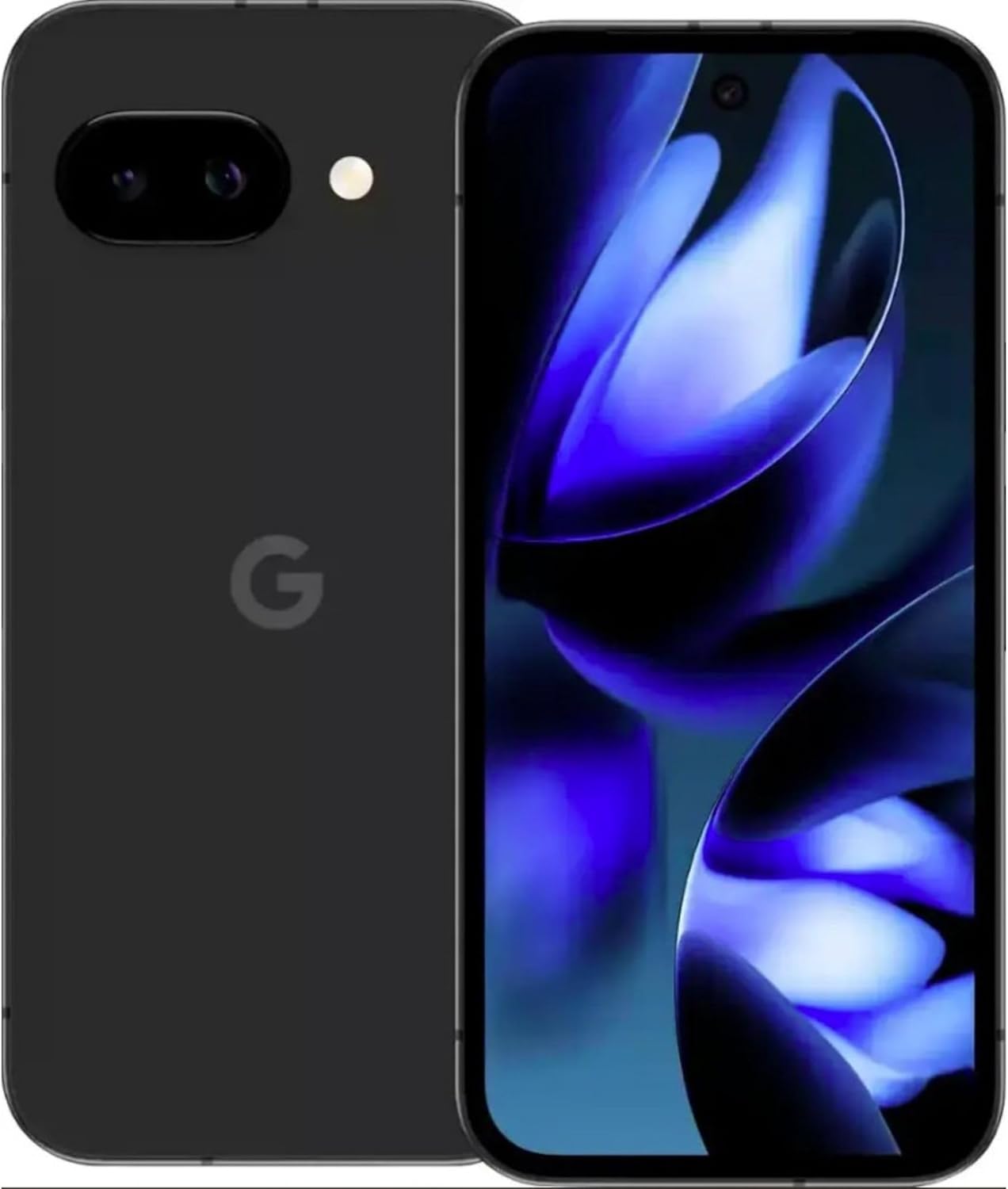
Image: Front and back view of the Google Pixel 9a smartphone, showcasing the display and rear camera module.

Image: Side view of the Google Pixel 9a, highlighting the power and volume buttons, and the SIM card tray.

Image: Clear back view of the Google Pixel 9a, showing the camera bar and Google logo.
2.3. Initial Setup
- Insert SIM Card: Use the provided SIM tray ejector tool to open the SIM tray. Insert your nano-SIM card into the tray and reinsert it into the phone.
- Power On: Press and hold the power button located on the side of the device until the Google logo appears.
- Follow On-Screen Instructions: The phone will guide you through the initial setup process, including connecting to Wi-Fi, signing in with your Google account, and setting up security features.
- Transfer Data: If you are upgrading from another device, follow the prompts to transfer your data, apps, and settings.
3. Operating Your Pixel 9a
3.1. Navigation and Interface
The Pixel 9a runs on Android 15. Navigate using gestures or the traditional three-button navigation bar, configurable in Settings > System > Gestures.
3.2. Camera Features
The Pixel 9a features an advanced camera system. Access the camera app from the home screen or by double-pressing the power button.
- Photo Modes: Switch between various modes like Portrait, Night Sight, Panorama, and more.
- AI Photo Editing: Utilize built-in AI features for enhanced photo editing, including Magic Eraser and Photo Unblur, directly within the Google Photos app.
3.3. Gemini AI Assistant
Gemini is integrated into your Pixel 9a to assist with various tasks.
- Activation: Activate Gemini by saying "Hey Google" or by long-pressing the power button (if configured).
- Capabilities: Use Gemini for quick information retrieval, setting reminders, controlling smart home devices, drafting messages, and more.
3.4. Battery Management
The Pixel 9a is equipped with an all-day battery. To optimize battery life:
- Adaptive Battery: Enable Adaptive Battery in Settings > Battery > Adaptive Battery.
- Battery Saver: Use Battery Saver mode for extended usage when needed.
- Wireless Charging: The device supports wireless charging. Place it on a compatible Qi-certified wireless charger.
- Fast Charging: Utilize a compatible fast charger for quicker power replenishment.
3.5. Security Features
Your Pixel 9a includes robust security measures.
- Fingerprint Unlock: Set up your fingerprint for secure and quick unlocking.
- Face Unlock: Configure face unlock for convenient access.
- Regular Updates: Google provides 7 years of security updates to protect your device from emerging threats.
3.6. Connectivity
The Pixel 9a supports various connectivity options:
- 5G: Connect to 5G networks for faster data speeds (carrier dependent).
- Wi-Fi 6e: Enjoy enhanced Wi-Fi performance with Wi-Fi 6e compatibility.
- Bluetooth 5: Connect to Bluetooth accessories like headphones and smartwatches.
- NFC: Use NFC for contactless payments and quick pairing with compatible devices.
- Dual SIM: The device supports Dual SIM functionality.
4. Care and Maintenance
- Cleaning: Use a soft, lint-free cloth to clean your device. Avoid abrasive materials or harsh chemicals.
- Water and Dust Resistance: The Pixel 9a is water and dust resistant. However, this is not a permanent condition and resistance might decrease as a result of normal wear. Do not intentionally submerge the device.
- Software Updates: Regularly install system updates to ensure optimal performance and security.
- Storage Management: Periodically clear unnecessary files and apps to maintain device speed and free up storage.
5. Troubleshooting
If you encounter issues with your Pixel 9a, consider the following common solutions:
- Device Not Responding: Press and hold the power button for about 30 seconds to force a restart.
- App Crashing: Clear the app's cache and data in Settings > Apps > [App Name] > Storage > Clear Cache/Clear Data. If the issue persists, uninstall and reinstall the app.
- Battery Drain: Check battery usage in Settings > Battery to identify apps consuming excessive power. Adjust settings or restrict background activity for those apps.
- Connectivity Issues: Toggle Wi-Fi or Bluetooth off and on. For cellular issues, ensure your SIM card is properly inserted and contact your carrier if necessary.
- Software Glitches: Ensure your device is running the latest software version. A factory reset (Settings > System > Reset options > Erase all data) can resolve persistent software problems, but remember to back up your data first.
6. Technical Specifications
| Feature | Specification |
|---|---|
| Model Name | Google Pixel 9a |
| Item Model Number | GXQ96 |
| Operating System | Android 15 |
| CPU Model | Google Tensor G4 |
| CPU Speed | 3.1 GHz |
| RAM Memory Installed Size | 8 GB |
| Memory Storage Capacity | 128 GB |
| Screen Size | 6.3 Inches |
| Resolution | 1080 x 2400 |
| Battery Power Rating | 4300 mAh |
| Phone Talk Time | 16 Hours |
| Connectivity Technologies | 5G + Wifi 6e + Bluetooth 5, Bluetooth, NFC, USB, Wi-Fi |
| Special Features | Dual SIM, Fast Charging Support, Gemini AI Assistant, Water & Dust Resistant, Wireless Charging |
| Product Dimensions | 2.88 x 6.09 x 0.35 inches |
| Item Weight | 6.6 ounces (186 Grams) |
| Color | Black (Obsidian) |
| Manufacturer | |
| Wireless Carrier | Unlocked |
7. Regulatory and Safety Information
For detailed regulatory compliance, safety, and warranty information, please refer to the official Google Pixel support website or the documentation included with your device. Adhere to all local regulations regarding electronic device usage and disposal.
8. Warranty and Support
Your Google Pixel 9a is covered by Google's standard warranty. For warranty claims, technical support, or service inquiries, please visit the official Google Pixel Support website or contact Google customer service directly. Keep your proof of purchase for warranty validation.


