
1. Introduction
This manual provides detailed instructions for the installation, operation, and maintenance of your WENMENGDE 7-inch Android Double DIN Car Stereo. This advanced car stereo system integrates a range of features including Wireless CarPlay, Android Auto, an 8-core processor, ChatGPT functionality, 360 camera support, Wi-Fi, Bluetooth, USB connectivity, 4G+32G memory, 32-Band DSP, AHD Rear Camera compatibility, FM/AM radio, GPS navigation, and Steering Wheel Control (SWC).
Please read this manual thoroughly before using the product to ensure proper operation and to maximize your user experience. Keep this manual for future reference.
2. Key Features
- 7-inch IPS HD Display: Features a 1024x600 resolution LCD IPS screen for high contrast, wide viewing angles, and sharp image quality.
- Real Android 13 System: Equipped with an Android 13 operating system and an 8-core processor for smooth and fast performance. Includes 4GB RAM and 32GB ROM for multitasking and app downloads.
- Wireless CarPlay & Android Auto: Supports both wireless and wired connections for Apple CarPlay and Android Auto, allowing seamless integration with your smartphone for navigation, calls, messages, and music.
- Mirror Link Function: Synchronize your phone's content to the car stereo screen.
- ChatGPT Integration: Access ChatGPT directly from the unit for natural dialogue, data analysis, code programming, and text generation.
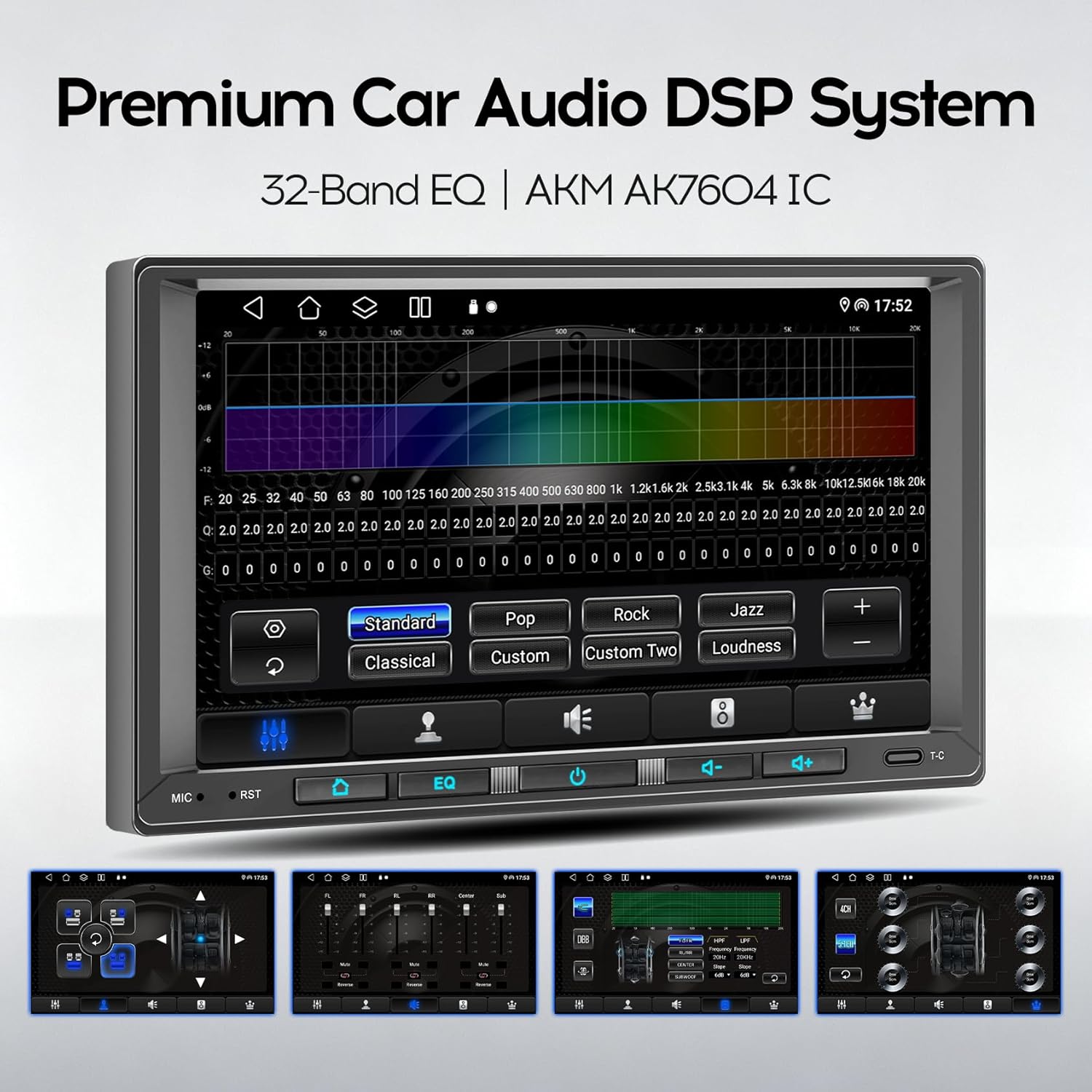
- 32-Band EQ DSP: Advanced Digital Sound Processor (DSP) with 32-band equalization for optimized audio quality and various sound effects.
- AM/FM/RDS Radio: Enjoy a wide range of radio stations with clear reception and RDS (Radio Data System) support for station information.
- Bluetooth 5.1: Enhanced Bluetooth module for stable connections, clear call quality, music streaming (APTX & LDAC BT Music), and phone contact synchronization.
- 4G LTE & Wi-Fi Network: Built-in 4G and dual-band Wi-Fi (2.4G/5G Hz) for internet connectivity, faster data transfer, and stable wireless signals. Supports SIM card insertion.
- GPS Navigation: Integrated GPS module with support for online and offline maps.
- 720P AHD Backup Camera: Includes a waterproof, super night vision 720P AHD backup camera that automatically displays the rear view when reversing. Supports CVBS/AHD camera types.
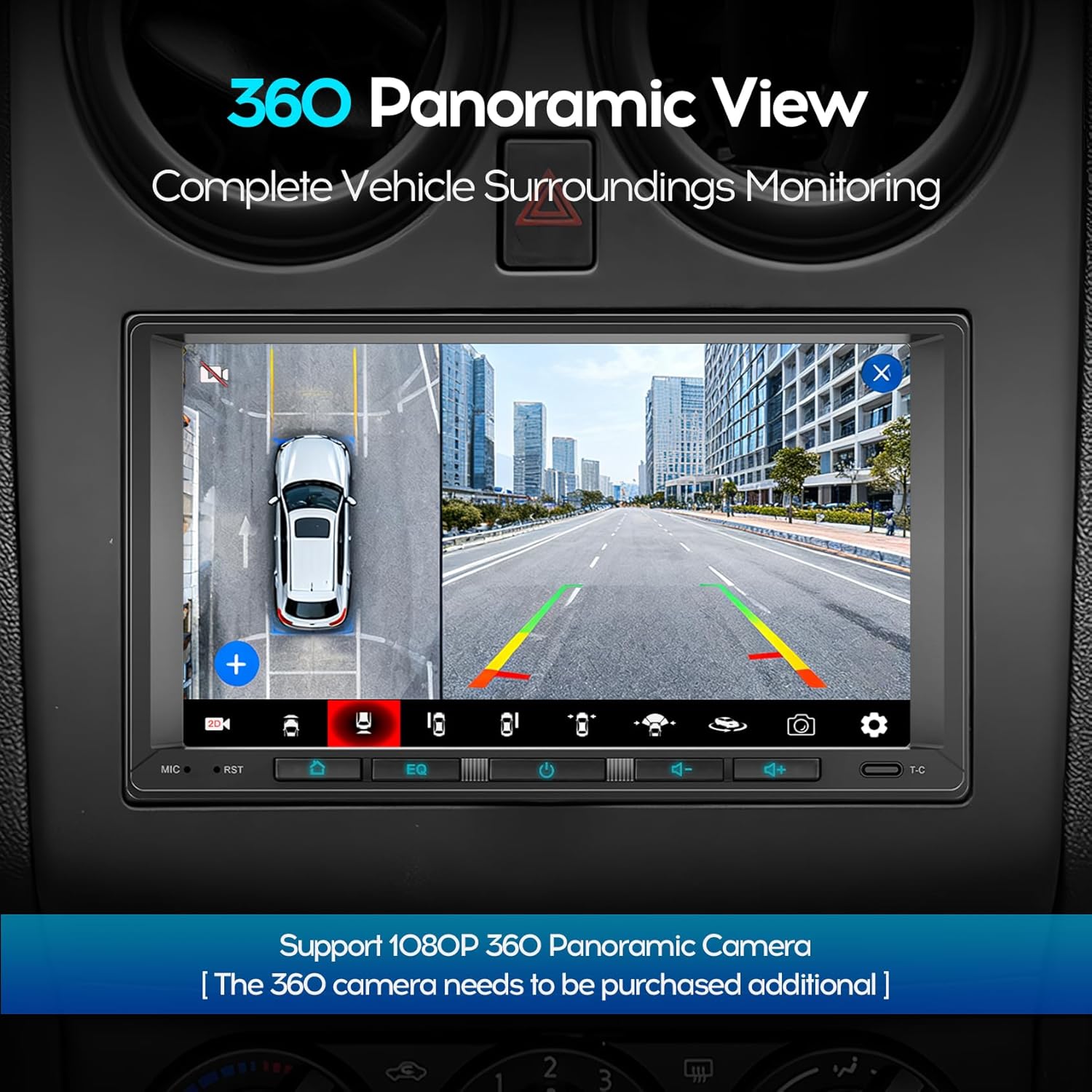
- 360 Camera Function: Supports 1080P 360 Panoramic Camera for complete vehicle surroundings monitoring (360 camera needs to be purchased additionally).
- Steering Wheel Control (SWC): Compatible with existing steering wheel controls for convenient operation of audio functions.
3. What's in the Box
Please check the contents of your package against the list below:
- 1x Head Unit
- 1x Power Adaptor
- 1x RCA Cable
- 2x USB Cables
- 1x Reverse Camera Cable
- 1x GPS Antenna
- 1x User Manual
- 2x Metal Brackets
- 1x 4LED Reverse Camera
- 1x Prying Tools
- 1x Warranty Card
- 1x 4G SIM Card Slot

4. Installation and Initial Setup
4.1 Safety Precautions
- Disconnect the vehicle's negative battery terminal before installation to prevent electrical shorts.
- Ensure all wiring is correctly connected according to the wiring diagram to avoid damage to the unit or vehicle.
- Professional installation is recommended for optimal performance and safety.
4.2 Wiring Diagram Overview
Refer to the provided wiring diagram in the included user manual for specific connections. Key connections include:
- Power Harness: Connect to vehicle's power, ground, and accessory wires.
- RCA Cables: For audio output to external amplifiers or subwoofers.
- USB Cables: For data transfer, charging, and wired CarPlay/Android Auto.
- GPS Antenna: Mount in a location with a clear view of the sky.
- Reverse Camera Cable: Connect to the included AHD backup camera.
- 4G SIM Card Slot: Insert a 4G SIM card for mobile data connectivity.
4.3 Mounting the Unit
Use the provided metal brackets to secure the head unit into your vehicle's double DIN opening. Ensure the unit is firmly mounted to prevent vibration and movement.
5. Operation
5.1 Basic Controls and Interface
The unit features a responsive touchscreen interface. Navigate through menus by tapping and swiping. Physical buttons for MIC, RST (Reset), EQ, Power, Volume Up/Down, and T-C (Touch Calibration) are located at the bottom of the screen.

5.2 Wireless CarPlay & Android Auto
To connect your smartphone wirelessly:
- Ensure Bluetooth and Wi-Fi are enabled on your smartphone.
- On the car stereo, navigate to the CarPlay or Android Auto application.
- Follow the on-screen prompts to pair your phone via Bluetooth. Once paired, the system will automatically establish a Wi-Fi connection for CarPlay/Android Auto.
For wired connection, simply connect your smartphone to one of the USB ports using a compatible USB cable.

5.3 GPS Navigation
The unit comes with built-in GPS. You can use pre-installed navigation apps or download others from the Play Store. Ensure the GPS antenna is properly installed for accurate positioning. The split-screen function allows you to view navigation while using other applications.

5.4 Radio (FM/AM/RDS)
Access the Radio app from the main menu. You can manually tune to stations or use the auto-scan feature. Save your favorite stations for quick access. RDS provides additional information like station name and song titles where available.

5.5 Bluetooth 5.1
To pair a Bluetooth device:
- Go to the Bluetooth settings on the car stereo.
- Enable Bluetooth on your phone and search for available devices.
- Select the car stereo's name (e.g., "Car-BT") from your phone's list and confirm pairing.
Once connected, you can make/receive calls hands-free, stream audio, and sync your phone's contacts.

5.6 ChatGPT Functionality
Access the ChatGPT application from the main menu. You can interact with ChatGPT by typing questions or using voice commands (if supported). This feature allows for conversational AI interactions, information retrieval, and more.
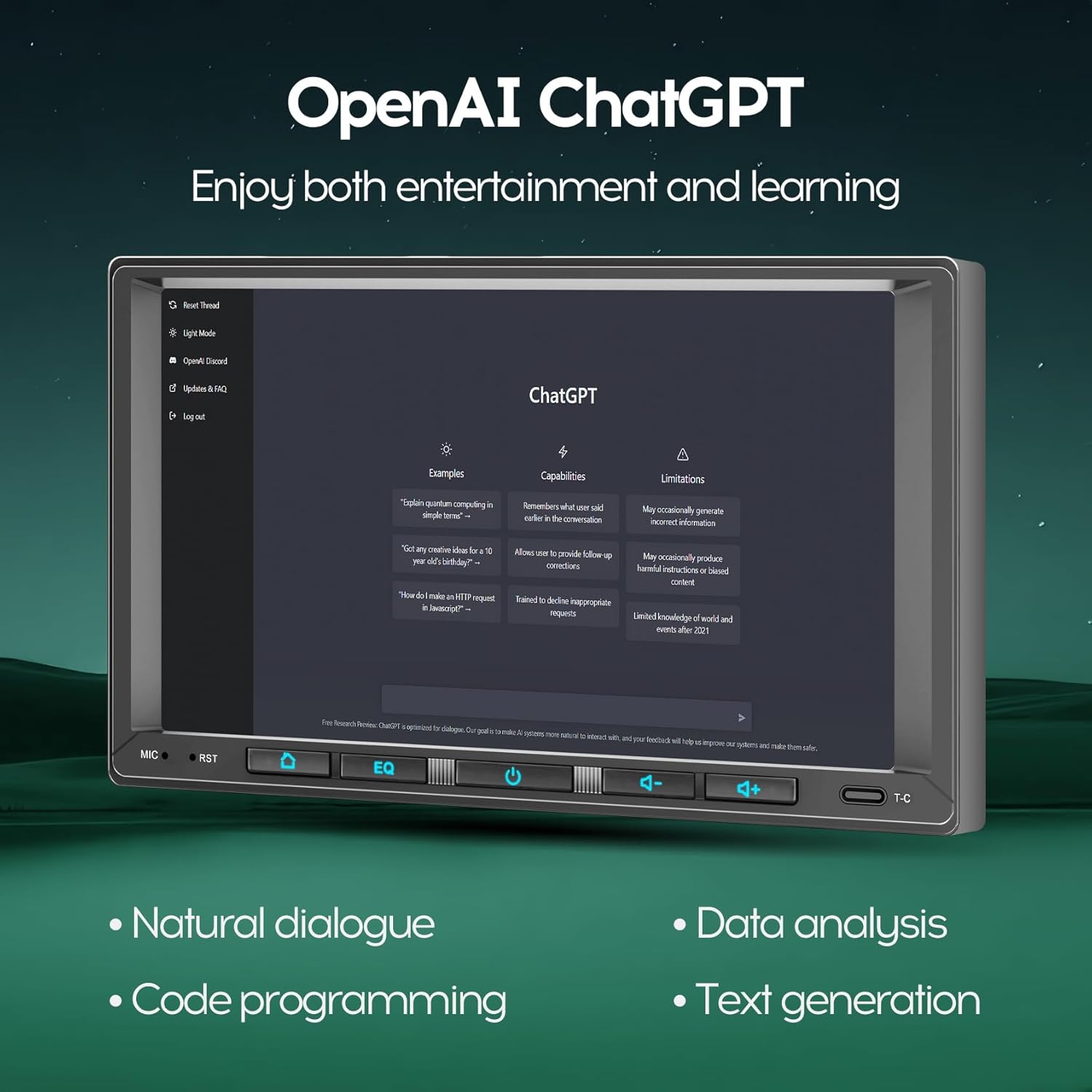
Video 5.6.1: ChatGPT Demo. This video demonstrates the interaction with ChatGPT on the car stereo, showing how to input queries and receive responses.
5.7 Camera Functions (AHD Rear Camera & 360 Panoramic)
The included 720P AHD backup camera automatically activates when the vehicle is shifted into reverse gear, displaying the rear view on the screen. For 360 panoramic view, an additional 360 camera system (not included) is required. Once installed, access the 360 Panoramic app for a complete view of your vehicle's surroundings.
5.8 DSP and EQ Settings
Access the DSP or EQ application to customize your audio experience. The 32-band equalizer allows for precise adjustments across various frequency ranges. You can select from preset sound modes (e.g., Standard, Pop, Rock, Jazz, Classical) or create custom profiles. The DSP also helps optimize sound quality and resolve frequency anomalies.
5.9 Network Connectivity (4G & Wi-Fi)
To use 4G connectivity, insert a compatible SIM card into the designated slot. For Wi-Fi, navigate to the system settings, enable Wi-Fi, and connect to an available network. This allows for online map updates, app downloads, and internet browsing.

5.10 Steering Wheel Control (SWC)
If your vehicle supports steering wheel controls, you can configure them in the system settings. This allows you to control functions like volume, track skipping, and mode switching directly from your steering wheel.
6. Maintenance
- Screen Cleaning: Use a soft, lint-free cloth to gently wipe the touchscreen. Avoid abrasive cleaners or solvents.
- Software Updates: Periodically check for system updates in the settings menu to ensure optimal performance and access to new features.
- General Care: Keep the unit free from dust and moisture. Avoid exposing it to extreme temperatures.
7. Troubleshooting
| Problem | Possible Cause | Solution |
|---|---|---|
| Unit does not power on. | Incorrect wiring, blown fuse, vehicle battery issue. | Check power connections, inspect fuses, verify vehicle battery voltage. Consult a professional if necessary. |
| No sound or distorted audio. | Speaker wiring issues, incorrect audio settings, amplifier problems. | Verify speaker connections, check EQ/DSP settings, ensure external amplifiers are powered and connected correctly. |
| Bluetooth connection drops frequently. | Interference, outdated firmware, phone compatibility. | Ensure no other devices are interfering. Update stereo firmware. Try re-pairing the device. Test with a different phone. |
| CarPlay/Android Auto not connecting. | Incorrect phone settings, cable issue (for wired), Wi-Fi interference. | Ensure Wi-Fi and Bluetooth are on. Re-pair the device. Try a different USB cable. Check phone permissions for CarPlay/Android Auto. |
| Touchscreen unresponsive or lagging. | System overload, temporary software glitch. | Perform a soft reset using the RST button. Close unnecessary background applications. Ensure sufficient memory is available. |
| Backup camera not displaying. | Incorrect camera wiring, faulty camera, reverse trigger not connected. | Check the reverse camera input connection and the reverse trigger wire. Ensure the camera is receiving power. |
8. Specifications
- Model Number: B0FMKJMDRS
- Display: 7-inch IPS HD Touchscreen (1024x600)
- Operating System: Android 13
- Processor: 8-Core
- Memory: 4GB RAM + 32GB ROM
- Connectivity: Wireless CarPlay, Android Auto, Mirror Link, Bluetooth 5.1, Wi-Fi (2.4G/5G Hz), 4G LTE (SIM card slot)
- Audio: 32-Band EQ DSP, 4.0 Surround Sound Channel Configuration, Stereo Audio Output Mode
- Radio: FM/AM/RDS
- Navigation: Built-in GPS
- Camera Support: 720P AHD Rear Camera (included), 1080P 360 Panoramic Camera (optional, sold separately)
- Control: Steering Wheel Control (SWC) compatible
- Item Weight: 4.4 pounds
- Package Dimensions: 11.6 x 7.6 x 3.1 inches
- Manufacturer: Shenzhen WeBetter Electronic Technology Ltd,Co
9. Warranty and Support
Your WENMENGDE car stereo comes with a warranty as detailed on the included Warranty Card. For any questions, technical assistance, or warranty claims, please contact the seller, WeBetter Official Store, directly. They offer professional technical support and aim to reply within 24 hours.
You can typically find seller contact information through your purchase platform or the provided documentation. Please retain your proof of purchase for warranty purposes.
- Seller: WeBetter Official Store
- Support Response Time: Within 24 hours
- Returns: Free return within 30 days (check purchase platform for details)