
1. Introduction
This manual provides detailed instructions for the setup, operation, maintenance, and troubleshooting of your E-Yooso X51 Wired Gaming Mouse. Please read this manual carefully to ensure optimal performance and longevity of your device.
The E-Yooso X51 is a high-performance wired gaming mouse designed for precision and comfort. It features an advanced optical sensor, adjustable DPI settings, programmable buttons, and a high polling rate, making it suitable for both intensive gaming and daily office tasks.
2. Product Overview
2.1 Key Features
- Precise Optical Sensor: Offers accurate tracking with adjustable DPI up to 4000.
- Adjustable DPI Levels: Five preset DPI settings (400/800/1600/2400/4000) to match your needs.
- Programmable Buttons: Five customizable buttons for personalized functions, shortcuts, or macros.
- High Polling Rate: Up to 1000Hz for smooth, lag-free response.
- Ergonomic Design: Engineered for comfort during extended use, reducing hand fatigue.
- Durable Construction: Built to last with a click life of over 20 million actuations.
- Wired USB Connection: Ensures stable and continuous connectivity without delays.
- Wide Compatibility: Supports Windows and Mac operating systems, compatible with desktop PCs and notebooks.
- Lightweight Design: Weighs approximately 54 grams for quick and agile movements.
2.2 Package Contents
- E-Yooso X51 Wired Gaming Mouse
- User Manual (this document)
2.3 Mouse Diagram

The E-Yooso X51 mouse features a silicone scroll wheel for precise control, dedicated forward and backward buttons for navigation, and a non-slip design for a secure grip during use.
3. Setup Instructions
- Connect the Mouse: Insert the USB connector of the E-Yooso X51 mouse into an available USB port on your computer (PC or Mac).
- Automatic Driver Installation: Your operating system will typically detect the mouse and install the necessary drivers automatically. This process may take a few moments.
- Verify Functionality: Once installed, the mouse should be immediately functional for basic operations.
- Install Customization Software (Optional): For advanced features such as programmable buttons and detailed DPI settings, download the official E-Yooso X51 driver software. The download link is usually provided on the product's official support page or can be found by searching for "E-Yooso X51 Driver".

4. Operating Instructions
4.1 Adjusting DPI (Dots Per Inch)
The E-Yooso X51 mouse features five adjustable DPI levels, allowing you to change cursor sensitivity on the fly. This is crucial for different tasks, from precise aiming in games to fast navigation on your desktop.
- Default DPI Settings: The mouse comes with preset DPI levels: 400 (Red), 800 (Blue), 1600 (Green), 2400 (Violet), and 4000 (Yellow).
- Changing DPI: Press the dedicated DPI button (usually located behind the scroll wheel) to cycle through the available DPI settings. An indicator light (if present) or the software interface will show the current DPI level.
- Customizing DPI: Use the E-Yooso X51 driver software to fine-tune DPI values and assign specific colors to each level.

4.2 Programming Buttons
The E-Yooso X51 features five programmable buttons that can be customized to execute specific commands, macros, or shortcuts, enhancing your efficiency in games and applications.
- Install Software: Ensure the E-Yooso X51 driver software is installed on your computer.
- Launch Software: Open the E-Yooso X51 driver application.
- Button Assignment: Within the software interface, you will find options to assign functions to each of the five buttons (Left Click, Right Click, Middle Button, Forward, Back, DPI Loop).
- Macro Editor: The software also includes a macro editor to create complex sequences of commands.
- Save Profiles: You can save multiple profiles with different button configurations for various games or applications.
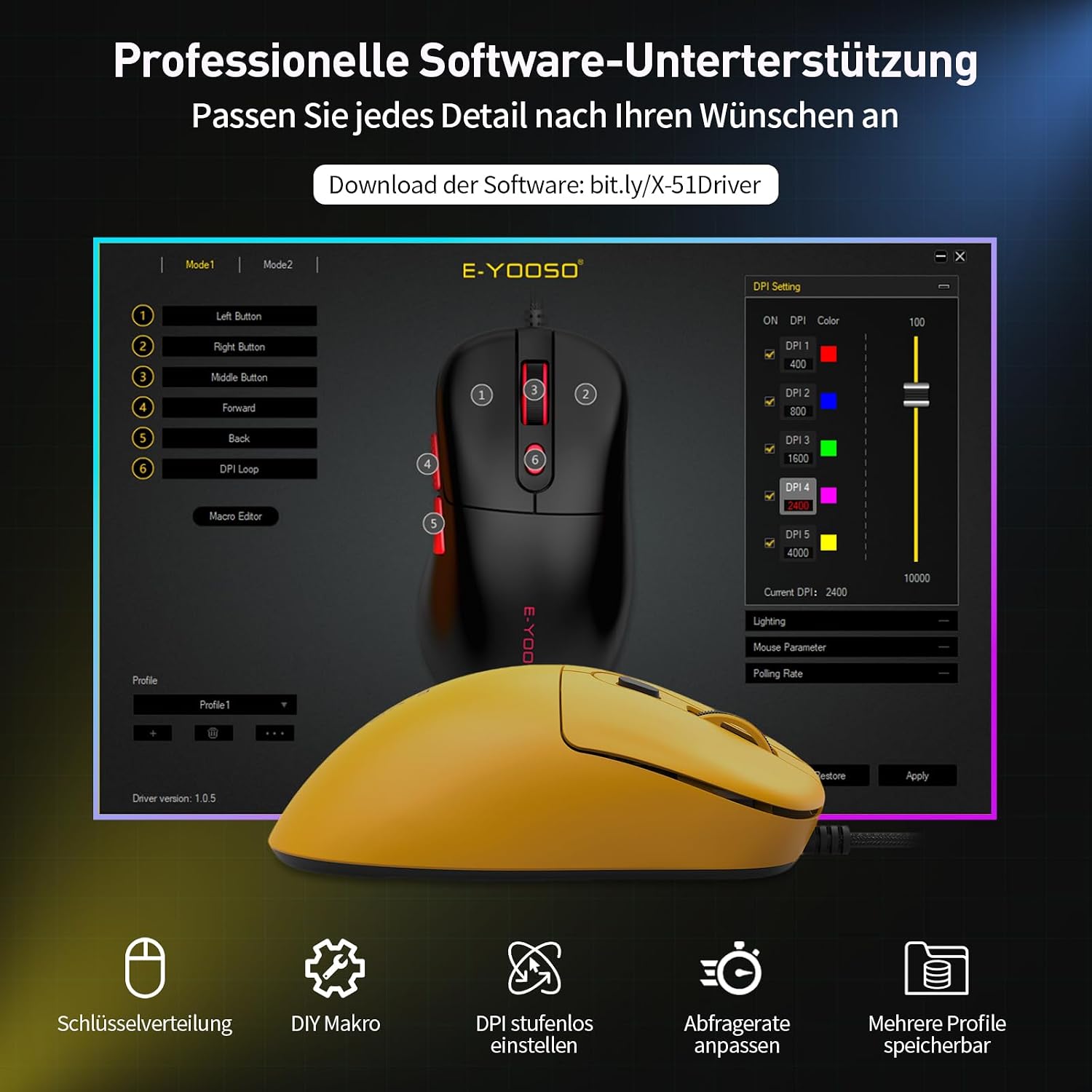
Download the software from: bit.ly/X-51Driver
4.3 Adjusting Polling Rate
The polling rate determines how often the mouse reports its position to the computer. A higher polling rate results in smoother and more responsive cursor movement.
- Available Polling Rates: The X51 supports 125Hz (Office), 250Hz (Daily), 500Hz (Gaming), and 1000Hz (Pro-Level).
- Changing Polling Rate: The polling rate can be adjusted via the E-Yooso X51 driver software. Select your desired rate based on your activity.

5. Maintenance
Proper maintenance ensures the longevity and optimal performance of your E-Yooso X51 mouse.
- Cleaning:
- Use a soft, dry cloth to wipe the surface of the mouse.
- For stubborn dirt, slightly dampen the cloth with water or a mild cleaning solution. Avoid harsh chemicals.
- Use a cotton swab or compressed air to clean around the scroll wheel and sensor area.
- Cable Care:
- Avoid sharp bends or kinks in the USB cable to prevent internal damage.
- Do not pull the mouse by its cable. Always grasp the USB connector when plugging or unplugging.
- Storage: Store the mouse in a clean, dry environment away from extreme temperatures and direct sunlight.
6. Troubleshooting
If you encounter issues with your E-Yooso X51 mouse, please refer to the following common solutions:
| Problem | Possible Cause | Solution |
|---|---|---|
| Mouse not responding | Loose USB connection, faulty USB port, driver issue. |
|
| DPI not changing | DPI button malfunction, software conflict. |
|
| Programmable buttons not working | Software not installed, incorrect button assignment, software conflict. |
|
| Cursor movement is erratic or jumpy | Dirty sensor, unsuitable surface, software issue. |
|
7. Specifications

| Feature | Detail |
|---|---|
| Brand | E-Yooso |
| Model Name | X-51 |
| Connectivity Technology | Wired (USB) |
| Movement Detection Technology | Optical |
| DPI Sensitivity | 400 / 800 / 1600 / 2400 / 4000 (Adjustable) |
| Polling Rate | 125Hz / 250Hz / 500Hz / 1000Hz (Adjustable) |
| Number of Buttons | 5 (Programmable) |
| Hand Orientation | Right |
| Compatible Devices | Personal Computer (Windows, Mac) |
| Durability | 20 Million Clicks |
| Item Weight | Approx. 54 grams |
| Dimensions (L x W x H) | 12.4 cm x 6.9 cm x 3.8 cm |
| Cable Type | Braided USB with EMI Noise Reduction |
| Color | Yellow |
8. Warranty and Support
E-Yooso is committed to providing high-quality products and excellent customer service.
- Manufacturer's Warranty: The E-Yooso X51 Wired Gaming Mouse comes with a 12-month manufacturer's warranty from the date of purchase. This warranty covers defects in materials and workmanship under normal use.
- Technical Support: For any questions, technical assistance, or warranty claims, please contact our professional customer support team.
- Contact Information: Please refer to the E-Yooso official website or your purchase documentation for the most up-to-date contact details for customer support.
We are dedicated to ensuring your satisfaction and will assist you as quickly as possible.


