
1. Introduction
Thank you for choosing the JOMAA VM604 Wireless Ergonomic Vertical Mouse. This advanced mouse is designed to provide superior comfort and efficiency, reducing wrist strain during prolonged use. Featuring multi-device connectivity, adjustable DPI, and a unique multi-function dial, the VM604 is an ideal tool for various computing environments.
Please read this manual thoroughly before using the product to ensure proper operation and to maximize its lifespan.
2. Product Overview
2.1 Package Contents
- JOMAA VM604 Ergonomic Vertical Mouse
- USB Receiver (2.4G)
- USB-C Charging Cable
- User Manual
2.2 Mouse Components
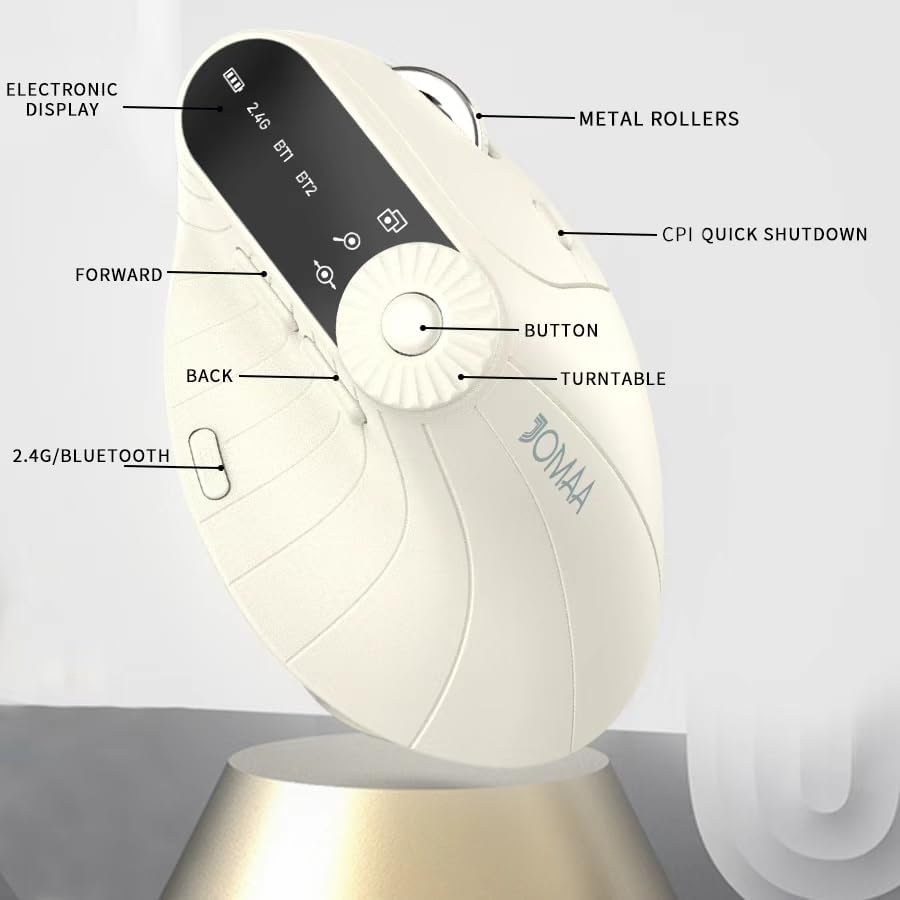
Image 1: Labeled components of the JOMAA VM604 mouse, highlighting the electronic display, metal rollers, CPI quick shutdown, forward/back buttons, turntable, and 2.4G/Bluetooth switch.
- Left Click Button: Standard left mouse function.
- Right Click Button: Standard right mouse function.
- Scroll Wheel: For vertical scrolling.
- Forward Button: Navigates forward in web browsers or file explorers.
- Back Button: Navigates backward in web browsers or file explorers.
- Multi-function Turntable/Dial: Offers three functions: 1. Window switching, 2. Zoom in/out (for pages and images), 3. Page moves left/right (for Excel).
- DPI/CPI Adjustment Button: Cycles through DPI settings (1000/1200/1600/2400).
- Electronic Display: Shows battery level, connection mode (2.4G, BT1, BT2), and DPI setting.
- Connection Mode Switch (Bottom): Toggles between 2.4G, Bluetooth 1 (BT1), and Bluetooth 2 (BT2) modes.
- Power ON/OFF Switch (Bottom): Turns the mouse on or off.
- USB-C Charging Port: Located at the front of the mouse.
- USB Receiver Storage Slot: Located at the bottom of the mouse.
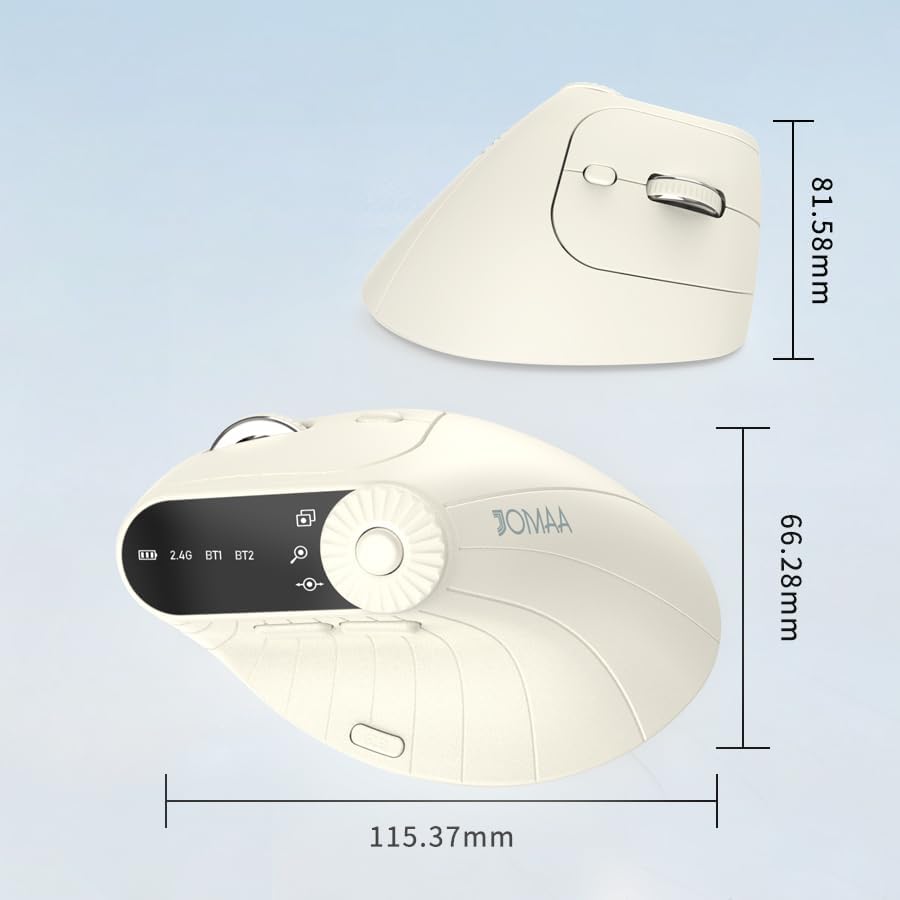
Image 2: Dimensions of the JOMAA VM604 mouse, showing its ergonomic vertical design.

Image 3: Illustration of the JOMAA VM604's 57-degree ergonomic design, promoting a natural handshake posture to reduce wrist pressure.
3. Setup
3.1 Charging the Mouse
The JOMAA VM604 mouse features a built-in rechargeable battery. To charge:
- Connect the provided USB-C charging cable to the charging port at the front of the mouse.
- Connect the other end of the USB cable to a USB power source (e.g., computer USB port, USB wall adapter).
- The electronic display will indicate charging status.

Image 4: The JOMAA VM604 mouse connected via USB-C for charging, with a visible charging indicator on the electronic display.
3.2 2.4G Wireless Connection
For a stable and fast wireless connection:
- Locate the USB receiver stored in the slot at the bottom of the mouse.
- Plug the USB receiver into an available USB port on your computer.
- Turn on the mouse using the ON/OFF switch at the bottom.
- Slide the connection mode switch to the '2.4G' position. The mouse should automatically connect to your computer.
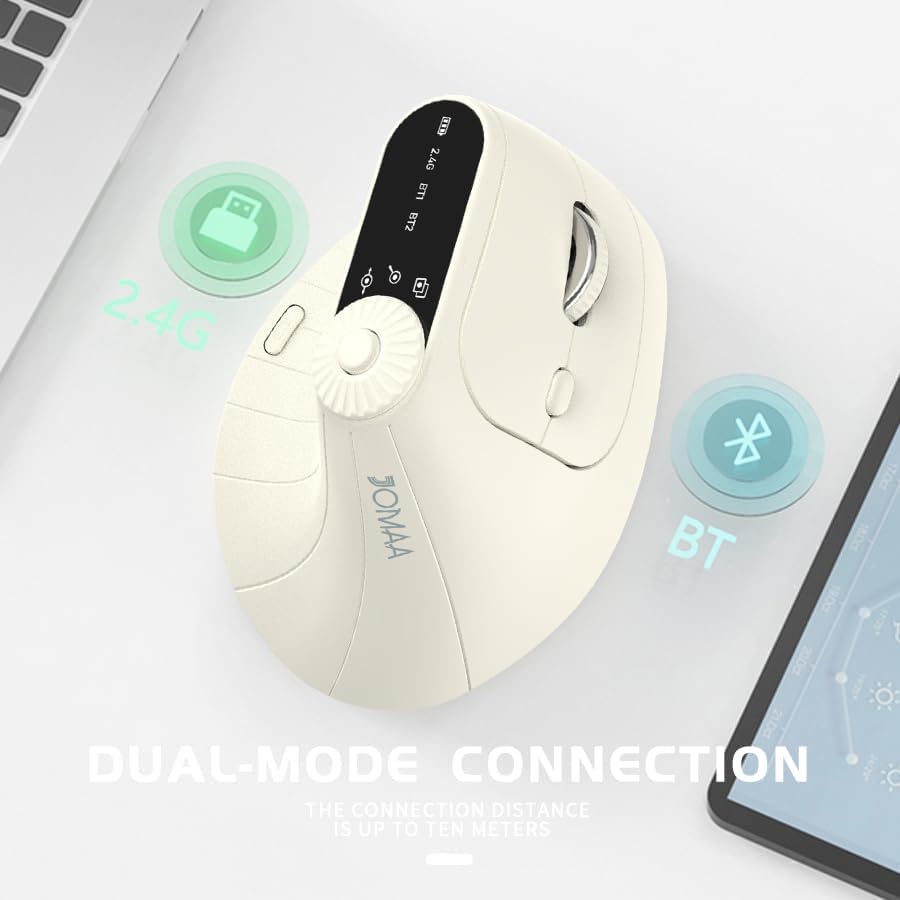
Image 5: The JOMAA VM604 mouse illustrating its dual-mode connection capabilities, including the 2.4G USB receiver and Bluetooth options.
3.3 Bluetooth Connection (BT1/BT2)
The mouse can connect to two different Bluetooth devices:
- Turn on the mouse using the ON/OFF switch at the bottom.
- Slide the connection mode switch to either 'BT1' or 'BT2' position.
- For the first Bluetooth connection or to reset a connection, press and hold the connection mode switch for 3-5 seconds until the Bluetooth indicator on the electronic display starts blinking.
- On your device (PC, Laptop, MacBook), go to Bluetooth settings and search for 'JOMAA VM604' (or similar name).
- Select the mouse to pair. The indicator light will stop blinking once connected.
- To switch between connected devices, simply double-click the connection mode switch to cycle through 2.4G, BT1, and BT2.
4. Operating Instructions
4.1 DPI Adjustment
Adjust the mouse sensitivity (DPI/CPI) to suit your preference:
- Press the DPI Adjustment Button (Component 7) located near the multi-function dial.
- Each press will cycle through the available DPI settings: 1000, 1200, 1600, and 2400.
- The electronic display will show the current DPI setting.
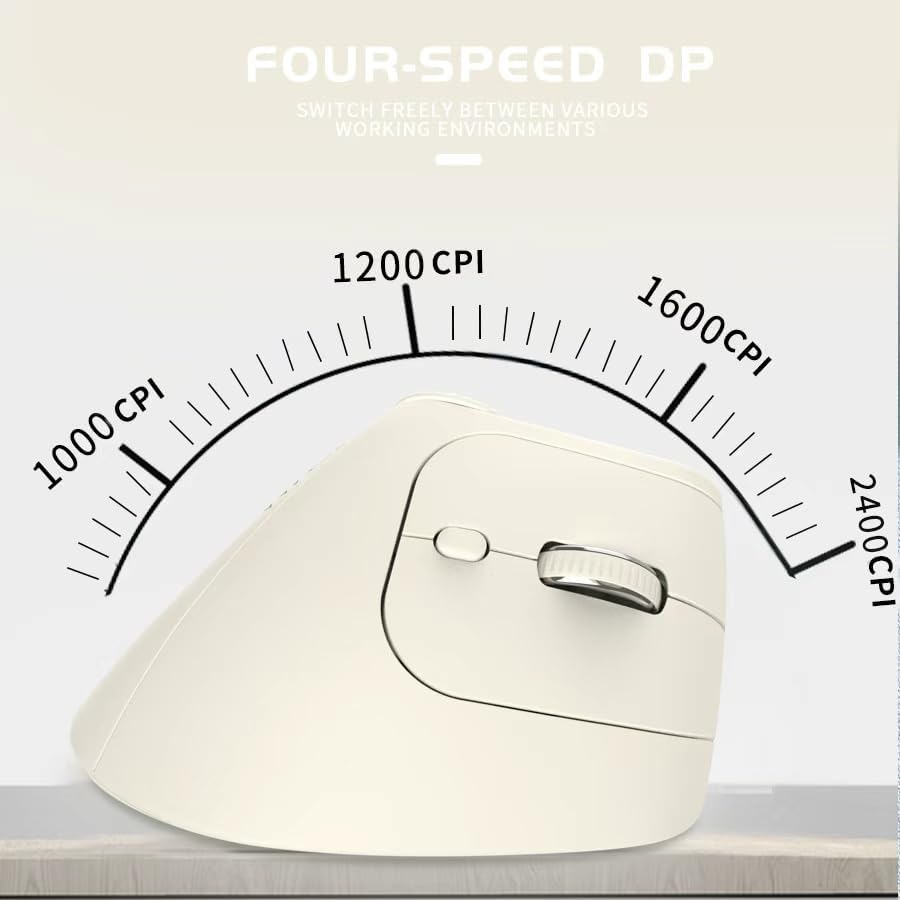
Image 6: The JOMAA VM604 mouse highlighting its four-speed CPI settings (1000, 1200, 1600, 2400) for precise optical tracking.
4.2 Multi-Function Turntable
The unique turntable (Component 6) provides enhanced control:
- Window Switching: Rotate the dial to quickly switch between open application windows.
- Zoom In/Out: Rotate the dial to zoom in or out on pages and images.
- Page Left/Right: Useful for navigating large spreadsheets in applications like Excel.

Image 7: The multi-function knob on the JOMAA VM604 mouse, demonstrating its uses for window switching, zooming in/out on pages and images, and moving pages left/right in applications like Excel.
4.3 Forward/Back Buttons
Use the Forward (Component 4) and Back (Component 5) buttons for quick navigation in web browsers and file explorers.
5. Maintenance
5.1 Cleaning
To maintain optimal performance and hygiene:
- Turn off the mouse before cleaning.
- Use a soft, damp cloth to wipe the surface of the mouse.
- Avoid using harsh chemicals or abrasive materials.
- Periodically clean the optical sensor at the bottom with a cotton swab.
5.2 Battery Care
To prolong battery life:
- Avoid fully discharging the battery frequently.
- Charge the mouse regularly, even if not completely depleted.
- If the mouse will not be used for an extended period, turn it off.

Image 8: The JOMAA VM604 mouse demonstrating its intelligent hibernate mode, which activates after 60 seconds of inactivity to save power.
6. Troubleshooting
- Mouse not responding: Ensure the mouse is turned on and fully charged. Check the connection mode (2.4G or Bluetooth) and ensure it's correctly paired/connected to your device. For 2.4G, try plugging the USB receiver into a different port. For Bluetooth, try re-pairing the device.
- Cursor movement is erratic: Clean the optical sensor at the bottom of the mouse. Ensure the surface you are using is clean and suitable for mouse operation. Adjust the DPI setting to a lower value if the cursor is too fast.
- Bluetooth connection issues: Ensure your device's Bluetooth is enabled. Try forgetting the device in your Bluetooth settings and re-pairing. Ensure the mouse is in the correct BT1 or BT2 mode and in pairing mode (blinking indicator).
- Multi-function dial not working: Ensure the mouse is properly connected. Some functions may require specific application support.
7. Specifications
| Feature | Detail |
|---|---|
| Product Dimensions | 6 x 4 x 0.04 inches |
| Item Weight | 7.4 ounces |
| Item Model Number | VM604 |
| Batteries | 1 9V batteries required (included) - Note: Product features built-in rechargeable battery, 9V battery information may be a listing error. |
| Connectivity Technology | Bluetooth, USB (2.4G Wireless) |
| Special Feature | Ergonomic Design, Multi-function Turntable, Adjustable DPI, Rechargeable |
| Movement Detection Technology | Optical |
| DPI Settings | 1000/1200/1600/2400 |
| Color | Beiga |
8. Warranty and Support
JOMAA products are designed and manufactured to the highest quality standards. This product is covered by a limited warranty from the date of purchase. For detailed warranty information, technical support, or customer service inquiries, please refer to the contact information provided on the product packaging or visit the official JOMAA website.
Please retain your proof of purchase for warranty claims.
9. Official Product Video
Video 1: An overview of the JOMAA VM604 Ergonomic Mouse, showcasing its unique vertical design and comfortable grip. This video highlights the physical appearance and ergonomic benefits of the mouse.


