
1. Introduction
Thank you for choosing the vibeadio Upgraded Sound Bar with 5.9-inch Subwoofer. This manual provides essential information for setting up, operating, and maintaining your new audio system. Please read it thoroughly before use to ensure optimal performance and longevity of your device.
2. Product Overview
The vibeadio Sound Bar system is designed to deliver crystal-clear vocals, rich bass, and immersive surround sound, enhancing your entertainment experience. It features advanced DSP technology, multiple connectivity options, and user-friendly controls.
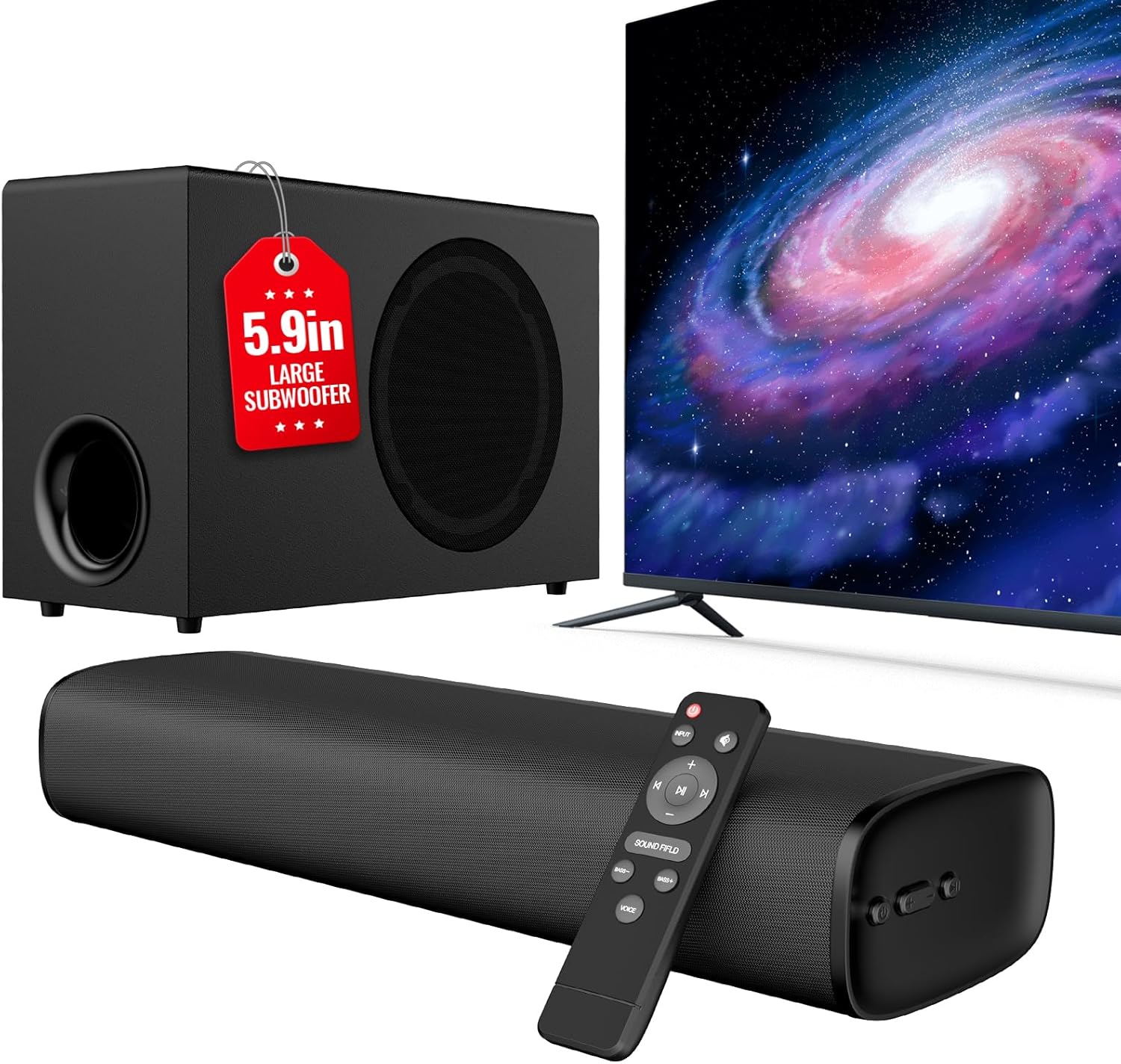
Figure 1: vibeadio Sound Bar and Subwoofer system.
2.1 Key Features
- Excellent Sound Quality: Crystal-clear vocals, rich bass, and immersive surround sound with advanced DSP technology.
- Independent Subwoofer: A 5.9-inch subwoofer for deep, distortion-free bass, ideal for home theater and gaming.
- Dynamic Equalizer Modes: Three presets (Movie, Music, News) for optimized sound experiences, selectable via remote.
- Multiple Connectivity: Supports eARC/ARC, Optical input, 3.5mm AUX, and Bluetooth 5.4 for broad compatibility.
- User-Friendly Design: Intuitive controls via remote and top-mounted buttons, with a space-saving form factor for versatile placement.
2.2 Controls and Ports

Figure 2: Rear panel connectivity ports.
- ARC Socket: For HDMI ARC connection to your TV.
- OPT Socket: For Optical audio input.
- SUB Interface: For connecting the wired subwoofer.
- AUX Socket: For 3.5mm auxiliary audio input.
- DC IN Socket: For power adapter connection.

Figure 3: Remote Control for vibeadio Sound Bar.
- Power Button: Short press to turn on, long press (2 seconds) to turn off. Short press to switch modes (BT-HDMI-AUX-OPT-BT).
- Volume + / Next Button: Short press to increase volume, long press to switch to the next song (in Bluetooth mode).
- Volume - / Previous Button: Short press to decrease volume, long press to switch to the previous song (in Bluetooth mode).
- Play / Pause Button: Short press to play/pause songs (in Bluetooth mode).
- Input Button: Switches between audio sources.
- Mute Button: Mutes/unmutes audio.
- Sound Field Button: Cycles through EQ modes (Movie, Music, News).
- Bass +/- Buttons: Adjusts bass levels.
- Voice Button: Toggles voice mode for enhanced dialogue clarity.
3. Box Contents
The following items are included in your package:

Figure 4: Package contents.
- 1x Sound Bar
- 1x Wired Subwoofer
- 1x Remote Control
- 1x Power Adapter
- 1x HDMI ARC Cable
- 1x Optical Cable
- 1x 3.5mm AUX Cable
- 1x User Manual (this document)
4. Setup Instructions
4.1 Power On
- Connect the power cord to the DC IN port on the back of the sound bar.
- Plug the other end of the power cord into an AC (mains) power outlet.
4.2 Connect the Subwoofer
- Connect the subwoofer's included cable to the SUB port on the sound bar.
4.3 Connecting to Your TV (HDMI ARC)
For the best audio quality and TV remote control integration, use the HDMI ARC connection.
- Remove protective caps from both ends of the HDMI ARC cable.
- Insert one end of the HDMI ARC cable into your TV's HDMI ARC port.
- Insert the other end of the HDMI ARC cable into the ARC port on the sound bar.
- On the sound bar remote, press the "INPUT" button repeatedly until the LED indicator on the sound bar shows Orange (ARC mode).
- Go to your TV's sound settings and select HDMI ARC as your audio output.
- In your TV's sound settings, find the Digital Sound Out or Digital Audio Format setting and select PCM or Passthrough.
- If there is no sound, go to your TV settings and enable HDMI-CEC device control.
4.4 Connecting to Your TV (Optical)
Use the Optical connection if your TV does not support HDMI ARC.
- Remove protective caps from both ends of the Optical cable.
- Insert one end of the Optical cable into your TV's Optical Digital Audio Out port.
- Insert the other end of the Optical cable into the OPT port on the sound bar.
- On the sound bar remote, press the "INPUT" button repeatedly until the LED indicator on the sound bar shows Green (OPT mode).
- Go to your TV's sound settings and select Optical as your audio output.
- In your TV's sound settings, find the Digital Sound Out or Digital Audio Format setting and select PCM or Passthrough.
4.5 Connecting to Your TV (AUX)
Use the AUX connection for devices with a 3.5mm audio output.
- Insert one end of the 3.5mm AUX cable into your TV's 3.5mm audio output port.
- Insert the other end of the 3.5mm AUX cable into the AUX port on the sound bar.
- On the sound bar remote, press the "INPUT" button repeatedly until the LED indicator on the sound bar shows White (AUX mode).
- Go to your TV's sound settings and set the audio output to Headset or External Speaker.
4.6 Bluetooth Connection
Connect your mobile devices wirelessly via Bluetooth.
- On the sound bar remote, press the "INPUT" button repeatedly until the LED indicator on the sound bar shows Blue (Bluetooth mode). The light will flash, indicating pairing mode.
- On your device (smartphone, tablet, PC), turn on the Bluetooth feature.
- Select "KY-MiniE" from the list of available Bluetooth devices.
- Once connected, the LED light on the sound bar will remain solid blue.
Video 1: KY-MiniE Soundbar Operation Guide (Seller: MUCOME INC US). This video demonstrates the setup process for various connection modes including HDMI ARC, Optical, AUX, and Bluetooth.
5. Operating Instructions
5.1 Basic Functions
- Power On/Off: Press the Power button on the sound bar or remote.
- Volume Adjustment: Use the Volume + and Volume - buttons on the sound bar or remote.
- Input Selection: Press the "INPUT" button on the remote to cycle through available audio sources (Bluetooth, HDMI ARC, AUX, Optical).
- Mute: Press the Mute button on the remote to silence the audio.
5.2 Sound Customization
- Sound Field (EQ Modes): Press the "SOUND FIELD" button on the remote to switch between Movie, Music, and News modes.
- Bass Adjustment: Use the "BASS+" and "BASS-" buttons on the remote to fine-tune the subwoofer's output.
- Voice Mode: Press the "VOICE" button on the remote to enhance dialogue clarity, especially useful for movies and news.
6. Specifications
| Feature | Detail |
|---|---|
| Brand | vibeadio |
| Model Name | tv soundbar |
| Speaker Type | Soundbar |
| Speaker Maximum Output Power | 110 Watts |
| Frequency Response | 20 KHz |
| Connectivity Technology | Bluetooth, Auxiliary, Optical, ARC |
| Wireless Communication Technology | Bluetooth |
| Audio Output Mode | Surround |
| Special Feature | Bass Boost, Volume Boost |
| Mounting Type | Tabletop Mount |
| Product Dimensions | 17.56"D x 7.09"W x 13.19"H |
| Item Weight | 12.07 pounds |
| Material | Metal, Plastic |
7. Maintenance
To ensure the longevity and optimal performance of your vibeadio Sound Bar and Subwoofer, follow these maintenance guidelines:
- Cleaning: Use a soft, dry cloth to clean the surfaces of the sound bar and subwoofer. Avoid using liquid cleaners, aerosols, or abrasive materials, as they may damage the finish.
- Placement: Place the units on a stable, flat surface or mount securely if wall-mounting. Ensure adequate ventilation around the units to prevent overheating.
- Avoid Moisture: Keep the sound bar and subwoofer away from water, excessive humidity, and direct sunlight.
- Power Off When Not in Use: For extended periods of inactivity, it is recommended to unplug the power adapter from the wall outlet.
8. Troubleshooting
If you encounter any issues with your vibeadio Sound Bar, please refer to the following common problems and solutions:
- No Power:
- Ensure the power adapter is securely connected to both the sound bar and a working power outlet.
- Check if the power outlet is functional by plugging in another device.
- No Sound:
- Verify that the correct input source is selected on the sound bar (e.g., ARC, OPT, AUX, BT).
- Check the volume levels on both the sound bar and your connected device (TV, phone, etc.).
- Ensure all audio cables are securely connected.
- For HDMI ARC or Optical connections, confirm that your TV's audio output is set to PCM or Passthrough. Also, ensure HDMI-CEC is enabled on your TV for ARC.
- Bluetooth Pairing Issues:
- Ensure the sound bar is in Bluetooth pairing mode (flashing blue LED).
- Make sure Bluetooth is enabled on your device and it's within range (typically 10 meters).
- Forget the device from your Bluetooth list and try pairing again.
- Remote Control Not Working:
- Check and replace the batteries in the remote control.
- Ensure there are no obstructions between the remote and the sound bar's sensor.
9. Warranty and Support
Your vibeadio Sound Bar and Subwoofer come with a Lifetime Warranty. For warranty activation and support, please refer to the information provided on the product packaging or visit the official vibeadio website.
This product is from a small business brand. Your support is appreciated.