
Introduction
The JOMAA Tri-Fold Bluetooth Keyboard with Touchpad is designed for portability and versatility, enhancing productivity across multiple devices. This ultra-slim keyboard features a tri-fold design for compact storage and expands to provide a full-size typing experience. It is compatible with Windows, macOS, iOS, and Android operating systems, offering seamless multi-device connectivity and an integrated touchpad with gesture support.
Product Features
- Multi-OS Compatibility: Works with Windows, iOS, Android, and Mac devices.
- 3-Device Switching: Easily switch between three paired devices using Fn+BT1/BT2/BT3 for efficient multitasking.
- Ultra-Portable & Foldable Design: Compact folded size (253×61×21mm) and lightweight (264g) for easy transport. Unfolds to a full-size keyboard (253×181mm).
- Smart Touchpad: Integrated 84.3×50.3mm touchpad supports multi-finger gestures.
- Long Battery Life: Built-in 180mAh rechargeable battery with fast charging (5V/1A-2A) and low power consumption.
- Quick Pairing: Bluetooth 5.0 ensures a stable connection up to 10m, with pairing mode activated in 3 seconds.
- Durable & User-Friendly: Spill-resistant design, 180° tri-fold leather case, low-battery warning, and auto-sleep function.
Setup and Pairing
- Charge the Keyboard: Before first use, ensure the keyboard is fully charged using a 5V/1A-2A USB power source. The low-battery indicator (red LED) will turn off when fully charged.
- Power On: Locate the power switch on the keyboard and slide it to the 'ON' position.
- Enter Pairing Mode: Press and hold the Fn + C keys simultaneously for 3 seconds. The Bluetooth indicator light will begin to flash, indicating the keyboard is in pairing mode.
- Enable Bluetooth on Your Device: On your computer, tablet, or smartphone, navigate to the Bluetooth settings.
- Select the Keyboard: In the list of available Bluetooth devices, select "JOMAA Keyboard" (or similar name).
- Confirm Pairing: Follow any on-screen prompts to complete the pairing process. The Bluetooth indicator on the keyboard will stop flashing and remain solid for a few seconds, then turn off, indicating a successful connection.
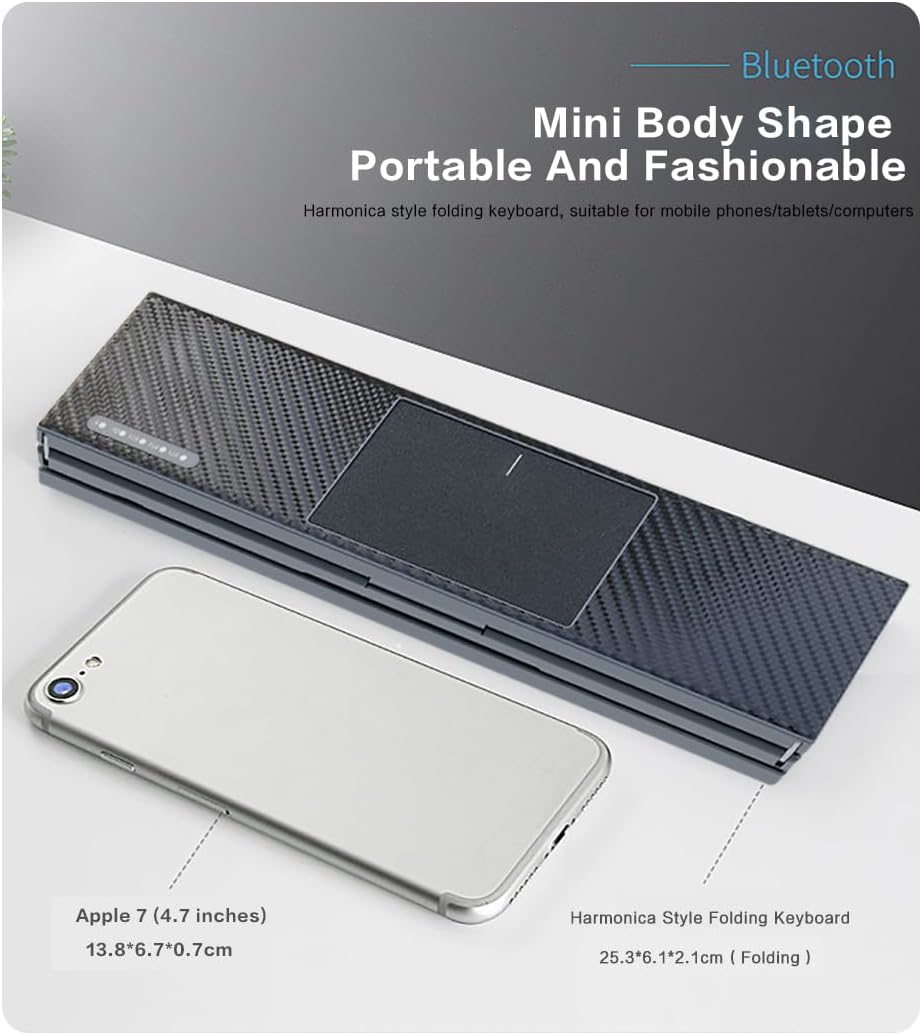
Image: The JOMAA Tri-Fold Bluetooth Keyboard in its compact, folded state, positioned next to a smartphone to illustrate its portable size. The keyboard features a textured black finish.
Operating Instructions
System Switching
To optimize keyboard functionality for different operating systems, use the following key combinations:
- Fn + Q: For iOS devices.
- Fn + W: For Android devices.
- Fn + R: For Mac devices.
- Fn + E: For Windows devices.
Multi-Device Switching
The keyboard supports pairing with up to three devices and switching between them:
- Fn + BT1: Switch to the first paired device.
- Fn + BT2: Switch to the second paired device.
- Fn + BT3: Switch to the third paired device.

Image: The JOMAA Tri-Fold Bluetooth Keyboard unfolded and in active use on a desk, connected to a laptop and an external monitor, demonstrating its full-size typing experience.
Touchpad Gestures
The integrated touchpad supports various multi-finger gestures for enhanced navigation:
- 3-Finger Swipe Down: Shows desktop (Windows).
- 4-Finger Tap: Opens Action Center (Windows).
- 2-Finger Scroll: Smooth navigation (Mac/Android).
- Note: Specific gestures may vary slightly depending on the operating system.

Image: A close-up view of the JOMAA keyboard's touchpad, showing a finger performing a multi-gesture touch, highlighting its responsive surface.
Charging and Battery
The keyboard is equipped with a 180mAh rechargeable battery. To charge, connect a 5V/1A-2A USB power adapter to the keyboard's charging port. A red LED indicator will illuminate during charging and turn off when the battery is full. The keyboard features low power consumption (0.5mA standby) and an auto-sleep function after 30 minutes of inactivity to conserve battery life. A red LED will also indicate a low battery status.
Maintenance
- Cleaning: Use a soft, dry cloth to clean the keyboard surface. For stubborn dirt, a slightly damp cloth can be used, ensuring no liquid enters the keyboard.
- Spill Resistance: The keyboard features a spill-resistant design, but it is not waterproof. Avoid submerging it in liquids. In case of spills, power off immediately and allow it to dry completely before use.
- Storage: When not in use, fold the keyboard into its compact form and store it in a cool, dry place. The 180° tri-fold leather case provides protection.

Image: The JOMAA Tri-Fold Bluetooth Keyboard shown in its folded configuration, emphasizing the multiple leather grain design that protects the device and provides a comfortable feel.
Troubleshooting
- Keyboard not connecting:
- Ensure the keyboard is powered on and fully charged.
- Verify Bluetooth is enabled on your device.
- Put the keyboard into pairing mode (Fn+C for 3 seconds).
- Delete previous pairings on your device and try pairing again.
- Ensure the keyboard is within the 10m Bluetooth range.
- Keys not responding:
- Check battery level.
- Reconnect the keyboard via Bluetooth.
- Ensure the correct operating system mode is selected (Fn+Q/W/R/E).
- Touchpad not working:
- Ensure the touchpad is not accidentally disabled (check your device's settings or keyboard's function keys for a touchpad toggle).
- Reconnect the keyboard.
- Ensure the correct operating system mode is selected.
Specifications
| Brand | JOMAA |
| Model Number | Z01T |
| Connectivity Technology | Bluetooth 5.0 |
| Compatible Devices | Gaming Console, Laptop, PC, Smartphone, Tablet (Windows, macOS, iOS, Android) |
| Product Dimensions (Unfolded) | 253 × 181 mm (9.96 × 7.13 inches) |
| Product Dimensions (Folded) | 253 × 61 × 21 mm (9.96 × 2.4 × 0.83 inches) |
| Item Weight | 264g |
| Battery Capacity | 180mAh |
| Charging Interface | Type-C |
| Charging Input | 5V/1A-2A |
| Wireless Range | Up to 10 meters |
| Number of Keys | 64 |
| Keyboard Layout | QWERTY |
| Material | Plastic, Leather Case |

Image: A detailed diagram illustrating the dimensions of the JOMAA Tri-Fold Bluetooth Keyboard and highlighting key features such as the touch area, display lights, and metal bearings.
Warranty and Support
JOMAA products are designed for reliability and performance. For warranty information, technical support, or customer service inquiries, please refer to the contact details provided with your product packaging or visit the official JOMAA website. Please retain your proof of purchase for warranty claims.
