
1. Introduction
This manual provides instructions for the installation, operation, and maintenance of your TERRAMASTER F4-425 4-Bay Network Attached Storage (NAS) device. The F4-425 is designed for home users requiring a robust multimedia server and data storage solution, featuring an Intel x86 quad-core CPU, 4GB RAM, and 2.5GbE LAN for efficient performance.
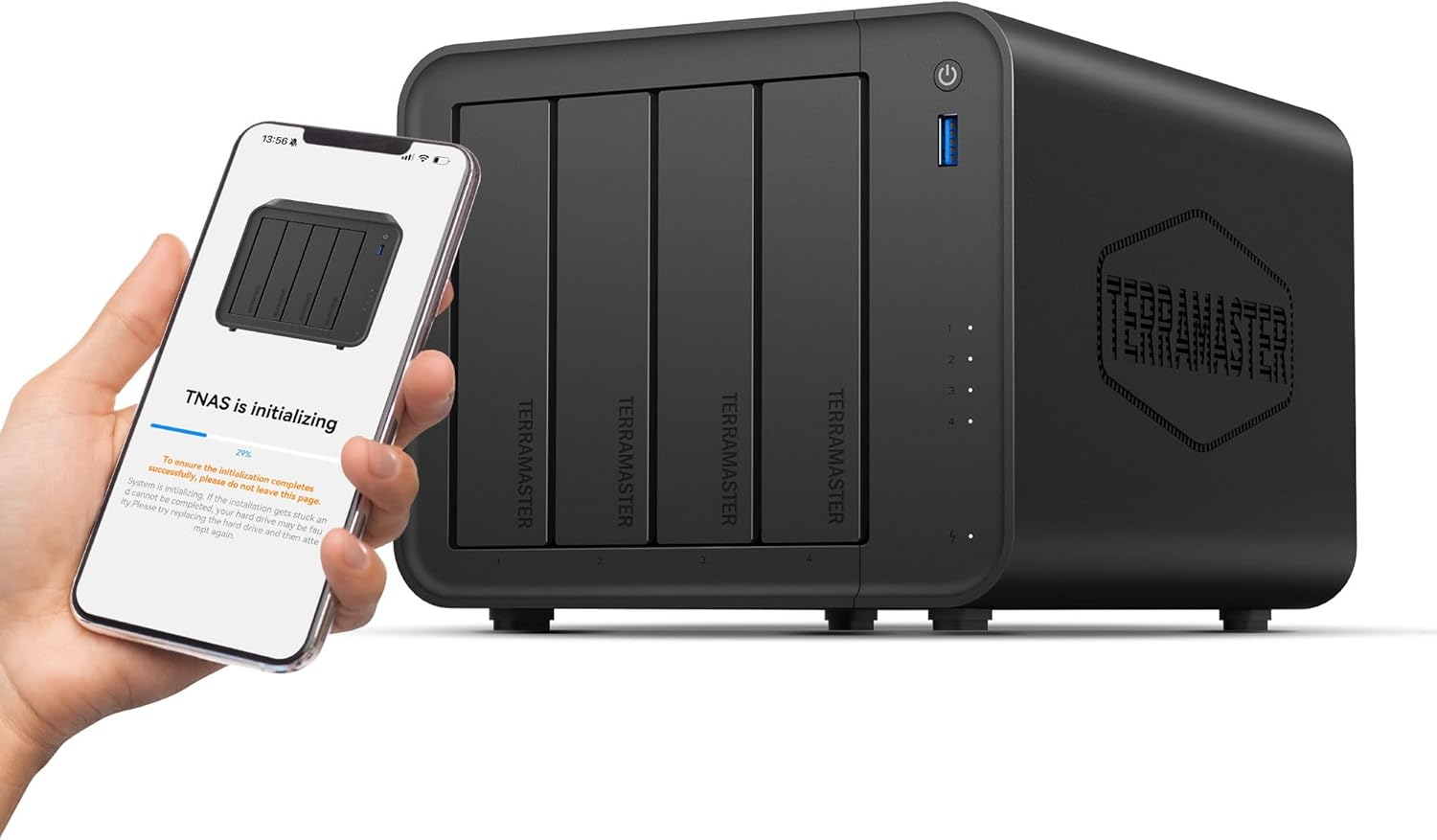
Figure 1.1: TERRAMASTER F4-425 4-Bay NAS device.
Video 1.1: Overview of the TERRAMASTER F4-425 NAS features, including its Intel x86 processor, 4K video decoding capabilities, and connectivity options.
2. Package Contents
Verify that all items are present in the package. If any items are missing or damaged, contact TERRAMASTER support.
- TERRAMASTER F4-425 4-Bay NAS Unit (Diskless)
- Power Adapter
- Ethernet Cable
- Quick Installation Guide
- Accessory Kit (screws for 2.5" drives, etc.)
3. Physical Overview
3.1 Front Panel
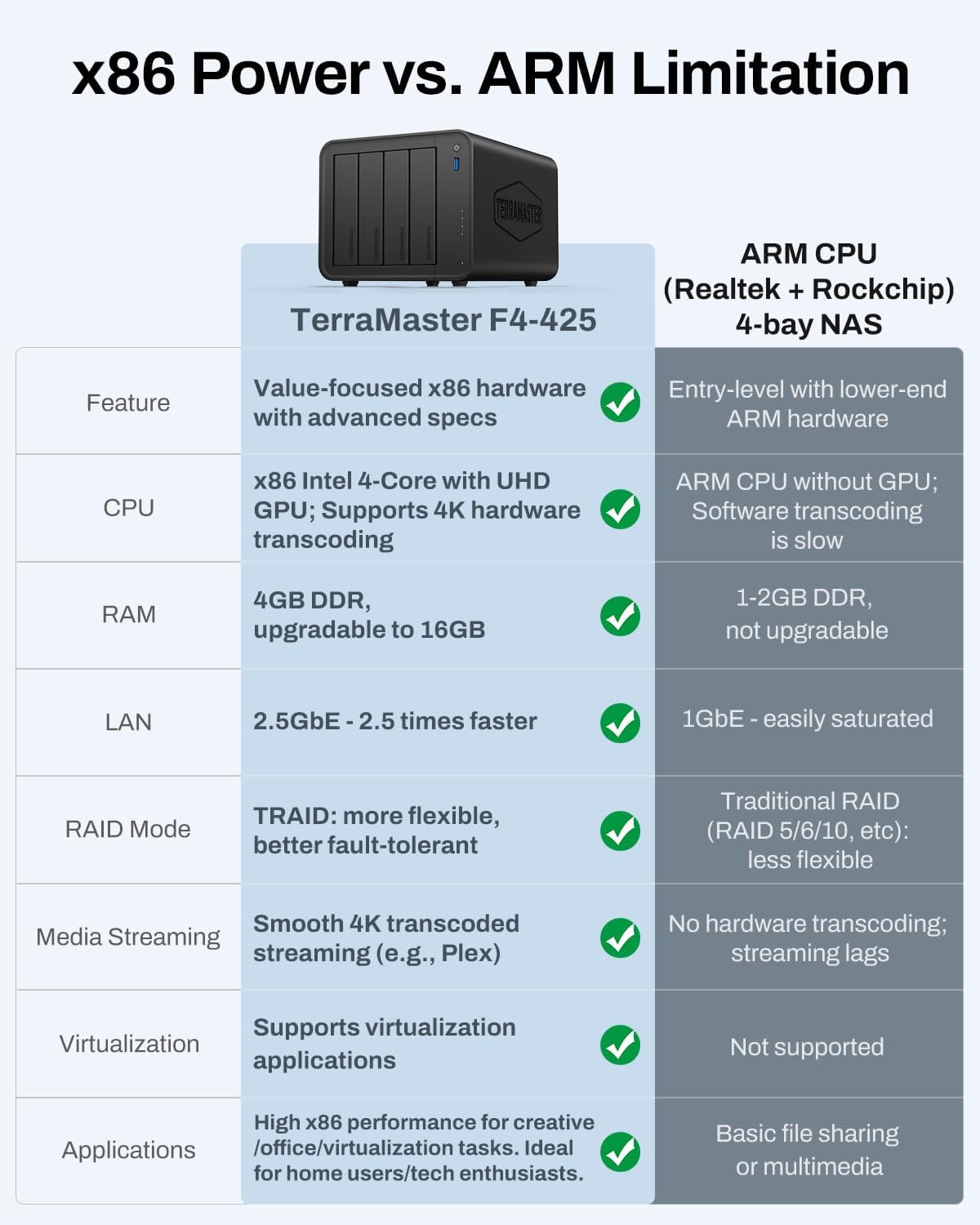
Figure 3.1: Front view of the F4-425 NAS.
- Power Button: Press to power on/off the device.
- USB 3.2 Gen 2 Port (10Gbps): For connecting external storage devices.
- Drive Status LEDs: Indicate the status of each installed hard drive.
- System Status LED: Indicates overall system health.
- Drive Bays: Four hot-swappable bays for 3.5-inch or 2.5-inch hard drives.
3.2 Rear Panel

Figure 3.2: Rear view of the F4-425 NAS.
- 2.5GbE LAN Port: Connects to your network for high-speed data transfer.
- USB 3.2 Gen 1 Ports (5Gbps): For connecting external devices.
- Power Input: Connects to the power adapter.
- Cooling Fan: Ensures optimal operating temperature.
3.3 Internal Components

Figure 3.3: Key internal components and features.
- Intel x86 Quad-Core CPU: Provides processing power for various NAS functions, including 4K transcoding.
- 4GB RAM: System memory for multitasking. Upgradable to 16GB.
- GPU Graphics: Supports hardware-level 4K H.265 decoding.
4. Setup
4.1 Hardware Installation
- Install Hard Drives:
The F4-425 features tool-free Push-Lock design HDD trays. Gently press the release tab on a drive tray, pull it out, insert your 3.5-inch or 2.5-inch HDD/SSD, and slide the tray back into the bay until it locks. Ensure drives are securely seated.
Figure 4.1: Tool-free HDD installation process.

Figure 4.2: Effortless tray sliding mechanism.
- Connect Network Cable: Connect one end of the Ethernet cable to the 2.5GbE LAN port on the rear of the F4-425 and the other end to your router or switch.
- Connect Power: Connect the power adapter to the power input on the rear of the F4-425, then plug the adapter into a power outlet.
- Power On: Press the power button on the front panel. The system status LED will illuminate.
4.2 Software Installation and Initialization
The F4-425 can be initialized using the TNAS Mobile app or via a web browser.
- Using TNAS Mobile App:
Download the TNAS Mobile app from your device's app store. Open the app, and it will automatically search for your F4-425 on the local network. Follow the on-screen instructions to initialize the NAS, create storage pools, and set up user accounts.

Figure 4.3: TNAS Mobile app for setup and management.
- Using Web Browser:
Ensure your computer is on the same network as the F4-425. Open a web browser and navigate to http://tnas.local or use the TNAS PC client to find the device's IP address. Follow the web-based wizard to install the TOS (TerraMaster Operating System), configure storage, and create users.
5. Operating Instructions
5.1 Data Management and Storage
The F4-425 supports up to 120TB of storage (4 x 30TB drives) and utilizes TERRAMASTER TRAID technology for optimized storage space and data redundancy.

Figure 5.1: TRAID vs. Traditional RAID for storage optimization.
- TRAID: Offers flexible storage expansion and enhanced data protection compared to traditional RAID configurations.
- User Accounts: Create and manage over 50 independent user accounts with customizable permissions.
- Direct HDD Mounting: Mount data HDDs directly without requiring reformatting.

Figure 5.2: Direct HDD mounting capability.
5.2 Multimedia Features
The F4-425 functions as a powerful multimedia hub, supporting 4K H.265 decoding and compatibility with popular media servers.
- 4K Video Decoding: Hardware-accelerated 4K H.265 decoding ensures smooth, lag-free streaming.
- Media Server Support: Compatible with Plex, Emby, and Jellyfin for organizing and streaming your media library.
- DLNA: Enables seamless streaming to multiple devices on your network.

Figure 5.3: 4K video decoding for home entertainment.

Figure 5.4: Supported multimedia server applications.
5.3 Backup and Synchronization
Protect your data with various backup and synchronization options.
- TerraSync: Provides two-way synchronization between your F4-425 and PCs/Macs with real-time updates and version history.
- CloudSync: Compatible with cloud services like Google Drive, OneDrive, and Dropbox for cross-platform synchronization.
- TNAS Mobile App Backup: Automatically backs up photos and videos from your mobile device.

Figure 5.5: TerraSync for seamless data synchronization.
5.4 Advanced Features
- AI Smart Album: The Photos app uses AI to intelligently categorize and organize millions of photos, including face, animal, plant, and scenery recognition.
- Surveillance Manager: Connect and manage IP cameras, view real-time and historical video feeds.
- Download Center: Utilize applications like QBittorrent, Transmission, and Aria2 for managing downloads.
- App Center: Access a wide range of applications to extend NAS functionality.

Figure 5.6: AI-powered photo categorization.

Figure 5.7: Surveillance Manager interface.

Figure 5.8: Personal download powerhouse applications.

Figure 5.9: Available applications in the App Center.
6. Maintenance
- Regular Software Updates: Keep the TOS (TerraMaster Operating System) updated to ensure optimal performance, security, and access to new features. Check for updates via the web interface.
- Disk Health Check: Regularly monitor the health of your hard drives through the storage manager in the TOS.
- Cleaning: Ensure proper airflow by periodically cleaning dust from the cooling fan and vents. Use compressed air for best results.
- Quiet Operation: The F4-425 operates at approximately 21dB(A), designed for quiet environments. Ensure it is placed in a location with adequate ventilation to maintain this low noise level.
Figure 6.1: Rear fan for heat dissipation and quiet operation.
7. Troubleshooting
This section addresses common issues you might encounter with your F4-425 NAS.
- NAS Not Powering On:
- Ensure the power adapter is securely connected to both the NAS and a working power outlet.
- Verify the power button is pressed firmly.
- NAS Not Accessible on Network:
- Check the Ethernet cable connection to both the NAS and your router/switch.
- Confirm that your router is functioning correctly and providing network access.
- Restart the NAS and your router.
- Use the TNAS PC client or mobile app to search for the device on the network.
- Hard Drives Not Detected:
- Ensure hard drives are properly seated in their trays and the trays are fully inserted into the bays.
- Check if the hard drives are compatible with the F4-425.
- If a new drive, ensure it is initialized and formatted through the TOS.
- Slow Performance:
- Verify your network connection is utilizing the 2.5GbE port. Ensure your router/switch also supports 2.5GbE.
- Check system resource usage (CPU, RAM) through the TOS.
- Ensure hard drive health is optimal.
- 4K Video Playback Issues:
- Ensure your playback device and network can handle 4K streaming.
- Verify that the media server application (Plex, Emby, Jellyfin) is configured correctly for hardware transcoding.
8. Specifications
| Feature | Detail |
|---|---|
| Model | F4-425 |
| CPU | Intel x86 Quad-Core Processor |
| RAM | 4GB (Upgradable to 16GB) |
| LAN | 2.5GbE |
| Drive Bays | 4-Bay |
| Max. Storage Capacity | 120TB (4 x 30TB) |
| USB Ports | 1 x USB 3.2 Gen 2 (10Gbps), 2 x USB 3.2 Gen 1 (5Gbps) |
| Video Decoding | Hardware-level 4K H.265 |
| Noise Level | 21dB(A) |
| Dimensions (D x W x H) | 8.74 x 7.05 x 6.06 inches |
| Weight | 4.18 pounds |
9. Warranty and Support
TERRAMASTER products come with a standard manufacturer's warranty. For detailed warranty information, please refer to the warranty card included with your product or visit the official TERRAMASTER website.
For technical support, troubleshooting assistance, or to report issues, please contact TERRAMASTER customer service through their official website or support channels. Online resources, including FAQs and knowledge bases, are also available.
TERRAMASTER Official Website: www.terramaster.com


