
1. Introduction
This manual provides essential information for the proper use and maintenance of your DIYEAH USB C to USB Hub Adapter. This device is designed to expand the connectivity of your USB-C enabled devices, such as laptops and computers, by converting a single USB-C port into multiple USB ports. Please read this manual thoroughly before using the product.
2. Package Contents
- 1 x DIYEAH USB C to USB Hub Adapter (Model: FV19D8BR0724G4I0)
3. Product Features
The DIYEAH USB C to USB Hub Adapter offers the following features:
- Multi-Port Expansion: Converts a single USB-C port into multiple USB ports, allowing connection of various peripherals simultaneously.
- Seamless Type-C to USB Conversion: Enhances compatibility with a wide range of USB devices.
- Enhanced Data Transfer Efficiency: Supports high-speed data transfer for quick file sharing and device synchronization.
- Compact and Portable Design: Lightweight and easy to transport, suitable for travel and mobile workstations.
- Plug-and-Play Functionality: Requires no additional drivers or software installation.
- Durable Construction: Made from aluminum alloy for enhanced durability.

Figure 3.1: The DIYEAH USB C to USB Hub Adapter, featuring a silver aluminum alloy casing and a short USB-C cable.
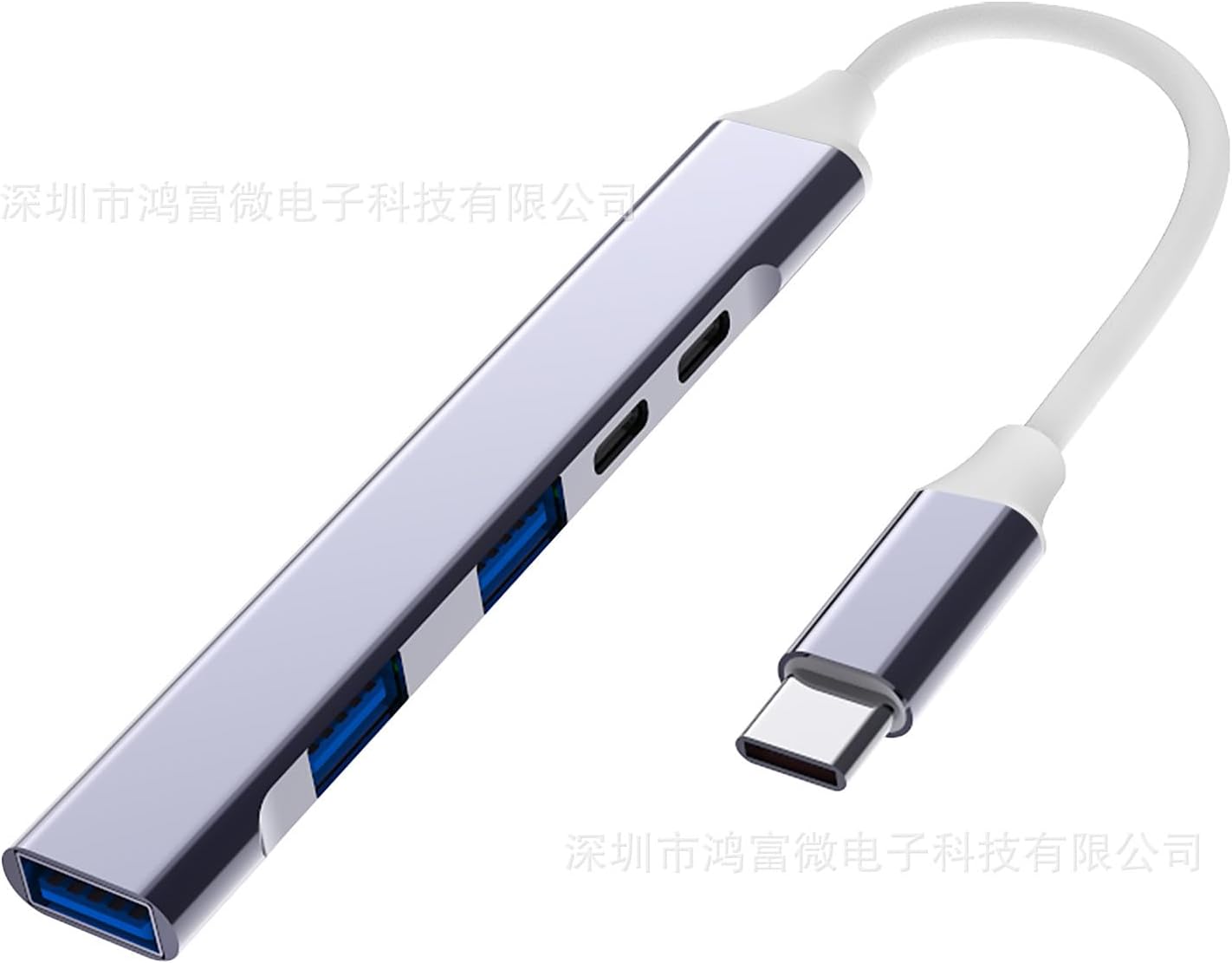
Figure 3.2: A view of the DIYEAH USB C Hub, illustrating its multiple USB-A ports and a USB-C port for expanded connectivity.
4. Setup
The DIYEAH USB C to USB Hub Adapter is designed for simple plug-and-play operation.
- Connect the Hub: Insert the USB-C connector of the hub into an available USB-C port on your laptop, computer, or other compatible device.
- System Recognition: Your operating system should automatically detect and install the necessary drivers for the hub. No manual driver installation is required.
- Ready for Use: Once recognized, the hub is ready to connect your USB peripherals.

Figure 4.1: The USB C Hub positioned next to a laptop, demonstrating its compact size and readiness for connection.
5. Operating Instructions
After successful setup, you can begin connecting your devices to the hub.
- Connect Peripherals: Insert the USB-A connectors of your peripherals (e.g., keyboard, mouse, flash drive, external hard drive) into the available USB ports on the hub.
- Data Transfer: For data transfer, ensure your device and the connected peripheral support the desired speed. The hub facilitates high-speed data transfer.
- Power Considerations: For high-power consumption devices, ensure your host device's USB-C port can provide sufficient power. This model is typically bus-powered and does not require an external power source.

Figure 5.1: The USB C Hub placed on a desk alongside a keyboard, illustrating its integration into a typical workspace.

Figure 5.2: The USB C Hub positioned on a desk in front of a computer monitor, indicating its use in a desktop setup.
6. Maintenance
To ensure the longevity and optimal performance of your USB C Hub Adapter, follow these maintenance guidelines:
- Cleaning: Use a soft, dry cloth to wipe the surface of the hub. Avoid using liquid cleaners or abrasive materials.
- Storage: Store the hub in a cool, dry place away from direct sunlight and extreme temperatures.
- Handling: Avoid dropping the device or subjecting it to strong impacts. Do not bend the cable excessively.
- Port Care: Keep the USB ports free from dust and debris.
7. Troubleshooting
If you encounter issues with your USB C Hub Adapter, refer to the following common solutions:
- Device Not Recognized:
- Ensure the USB-C connector is fully inserted into your host device.
- Try connecting the hub to a different USB-C port on your device.
- Restart your computer or host device.
- Test the hub with another USB-C enabled device to rule out a port issue on your primary device.
- Peripheral Not Working When Connected to Hub:
- Ensure the peripheral is properly connected to the hub's USB port.
- Try connecting the peripheral to a different port on the hub.
- Connect the peripheral directly to your host device (if possible) to verify its functionality.
- If the peripheral requires significant power, ensure the host device's USB-C port can supply it.
- Slow Data Transfer Speeds:
- Ensure both the host device's USB-C port and the connected peripheral support high-speed data transfer standards (e.g., USB 3.0/3.1/3.2).
- Avoid connecting multiple high-bandwidth devices simultaneously if performance degrades.
8. Specifications
| Feature | Detail |
|---|---|
| Model Number | FV19D8BR0724G4I0 |
| Brand | DIYEAH |
| Material | Aluminum Alloy |
| Color | Silver |
| Dimensions (L x W x H) | 9.84 x 0.59 x 0.19 inches (approx. 25 x 1.5 x 0.5 cm) |
| Item Weight | 0.96 ounces (approx. 27 grams) |
| Hardware Interface | USB-C Input, Multiple USB-A Outputs |
| Special Feature | Lightweight, Plug-and-Play |
| Compatible Devices | Laptops, Desktop Computers, Type-C enabled devices, Card Readers, Keyboards, Mice, Flash Drives |

Figure 8.1: Diagram illustrating the approximate dimensions of the USB C Hub Adapter.
9. Warranty and Support
This product is subject to the return policy of the retailer from which it was purchased. Typically, a return period of 30 days is offered for refunds or replacements. For specific warranty details or technical support, please contact the manufacturer, DIYEAH, or the seller directly.
Manufacturer: DIYEAH
For further assistance, please refer to the seller's information on the product purchase page.