
Introduction
This manual provides detailed instructions for the Cosmic Byte Ares Tri-Mode Wireless Controller. This controller offers versatile connectivity options including 2.4GHz wireless, Bluetooth, and USB-C wired modes, designed for use with PC, Android, and iOS devices. It features Hall Effect joysticks and triggers for enhanced precision, along with Turbo functions and dual vibration feedback for an immersive gaming experience.
Product Features
- Tri-Mode Connectivity: Supports 2.4GHz Wireless, Bluetooth, and USB-C Wired connections.
- Hall Effect Precision: Equipped with Hall Effect joysticks and triggers for drift-free, long-term accuracy.
- Long-lasting Battery: Integrated 700mAh rechargeable battery provides extended gameplay.
- Turbo Functions: Includes Turbo and Auto Turbo features for rapid-fire actions.
- Immersive Vibration: Dual vibration motors offer tactile feedback for enhanced immersion.
- Wide Compatibility: Compatible with PC, Android, and iOS (MFi-supported games), including devices like ROG Ally and Steam Deck.
Setup
Charging the Controller
Before first use, fully charge the controller. Connect the supplied USB-C cable to the controller's charging port and the other end to a USB power source (e.g., PC, USB wall adapter). The LED indicator will show charging status and turn off when fully charged. A full charge typically takes approximately 3.5 hours.

Image: The Cosmic Byte Ares controller showing its USB-C charging port and indicating its 700mAh battery capacity.
Connectivity Modes
The Cosmic Byte Ares controller supports three connection modes:
- 2.4GHz Wireless Mode: For PC and other compatible devices using the included USB dongle.
- Bluetooth Mode: For Android, iOS, and Bluetooth-enabled PCs.
- USB-C Wired Mode: For direct connection to PC or other devices via USB-C cable.
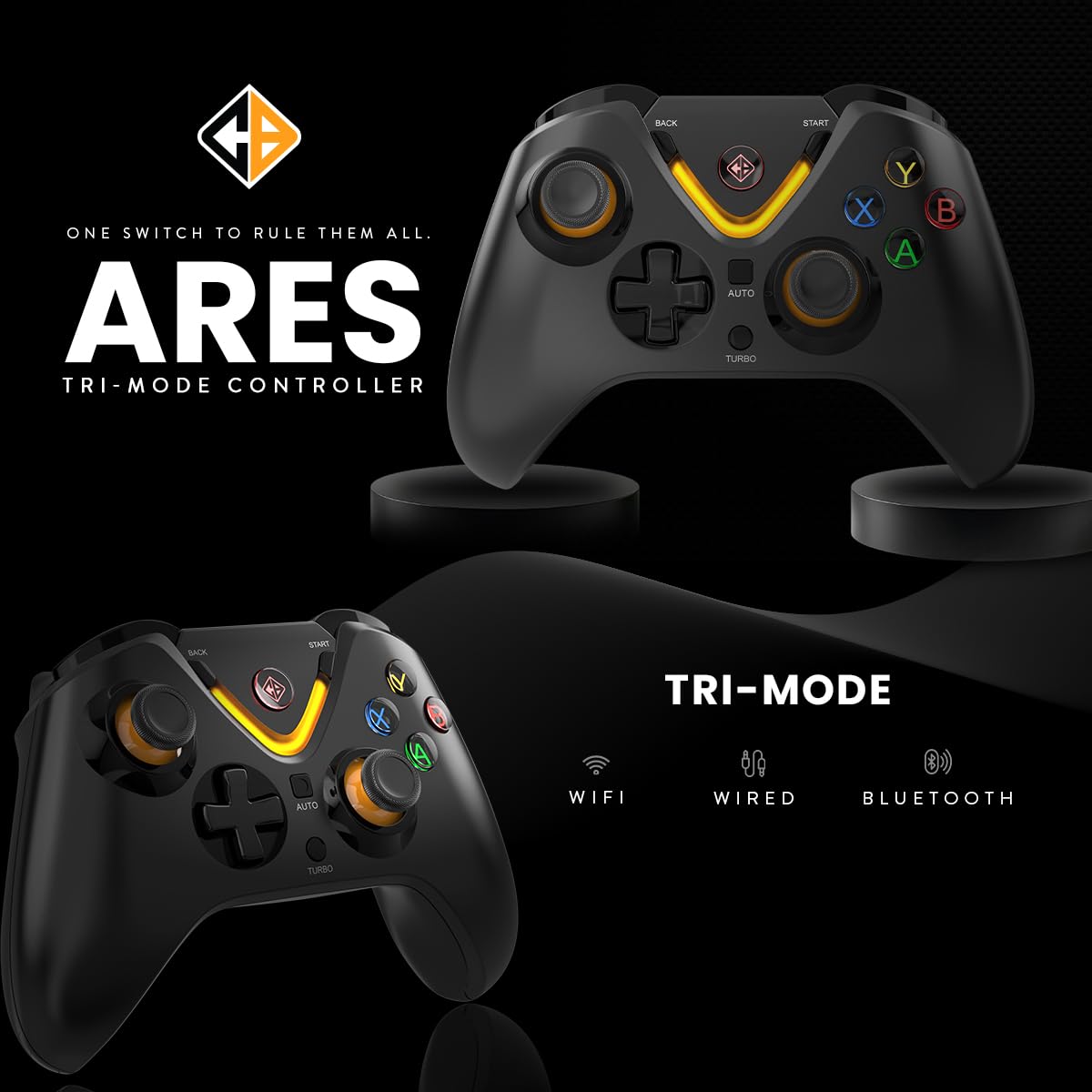
Image: The Cosmic Byte Ares controller illustrating its tri-mode connectivity options: WiFi (2.4GHz), Wired, and Bluetooth.
2.4GHz Wireless Connection (PC)
- Insert the 2.4GHz USB dongle into an available USB port on your PC.
- Turn on the controller. The indicator light will blink rapidly.
- Press and hold the Home button (Cosmic Byte logo) for 3 seconds until the orange light blinks fast, indicating it is searching for the dongle.
- Once connected, the indicator light will become solid. The PC should automatically detect and install the necessary drivers.
Bluetooth Connection (Android/iOS/PC)
- Ensure the controller is powered off.
- On your device (Android, iOS, or PC), enable Bluetooth and search for new devices.
- Press and hold the Bluetooth pairing button on the controller (refer to controller diagram for exact location, usually a small button or a combination with the Home button) until the indicator light blinks rapidly, indicating pairing mode.
- Select "Cosmic Byte Ares" or similar from the list of available Bluetooth devices on your screen.
- Once paired, the indicator light on the controller will become solid.
USB-C Wired Connection (PC)
- Connect one end of the USB-C cable to the controller's USB-C port.
- Connect the other end of the USB-C cable to an available USB port on your PC.
- The controller will be automatically detected and ready for use. The indicator light will show a solid color.
Operating Instructions
Basic Controls
The controller features standard gamepad buttons, including:
- Analog Joysticks: Two Hall Effect analog joysticks for precise movement and camera control.
- D-Pad: Directional pad for menu navigation and specific game inputs.
- Action Buttons (A, B, X, Y): Standard action buttons.
- Shoulder Buttons (LB, RB) & Triggers (LT, RT): Hall Effect triggers for accurate pressure sensing.
- Start/Back Buttons: For in-game menus and system functions.
- Home Button: For powering on/off and accessing system menus.
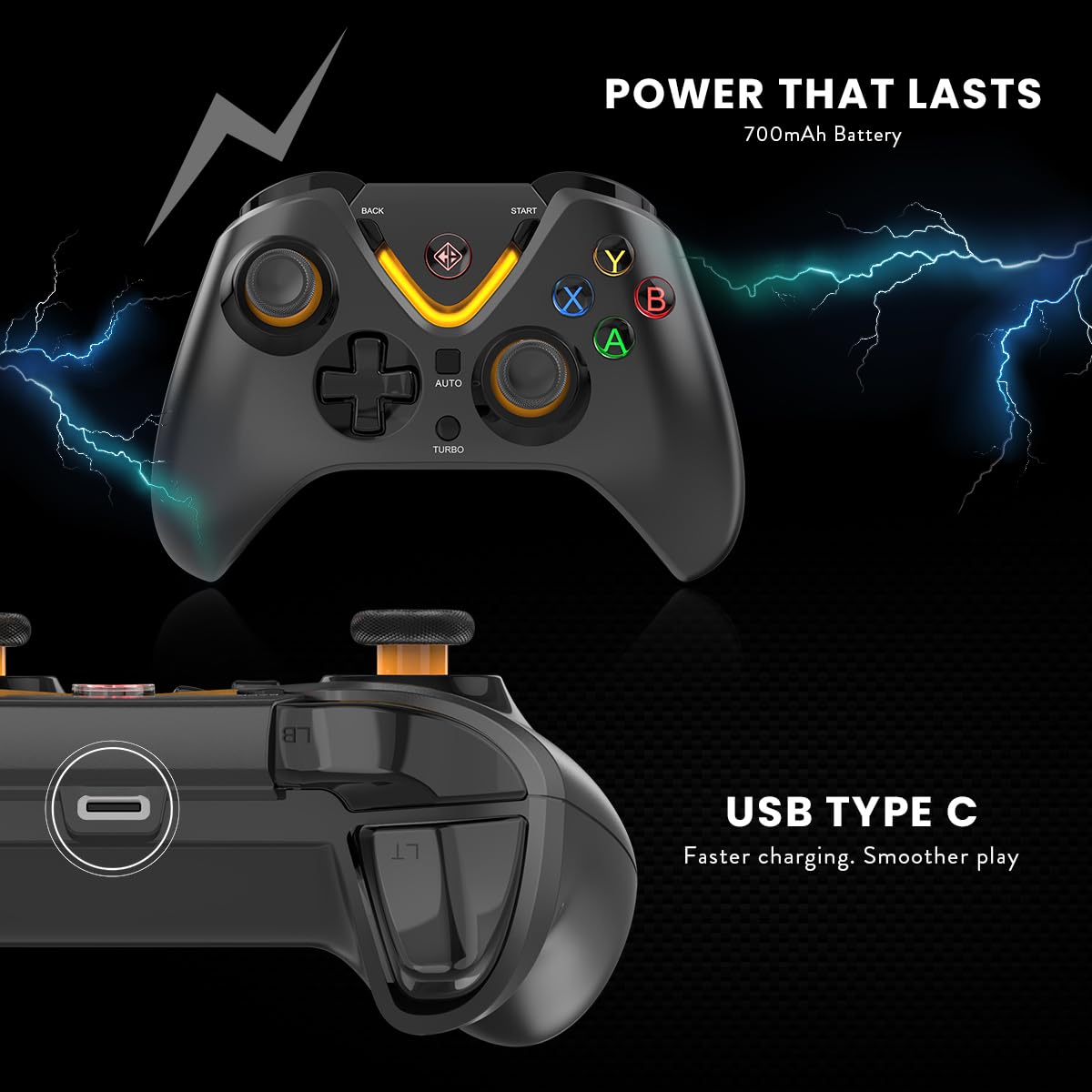
Image: The Cosmic Byte Ares controller showcasing its LED lighting around the Home button and ABXY buttons.
Turbo and Auto Turbo Functions
The Turbo function allows a button to be pressed repeatedly as long as it is held down. Auto Turbo allows a button to be pressed repeatedly without holding it down.
- Activating Turbo: Press and hold the desired action button (e.g., A, B, X, Y, LB, RB, LT, RT), then press the Turbo button once. The button will now rapidly repeat when held.
- Activating Auto Turbo: With Turbo active for a button, press the desired action button and the Turbo button again. The button will now rapidly repeat without being held.
- Deactivating Turbo/Auto Turbo: Press the desired action button and the Turbo button a third time to return to normal function. Alternatively, press and hold the Turbo button for 5 seconds to clear all Turbo settings.

Image: The Cosmic Byte Ares controller highlighting the Turbo and Auto buttons, indicating their function for rapid input.
Vibration Control
The controller features dual vibration motors. The intensity of the vibration can often be adjusted through the connected device's settings or specific game options. Refer to your game or system settings for vibration intensity adjustments.
Maintenance
- Cleaning: Use a soft, dry cloth to clean the controller. Avoid using harsh chemicals or abrasive materials.
- Storage: Store the controller in a cool, dry place away from direct sunlight and extreme temperatures.
- Battery Care: To prolong battery life, avoid fully discharging the battery frequently. Charge the controller regularly, even if not in use for extended periods.
- Avoid Liquids: Do not expose the controller to water or other liquids.
Troubleshooting
Controller Not Connecting/Disconnecting
- Check Battery: Ensure the controller is sufficiently charged. Low battery can cause connectivity issues. Charge the controller for at least 3.5 hours.
- Reset Controller: If the controller is unresponsive or fails to connect, locate the small reset button on the back of the controller (usually a small pinhole). Use a thin pin or paperclip to press and hold the reset button for a few seconds. Then, attempt to reconnect.
- Re-pair Dongle (2.4GHz): If using the 2.4GHz dongle and experiencing disconnections, ensure the dongle is securely inserted. Try pressing and holding the Home button on the controller for 3 seconds until the orange light blinks rapidly to re-initiate pairing with the dongle.
- Bluetooth Pairing Issues: On your device, forget the controller from the Bluetooth device list and attempt to pair again. Ensure no other Bluetooth devices are interfering.
- Wired Connection: If wireless modes fail, try connecting via USB-C cable to rule out wireless interference or battery issues. Ensure the cable is not damaged.
Input Lag or Unresponsive Buttons
- Distance: Ensure the controller is within range of the connected device (especially for wireless modes).
- Interference: Move away from other wireless devices that might cause interference.
- Driver Issues (PC): For PC, ensure your operating system drivers are up to date. You may need to check the device manager for any controller-related driver warnings.
Specifications
| Feature | Detail |
|---|---|
| Brand | Cosmic Byte |
| Model Name | Ares Tri Mode |
| Compatible Devices | Android, iOS, PC (Desktop, ROG Ally, Smartphone, Steam Deck) |
| Controller Type | Gamepad |
| Connectivity Technology | Bluetooth, USB, 2.4GHz Wireless |
| Product Features | Ergonomic, Rumble (Dual Vibration), Wireless |
| Button Quantity | 12 |
| Power Source Type | Battery Powered |
| Battery Capacity | 700mAh |
| Item Weight | 0.15 Kilograms |
| Item Dimensions (L x W x H) | 15.6 x 10.5 x 6 Centimeters |
| Colour | Black |
Warranty and Support
Warranty: The Cosmic Byte Ares Tri-Mode Wireless Controller comes with a 1 Year Warranty Against Manufacturing Defects from the date of purchase.
Importer/Packer Contact Information:
Cosmic Byte, Prakash Warehousing, S. No.163, Hissa No 1-2-3-4-5A-5B/2/1, Phursungi, Pune 412308, Maharashtra, India.
For technical support, warranty claims, or further assistance, please contact Cosmic Byte customer service through their official website or the provided contact details.