
Introduction
This manual provides essential information for the safe and efficient operation of your joliker H12 MP3 Player. Please read this manual thoroughly before using the device and retain it for future reference.
What's in the Box
- 1x joliker H12 MP3 Player with Bluetooth and Wi-Fi
- 1x USB-C Charging Cable
- 1x Wired Earphones
- 1x 64GB Micro SD Card
- 1x Protective Film
- 1x Protective Case
- 1x User Manual (this document)

Image: Contents of the joliker H12 MP3 Player package.
Product Overview
The joliker H12 is a portable MP3 player featuring a 4.0-inch IPS touch screen, Android 13.0 operating system, Bluetooth 5.0, and Wi-Fi connectivity. It comes with 64GB internal storage and a pre-installed 64GB Micro SD card, expandable up to 1TB.
Device Layout

Image: Front and back view of the joliker H12 MP3 Player.
- 4.0" IPS Touch Screen: For navigation and interaction.
- Power Button: Located on the side for turning the device on/off and screen lock.
- Volume Buttons: Located on the side for adjusting audio output.
- USB-C Port: For charging and data transfer.
- 3.5mm Audio Jack: For wired earphones.
- Micro SD Card Slot: For expanding storage up to 1TB.
- Built-in Speaker: For audio playback without headphones.
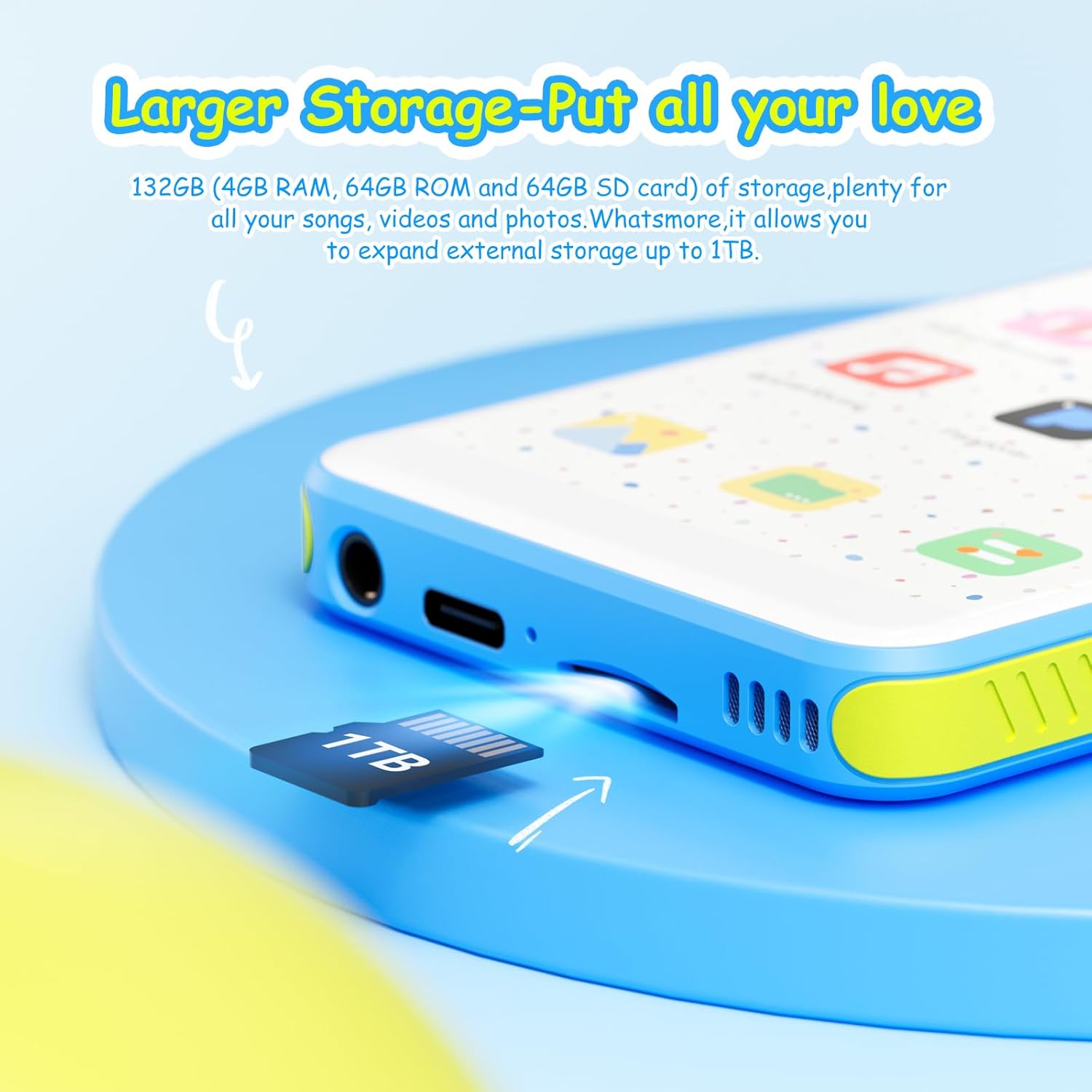
Image: Detail of the Micro SD card slot and USB-C port.
Setup
1. Initial Charging
Before first use, fully charge the device. Connect the provided USB-C cable to the player's USB-C port and the other end to a USB power adapter (not included) or a computer's USB port. The battery indicator will show charging status.
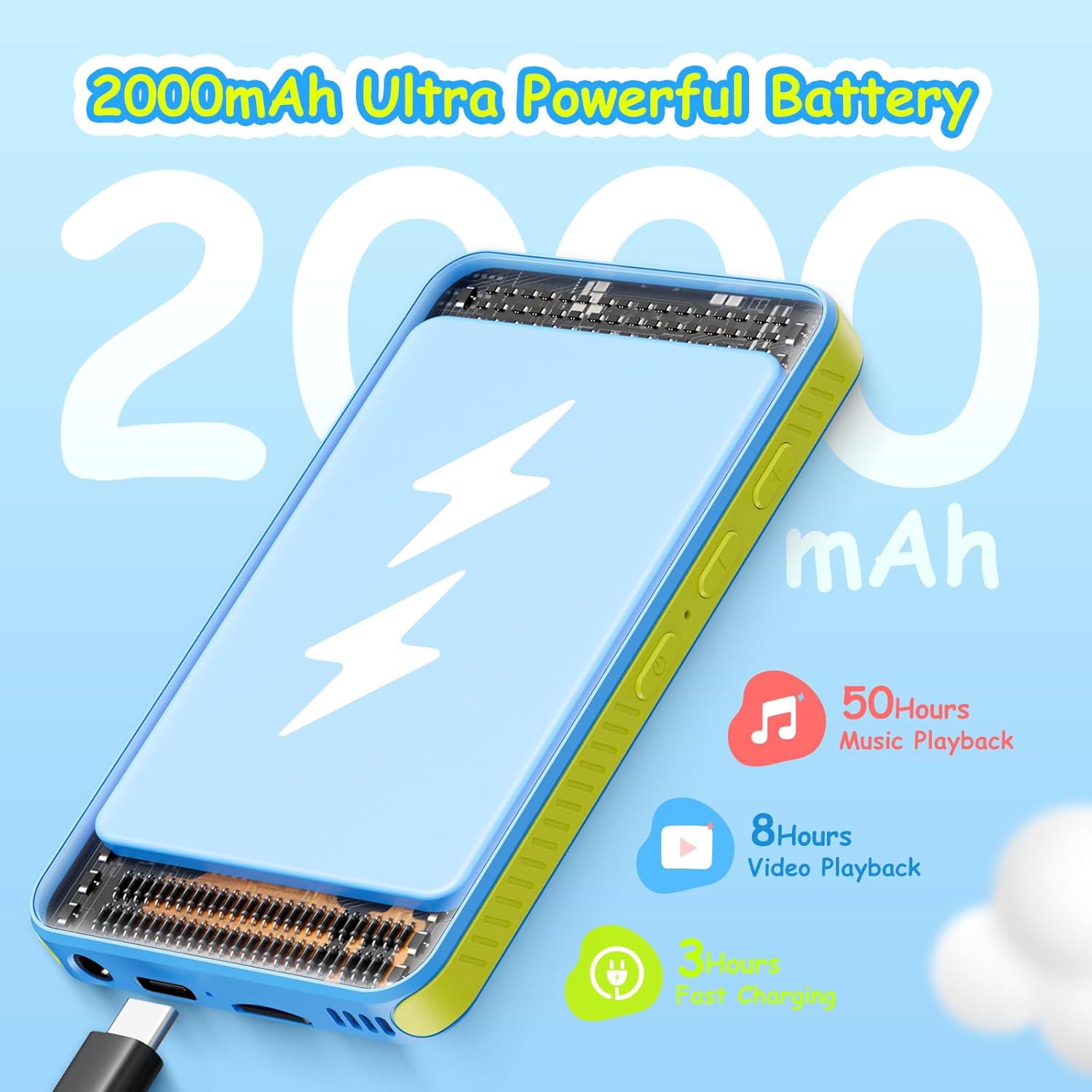
Image: joliker H12 MP3 Player charging via USB-C.
2. Power On/Off
- To Power On: Press and hold the Power button on the side until the screen lights up.
- To Power Off: Press and hold the Power button, then select 'Power Off' from the options on the screen.
- To Lock/Unlock Screen: Briefly press the Power button.
3. Wi-Fi Connection
- From the home screen, swipe down from the top to access the Quick Settings panel.
- Tap and hold the Wi-Fi icon to go to Wi-Fi settings.
- Toggle Wi-Fi on if it's off.
- Select your desired network from the list and enter the password if prompted.
4. Google Play Store Setup
The device comes with the Google Play Store pre-installed. To download additional apps:
- Open the 'Play Store' app from the home screen.
- Sign in with your Google account. If you don't have one, you can create one.
- Browse or search for apps like Spotify, Pandora, Deezer, Audible, etc., and install them.
Operating Instructions
1. Basic Navigation
The joliker H12 features a full touch screen for intuitive operation, similar to a smartphone.
- Tap: To select an item or open an app.
- Swipe: To scroll through lists or switch between home screens.
- Pinch-to-Zoom: In supported applications like the browser or gallery.
2. Music Playback
The device supports both local file playback and streaming services.
Local Music (Hiby Music App)
The pre-installed Hiby Music app supports MP3, WAV, FLAC, AAC, and other formats. It allows for:
- Adjusting the equalizer to your preference.
- Searching for songs by keywords.
- Shuffle, list loop, loop single, and sequential play modes.
- Creating and managing playlists.
- Browsing songs by swiping through pages.

Image: Hiby Music app interface.
Streaming Music (Spotify, Pandora, Deezer, etc.)
With Wi-Fi connected, you can use pre-installed or downloaded streaming apps. Ensure you are logged into your respective accounts.

Image: User enjoying music streaming on the device.
3. Bluetooth Connection
The device features Bluetooth 5.0 for stable wireless audio.
- Go to 'Settings' > 'Connected devices' > 'Bluetooth'.
- Toggle Bluetooth on.
- Ensure your Bluetooth headphones or speaker are in pairing mode.
- Select your device from the list of available devices to pair.

Image: Wireless listening via Bluetooth 5.0.
4. File Transfer
Connect the MP3 player to your computer using the provided USB-C cable. The device will appear as a removable storage device, allowing you to drag and drop music, video, and other files.
5. Storage Management
The device includes 64GB internal storage and a 64GB Micro SD card. You can expand storage up to 1TB by replacing the Micro SD card with a larger capacity one.
6. Video Playback
The 4.0-inch IPS screen supports various video formats. You can play videos stored locally or stream from compatible apps.
7. FM Radio
To use the FM Radio feature, connect wired earphones as they act as the antenna. Open the 'FM Radio' app and scan for available stations.
8. Parental Control
The Android 13.0 operating system allows for the installation of parental control applications from the Google Play Store. These apps can help manage screen time and content access for younger users.

Image: Parental control feature on the device.
Maintenance
1. Cleaning
Use a soft, dry, lint-free cloth to clean the device. Avoid using abrasive cleaners or solvents that may damage the screen or casing.
2. Battery Care
- Avoid exposing the device to extreme temperatures.
- Do not allow the battery to fully discharge frequently.
- Use only the provided USB-C cable for charging.
3. Software Updates
Periodically check for system updates in 'Settings' to ensure optimal performance and access to the latest features.
Troubleshooting
| Problem | Possible Solution |
|---|---|
| Device does not power on. | Ensure the battery is charged. Connect to a charger for at least 30 minutes. |
| Cannot connect to Wi-Fi. | Check if Wi-Fi is enabled. Verify the network password. Restart the device and the Wi-Fi router. |
| Bluetooth device not pairing. | Ensure the Bluetooth device is in pairing mode. Check if Bluetooth is enabled on the player. Try restarting both devices. |
| Computer does not recognize the device. | Ensure the USB-C cable is securely connected. Try a different USB port or cable. On the device, check the USB connection mode (e.g., 'File Transfer'). |
| Apps are slow or crashing. | Close background apps. Clear app cache in 'Settings' > 'Apps'. Restart the device. Ensure sufficient storage space. |
Specifications
| Feature | Detail |
|---|---|
| Model Name | H12 |
| Operating System | Android 13.0 |
| Processor | 8-core |
| RAM | 4GB |
| Internal Storage (ROM) | 64GB |
| Included Micro SD Card | 64GB |
| Expandable Storage | Up to 1TB via Micro SD card |
| Screen Size | 4.0 Inches |
| Display Technology | IPS LCD |
| Bluetooth Version | 5.0 |
| Wi-Fi Connectivity | Yes (Dual-Band) |
| Battery Capacity | 2000mAh |
| Music Playback Time | Up to 50 hours |
| Video Playback Time | Up to 8 hours |
| Charging Port | USB-C |
| Special Features | Built-In Speaker, Equalizer, FM Radio, Touch Screen, Video Playback |
| Item Weight | 7.8 ounces |
| Package Dimensions | 5.79 x 5.75 x 0.75 inches |
Official Product Video
Video: Overview of the joliker H12 MP3 Player's features, including its compact design, pre-installed apps, Hiby Music app, large storage, Bluetooth 5.0, and battery life.
Warranty and Support
For warranty information and technical support, please refer to the contact details provided on the product packaging or the official joliker website. Keep your purchase receipt as proof of purchase for warranty claims.