
Introduction
The iPazzPort Air Mouse & PC Remote Keyboard is a versatile input device combining a wireless keyboard, air mouse, and remote control. It is designed for use with various devices including Smart TVs, Android TV Boxes, HTPCs, projectors, laptops, and gaming consoles. This device offers dual wireless connectivity via Bluetooth and 2.4GHz USB receiver, a 7-color LED backlit keyboard, and an aluminum alloy housing for durability.
Please read this manual carefully to ensure proper setup and operation of your device.
Package Contents
- iPazzPort Air Mouse & PC Remote Keyboard
- USB Receiver (for 2.4G connection)
- Type-C Charging Cable
- User Manual (this document)
Product Overview

Figure 1: Front and back view of the iPazzPort Air Mouse and Keyboard, highlighting its dual-sided design with remote buttons on one side and a QWERTY keyboard on the other.
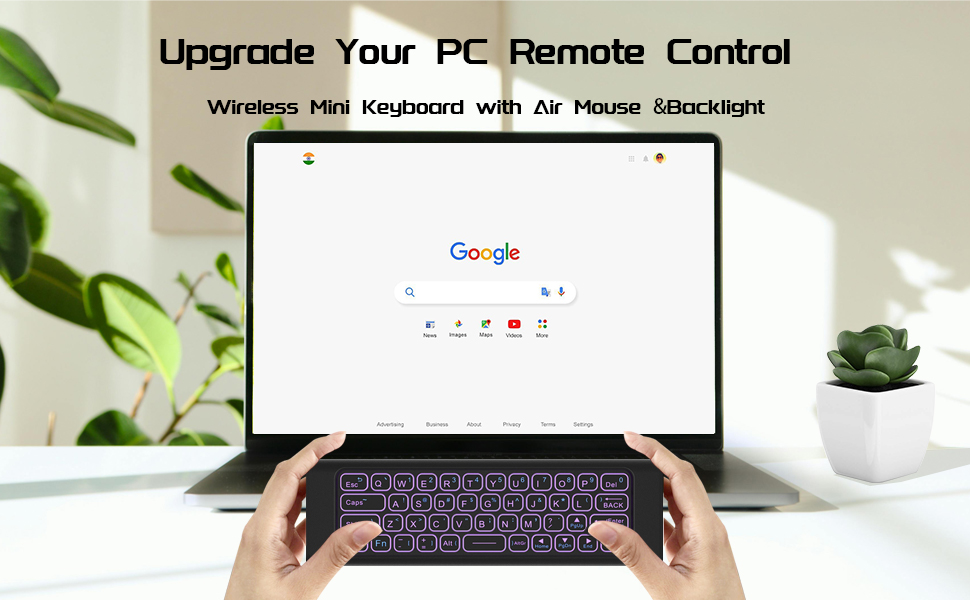
Figure 2: The dual-sided mini keyboard, designed for easy operation whether sitting or lying down, ideal for streaming, gaming, and browsing.
Setup and Connectivity
2.4G Wireless Connection (USB Receiver)
- Locate the USB receiver, usually stored within the device itself or in the packaging.
- Insert the USB receiver into an available USB-A port on your target device (e.g., Smart TV, Android TV Box, HTPC, laptop).
- The device should automatically connect. This is a plug-and-play connection.
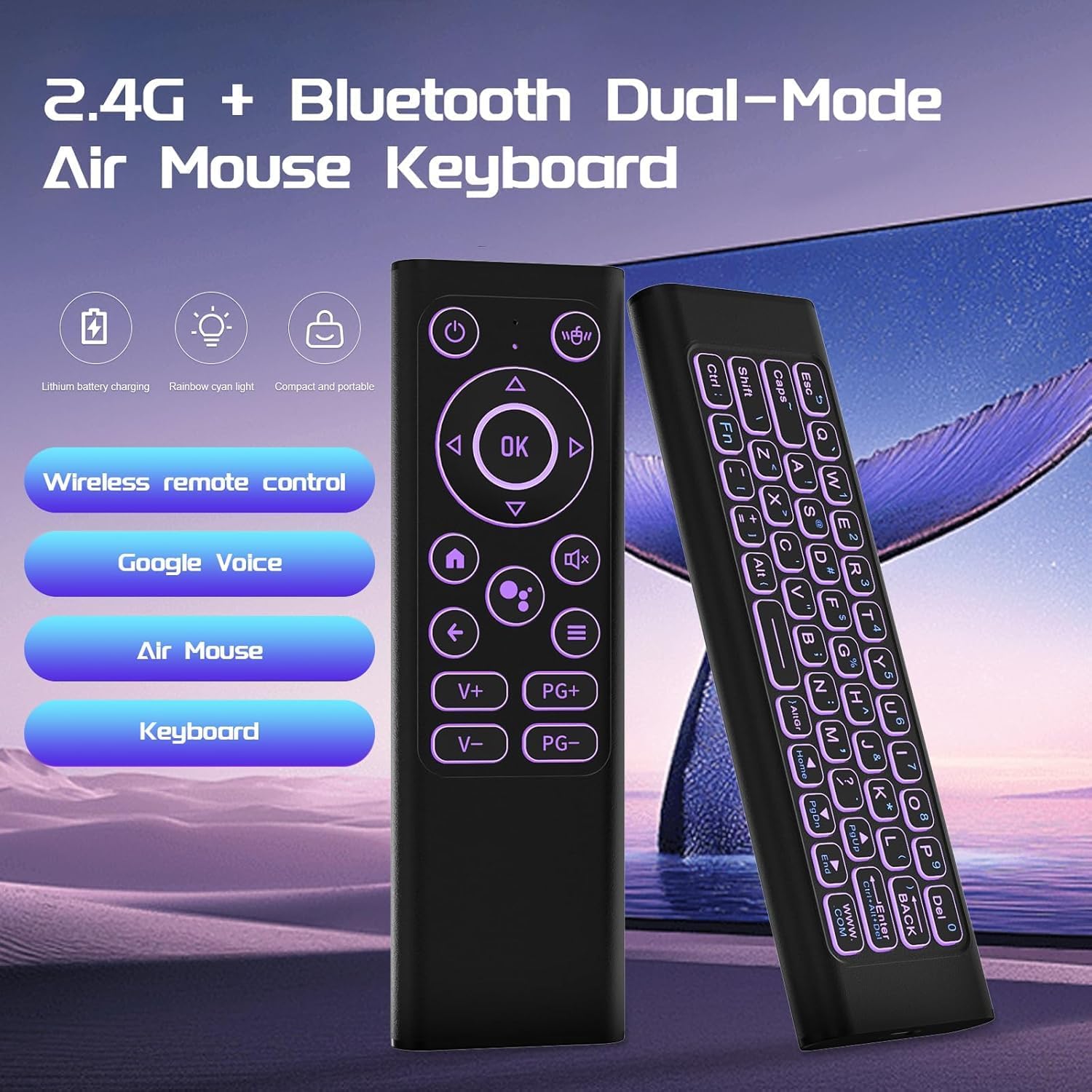
Figure 3: Illustration of the 2.4G + Bluetooth Dual-Mode Air Mouse Keyboard, emphasizing its versatile connectivity options.
Bluetooth Connection
- Ensure your target device has Bluetooth enabled and is in pairing mode.
- On the iPazzPort remote, simultaneously press and hold the Home button and the Back button for a few seconds. The indicator light on the remote will flash, indicating it's in Bluetooth pairing mode.
- On your target device, search for available Bluetooth devices and select "iPazzPort Keyboard" or a similar name to pair.
- Once paired, the indicator light on the remote will stop flashing.
Note: The device can operate freely within a 10-meter range once connected.

Figure 4: The QWERTY Bluetooth Mini Keyboard demonstrating compatibility with various devices like laptops, PCs, Android boxes, and smart TVs.
Operating Instructions
Air Mouse Function
- To activate the air mouse, press the dedicated mouse button (often indicated by a mouse icon).
- Once activated, move your wrist up, down, left, or right to control the cursor on your screen.
- Press the "OK" button to perform a left-click action.
- Press the mouse button again to deactivate the air mouse and use the directional pad.
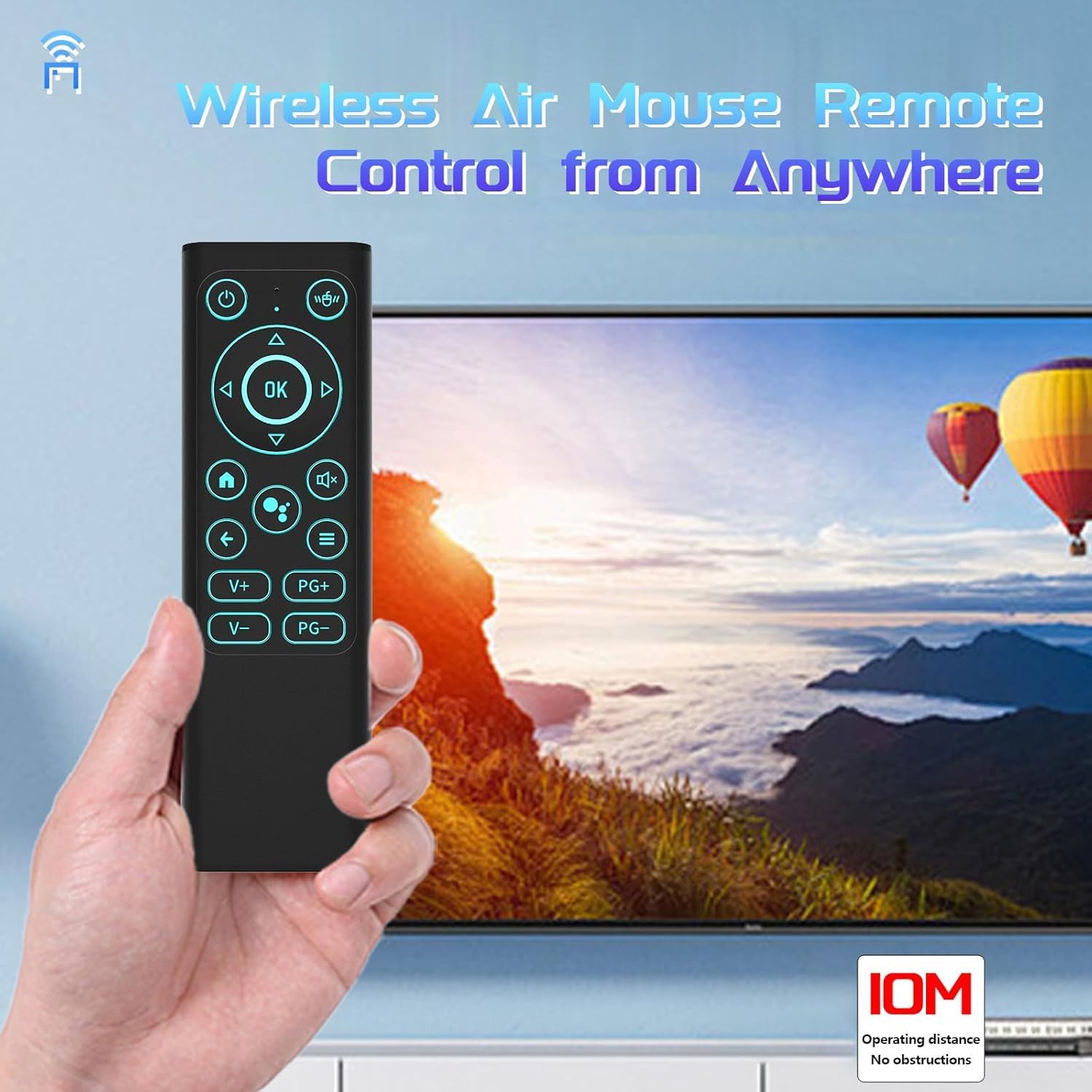
Figure 5: The Wireless Air Mouse Remote Control in action, allowing control from anywhere with simple wrist movements.
Keyboard Usage
- Flip the device to reveal the QWERTY keyboard. The device automatically switches to keyboard mode.
- Use the keys for text input, searching, and other typing functions.
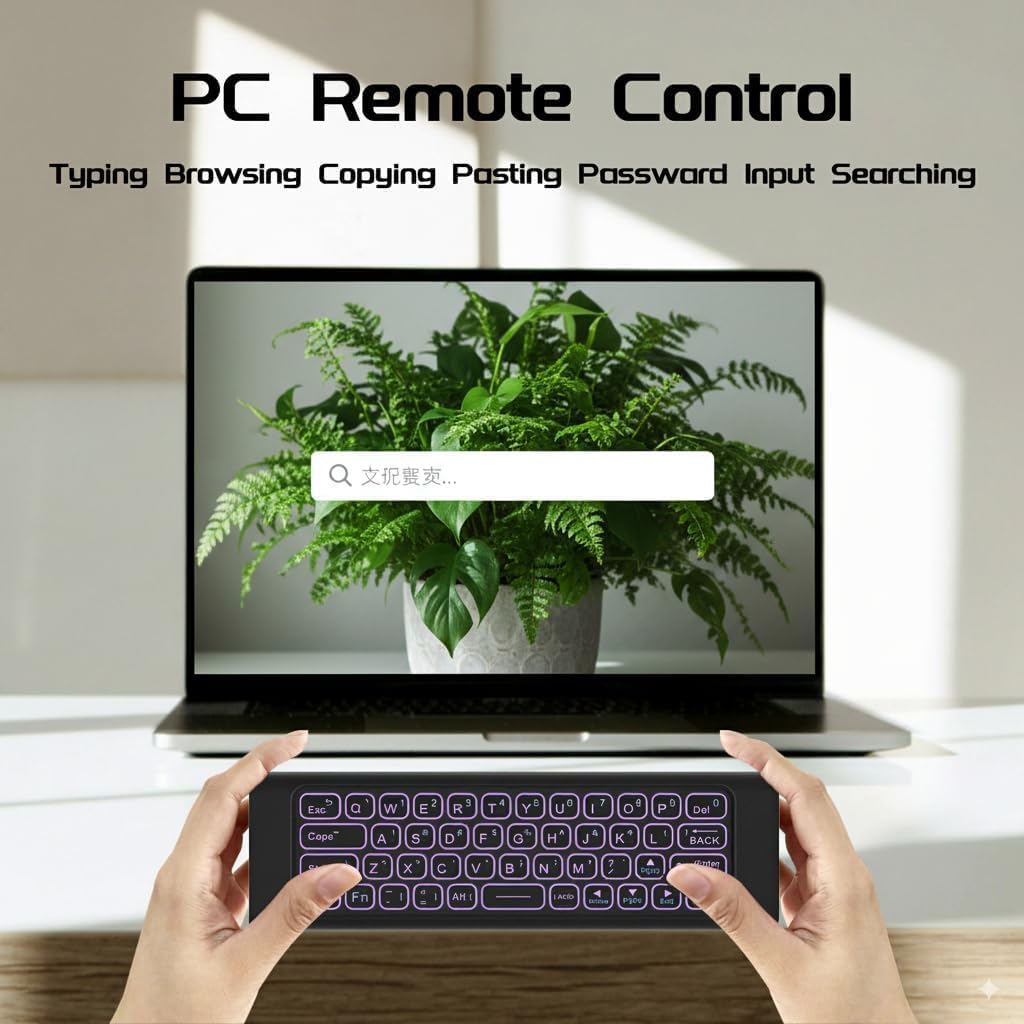
Figure 6: The PC Remote Control keyboard side, facilitating typing, browsing, copying, pasting, password input, and searching.
Backlight Control
- To turn on or change the 7-color LED backlight, press the Fn key and the Spacebar simultaneously.
- Repeat the action to cycle through different colors or turn off the backlight.
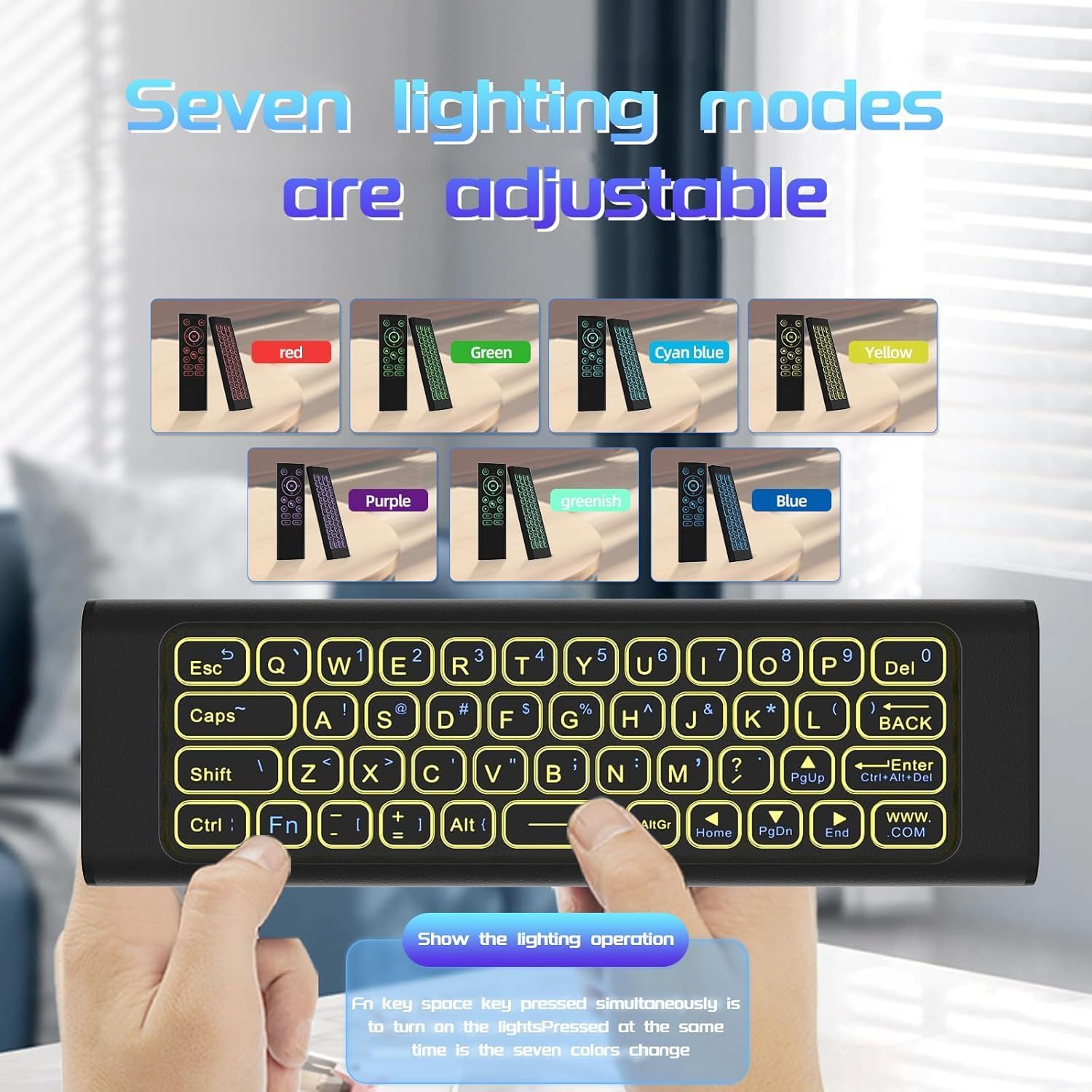
Figure 7: The keyboard displaying its seven adjustable lighting modes, providing visibility in low-light conditions.
Google Voice Search
- The remote supports Google Voice Search. Press the dedicated voice button (microphone icon) to activate.
- Speak your command or search query into the remote's microphone.
- The device will process your voice input, eliminating the need for manual typing for searches or commands.
Infrared (IR) Learning Function
- The "Power" button on the iPazzPort remote is a blank button that can learn IR commands from your TV's original remote.
- To program: Long-press the POWER button on the iPazzPort remote until the indicator light flashes rapidly, then slowly.
- Point your TV's original remote at the iPazzPort remote (ensure they are close, head-to-head) and press the desired button (e.g., Power button on TV remote).
- The iPazzPort remote's indicator light will flash quickly to confirm successful learning.
- Repeat for other basic functions like Channel, Volume, and Mute if desired.
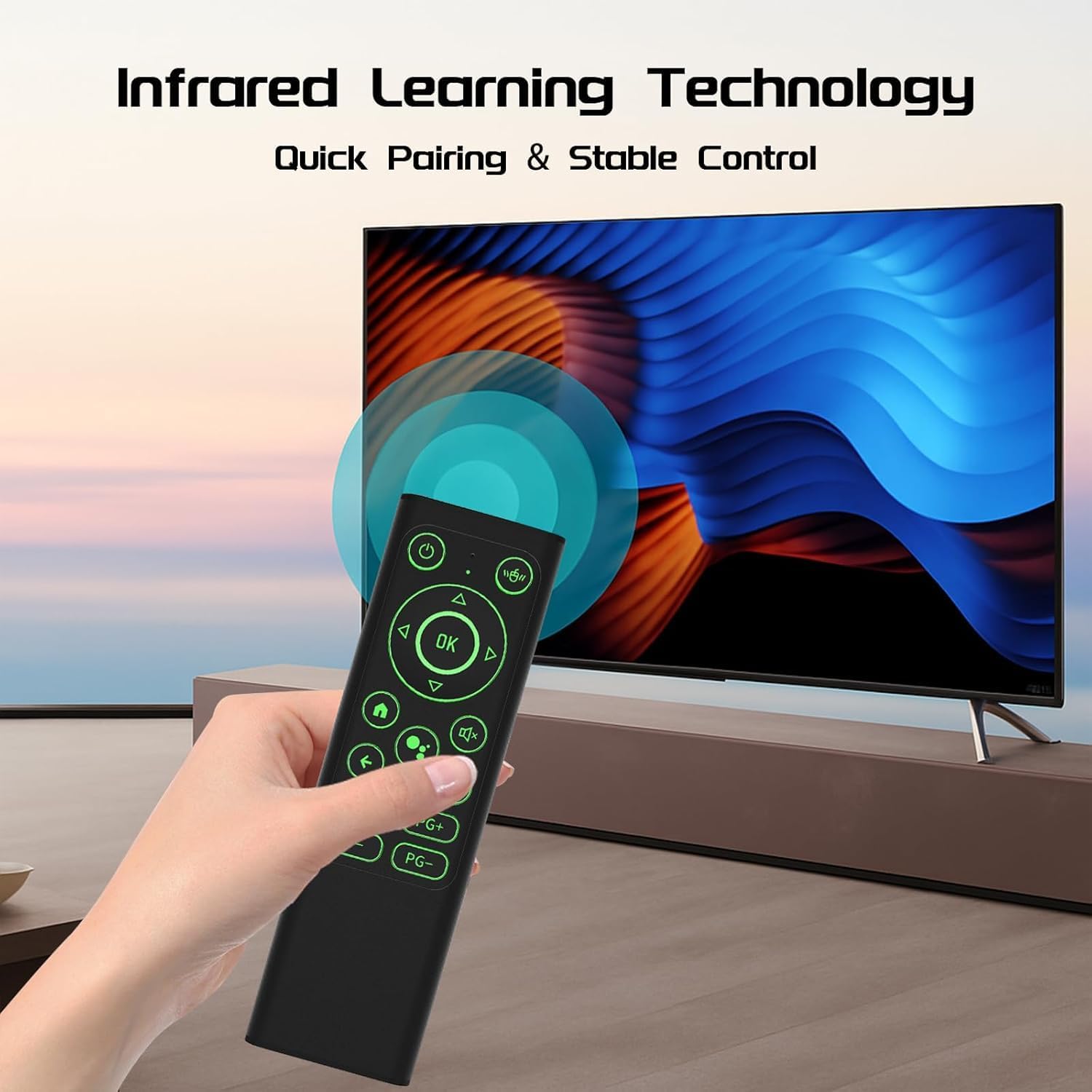
Figure 8: Demonstrating the Infrared Learning Technology for quick pairing and stable control, allowing the iPazzPort to learn functions from your TV's original remote.
Charging and Battery Life
- The device features a built-in rechargeable battery and charges via a Type-C port.
- Connect the provided Type-C charging cable to the device and a USB power source (e.g., computer, wall adapter).
- The backlight automatically turns off when not in use to conserve power, extending battery life.

Figure 9: The Type-C charging port, offering faster charging and enhanced durability.
Specifications
| Feature | Detail |
|---|---|
| Product Dimensions | 6 x 1.9 x 0.5 inches |
| Item Weight | 3.53 ounces |
| Connectivity | Bluetooth & 2.4G Wireless (USB Receiver) |
| Backlight | 7-Color LED Backlit Keyboard |
| Charging Port | Type-C |
| Material | Aluminum Alloy Housing |
| Special Feature | Ergonomic, IR Learning, Google Voice Search |
| Max Number of Supported Devices | 2 (via dual mode) |
| Compatible Devices | Laptop, Android TV Box, HTPC, Projector, Smart TV, Tablet |
Troubleshooting
- Device not responding: Ensure the device is charged. Check if the USB receiver is properly inserted or if Bluetooth is correctly paired.
- Air mouse not working: Press the dedicated mouse button to activate the air mouse function. Ensure the device is held steadily.
- Keyboard not typing: Ensure the device is flipped to the keyboard side. Check connectivity.
- Backlight not turning on: Press Fn + Spacebar simultaneously. Ensure the device has sufficient charge.
- IR learning issues: Ensure the original remote and iPazzPort remote are close and pointed correctly during the learning process. Repeat the learning steps if unsuccessful.
- Limited compatibility with Smart TVs: Some Smart TVs (e.g., LG/Samsung) use proprietary software that may limit full functionality. Test with a wired keyboard first to confirm compatibility with basic functions.
Official Product Videos
Video 1: This video demonstrates the iPazzPort Air Mouse remote with its keyboard, highlighting its 2.4G and Bluetooth connectivity, Google Voice search, and IR learning capabilities. It shows the dual-sided design and ease of use for controlling various devices.
Video 2: This video provides an overview of the Air Mouse & PC Remote Keyboard, focusing on its Bluetooth and 2.4G USB backlit features. It illustrates how the device functions as both an air mouse and a mini keyboard for PC control.
Warranty and Support
For warranty information or technical support, please contact the seller, Mini-Remote, directly through the platform where the product was purchased. Keep your purchase receipt as proof of purchase.

