
CINMOORE CM-C2LU
CINMOORE Dummy Camera User Manual
Model: CM-C2LU
Brand: CINMOORE
1. Introduction
Thank you for choosing the CINMOORE Dummy Camera. This indoor security camera is designed to provide reliable surveillance and peace of mind for your home or office. Featuring advanced AI detection, two-way audio, and clear night vision, it offers comprehensive monitoring capabilities. This manual will guide you through the setup, operation, and maintenance of your device.

Image: Front view of the CINMOORE Dummy Camera, a white, spherical camera with a dark lens and a blue indicator light, featuring the CINMOORE logo at its base.
2. What's Included
Please check the package contents to ensure all items are present:
- CINMOORE Security Camera × 1
- Mounting Bracket Base × 1
- Power Adapter × 1
- Data Cable × 1
- Screw Anchors × 1
- User Manual × 1
3. Setup
The CINMOORE Dummy Camera offers flexible installation options for various indoor environments.
3.1 Mounting Options
The camera can be installed using the following methods:
- Ceiling Mount: Ideal for wide-angle coverage from above.
- Tabletop Mount: Simple placement on any flat surface.
- Wall Mount: Secure installation on a vertical surface.
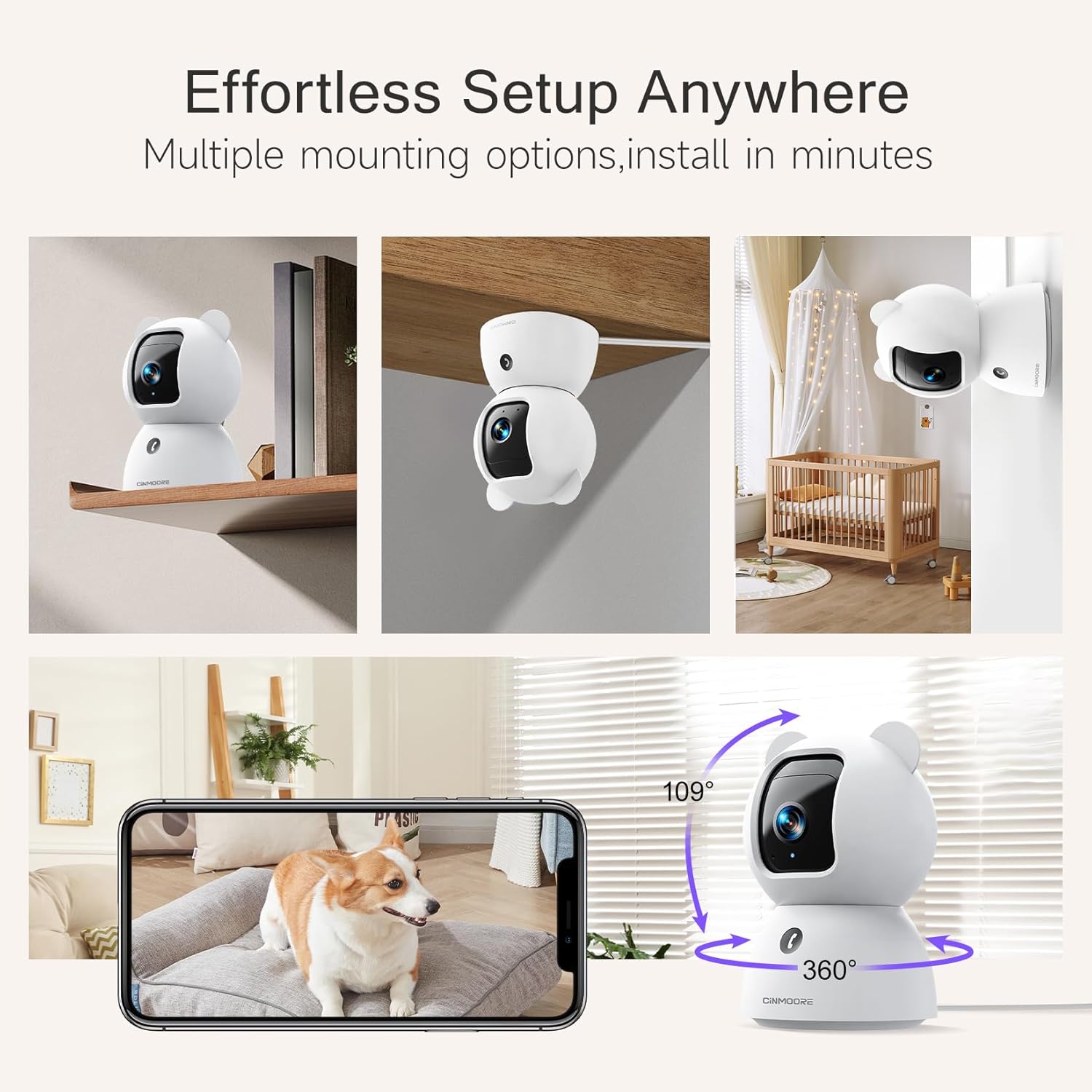
Image: A collage showing the CINMOORE Dummy Camera mounted in various positions: on a shelf, inverted on a ceiling, and on a wall, demonstrating its versatile installation options.
3.2 Initial Setup Steps
- Power On: Connect the camera to the power adapter using the provided data cable and plug it into a power outlet.
- Download App: Download the official CINMOORE app from your smartphone's app store (iOS/Android).
- Account Registration: Open the app and register for a new account or log in if you already have one.
- Add Device: Follow the in-app instructions to add your new camera. This typically involves scanning a QR code on the camera or connecting to its temporary Wi-Fi hotspot.
- Wi-Fi Connection: Connect the camera to your home Wi-Fi network (2.4GHz recommended).
- Placement: Position the camera in your desired location, ensuring it has a clear view of the area you wish to monitor.
4. Operating Instructions
4.1 Video Quality and Viewing
The camera captures video in 2.5K resolution, providing clear and detailed images. You can view the live feed and recorded footage through the CINMOORE app.

Image: A side-by-side comparison demonstrating the superior clarity of 2.5K resolution (left, showing a baby) versus 2K resolution (right, showing a puppy).
4.2 Pan & Tilt (PTZ) Functionality
The camera features PTZ (Pan, Tilt, Zoom) technology, allowing for 360-degree coverage. You can remotely control the camera's viewing angle through the app to monitor different areas of a room.

Image: The CINMOORE Dummy Camera surrounded by icons representing its features: Ultra HD 2.5K, Sound/Crying Alerts, Smart Night Vision, Encrypted Local Storage (up to 256GB), Secure Cloud Storage, Full Duplex Audio, Human/Pet Tracking, One-Touch Call, and Pan & Tilt, emphasizing its 360-degree protection.
4.3 Two-Way Audio
Utilize the full-duplex two-way audio feature to communicate with people or pets in the camera's vicinity. This allows for natural, real-time conversations.

Image: A scene depicting a person speaking through a smartphone to a dog via the CINMOORE Dummy Camera, illustrating the two-way audio feature with speech bubbles.
4.4 Night Vision
The camera is equipped with clear IR night vision, providing 2.5K clarity even in low-light or complete darkness, with a range of up to 33 feet.

Image: A person viewing a black-and-white night vision feed from the CINMOORE Dummy Camera on their smartphone, showing a baby and a dog in a crib, demonstrating clear IR night vision in a dark room.
4.5 AI Alerts and Detection
The camera supports various AI-powered detection features without monthly fees, including:
- Motion Detection: Alerts you to general movement.
- Person Detection: Specifically identifies human figures.
- Pet Detection: Recognizes pet activity.
- Cry Detection: Notifies you of baby crying sounds.

Image: Two children playing near the CINMOORE Dummy Camera, with icons below representing its AI detection capabilities: Person, Pet, Motion, and Crying, highlighting its no-monthly-fee AI alerts.
4.6 Storage Options
The camera offers flexible and secure storage solutions:
- SD Card Storage: Supports local storage via an SD card (not included), expandable up to 512GB. Ensure "SD Card Encryption" is enabled in the app for secure viewing.
- Cloud Storage: Offers AWS Cloud Storage with a 30-day free trial, providing bank-level encrypted storage for your recordings.

Image: A diagram showing the CINMOORE Dummy Camera with callouts for its storage features: SD card slot (expandable up to 512GB), Reset Button, and AWS Cloud Storage (30-day free trial), emphasizing encrypted and secure flexible storage.
5. Maintenance
To ensure optimal performance and longevity of your CINMOORE Dummy Camera, follow these maintenance guidelines:
- Cleaning: Gently wipe the camera lens and body with a soft, dry cloth. Avoid using harsh chemicals or abrasive materials.
- Placement: Ensure the camera is placed in a stable location, away from direct sunlight, extreme temperatures, and high humidity.
- Firmware Updates: Regularly check for and install firmware updates through the CINMOORE app to ensure your camera has the latest features and security enhancements.
- Power Supply: Use only the original power adapter provided with the camera.
6. Troubleshooting
If you encounter issues with your CINMOORE Dummy Camera, refer to the following common troubleshooting steps:
- Camera Offline: Check your Wi-Fi connection and ensure the camera is within range of your router. Restart the camera by unplugging and re-plugging the power adapter.
- Poor Video Quality: Ensure the lens is clean and free from dust. Check your internet speed; a stable connection is crucial for high-resolution streaming.
- No Audio: Verify that the microphone and speaker settings are enabled in the app. Ensure there are no obstructions blocking the microphone or speaker on the camera.
- Detection Not Working: Check the detection sensitivity settings in the app. Ensure the camera's view is clear and not obstructed.
- Cannot Connect to App: Ensure you have the latest version of the CINMOORE app. Try resetting the camera (using the reset button, if available) and re-adding it to the app.
For further assistance, please contact CINMOORE customer support.
7. Specifications
| Model Name | Security Indoor Cam |
| Item Model Number | CM-C2LU |
| Brand | CINMOORE |
| Connectivity Technology | Wired, Wi-Fi |
| Video Capture Resolution | 2.5K |
| Indoor/Outdoor Usage | Indoor |
| Special Features | 2 Way Audio, Cry Detection, HD Resolution, PTZ Technology |
| Night Vision Range | 33 Feet |
| Mounting Type | Ceiling Mount / Tabletop Mount / Wall Mount |
| Material | Acrylonitrile Butadiene Styrene (ABS) |
| Item Dimensions L x W x H | 7.6 x 7.6 x 11.4 Centimetres |
| Item Weight | 340 g |
| Water Resistance Level | Waterproof |
| Recommended Uses | Baby Monitoring, Pet Monitoring, Indoor Home Security, Office Surveillance |
8. Warranty and Support
Warranty: The CINMOORE Dummy Camera comes with a 1-year warranty from the date of purchase. Please retain your proof of purchase for warranty claims.
Support: For technical support, troubleshooting assistance, or warranty inquiries, please visit the official CINMOORE website or contact their customer service team. Refer to the product packaging or the CINMOORE app for specific contact details.
Related documentsCM-C2LU


Ask a question about this manual
Ask about setup, troubleshooting, compatibility, parts, safety, or missing instructions. Manuals+ will review the question and use this page’s manual context to help answer it.