
1. Introduction
This manual provides essential information for setting up, operating, maintaining, and troubleshooting your HP 27-inch All-in-One Desktop PC. This computer integrates the display and system components into a single unit, offering a streamlined computing experience. It features an Intel Core Ultra 7 processor, 16GB DDR5 RAM, and 1.5TB storage, running on Windows 11 Pro.

Image 1.1: HP 27-inch All-in-One Desktop PC with included wireless keyboard and mouse.
2. What's in the Box
Verify that all components are present in the packaging:
- HP 27-inch All-in-One Desktop PC
- HP White Wireless Keyboard
- HP White Wireless Mouse
- 90 W Smart AC Power Adapter
- Setup Instructions (Quick Start Guide)
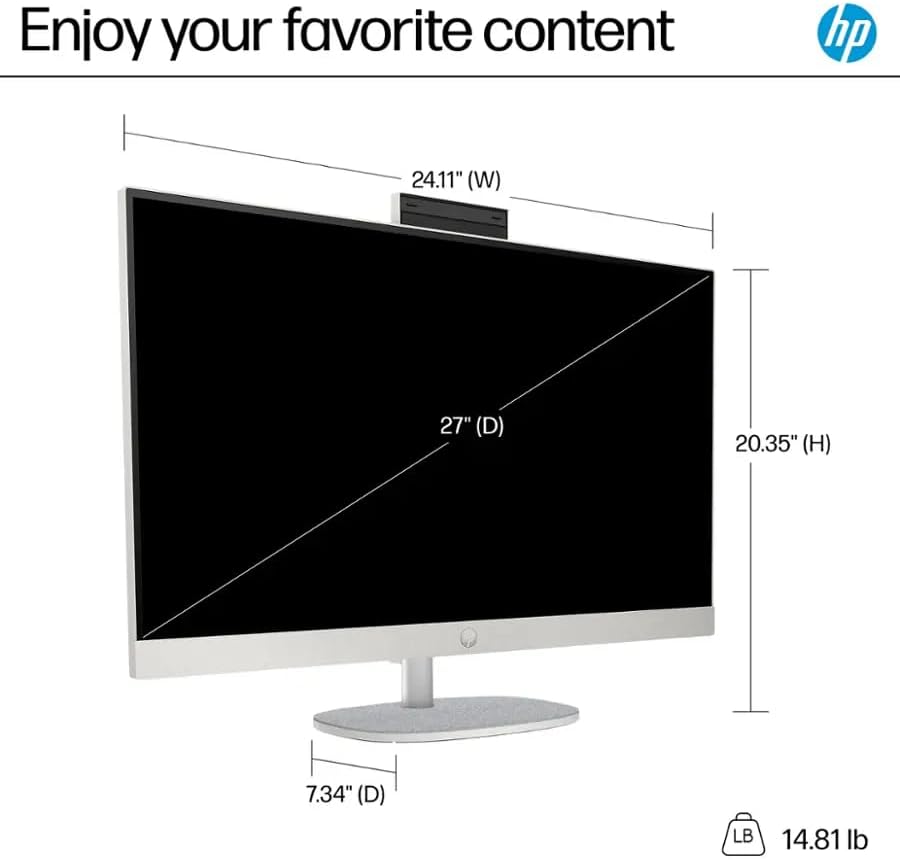
Image 2.1: Contents of the product packaging, including the All-in-One PC, keyboard, mouse, and power adapter.
3. Setup Instructions
- Unpack the PC: Carefully remove the HP All-in-One PC and all accessories from the box. Place the PC on a stable, flat surface.
- Connect Power: Connect the 90 W Smart AC power adapter to the power port on the back of the PC, then plug the adapter into a wall outlet.
- Connect Peripherals:
- Keyboard and Mouse: Insert the USB receiver for the wireless keyboard and mouse into an available USB-A port on the PC. Ensure batteries are installed in the keyboard and mouse.
- External Devices (Optional): Connect any external devices such as printers, external hard drives, or additional monitors to the appropriate ports. Refer to the 'Ports' diagram below for port locations.
- Initial Boot-up: Press the power button, usually located on the side or back of the display. The PC will power on and guide you through the initial Windows 11 setup process. Follow the on-screen instructions to configure your language, region, network connection, and user account.

Image 3.1: Rear view illustrating the available ports: Headphone/Microphone combo, USB 2.0 Type-A, USB Type-A (5Gbps), USB Type-C (5Gbps), HDMI Out, and RJ-45 Ethernet port.
4. Operating Instructions
4.1. Basic Operation
- Power On/Off: Press the power button to turn the PC on. To shut down, click the Start button in Windows, then select Power > Shut down.
- Windows 11 Interface: Familiarize yourself with the Windows 11 desktop, Start menu, taskbar, and notification center.
- Network Connection: Connect to a Wi-Fi network or use the Ethernet port for a wired connection to access the internet.
- Audio: Adjust volume using the keyboard controls or the sound icon in the taskbar. Connect headphones or external speakers to the audio jack if desired.
4.2. Using the Integrated Webcam
The HP All-in-One PC includes an integrated webcam for video calls and conferencing. To use the webcam:
- Open an application that utilizes the webcam, such as Microsoft Teams, Zoom, or the Camera app in Windows.
- Ensure the webcam privacy shutter (if present) is open.
- Grant the application permission to access the camera and microphone when prompted.
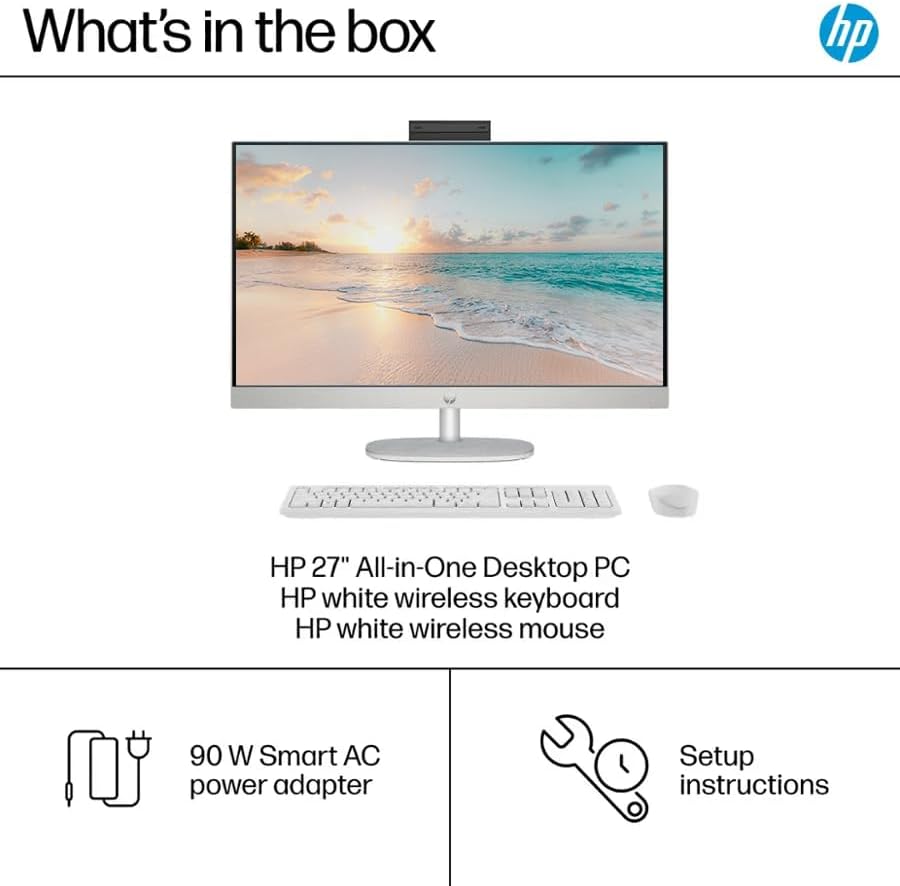
Image 4.1: User engaged in a video conference using the HP All-in-One PC's integrated webcam.
5. Maintenance
Regular maintenance helps ensure the longevity and optimal performance of your HP All-in-One PC.
- Cleaning: Use a soft, lint-free cloth to clean the screen and exterior surfaces. For the screen, dampen the cloth slightly with water or a screen-cleaning solution. Avoid harsh chemicals.
- Software Updates: Regularly check for and install Windows updates and driver updates from HP to ensure system stability and security.
- System Optimization: Periodically run disk cleanup and defragmentation tools (for HDD, not necessary for SSD) to maintain storage efficiency.
- Ventilation: Ensure the ventilation openings on the PC are not blocked to prevent overheating.
6. Troubleshooting
This section addresses common issues you might encounter.
6.1. No Power / PC Does Not Turn On
- Ensure the power adapter is securely connected to both the PC and a working electrical outlet.
- Test the outlet with another device to confirm it has power.
- Try a different power outlet.
6.2. Display Issues (No Image, Flickering)
- Restart the PC.
- Ensure all cables are securely connected.
- If an external monitor is connected, try disconnecting it to see if the issue persists on the main display.
6.3. Keyboard or Mouse Not Responding
- Check the batteries in the wireless keyboard and mouse and replace them if necessary.
- Ensure the USB receiver for the wireless peripherals is securely plugged into a USB port on the PC. Try a different USB port.
- Restart the PC.
6.4. Bluetooth Connectivity Problems
- Ensure Bluetooth is enabled in Windows settings.
- Restart the Bluetooth service or the PC.
- Remove and re-pair the Bluetooth device.
7. Specifications
Key technical specifications for the HP 27-inch All-in-One Desktop PC:
| Feature | Specification |
|---|---|
| Brand | HP |
| Model Name | HP All-in-One Desktop |
| Operating System | Windows 11 Pro |
| CPU Model | Intel Core Ultra 7 155U (12 Cores, 14 Threads, up to 4.8 GHz) |
| Graphics Coprocessor | Intel Iris Xe Graphics (Integrated) |
| RAM Memory | 16GB DDR5 RAM (Expandable up to 64GB) |
| Storage | 1.5TB (1TB SSD + 512GB Docking Station Set) |
| Screen Size | 27 Inches |
| Display Resolution | 1920 x 1080 (FHD) LED, Anti-glare, 300 nits, 99% sRGB |
| Connectivity | Wi-Fi 6, Bluetooth, Ethernet (RJ-45) |
| Ports | 1x USB-C (5Gbps), 4x USB-A (2x USB 2.0, 2x USB 5Gbps), 1x HDMI Out, 1x Headphone/Microphone Combo Jack |
| Dimensions (W x D x H) | 24.11 x 7.34 x 20.35 inches |
| Item Weight | 15 Pounds |

Image 7.1: Physical dimensions of the HP 27-inch All-in-One PC.
8. Warranty and Support
8.1. Warranty Information
This HP All-in-One Desktop PC comes with a 1-Year Limited Warranty from the manufacturer. This warranty covers defects in materials and workmanship under normal use. Please retain your proof of purchase for warranty claims.
8.2. Technical Support
For technical assistance, troubleshooting beyond this manual, or warranty service, please contact HP Customer Support. Visit the official HP support website for contact information, drivers, and additional resources.
HP Support Website: www.hp.com/support


