
HP HP All In One
HP 27" FHD All-in-One Computer User Manual
Model: HP All In One
1. Introduction
Product Overview
This manual provides essential information for setting up, operating, maintaining, and troubleshooting your HP 27" FHD All-in-One Computer. This powerful system features an Intel Core Ultra 7 processor, 64GB DDR5 RAM, and 2.5TB storage, running on Windows 11. Its 27-inch FHD LED display and integrated camera are designed for efficient multitasking and connectivity.

Image: The HP 27-inch All-in-One Computer, shown with its accompanying wireless keyboard and mouse, ready for use.
2. What's in the Box
Please verify that all the following items are included in your product packaging:
- HP 27" All-in-One Desktop PC
- HP White Wireless Keyboard
- HP White Wireless Mouse
- 90 W Smart AC Power Adapter
- Setup Instructions
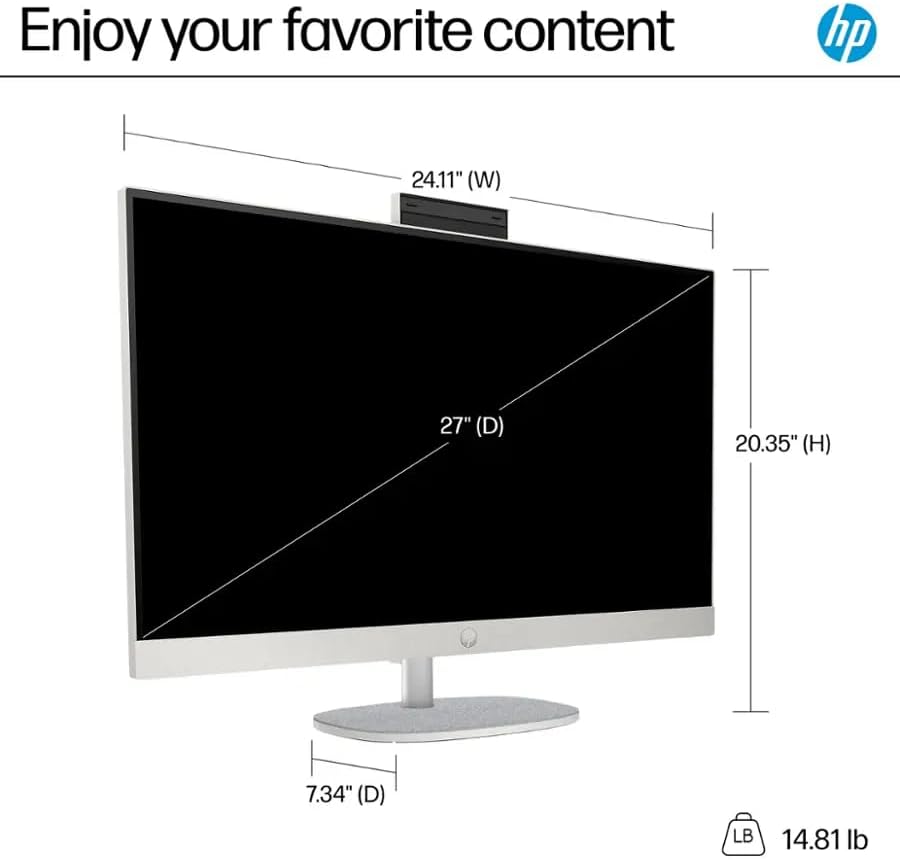
Image: A visual representation of the items included in the box: the HP 27-inch All-in-One PC, wireless keyboard, wireless mouse, 90W power adapter, and setup instructions.
3. Setup
Unpacking and Placement
- Carefully remove all components from the packaging.
- Place the All-in-One computer on a stable, flat surface with adequate ventilation. Ensure there is enough space around the unit for airflow.
Connecting Peripherals
- Connect the wireless keyboard and mouse. Ensure batteries are installed correctly.
- Plug the 90 W Smart AC power adapter into the computer's power port and then into a wall outlet.
- If desired, connect an Ethernet cable to the RJ-45 port for a wired network connection.
- Utilize the available USB-A, USB-C, and HDMI ports for additional devices as needed.

Image: The rear panel of the HP All-in-One computer, highlighting the various ports including Headphone/Microphone combo, USB 2.0 Type-A, USB Type-A (5Gbps), USB Type-C (5Gbps), HDMI Out, and RJ-45 Ethernet.
Initial Power On
- Press the power button, usually located on the side or bottom of the display.
- Follow the on-screen instructions to complete the Windows 11 setup process, including language selection, network connection, and user account creation.
4. Operating Instructions
Basic Operation
Your HP All-in-One computer comes pre-installed with Windows 11, offering a user-friendly interface. Navigate using the wireless keyboard and mouse. Familiarize yourself with the Start Menu for accessing applications, settings, and files.
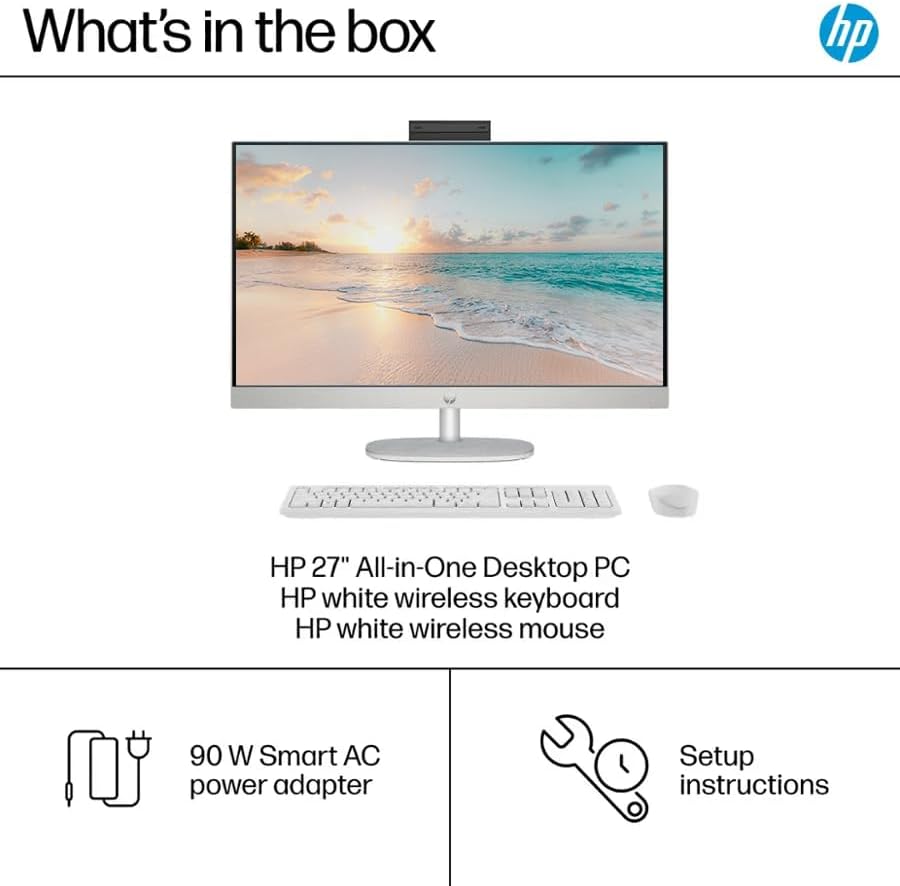
Image: A person engaged in a video call using the HP All-in-One computer, demonstrating its use in a home or office setting.
Display Features
The 27-inch Full HD (1920 x 1080) LED display provides clear and vibrant visuals. Adjust display settings such as brightness and resolution through Windows settings (Right-click on desktop > Display settings).
Connectivity
The computer supports Wi-Fi 6 for wireless internet access and Bluetooth for connecting compatible devices like headphones or speakers. For wired connections, use the Ethernet port. The various USB ports allow for connecting external storage, printers, and other peripherals.
5. Maintenance
Cleaning the Display and Exterior
- Always power off and unplug the computer before cleaning.
- Use a soft, lint-free cloth slightly dampened with water or a non-abrasive screen cleaner for the display. Avoid harsh chemicals.
- For the exterior, use a soft, dry cloth.
System Updates
Regularly check for and install Windows updates to ensure optimal performance, security, and access to the latest features. Go to Settings > Windows Update.
Storage Management
Periodically manage your 2.5TB storage by deleting unnecessary files, uninstalling unused applications, and utilizing cloud storage options to maintain system speed and efficiency.
6. Troubleshooting
If you encounter issues with your HP All-in-One computer, refer to the common solutions below:
- Computer does not power on: Ensure the power adapter is securely connected to both the computer and a working electrical outlet. Try a different outlet.
- No display on screen: Check if the computer is powered on. If connected to an external monitor, ensure the correct input source is selected on the monitor.
- Keyboard or mouse not responding: For wireless devices, check battery levels and ensure they are properly paired. For wired devices, ensure they are securely plugged into the correct USB ports.
- Network connectivity issues: For Wi-Fi, ensure your router is working and the computer is connected to the correct network. For wired connections, check the Ethernet cable and router status.
- System is slow or unresponsive: Close unnecessary applications, check for background processes, and ensure sufficient free storage space. Restarting the computer can often resolve temporary performance issues.
7. Specifications
| Feature | Detail |
|---|---|
| Brand | HP |
| Model Name | HP All In One |
| Operating System | Windows 11 |
| CPU Model | Intel Core Ultra 7 155U (12 Cores, up to 4.8 GHz) |
| Graphics | Integrated Intel Iris Xe Graphics |
| RAM | 64 GB DDR5 (3200 MHz) |
| Storage | 2.5 TB SSD (2TB SSD + 512GB Docking Station Set) |
| Screen Size | 27 Inches |
| Display Resolution | 1920 x 1080 (FHD) |
| Connectivity | Wi-Fi 6 (802.11ax), Bluetooth, Ethernet |
| Ports | 1x USB-C, 4x USB-A, 1x Ethernet (RJ-45), 1x HDMI Out, 1x Headphone/Microphone Combo Jack |
| Dimensions (W x D x H) | 24.11 x 7.34 x 20.35 inches |
| Item Weight | 13.14 Pounds |
| Color | White |

Image: Diagram illustrating the dimensions of the HP 27-inch All-in-One computer, including width, depth, and height.
8. Warranty and Support
Warranty Information
This HP All-in-One computer comes with a 1-Year Limited Warranty. Please refer to the warranty documentation included with your product for specific terms and conditions. Keep your proof of purchase for warranty claims.
Technical Support
For technical assistance, driver downloads, or further support, please visit the official HP support website. You can typically find support resources by searching for your product model on the HP website.
Related documentsHP All In One


Ask a question about this manual
Ask about setup, troubleshooting, compatibility, parts, safety, or missing instructions. Manuals+ will review the question and use this page’s manual context to help answer it.