
Introduction
The ZOMBIES CAT MGALL X22 Clip On Wireless Headphones offer a unique open-ear listening experience combined with a fashionable design. These headphones feature Bluetooth 6.0 connectivity, an LED HD display for battery status, and a comfortable clip-on fit. This manual provides essential information for setting up, operating, and maintaining your headphones.
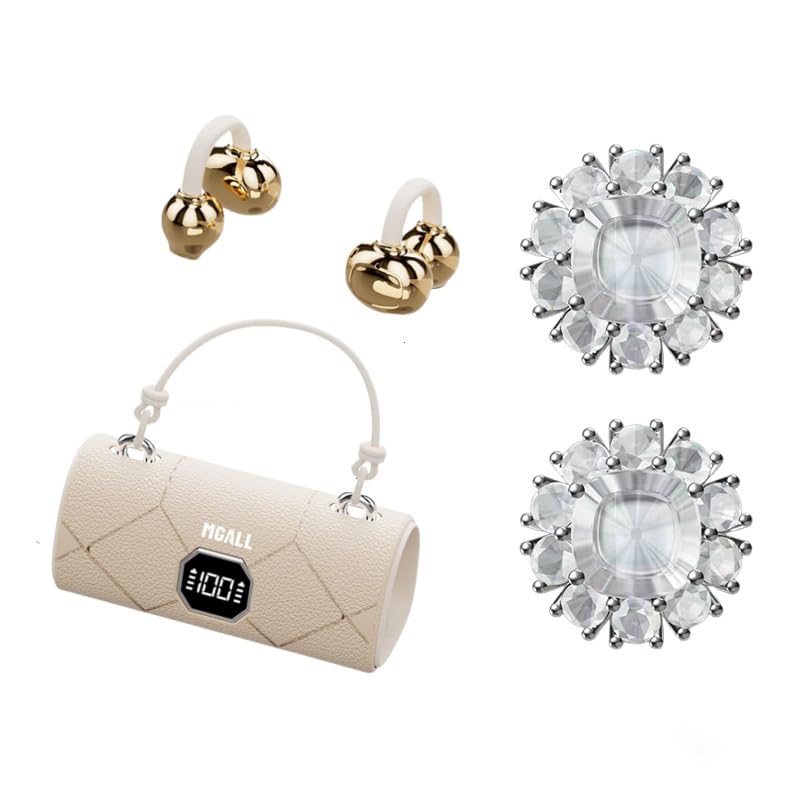
MGALL X22 Clip On Wireless Headphones in their charging case, showcasing the unique handbag-style design and open-ear earbuds.
Key Features
- Open-Ear Design: Provides a comfortable and pleasant listening experience without blocking the ear canal.
- Bluetooth 6.0: Ensures fast pairing, seamless audio, and ultra-low latency.
- Dual AI Noise-Canceling Mics: Enhances voice clarity by suppressing ambient noise during calls.
- Immersive Stereo Sound: Delivers crisp highs, rich bass, and a wider soundstage with advanced directional audio.
- Extended Battery Life: Up to 6 hours of listening per charge, with a total of 40 hours using the charging case.
- LED HD Display: Shows real-time battery levels for both the charging case and earbuds.
- Fashionable Design: Features a unique handbag-style charging case with a smooth leather finish and graceful handle.

Diagram illustrating the open listening experience and key features of the MGALL X22 headphones, including comfort, battery display, lossless HiFi sound, luxury leather texture, Dual-mode Bluetooth 6.0, and open ear clip design.
Setup
Charging the Headphones
Before first use, fully charge the headphones and the charging case.
- Connect the provided USB-C cable to the charging port on the back of the charging case.
- Plug the other end of the USB-C cable into a compatible USB power source.
- The LED HD display on the case will show the charging progress. A green indicator light on the case signifies it is charging or fully charged.
- Place the earbuds into their respective slots inside the charging case. They will begin charging automatically.

Close-up of the MGALL X22 charging case with earbuds inside, showing the green indicator light, indicating charging or readiness.

Image showing the LED dynamic power HD digital display on the charging case, indicating the battery level of the charging case and earphones.
Pairing with a Device
- Ensure the earbuds are charged and inside the charging case.
- Open the charging case. The earbuds will automatically enter pairing mode.
- On your device (smartphone, tablet, etc.), enable Bluetooth.
- Search for available Bluetooth devices and select "MGALL X22" from the list.
- Once connected, you will hear an audio prompt, and the earbuds will be ready for use.
Official product video demonstrating the charging case and earbuds, highlighting the handbag-style design and LED display.
Operating the Headphones
Wearing the Headphones
The MGALL X22 headphones feature an open-ear clip-on design for comfort and awareness of your surroundings.
- Identify the left (L) and right (R) earbuds.
- Gently clip each earbud onto your ear, ensuring the speaker portion is positioned just outside your ear canal.
- Adjust for a secure and comfortable fit. The flexible design allows for slight adjustments.

Image showing a person wearing the MGALL X22 clip-on headphones, demonstrating the secure and comfortable fit.
Touch Controls
The earbuds feature touch-sensitive controls for easy management of audio and calls.
- Play/Pause: Single tap on either earbud.
- Next Track: Double tap on the right earbud.
- Previous Track: Double tap on the left earbud.
- Answer/End Call: Single tap on either earbud during an incoming call.
- Reject Call: Long press on either earbud during an incoming call.
- Activate Voice Assistant: Triple tap on either earbud.
Removable Earring Charms
The headphones come with optional removable earring charms for customization.
- To attach a charm, open the clasp on the charm.
- Carefully attach the clasp to the designated loop on the earbud.
- Close the clasp securely.
- To remove, simply open the clasp and detach.
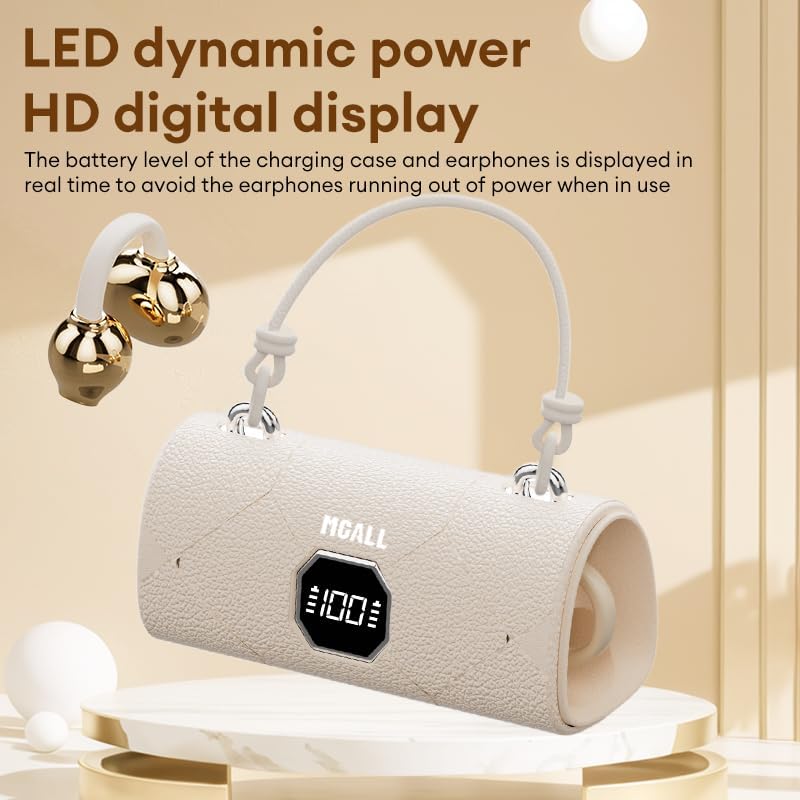
Image showing the removable earring charms that can be attached to the headphones for a personalized look.
Official product video showcasing the MGALL X22 clip-on earbuds, demonstrating how they are worn and the optional earring attachments.
Maintenance
Cleaning
- Wipe the earbuds and charging case with a soft, dry, lint-free cloth.
- Do not use abrasive cleaners, solvents, or aerosol sprays.
- Avoid getting moisture into any openings.
Storage
- Store the headphones in their charging case when not in use to protect them and keep them charged.
- Keep the device in a cool, dry place away from extreme temperatures and direct sunlight.
Troubleshooting
Common Issues and Solutions
- No Sound:
- Ensure earbuds are properly paired with your device.
- Check the volume level on both your device and the earbuds.
- Make sure earbuds are charged.
- Pairing Issues:
- Turn off Bluetooth on your device and turn it back on.
- Place earbuds back in the case, close, then open again to re-enter pairing mode.
- Forget/delete "MGALL X22" from your device's Bluetooth list and try pairing again.
- Charging Issues:
- Ensure the charging cable is securely connected to both the case and the power source.
- Check if the charging port is clean and free of debris.
- Try a different USB-C cable or power adapter.
Specifications
| Feature | Detail |
|---|---|
| Model Name | X2202+TYEJPS06 |
| Brand | ZOMBIES CAT |
| Connectivity Technology | Wireless, Bluetooth 6.0 |
| Bluetooth Range | 10 Meters |
| Noise Control | Hybrid Noise Cancellation (for mics) |
| Earpiece Shape | Open-ear |
| Control Method | Touch |
| Impedance | 32 Ohms |
| Material | Plastic |
| Battery Life (Earbuds) | Up to 6 hours |
| Total Battery Life (with Case) | Up to 40 hours |
What's in the Box
- MGALL X22 Clip On Wireless Headphones
- Charging Case
- USB-C Charging Cable
- User Manual
- Removable Earring Charms
Warranty and Support
Your ZOMBIES CAT MGALL X22 Clip On Wireless Headphones are covered by a standard manufacturer's warranty against defects in materials and workmanship. Please refer to the product packaging or contact customer support for specific warranty details and duration.
For technical support, troubleshooting assistance, or warranty claims, please contact ZOMBIES CAT customer service through the retailer where the product was purchased or visit the official ZOMBIES CAT website for contact information.


