
GEOID CC600
GEOID CC600 Color Screen Bike/Cycling Computer User Manual
Model: CC600
Introduction
The GEOID CC600 is an advanced color screen bike/cycling computer designed to enhance your cycling experience with comprehensive data tracking, precise navigation, and seamless connectivity. Featuring a vibrant 2.4-inch display and intuitive controls, it provides essential information at a glance, whether you're navigating new routes or optimizing your indoor training.

Image: The GEOID CC600 bike computer showing its color display with navigation instructions and real-time cycling metrics like average speed, current speed, and maximum speed.
Package Contents
Ensure all items are present in the package:
- Bike Computer (CC600 unit)
- Rubber bands installation base
- Charging cable
- Replaceable mount for bike computer rack
- Safety strap

Image: A visual representation of the GEOID CC600 package contents, showing the bike computer, user manual, various mounting accessories, and a charging cable.
Setup
Initial Charging
Before first use, fully charge the CC600 using the provided charging cable. Connect the cable to the device and a standard USB power source. The battery indicator on the screen will show charging status.
Mounting the Device
Attach the bike computer mount to your bicycle's handlebars or stem using the rubber bands. Secure the CC600 unit onto the mount by twisting it until it locks into place. Use the safety strap for added security.
Connecting Sensors and Devices
The CC600 supports both Bluetooth and ANT+ protocols for connecting to various external sensors and devices, including speed sensors, cadence sensors, heart rate monitors, power meters, smart trainers, electronic shifting systems, and tail lights. Refer to the device's on-screen menu for pairing instructions.

Image: A cyclist on a road bike with the GEOID CC600, illustrating its compatibility with various sensors like speed, cadence, heart rate, and power meters via Bluetooth and ANT+ protocols.
Setting Up Units (KMH/MPH)
To change the display units between kilometers per hour (KMH) and miles per hour (MPH), use the companion phone application. Navigate to the settings within the app to adjust unit preferences.

Image: Step-by-step screenshots from the GEOID companion app showing how to access "Units Preferences" and select between Metric (km) and Imperial (mi) measurements for distance.
Operating Instructions
Power On/Off
Press and hold the power button to turn the device on or off.
GPS Positioning
The CC600 supports multiple satellite systems (GPS, BEIDOU, GLONASS, QZSS, and GALILEO) for fast and accurate positioning. Connect to Wi-Fi and sync AGNSS data for 5-second location acquisition. Ensure the device is powered on/off near the same location and in an open area for optimal performance. AGNSS data is valid for 14 days.
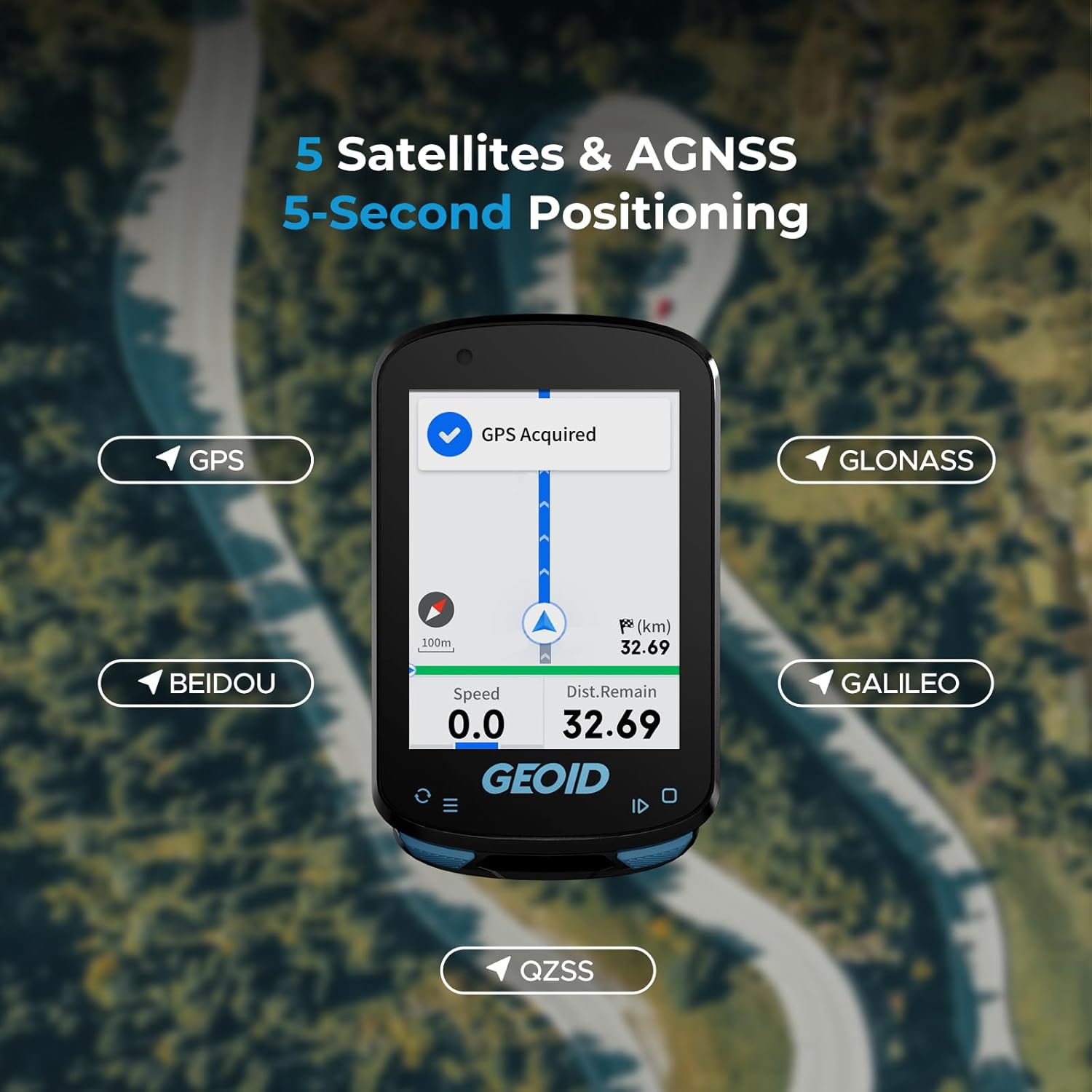
Image: The GEOID CC600 screen showing "GPS Acquired" and icons representing the five supported satellite systems: GPS, BEIDOU, GLONASS, QZSS, and GALILEO, with a map view and current speed/distance.
Route Navigation
The CC600 provides colorful route navigation with turn reminders. You can upload external GPX files via the phone app. The device features automatic re-routing if you deviate from the planned track. Note that the CC600 supports route navigation only, not map navigation, and may not display lane names or detailed road information.

Image: The GEOID CC600 displaying a colorful navigation route with a turn indicator showing 150m to the next turn, along with current speed and distance remaining, set against a scenic road background.
Data Display and Customization
Customize your cycling data pages with various display formats including numerical charts, circular dials, line graphs, and bar charts. The CC600 supports up to 10 pages, 10 displayed data items per page, 29 display layouts, and 108 supported data items.

Image: Multiple examples of graphic data fields and extensive data options available on the GEOID CC600, showing different ways to visualize cycling metrics like speed, power, cadence, and distance.
Indoor Training
The CC600 supports indoor training when connected to a smart trainer. You can customize power targets, resistance levels, and gradients to focus on improving your performance without external factors.

Image: The GEOID CC600 mounted on a bike, displaying its indoor training menu with options for setting target power, resistance, and grade, indicating its smart trainer compatibility.
Data Transmission and Export
The device supports WiFi and Bluetooth for automatic synchronization of AGNSS and riding records, and for firmware updates. WiFi offers significantly faster transfer speeds. You can easily export and share FIT files via the specified app, which is compatible with STRAVA and TrainingPeaks for auto-sync after account binding.

Image: A visual representation of the GEOID CC600's WiFi and Bluetooth transmission, showing the bike computer wirelessly connecting to a smartphone, enabling fast data synchronization and firmware updates.
How to Upload File to Komoot
Video: This video demonstrates the process of uploading a cycling activity file from the GEOID companion app to Komoot, a popular route planning and navigation app. It shows how to save the FIT file from the app and then import it into Komoot.
Maintenance
Cleaning
Wipe the device with a soft, damp cloth. Avoid using harsh chemicals or abrasive cleaners. Ensure the charging port is clean and dry before charging.
Water Resistance
The CC600 has an IPX7 waterproof rating, meaning it can withstand immersion in water up to 1 meter for 30 minutes. It is suitable for use in rain but should not be submerged for extended periods or used for diving.

Image: Two cyclists riding on a road with the GEOID CC600, illustrating its IPX7 waterproof capability, suitable for riding in various weather conditions.
Troubleshooting
| Problem | Possible Cause | Solution |
|---|---|---|
| Device not powering on | Low battery; device malfunction. | Charge the device fully. If issue persists, contact support. |
| GPS signal not acquired | Obstructed view of sky; outdated AGNSS data. | Move to an open area. Connect to WiFi to sync latest AGNSS data. |
| Sensors not connecting | Sensor battery low; out of range; incorrect pairing. | Check sensor battery. Ensure sensor is within range. Re-pair the sensor via device settings. |
| Data not syncing to app | Bluetooth/WiFi off; app not open; account not bound. | Ensure Bluetooth/WiFi is active. Open the app. Verify account binding for auto-sync. |
Specifications
- Model: CC600
- Display Size: 2.4 Inches (Color Screen)
- Dimensions: 30.7 x 18.9 x 3.89 inches
- Weight: 2.61 ounces
- Battery Type: 1 Lithium Polymer (included)
- Battery Life: Up to 24 Hours
- Connectivity: ANT+, Bluetooth, USB, Wi-Fi
- GPS: Supports GPS, BEIDOU, GLONASS, QZSS, GALILEO (5 Satellites & AGNSS)
- Waterproof Rating: IPX7
- Control Method: Buttons
- Supported Languages: 11 languages including English, Italian, Japanese, Spanish, Korean, Portuguese, German, French, Polish, Traditional Chinese, and Russian.
- Special Features: 8 Sensors Connection, Indoor Training, Route Navigation, Graphic Data Fields, Portable Data Export (FIT files to STRAVA/TrainingPeaks).
Warranty and Support
The GEOID CC600 comes with a 1-Year Warranty from the date of purchase, covering manufacturing defects. Additionally, GEOID offers 30 Days for Return and Lifetime After-sales Service.
For technical support, troubleshooting assistance, or warranty claims, please contact GEOID customer service. Refer to the official GEOID website or your purchase documentation for contact details.

Image: Icons illustrating key customer support features: 24-hour customer service, 30 days for return, 1-year warranty, and lifetime after-sales service.
Related documentsCC600


Ask a question about this manual
Ask about setup, troubleshooting, compatibility, parts, safety, or missing instructions. Manuals+ will review the question and use this page’s manual context to help answer it.