
EasySMX S10
EasySMX S10 Wireless Controller User Manual
Model: S10
Brand: EasySMX
Introduction
Thank you for purchasing the EasySMX S10 Wireless Controller. This manual provides detailed instructions on how to set up, operate, and maintain your controller, ensuring optimal performance and longevity. The S10 controller is designed for a versatile gaming experience across multiple platforms, featuring advanced technologies like TMR anti-drift joysticks, mechanical buttons, and a 6-axis gyro.
Package Contents
- EasySMX S10 Wireless Controller
- USB-C Charging Cable
- User Manual
- Swappable D-Pad (if applicable)
Product Overview
Familiarize yourself with the key features and components of your EasySMX S10 controller.

Figure 1: Front view of the EasySMX S10 Wireless Controller, showcasing its ergonomic design and button layout.

Figure 2: The One-Tap Wake-Up feature allows instant activation of your Switch console directly from the controller.

Figure 3: TMR Sticks provide zero-drift and ultra-smooth analog input, enhancing precision and durability during gameplay.

Figure 4: Advanced Mecha-Buttons offer ultra-fast 0.3mm actuation and a lifespan of over 5 million presses, featuring soft-press tactile feedback and micro-switches with liquid silicone padding.

Figure 5: Equipped with ALPS Linear HD Rumble Motors, the controller provides immersive tactile feedback for an enhanced gaming experience.

Figure 6: The Clicky Micro-switch Triggers feature 0.3mm lightning-fast actuation, providing quick and responsive input.
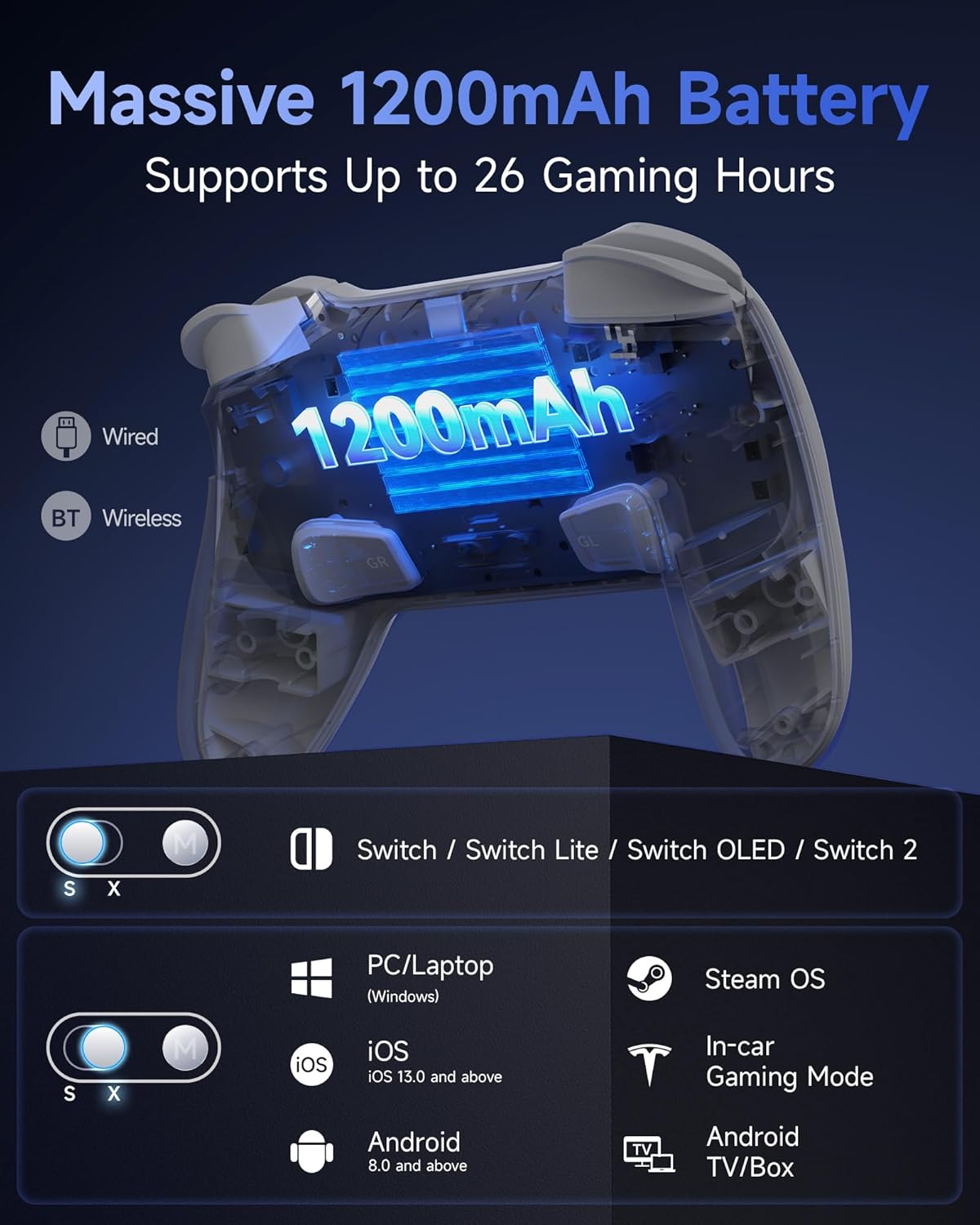
Figure 7: The controller features a massive 1200mAh battery supporting up to 26 hours of gaming. It supports wired and Bluetooth wireless connections, compatible with Switch/Switch Lite/Switch OLED/Switch 2, PC/Laptop (Windows), iOS (13.0 and above), Android (8.0 and above), Steam OS, and Android TV/Box.
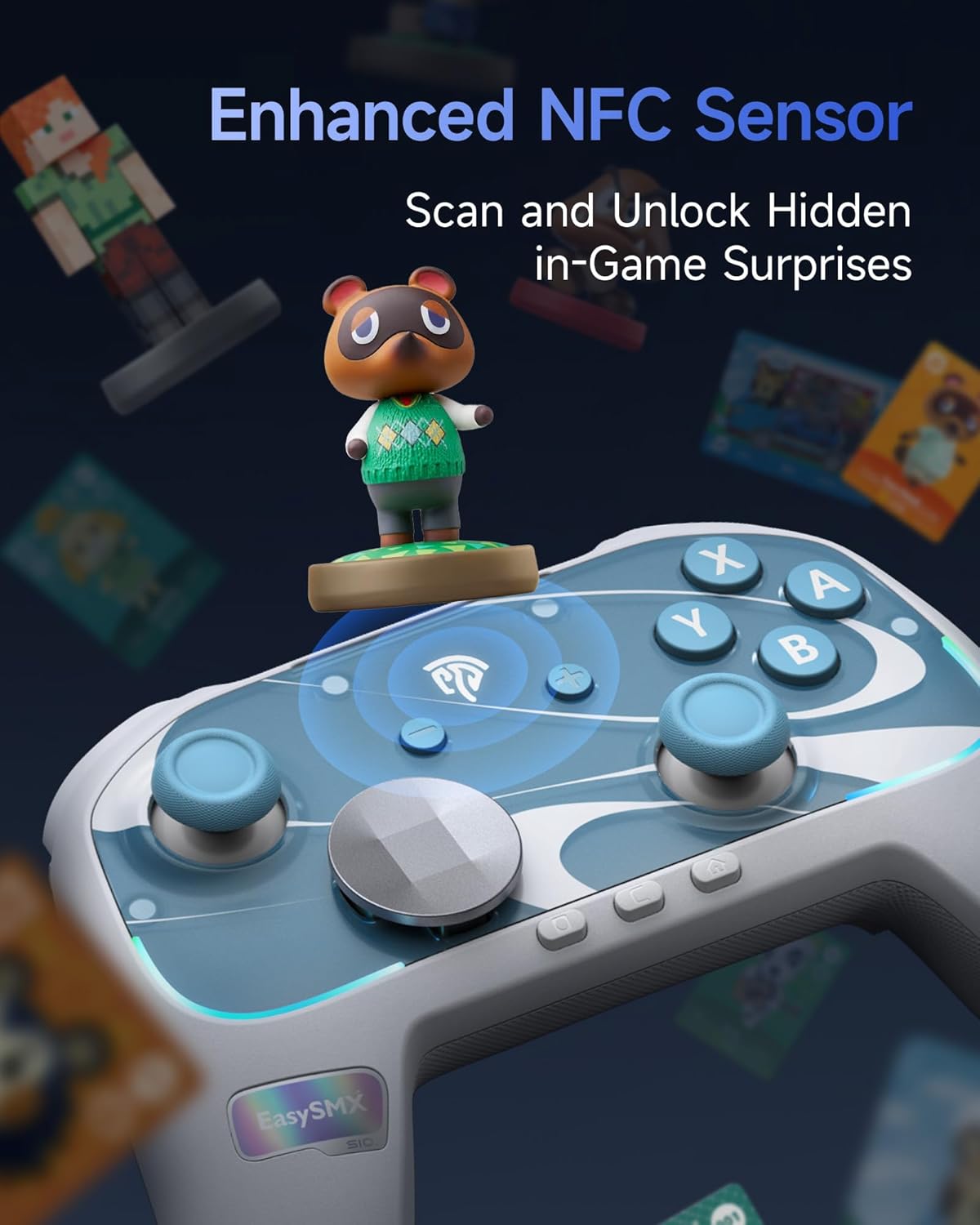
Figure 8: An enhanced NFC sensor allows scanning and unlocking hidden in-game surprises, particularly useful for amiibo functionality on compatible platforms.
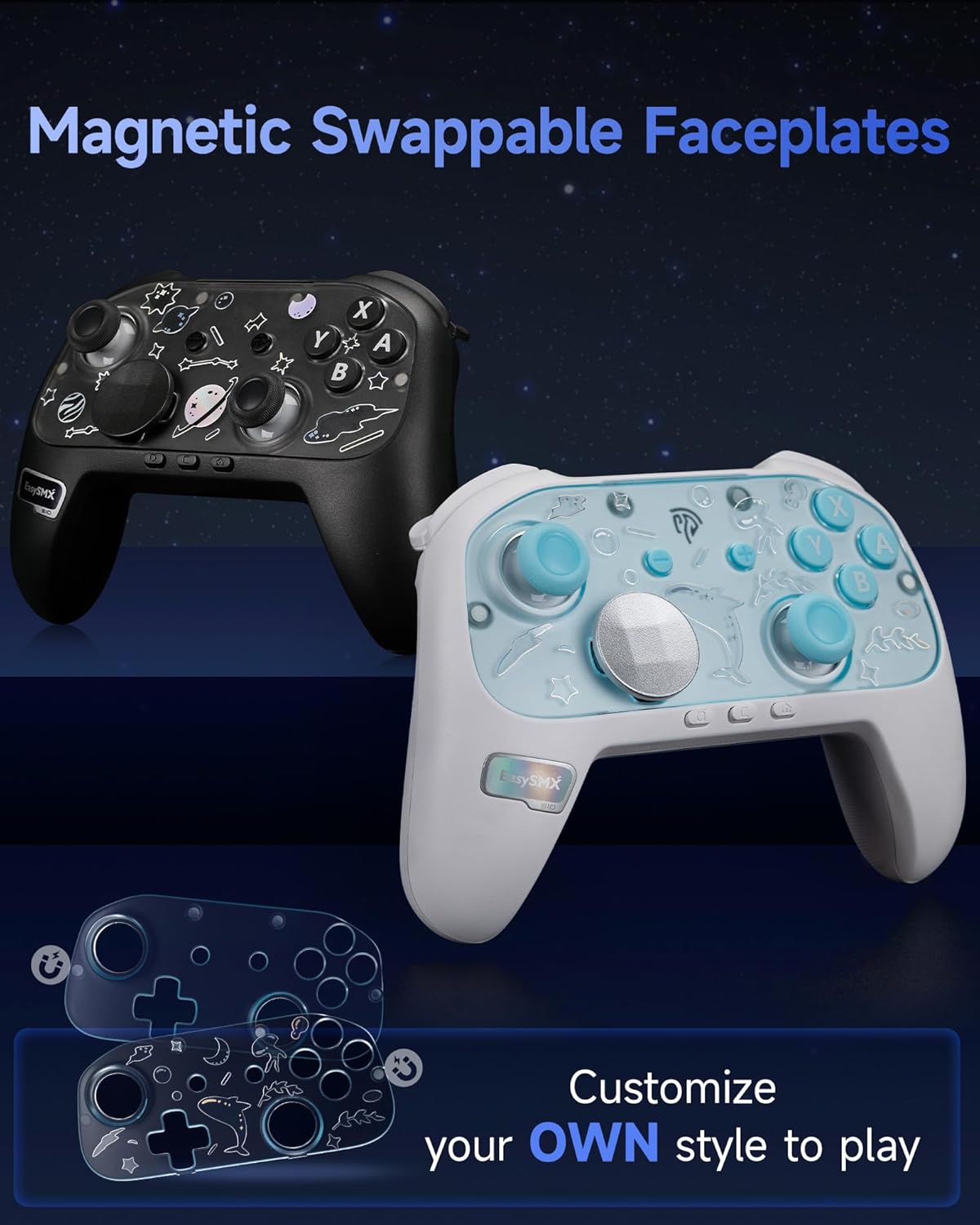
Figure 9: The controller features magnetic swappable faceplates, allowing for customization of its appearance.
Setup
Charging the Controller
Before first use, fully charge the controller. Connect the USB-C charging cable to the controller's charging port and the other end to a USB power source (e.g., console, PC, USB wall adapter). The indicator lights will show charging status and turn off when fully charged.
Connecting to Nintendo Switch
- On your Switch console, go to System Settings > Controllers and Sensors > Disconnect Controllers to clear previous connections.
- Select Change Grip/Order from the HOME Menu.
- Press and hold the Pairing Button on the top of the EasySMX S10 controller for 3 seconds until the LED indicators start flashing rapidly.
- Once connected, the corresponding player LED(s) on the controller will light up solid.
- To wake up the Switch console from sleep mode, simply press the HOME button on the controller.
Connecting to PC (Windows)
The controller supports both wired and Bluetooth connections for PC.
Wired Connection:
- Connect the controller to your PC using the USB-C cable. The PC should automatically detect and install the necessary drivers.
Bluetooth Connection:
- Ensure your PC has Bluetooth enabled. Go to Settings > Devices > Bluetooth & other devices.
- Click Add Bluetooth or other device > Bluetooth.
- Press and hold the Pairing Button on the controller for 3 seconds until the LED indicators flash rapidly.
- Select "EasySMX S10" or similar from the list of available devices.
- Once paired, the controller's LEDs will indicate a stable connection.
Connecting to iOS/Android Devices
- Enable Bluetooth on your iOS (13.0+) or Android (8.0+) device.
- Press and hold the Pairing Button on the controller for 3 seconds.
- Search for "EasySMX S10" or similar in your device's Bluetooth settings and pair.
Operating Instructions
Basic Button Functions
- HOME Button: Power on/off, wake up console, return to home screen.
- A/B/X/Y Buttons: Standard action buttons.
- L/R/ZL/ZR Buttons: Shoulder and trigger buttons.
- +/- Buttons: Start/Select or equivalent.
- D-Pad: Directional input.
- Left/Right Analog Sticks: Movement and camera control.
- Screenshot Button: Capture screenshots.
- Turbo Button: For setting turbo functions (refer to advanced settings).
Adjusting RGB Lighting
The controller features customizable RGB lighting. Specific button combinations or software (if available) can be used to cycle through lighting modes, colors, or turn off the lights. Refer to the quick start guide included in the package for exact button sequences.
Using the NFC Sensor
The enhanced NFC sensor is primarily for amiibo functionality on compatible Nintendo Switch games. To use, simply tap your amiibo figure or card to the NFC detection area on the controller (usually near the center or top) when prompted by the game.
Swapping D-Pad/Faceplates
The controller features magnetic swappable D-pads and faceplates for customization. Gently pull the existing D-pad or faceplate to remove it, then align and place the desired replacement. The magnets will secure it in place.
Maintenance
- Cleaning: Use a soft, dry cloth to wipe the controller. For stubborn dirt, slightly dampen the cloth with water. Avoid using harsh chemicals or abrasive materials.
- Storage: Store the controller in a cool, dry place away from direct sunlight and extreme temperatures.
- Battery Care: To prolong battery life, avoid fully discharging the controller frequently. Charge it regularly, even if not in use for extended periods. Do not expose the battery to high temperatures.
- Avoid Drops: Protect the controller from drops and impacts, which can damage internal components.
Troubleshooting
Controller Not Connecting/Pairing
- Ensure the controller is charged.
- Make sure Bluetooth is enabled on your device.
- Try restarting your console/PC and the controller.
- Clear previous Bluetooth connections on your device and try pairing again.
- Ensure the controller is in pairing mode (LEDs flashing rapidly).
- For Switch, ensure "Pro Controller Wired Communication" is enabled in System Settings if using wired mode.
Input Lag or Disconnections
- Ensure there are no strong wireless interferences nearby (e.g., Wi-Fi routers, other Bluetooth devices).
- Move closer to the console/PC.
- Ensure the controller is fully charged.
Buttons/Sticks Not Responding
- Perform a hard reset on the controller (if applicable, usually a small reset button on the back).
- Ensure the controller's firmware is up to date (check EasySMX official website for tools/instructions).
- Clean around the buttons and sticks to remove any debris.
Specifications
| Feature | Detail |
|---|---|
| Model | S10 |
| Connectivity | Bluetooth, Wired (USB-C) |
| Compatibility | Nintendo Switch/Switch Lite/Switch OLED/Switch 2, PC (Windows), iOS (13.0+), Android (8.0+), Steam OS, Android TV/Box |
| Battery Capacity | 1200mAh |
| Battery Life | Up to 26 hours |
| Joystick Type | TMR Anti-Drift Joysticks |
| Button Type | Mechanical Buttons (0.3mm actuation) |
| Triggers | Clicky Micro-switch Triggers (0.3mm actuation) |
| Rumble | ALPS Linear HD Rumble Motors |
| Gyroscope | 6-Axis Gyro |
| NFC Sensor | Yes (for amiibo) |
| Customization | Swappable D-Pad, Magnetic Swappable Faceplates, RGB Lighting |
| Dimensions | 18.6 x 14.8 x 7.5 cm |
| Weight | 0.52 g |
Warranty and Support
EasySMX products come with a standard manufacturer's warranty. For detailed warranty information, technical support, or to register your product, please visit the official EasySMX website or contact their customer service. Keep your purchase receipt as proof of purchase.
Related documentsS10


Ask a question about this manual
Ask about setup, troubleshooting, compatibility, parts, safety, or missing instructions. Manuals+ will review the question and use this page’s manual context to help answer it.