
ID-COOLING FX240 LCD
ID-COOLING FX240 LCD CPU Liquid Cooler Instruction Manual
Model: FX240 LCD
Introduction
The ID-COOLING FX240 LCD is an all-in-one (AIO) liquid cooler designed to provide efficient thermal management for your CPU. It features a customizable LCD screen and ARGB lighting, combining performance with visual personalization. This manual provides essential information for the proper installation, operation, and maintenance of your FX240 LCD cooler.
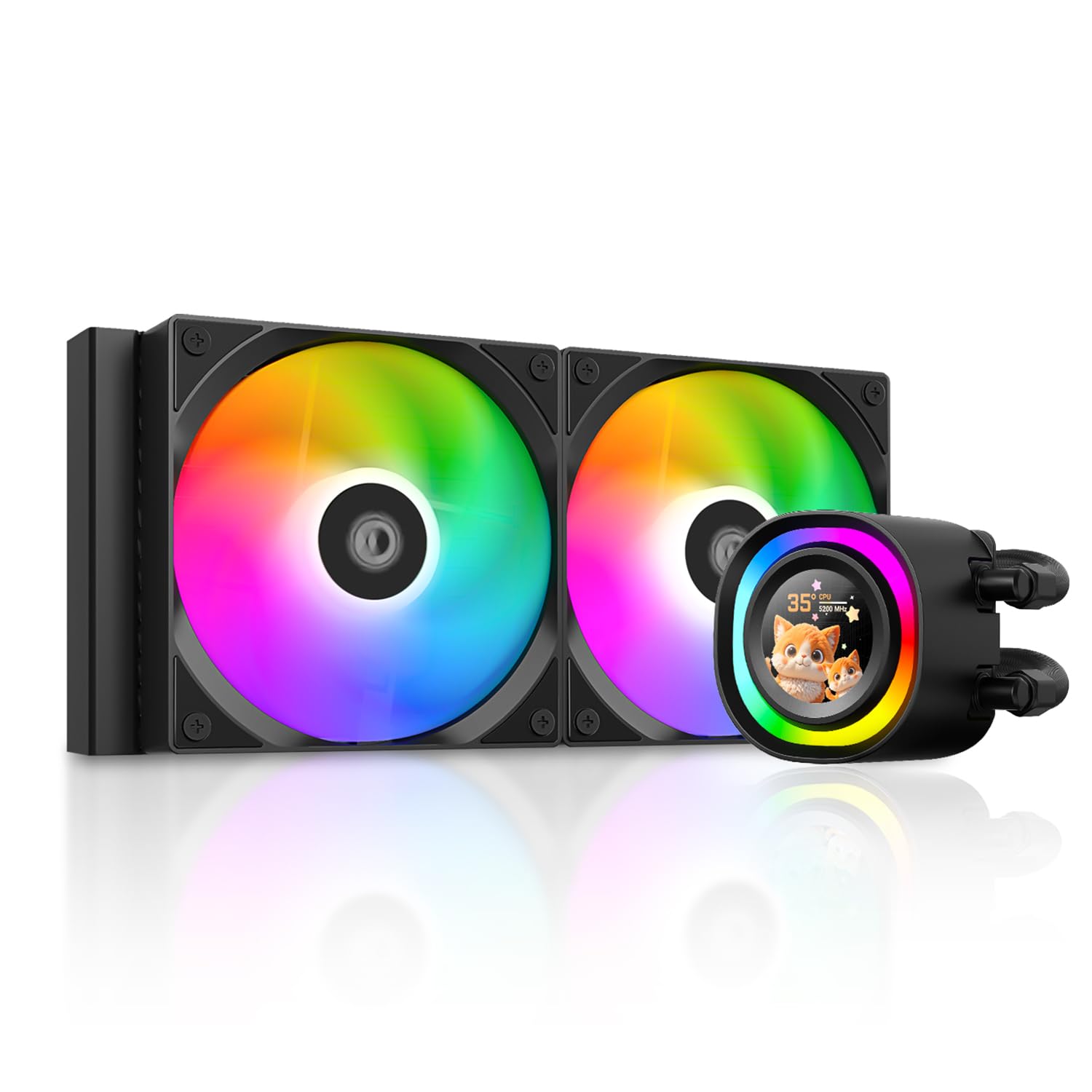
The ID-COOLING FX240 LCD CPU Liquid Cooler, showcasing its pump head with integrated LCD and radiator with fans.
Key Features
- Customizable LCD Screen: Features a 1.48-inch 240x240 px full-color LCD screen for displaying system stats, images, animations, or custom graphics.
- High Cooling Performance: Engineered with a 276x120x27 mm aluminum radiator and a 300 W Thermal Design Power (TDP) rating.
- Optimized Pump and Fans: Pump operates up to 2,900 RPM with a ceramic bearing. Two 120 mm AS-120-ARGB-V2 fans run from 300-2000 RPM, providing up to 58 CFM airflow with low noise levels (~27 dB(A)).
- Wide Compatibility: Supports modern Intel LGA1851/1700/1200/115x and AMD AM5/AM4 sockets.
- Premium Materials: Equipped with a copper cold plate and sleeved tubing for reliable heat dissipation.
Package Contents
Verify that all components are present before beginning installation.

Included mounting brackets, screws, and thermal paste for Intel and AMD CPU sockets.
- FX240 LCD Pump/Cold Plate Unit
- 240mm Radiator with two 120mm ARGB Fans
- Intel Mounting Brackets and Hardware (LGA1851/1700/1200/115x)
- AMD Mounting Brackets and Hardware (AM5/AM4)
- Thermal Paste (FROST X45)
- Fan and ARGB Cables
- User Manual
Setup and Installation
Follow these steps for proper installation of your ID-COOLING FX240 LCD liquid cooler. Ensure your system is powered off and unplugged before proceeding.
1. Prepare the CPU Socket
Identify your CPU socket type (Intel or AMD) and select the corresponding mounting hardware. Install the backplate (if required for your socket) and standoffs onto the motherboard.
2. Apply Thermal Paste
Clean the CPU surface thoroughly. Apply a small amount of the provided FROST X45 thermal paste to the center of the CPU's integrated heat spreader (IHS). The thermal paste has a conductivity of 15.2W/M-K for optimal heat transfer.

Applying the FROST X45 thermal paste to the CPU for maximum heat transfer.
3. Mount the Pump Head
Attach the correct mounting brackets to the pump head. Carefully place the pump head onto the CPU, aligning the screws with the standoffs. Tighten the screws in a diagonal pattern until secure, ensuring even pressure.

The FX240 LCD pump head securely mounted on a motherboard, displaying its vibrant ARGB lighting and customizable screen.
4. Install Radiator and Fans
Mount the radiator and fans to an available fan mount in your PC case. Ensure proper airflow direction (typically intake or exhaust, depending on your case's cooling strategy). The radiator dimensions are 276x120x27 mm.
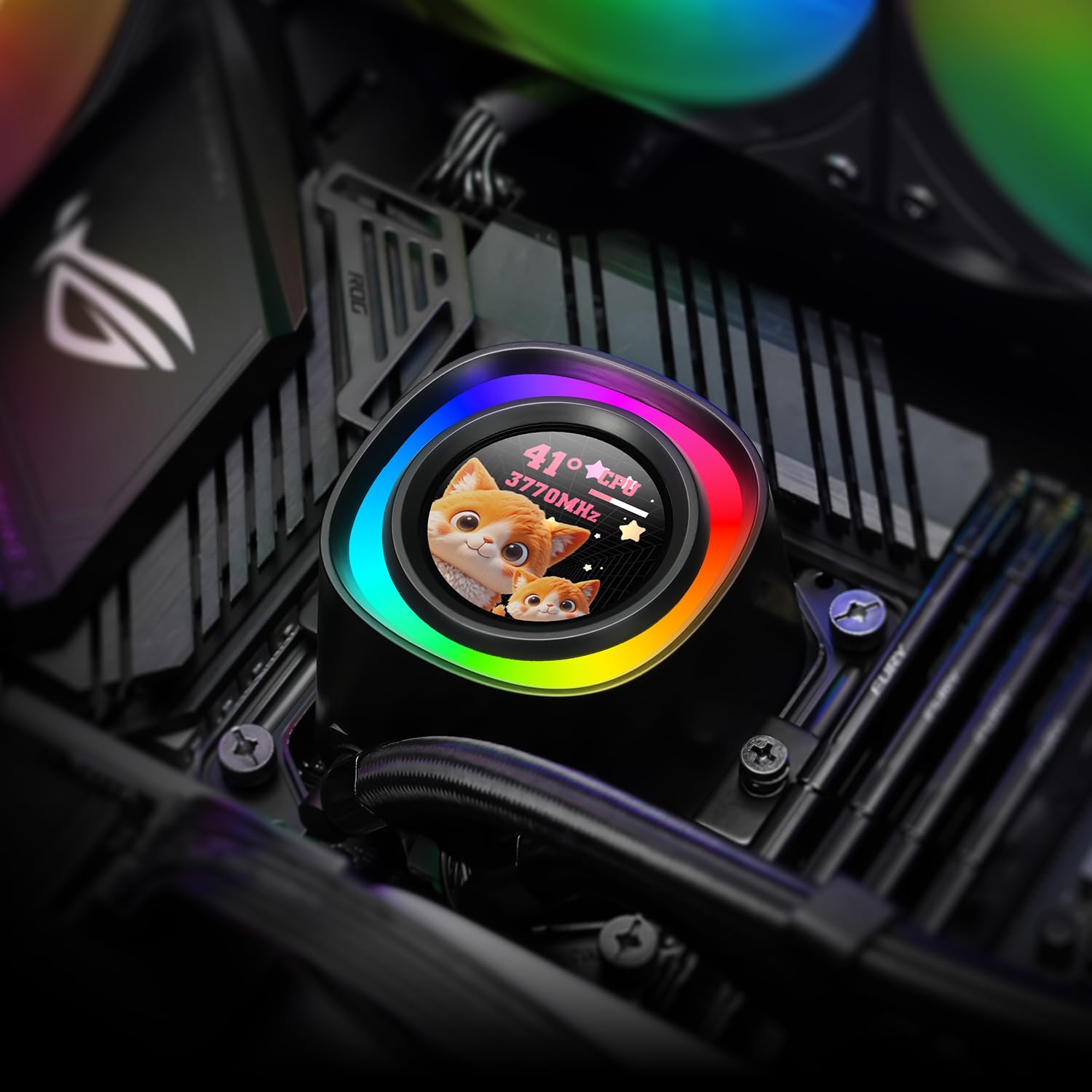
The FX240 LCD liquid cooler, including its radiator and fans, installed within a computer case, demonstrating its aesthetic integration.
5. Connect Cables
- Connect the pump's 3-pin or 4-pin connector to the CPU_FAN or AIO_PUMP header on your motherboard.
- Connect the fan cables to available fan headers on your motherboard or a fan controller.
- Connect the ARGB cables from the pump and fans to a compatible 5V ARGB header on your motherboard or an ARGB controller.
- Connect the USB 2.0 header cable from the pump to an available USB 2.0 header on your motherboard for LCD screen functionality and software control.
Operating the Cooler and LCD Display
Once installed, the FX240 LCD cooler will begin cooling your CPU. The integrated LCD screen and ARGB lighting offer extensive customization options.
Software Installation
To unlock the full potential of the LCD screen and ARGB lighting, download and install the ID-COOLING control software from the official website. This software allows for real-time monitoring and customization.

The ID-COOLING software interface, demonstrating options for customizing the LCD display with various themes and performance metrics.
LCD Screen Customization
The 1.48-inch LCD screen (240x240 px resolution, 18-bit / 262K colors, 60 FPS) can display a variety of content:
- Real-Time Performance: Monitor CPU frequency, CPU/GPU usage, pump speed, fan speed, and CPU temperature.
- Custom Images & GIFs: Upload personal photos, favorite logos, artwork, or animated GIFs.
- Videos + System Info: Overlay system information on top of MP4 videos from your personal collection.

Examples of the fully customizable LCD display, showing system statistics, animated GIFs, and personalized images.

A visual guide to the customization options for the LCD screen, including real-time performance metrics, custom images/GIFs, and video overlays.
ARGB Lighting Control
The ARGB lighting ring on the pump head and the fans can be synchronized and controlled via the ID-COOLING software or your motherboard's ARGB software (if compatible). This allows for various lighting effects and color schemes.
Maintenance
Regular maintenance ensures optimal performance and longevity of your liquid cooler.
- Dust Removal: Periodically clean dust from the radiator fins and fan blades using compressed air. Ensure fans are not spinning during cleaning.
- Fan Inspection: Check fan blades for any obstructions or damage. Ensure fans are securely mounted.
- Tubing Inspection: Inspect the tubing for any kinks, leaks, or damage. While the system is sealed, visual inspection is recommended.
- Cold Plate Contact: If CPU temperatures rise unexpectedly, re-check the mounting pressure of the cold plate on the CPU. Re-applying thermal paste may be necessary after several years of use.
Troubleshooting
This section addresses common issues you might encounter.
- No Power to Pump/Fans/LCD:
- Ensure all power cables (SATA power, fan headers, USB 2.0 header) are securely connected to the motherboard and power supply.
- High CPU Temperatures:
- Verify the pump is running (you may feel a slight vibration or hear a faint hum).
- Check fan operation; ensure they are spinning and not obstructed.
- Confirm the cold plate has proper contact with the CPU and thermal paste is adequately applied.
- Ensure radiator fins are not clogged with dust.
- LCD Screen Not Displaying/Software Issues:
- Ensure the USB 2.0 header cable is correctly connected to both the pump and the motherboard.
- Reinstall the ID-COOLING control software.
- Check for software updates.
- Verify that no other monitoring software is conflicting with the ID-COOLING application.
- ARGB Lighting Not Working:
- Confirm ARGB cables are correctly connected to a 5V ARGB header.
- Check lighting settings in the ID-COOLING software or your motherboard's ARGB software.
- Ensure the ARGB header on your motherboard is enabled in the BIOS/UEFI.
Specifications
| Feature | Detail |
|---|---|
| Model | FX240 LCD |
| Brand | ID-COOLING |
| Radiator Dimensions | 276 x 120 x 27 mm |
| TDP Rating | 300 W |
| Pump Speed | 2,900 RPM (±10%) |
| Pump Bearing | Ceramic Bearing |
| Fan Size | 2 x 120 mm (AS-120-ARGB-V2) |
| Fan Speed | 300-2000 RPM |
| Max Airflow | 58 CFM |
| Max Static Pressure | 1.94 mmH₂O |
| Noise Level | ~27 dB(A) Max |
| Power Connector Type | 4-Pin (Pump), 7-Pin (Fans) |
| Material | Aluminum (Radiator), Copper (Cold Plate) |
| LCD Screen Size | 1.48 inches |
| LCD Resolution | 240 x 240 px |
| LCD Colors | 18-bit / 262K colors |
| Compatible Sockets | Intel LGA1851/1700/1200/115x, AMD AM5/AM4 |
Warranty and Support
For warranty information and technical support, please refer to the official ID-COOLING website or contact their customer service. Keep your proof of purchase for warranty claims.
Related documentsFX240 LCD


Ask a question about this manual
Ask about setup, troubleshooting, compatibility, parts, safety, or missing instructions. Manuals+ will review the question and use this page’s manual context to help answer it.