
1. Product Overview
The plplaaoo Smart Circuit Breaker is a 4P 63A metering circuit breaker designed for integration with Zigbee smart home systems. It offers advanced features such as mobile app remote control, timer switching, real-time parameter display, and a prepaid function for efficient energy management. This device provides short circuit and overload protection, voltage and current detection, and temperature monitoring, ensuring safety and convenience for your electrical installations.
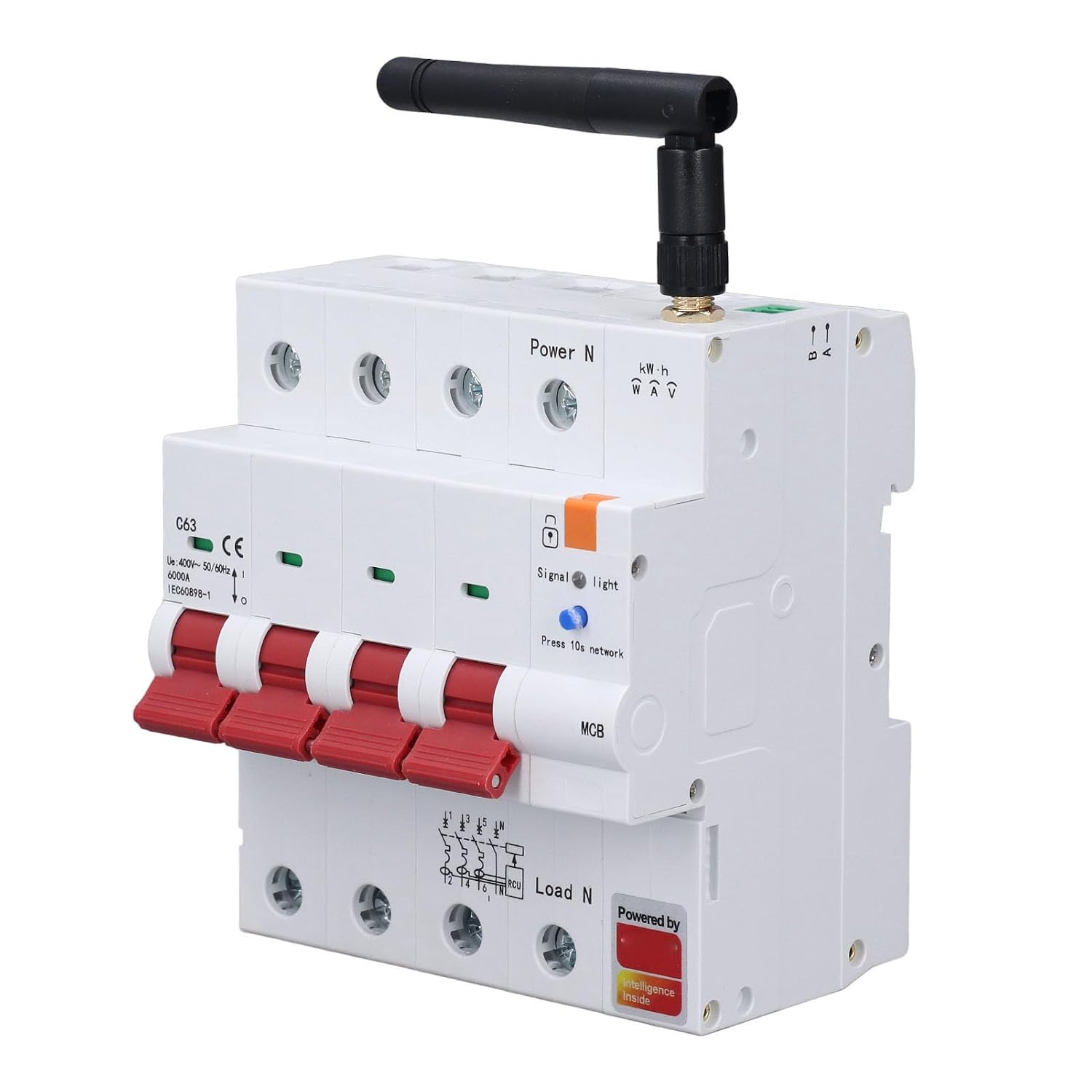
Figure 1: Front view of the plplaaoo Smart Circuit Breaker, showing the main switches, indicators, and Zigbee antenna.
2. Package Contents
Verify that all items are present in the package:
- 1 x Smart Circuit Breaker
- 2 x Antennas
- 1 x Antenna Base
- 1 x Terminal
- 1 x User Manual
3. Setup and Installation
3.1 Safety Precautions
- Installation must be performed by a qualified electrician in accordance with local electrical codes and regulations.
- Ensure the main power supply is disconnected before any installation or wiring work.
- Do not operate the device with wet hands or in damp environments.
3.2 Physical Installation
- Mount the Smart Circuit Breaker onto a standard 35x7.5mm guide rail.
- Connect the incoming power lines (Power N) and outgoing load lines (Load N) to the designated terminals as indicated on the device. Ensure proper polarity and secure connections.
- Attach the antenna to the designated port on the circuit breaker and secure the antenna base if necessary.

Figure 2: Wiring diagram illustrating power and load connections for the circuit breaker.
3.3 Zigbee Network Pairing
- Ensure your Zigbee gateway/hub is powered on and in pairing mode. Refer to your gateway's manual for specific instructions.
- Power on the Smart Circuit Breaker. The 'Signal' indicator light will begin to flash.
- Press and hold the 'Press 10s network' button on the circuit breaker for approximately 10 seconds until the 'Signal' light flashes rapidly, indicating it is searching for a Zigbee network.
- Once successfully paired, the 'Signal' light will become solid. The device should now appear in your mobile app connected to the Zigbee gateway.
4. Operating Instructions
4.1 Mobile App Remote Control
After successful pairing, use the dedicated mobile application to remotely control the circuit breaker. You can switch it ON or OFF from anywhere, providing convenience and peace of mind.
4.2 Timer Switch Function
The mobile app allows you to set schedules and timers for the circuit breaker. This feature enables automatic power management for connected appliances, helping to conserve energy and automate routines.
4.3 Real-Time Parameter Display and Metering
The mobile app provides real-time monitoring of electrical parameters, including voltage, current, and power consumption. You can set thresholds for these parameters and view electricity metering data, allowing for detailed energy usage analysis.

Figure 3: Example application of the smart circuit breaker controlling various household appliances.
4.4 Security Lock Mechanism
The circuit breaker features a mechanical security lock. When manually pulled out, the breaker cannot be closed, preventing accidental power restoration during maintenance or repair. To restore normal operation, release the security lock.
4.5 Prepaid Function
This function supports 24-hour automatic monitoring of electricity consumption. In cases of overdue payments or exceeding set limits, the device can automatically trip and power off, and also supports timed power off features.
4.6 Voice Control
The device supports integration with most AI smart speakers, allowing for convenient voice control of connected electrical appliances.
5. Maintenance
- Regularly inspect the circuit breaker for any signs of physical damage or loose connections.
- Keep the device clean and free from dust. Use a dry, soft cloth for cleaning. Do not use liquid cleaners.
- Ensure proper ventilation around the device to prevent overheating.
- Do not attempt to repair the device yourself. Contact qualified personnel for service.
6. Troubleshooting
- Device not powering on: Check the main power supply and ensure all wiring connections are secure. Verify the circuit breaker is in the ON position.
- Cannot connect to Zigbee network: Ensure the Zigbee gateway is powered on and in pairing mode. Press and hold the 'Press 10s network' button on the circuit breaker until the 'Signal' light flashes rapidly. Move the circuit breaker closer to the gateway if necessary.
- Remote control not working: Check your mobile device's internet connection and ensure the circuit breaker is successfully paired with the Zigbee network and connected to the app.
- Circuit breaker trips frequently: This may indicate an overload or short circuit. Disconnect some loads or investigate for faulty wiring/appliances. If the issue persists, consult a qualified electrician.
- Prepaid function issues: Check your account status and ensure sufficient balance if using the prepaid feature.
7. Specifications
| Item Type | Smart Circuit Breaker |
| Material | PC Flame Retardant, Copper |
| Specification | 4P |
| Frame Level Current | 125A |
| Breaking Capacity Icu | 6000A |
| Rated Current In | 63A |
| Lifespan (Mechanical) | 10,000 Times |
| Lifespan (Electrical) | 6,000 Times |
| Overvoltage Action Value Setting Range | 250-300VAC |
| Overvoltage Recovery Voltage | 220-250VAC |
| Undervoltage Action Value Setting Range | 150-200VAC |
| Undervoltage Recovery Voltage | 170-220VAC |
| Undervoltage Operating Delay | 0.5s-6s |
| Cable Crossed Section Area | 35mm² |
| Installation | 35x7.5mm Standard Guide Rail Mounting |
| Item Weight | 1.38 pounds |
| Package Dimensions | 6.3 x 5.12 x 4.33 inches |
8. Warranty Information
This plplaaoo product is covered by a limited warranty against defects in materials and workmanship for a period specified by the retailer or manufacturer from the original date of purchase. This warranty does not cover damage caused by improper installation, misuse, unauthorized modification, or natural disasters. Please retain your purchase receipt as proof of purchase.
9. Customer Support
For technical assistance, troubleshooting, or warranty inquiries, please contact your retailer or the plplaaoo customer support team. Refer to your product packaging or the retailer's website for contact details.