
1. Introduction
This manual provides essential information for the safe and efficient use of your iiyama G-Master GB3290QSU-B1 31.5-inch QHD Gaming Monitor. Please read these instructions thoroughly before operating the device and retain them for future reference. This monitor features a 31.5-inch QHD (2560x1440) IPS panel with a 240Hz refresh rate and 1ms response time, designed for high-performance gaming and professional use.
2. Safety Information
- Power Supply: Use only the power cord provided with the monitor. Ensure the power outlet is properly grounded.
- Ventilation: Do not block ventilation openings. Allow adequate space around the monitor for proper airflow to prevent overheating.
- Placement: Place the monitor on a stable, flat surface. Avoid direct sunlight, heat sources, and excessive moisture.
- Cleaning: Disconnect the power cord before cleaning. Use a soft, dry cloth. Do not use liquid or aerosol cleaners directly on the screen.
- Handling: Avoid dropping or subjecting the monitor to strong impacts. Do not attempt to disassemble or repair the monitor yourself. Refer all servicing to qualified personnel.
3. Package Contents
Verify that all items are present in the package:
- iiyama G-Master GB3290QSU-B1 Monitor
- Monitor Stand (Base and Neck)
- Power Cable(s)
- HDMI Cable
- DisplayPort Cable
- USB Type-C Cable
- USB Upstream Cable
- Quick Start Guide / Safety Guide

Image: Included power, HDMI, USB Type-C, and DisplayPort cables.
4. Setup
4.1 Assembling the Stand
- Carefully remove the monitor from its packaging, keeping it protected.
- Attach the stand neck to the back of the monitor. Ensure it clicks securely into place or is fastened with screws if applicable.
- Attach the stand base to the stand neck, securing it with the provided screw.
- Place the assembled monitor on a stable surface.

Image: Rear view of the monitor with the stand attached, showing the VESA mount area and port locations.
4.2 Connecting the Monitor
- Power Connection: Connect the power cable to the monitor's AC IN port and then to a power outlet.
- Video Connection: Connect one end of the HDMI, DisplayPort, or USB Type-C cable to the corresponding port on your computer's graphics card and the other end to the monitor. For optimal performance, use DisplayPort or USB Type-C for 240Hz QHD resolution.
- USB Hub Connection (Optional): To use the monitor's integrated USB hub, connect the USB upstream cable (USB-A to USB-B) from your computer to the monitor's USB upstream port.
- Audio Connection (Optional): Connect external speakers or headphones to the 3.5mm audio output jack on the monitor.

Image: Close-up view of the monitor's main connectivity ports, including HDMI, DisplayPort, and USB ports.

Image: Detailed view of the monitor's side ports, including USB Type-C and 3.5mm audio jack.
5. Operating Instructions
5.1 Power On/Off
Press the power button located on the monitor to turn it on or off. The power indicator light will illuminate when the monitor is active.
5.2 On-Screen Display (OSD) Menu
The OSD menu allows you to adjust various monitor settings. Use the control buttons (typically located on the back or bottom right of the monitor) to navigate the menu.
- Accessing the OSD: Press one of the OSD buttons to bring up the main menu.
- Navigation: Use the directional buttons to move through menu options.
- Selection: Press the select button to enter a sub-menu or confirm a setting.
- Exit: Use the exit button to go back to the previous menu or close the OSD.
5.3 Picture Settings
Key settings you can adjust in the OSD menu include:
- Brightness/Contrast: Adjust the overall luminance and contrast ratio.
- Color Settings: Modify color temperature, gamma, and individual RGB levels.
- Input Select: Manually switch between HDMI, DisplayPort, and USB Type-C inputs.
- Refresh Rate: Ensure your graphics card and monitor are set to 240Hz for the smoothest experience.
- Response Time: Adjust overdrive settings for optimal pixel response.
5.4 Adaptive Sync (FreeSync)
The iiyama G-Master GB3290QSU-B1 supports FreeSync technology. To enable it:
- Ensure your graphics card supports FreeSync and has the latest drivers installed.
- Connect the monitor using a DisplayPort or compatible HDMI cable.
- Enable FreeSync in the monitor's OSD menu (if available as an option).
- Enable FreeSync in your graphics card control panel (e.g., AMD Radeon Software).
6. Maintenance
6.1 Cleaning the Screen
Gently wipe the screen with a soft, lint-free cloth. For stubborn marks, lightly dampen the cloth with water or a specialized screen cleaner, then wipe dry immediately. Avoid applying pressure to the screen.
6.2 Cleaning the Casing
Use a soft, dry cloth to wipe the monitor casing. Do not use abrasive cleaners or solvents, as these can damage the finish.
7. Troubleshooting
- No Image: Check if the power cable is securely connected and the monitor is turned on. Verify that the video cable (HDMI, DisplayPort, USB-C) is properly connected to both the monitor and the computer. Ensure the correct input source is selected in the OSD menu.
- Flickering Image: Check the video cable connection. Ensure the refresh rate is set correctly in your computer's display settings. Try a different video cable.
- Incorrect Colors: Reset color settings to factory defaults in the OSD menu. Check your graphics card drivers.
- No Sound: Ensure speakers or headphones are properly connected to the monitor's audio output. Check the volume settings on both the monitor and your computer.
8. Specifications
| Feature | Specification |
|---|---|
| Brand | iiyama |
| Model Number | GB3290QSU-B1 |
| Screen Size | 31.5 Inches |
| Resolution | QHD Wide 1440p (2560 x 1440 Pixels) |
| Refresh Rate | 240 Hz |
| Response Time | 1 Milliseconds |
| Display Technology | LED, IPS technology |
| Aspect Ratio | 16:9 |
| Connectivity | HDMI, DisplayPort, USB, 3.5mm audio, USB 3.2 Gen 1, USB Type C |
| Adaptive Sync | FreeSync |
| Item Dimensions (D x W x H) | 11.42"D x 28.11"W x 18.03"H |
| Color | Black |

Image: EU Energy Label for GB3290QSU-B1 monitor. For more details, visit the official EPREL database: EPREL Product Page
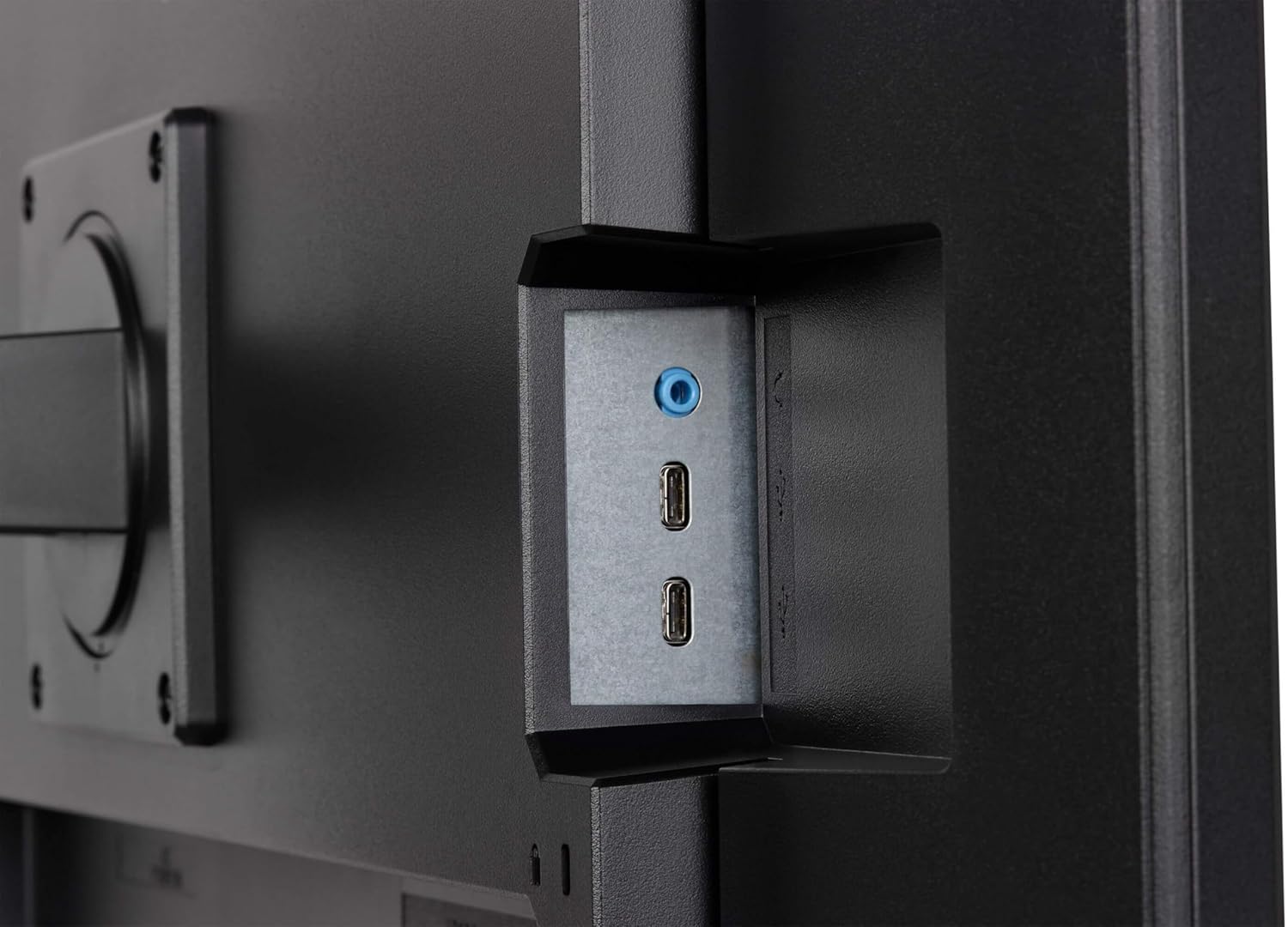
Image: Product Information Sheet for GB3290QSU-B1 monitor. Further details available via the EPREL link: EPREL Product Page
9. Warranty and Support
Your iiyama G-Master GB3290QSU-B1 monitor is covered by a manufacturer's warranty. Please refer to the warranty card included in your package or visit the official iiyama website for detailed warranty terms and conditions specific to your region.
For technical support, customer service, or further inquiries, please contact iiyama directly:
- Official Website: https://www.iiyama.com/
- Customer Service Email: annie.hsu@iiyama.com


