
1. Introduction
The WatchGuard Firebox T185 is a high-performance tabletop firewall designed to provide enterprise-grade security for branch offices and retail environments. This device handles demanding traffic loads and offers flexible connectivity options, including SFP+ fiber, 2.5Gb, and 1Gb Ethernet ports. It integrates advanced threat protection, VPN support, and SD-WAN capabilities to ensure secure and efficient network operations.
2. Safety Information
- Read all instructions before operating the device.
- Ensure proper grounding to prevent electrical shock.
- Do not expose the device to moisture or extreme temperatures.
- Use only the power supply provided with the device.
- Do not open the device casing; refer servicing to qualified personnel.
- Secure the device physically using the Kensington Lock slot to prevent theft.
3. Package Contents
Verify that all items are present in the package:
- WatchGuard Firebox T185 Appliance
- Power Adapter
- Ethernet Cable
- Quick Start Guide
4. Physical Overview
Familiarize yourself with the ports, indicators, and features of your Firebox T185.

This image displays the WatchGuard Firebox T185, highlighting its front and rear panels. The front panel features LED indicators for status and mode. The rear panel includes a DC power input, two USB 3.2 ports, one O/WAN 1/LAN port, four 1 Gbps LAN ports (ports 2-5), two 2.5 Gbps PoE ports (ports 6-7), one 10 Gbps SFP+ port, a reset button, and a power switch. A Kensington lock slot is also visible.

The WatchGuard Firebox T185 is shown held in a hand, illustrating its compact tabletop form factor suitable for various environments.

A detailed view of the rear panel of the Firebox T185, showing the power input, USB ports, 1GbE LAN ports, 2.5GbE PoE ports, and the SFP+ port.
LED Indicators
The front panel LEDs provide status information:
- Status LED: Indicates the operational status of the device.
- Attn LED: Alerts to system warnings or errors.
- Mode LED: Shows the current operating mode.
- Port LEDs: Indicate link status and activity for each network port.
5. Initial Setup
- Unpack the Device: Carefully remove the Firebox T185 and all accessories from the packaging.
- Connect Network Cables:
- Connect your internet source (modem or upstream router) to the O/WAN 1/LAN port.
- Connect your internal network devices (switches, computers) to the LAN ports (2-5). For higher speeds, use the 2.5 Gbps PoE ports (6-7) or the SFP+ port as needed.
- Connect Power: Plug the power adapter into the device's power input and then into a power outlet. Turn on the power switch.
- Power On: The device will power on automatically. Observe the LED indicators for boot-up status.
- Initial Configuration: Access the device's web interface or use WatchGuard Cloud for initial configuration. Refer to the Quick Start Guide for default IP addresses and login credentials.
This video provides a product overview of the WatchGuard Firebox T185, demonstrating its features and potential deployment scenarios. It highlights the device's physical aspects and connectivity options.
6. Operating Instructions
Once configured, the Firebox T185 operates continuously to protect your network. Management is typically performed through the WatchGuard Cloud platform or a local web interface.
- Monitoring: Regularly check the device status through the WatchGuard Cloud dashboard or local interface for alerts and performance metrics.
- Firmware Updates: Keep the device firmware updated to ensure the latest security patches and features. Follow WatchGuard's official update procedures.
- VPN Connections: Utilize the VPN features for secure remote access or site-to-site connectivity as configured.
- SD-WAN: Leverage SD-WAN capabilities for optimized traffic routing and network resilience.
7. Maintenance
- Regular Cleaning: Keep the device free from dust. Use a soft, dry cloth to clean the exterior. Do not use liquid cleaners.
- Ventilation: Ensure adequate airflow around the device to prevent overheating. Do not block ventilation openings.
- Firmware Management: Periodically check for and apply firmware updates as recommended by WatchGuard.
- Configuration Backup: Regularly back up your device configuration to prevent data loss in case of an issue.
8. Troubleshooting
- No Power:
- Check the power cable connection and ensure the power outlet is functional. Verify the power switch is in the 'On' position.
- No Network Connectivity:
- Verify all Ethernet cables are securely connected. Check the status of the port LEDs. Ensure your internet service is active. Review network configuration settings.
- Slow Performance:
- Check network traffic and resource utilization through the management interface. Ensure firmware is up-to-date. Consider reviewing security policies for potential bottlenecks.
- Device Overheating:
- Ensure the device is placed in a well-ventilated area. Clear any dust from the ventilation openings.
9. Technical Specifications
| Feature | Value |
|---|---|
| IPS Throughput (full scan) | 2.40 Gbps |
| Firewall Throughput (IMIX) | 7.90 Gbps |
| VPN Throughput (IMIX) | 1.14 Gbps |
| HTTPS (IPS enabled, full scan) | 1.00 Gbps |
| Network Interfaces | 4 x 1 GbE, 4 x 2.5 GbE, 1 x SFP/SFP+ |
| I/O interfaces | 1 Serial/2 USB-A 3.2 |
| Model Name | WatchGuard Firebox T185 |
| Special Feature | UTM, VPN Support, Integrated SD-WAN |
| Recommended Uses | Business |
| Connectivity Technology | Ethernet, SFP+ |
| Item Weight | 6.8 Pounds |
| Operating System | Fireware |
| Data Transfer Rate (UTM) | 1830 Megabits Per Second |
| Maximum Upstream Data Transfer Rate | 1830 Megabits Per Second |
| LAN Port Bandwidth | 2500 Mbps |
| Modem Compatible | No |
| Coverage | Software and emergency support |
| UPC | 654522437150 |
| Manufacturer | WatchGuard |
| Manufacturer Part Number | WGT185000+WGT1850063 |

This image displays a table detailing key performance specifications for the WatchGuard Firebox T185, including IPS, Firewall, VPN, and HTTPS throughputs, as well as network and I/O interfaces.
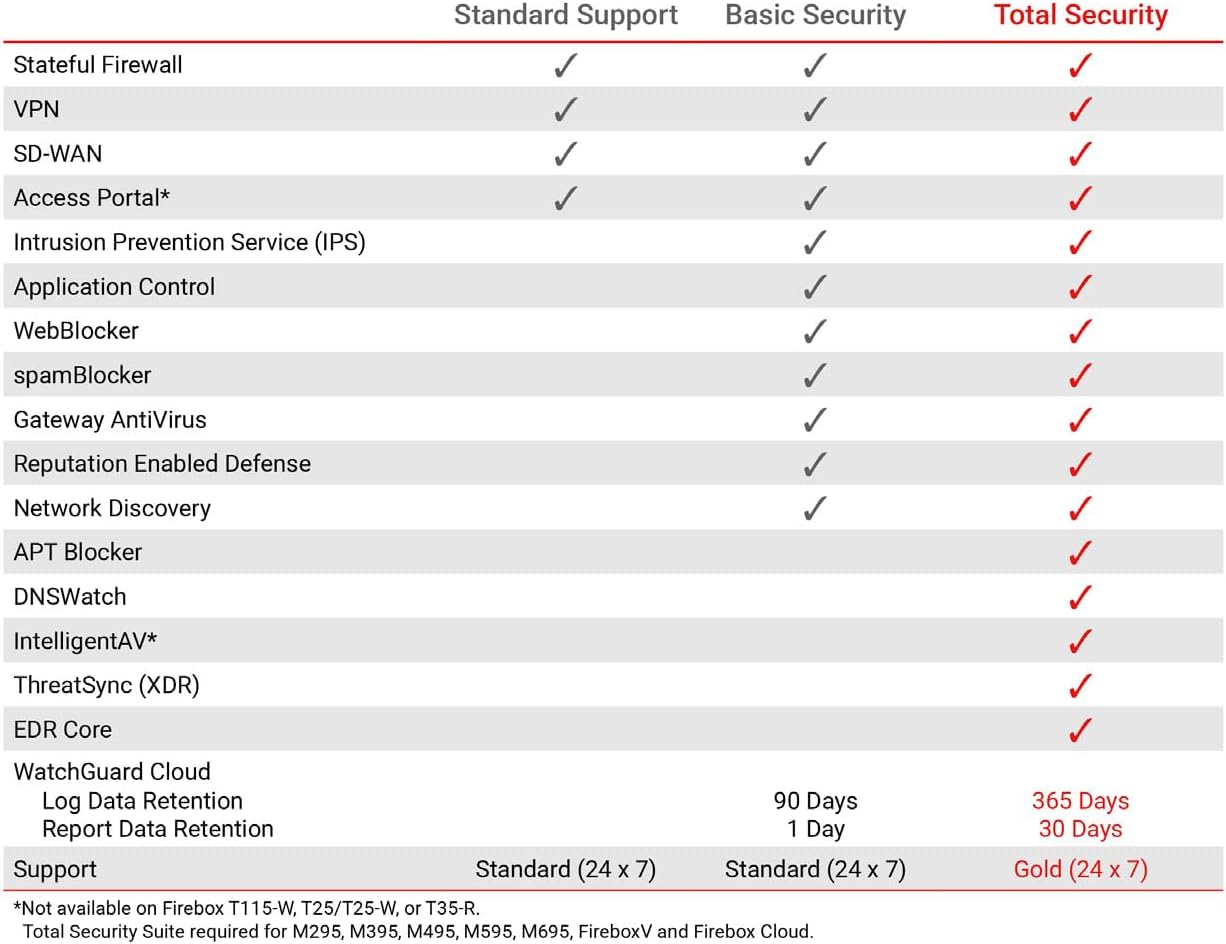
This table compares the security features included with Standard Support, Basic Security Suite, and Total Security Suite for the WatchGuard Firebox T185, showing which features are enabled for each option.
10. Warranty and Support
The WatchGuard Firebox T185 comes with a 3-year Standard Support license (WGT185003).
- Standard Support: Provides software updates and 24x7 emergency technical assistance, along with business-hours support for routine inquiries.
- Protection Plans: Additional protection plans may be available, such as a 4-Year Protection Plan or a Complete Protect monthly plan. Refer to your purchase documentation for details.
- Manufacturer Support: For further assistance, visit the official WatchGuard support website or contact their customer service.


