
1. Introduction
This manual provides essential information for setting up, operating, and maintaining your HP Omen Gaming Laptop, model ap0181AX. Please read this guide thoroughly to ensure optimal performance and longevity of your device. This laptop is designed for high-performance gaming and demanding applications, featuring an AMD Ryzen 9 8940HX processor and NVIDIA GeForce RTX 5060 graphics.

Image: Overview of the HP Omen Gaming Laptop highlighting its core components like the AMD Ryzen 9 processor, NVIDIA RTX 5060 graphics, 165Hz display, and 24GB DDR5 RAM.
2. Setup Guide
2.1 Unpacking the Laptop
Carefully remove the laptop and all accessories from the packaging. Ensure all items listed in the 'Box Contents' section are present.
2.2 Connecting the Power Adapter
- Connect the power adapter cable to the AC smart pin port on the laptop.
- Plug the power adapter into a wall outlet.
- Allow the laptop to charge for at least 30 minutes before initial use, or until the battery indicator shows sufficient charge.
2.3 Initial Boot and Windows Setup
- Press the power button to turn on the laptop.
- Follow the on-screen instructions to complete the Windows 11 Home setup, including language selection, network connection, and user account creation.
- Register your Microsoft 365 Basic Free and MS Office Home 2024 as prompted.
3. Operating Instructions
3.1 Power On/Off and Sleep Mode
- Power On: Press the power button.
- Shut Down: Click the Start button, then Power > Shut down.
- Sleep Mode: Close the lid or click the Start button, then Power > Sleep.
3.2 Keyboard and Touchpad
The laptop features a full-size, 4-zone RGB backlit keyboard with a numeric keypad and 26-Key Rollover Anti-Ghosting technology. The touchpad supports multi-touch gestures for navigation.

Image: The RGB backlit keyboard of the HP Omen laptop, illustrating customizable lighting zones.
3.3 Display Settings
The 16-inch 2K WUXGA (1920 x 1200) IPS display offers a 60-165 Hz refresh rate and 400 nits brightness. You can adjust display settings via Windows Settings > System > Display.

Image: The HP Omen laptop display showcasing its visual clarity and refresh rate capabilities.
4. Key Features
4.1 Processor and Memory
Equipped with an AMD Ryzen 9 8940HX processor (up to 5.3 GHz max boost clock, 16 cores, 32 threads, 64 MB L3 cache) and 24 GB DDR5-5200 MT/s RAM (upgradeable).

Image: A close-up of the AMD Ryzen 9 8940HX processor, emphasizing its advanced architecture.
4.2 Graphics
Features an NVIDIA GeForce RTX 5060 Generation Laptop GPU with 8 GB GDDR7 dedicated memory, supporting advanced graphics technologies like DLSS 4 and Ray Tracing.

Image: The NVIDIA GeForce RTX 5060 GPU logo, highlighting its capabilities for enhanced gaming performance.
4.3 Storage
Includes a 1 TB PCIe Gen4 NVMe M.2 SSD for fast boot times and rapid data access.
4.4 Cooling System
The OMEN Tempest Cooling system utilizes cryo compound and vapor chambers, along with liquid metal, to optimize heat transfer and maintain performance during intensive use.

Image: An illustration of the OMEN Tempest Cooling system, showing internal components and airflow for efficient heat dissipation.
5. Ports and Connectivity
The HP Omen laptop offers a variety of ports for connecting peripherals and external devices:
- 1x USB Type-A 10Gbps signaling rate
- 2x USB Type-A 5Gbps signaling rate
- 1x AC smart pin
- 1x HDMI 2.1
- 1x Headphone/microphone combo jack
- 1x RJ-45 (Ethernet)
- 1x USB Type-C 10Gbps signaling rate (supports USB Power Delivery 3.0, DisplayPort 1.4, HP Sleep and Charge)
Wireless connectivity includes Realtek Wi-Fi 6 (2x2) and Bluetooth 5.4.
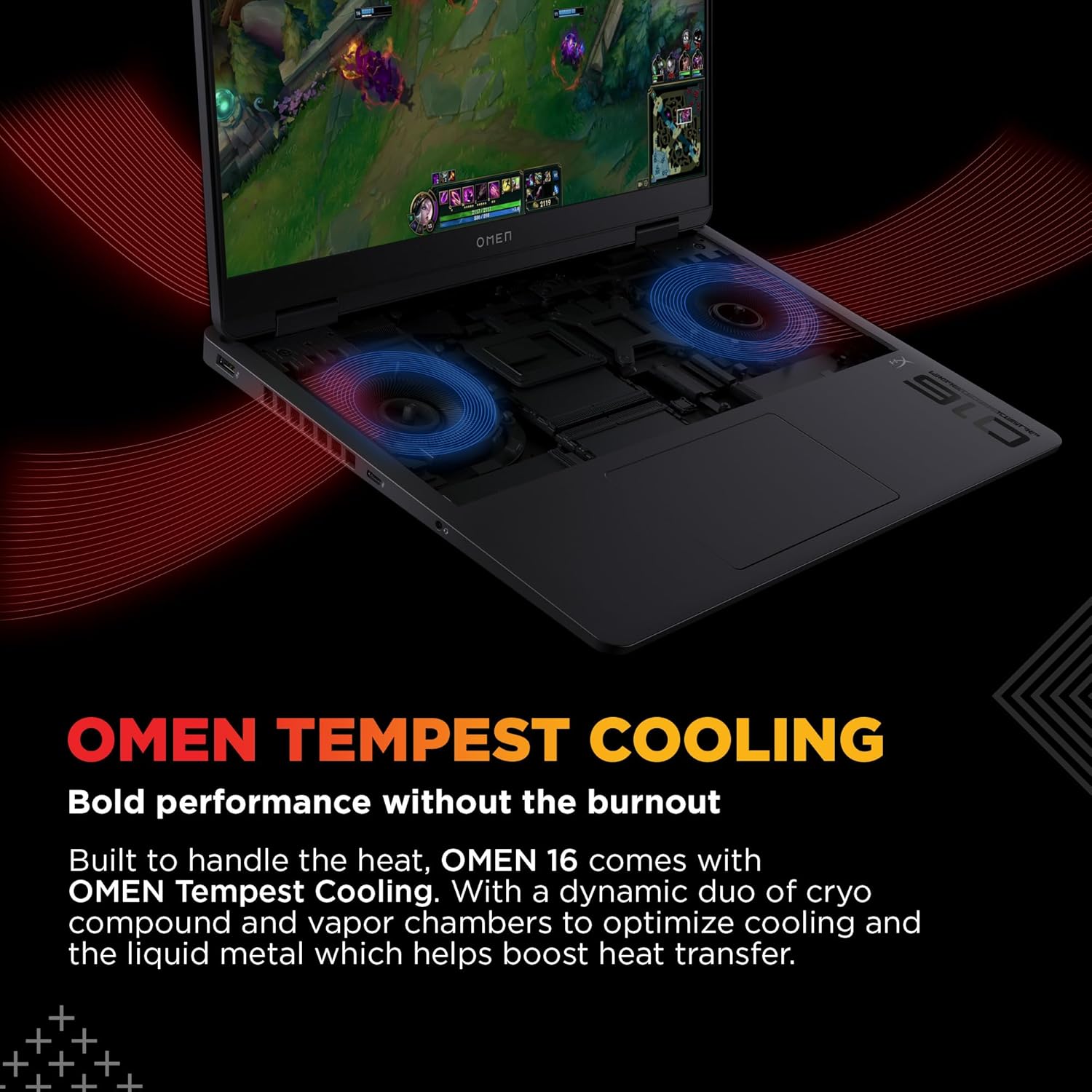
Image: Detailed view of the HP Omen laptop's side and rear ports, including USB, HDMI, RJ-45, and USB-C connections.
6. OMEN AI and Gaming Hub
The OMEN Gaming Hub, powered by OMEN AI, allows for personalized settings and performance optimization. Utilize features like 'Unleashed Mode' to boost Total Processor Power (TPP) up to 170W for maximum FPS and performance.

Image: The OMEN Gaming Hub interface on the laptop screen, showing performance monitoring and the 'Unleashed Mode' feature.
7. Maintenance
7.1 Cleaning
- Use a soft, lint-free cloth to clean the screen and exterior surfaces.
- For stubborn marks, dampen the cloth with water or a screen cleaner. Avoid harsh chemicals.
- Regularly clean the keyboard and touchpad to prevent dust buildup.
7.2 Battery Care
- The laptop uses a 6-cell, 83 Wh Li-ion polymer battery.
- To prolong battery life, avoid extreme temperatures and fully discharging the battery frequently.
- The laptop supports fast charging, reaching approximately 50% charge in 30 minutes.
7.3 Software Updates
Regularly check for and install Windows updates, driver updates (especially for graphics and chipset), and OMEN Gaming Hub software updates to ensure optimal performance and security.
8. Troubleshooting
8.1 Power Issues
- Laptop not turning on: Ensure the power adapter is securely connected and the battery has sufficient charge. Try a different power outlet.
- Battery not charging: Verify the power adapter is functioning correctly. Check the charging port for any obstructions.
8.2 Display Problems
- No display: Connect an external monitor to check if the issue is with the laptop's internal display. Restart the laptop.
- Flickering screen: Update graphics drivers. Adjust display refresh rate in Windows settings.
8.3 Performance Issues
- Slow performance: Close unnecessary applications. Check for background processes consuming high resources. Ensure cooling vents are clear.
- Overheating: Ensure the laptop is on a hard, flat surface to allow proper airflow. Clean cooling vents. Use OMEN Gaming Hub to monitor temperatures.
8.4 Connectivity Problems
- Wi-Fi not connecting: Restart your router and the laptop. Check Wi-Fi settings in Windows. Update wireless drivers.
- Bluetooth device not pairing: Ensure the device is in pairing mode. Check Bluetooth settings on the laptop.
9. Specifications
| Feature | Detail |
|---|---|
| Brand | HP |
| Model Name | HP Gaming Laptop |
| Model Number | ap0181AX |
| Processor | AMD Ryzen 9 8940HX (up to 5.3 GHz, 16 Cores, 32 Threads) |
| Graphics | NVIDIA GeForce RTX 5060 (8 GB GDDR7 dedicated) |
| RAM | 24 GB DDR5-5200 MT/s (1 x 24 GB, Upgradeable) |
| Storage | 1 TB PCIe Gen4 NVMe M.2 SSD |
| Display | 16-inch (40.6 cm) diagonal, 2K WUXGA (1920 x 1200), 60-165 Hz, 3 ms, IPS, 400 nits, 100% sRGB |
| Operating System | Windows 11 Home |
| Ports | 1x USB-A 10Gbps, 2x USB-A 5Gbps, 1x AC Smart Pin, 1x HDMI 2.1, 1x Headphone/Mic Combo, 1x RJ-45, 1x USB-C 10Gbps (PD 3.0, DP 1.4, HP Sleep & Charge) |
| Wireless Connectivity | Realtek Wi-Fi 6 (2x2), Bluetooth 5.4 |
| Camera | HP True Vision 1080p FHD camera |
| Audio | DTS:X Ultra, Dual speakers, HP Audio Boost, HyperX |
| Battery | 6-cell, 83 Wh Li-ion polymer (Supports fast charge) |
| Weight | 2.44 kg |
| Dimensions (L x W x T) | 26.9L x 35.8W x 2.4Th Centimeters |
| Box Contents | Laptop, Power Adapter, User manual |
10. Warranty and Support
Your HP Omen Gaming Laptop comes with a 1-year manufacturer warranty from the date of purchase. For technical assistance or product-related queries, please contact HP customer support.
HP Customer Support:
- Toll-Free Numbers: 1800-258-7170 or 1860-258-3079
- Online Support: Visit the official HP support website for drivers, manuals, and troubleshooting resources.
Please retain your purchase receipt for warranty validation.


