
1. Product Overview
The Globluum SU3 is an 80GB MP3 player designed for children, featuring a 4-inch touchscreen, Wi-Fi, and Bluetooth connectivity. It operates on a closed Android 14 system with parental controls, ensuring a safe environment for music and story consumption. The device comes pre-loaded with popular applications such as Spotify Kids, Audible, and Kindle, allowing for immediate use without complex setup.
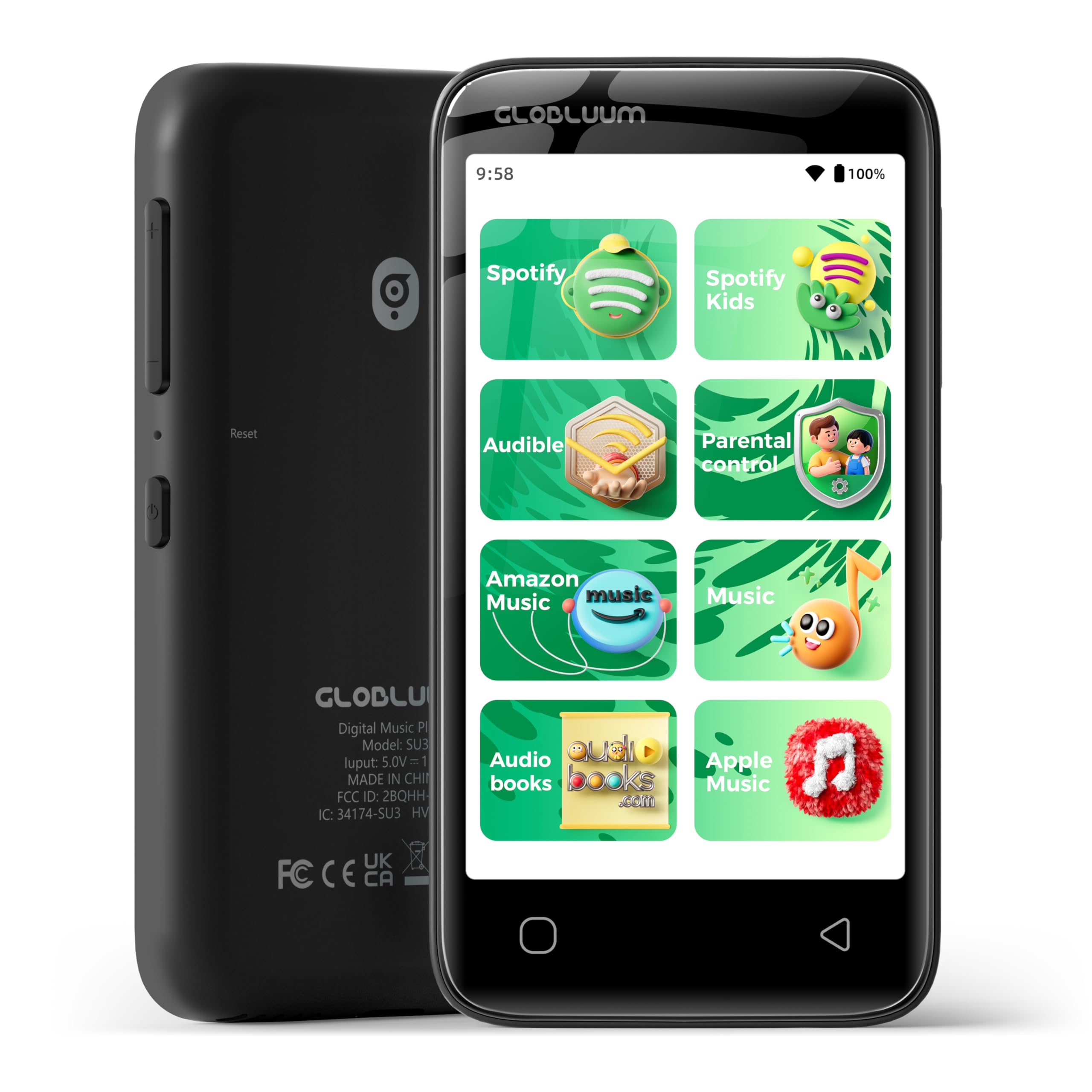
Front view of the Globluum SU3 MP3 Player, showcasing its 4-inch touchscreen.
Key Features:
- Safe Listening Environment: Closed Android 14 system with parental controls to prevent unauthorized app installations and browsing.
- Pre-installed Apps: Includes Spotify Kids, Spotify, Amazon Music, Apple Music, YouTube Music, Audible, Libby, LibriVox, and Kindle for immediate access to content.
- Bedtime Stories: Supports audiobooks from Audible Kids, Libby, LibriVox, and Kindle, with a sleep timer function.
- User-Friendly Design: 4-inch touchscreen with large icons for easy navigation by children.
- Portable and Durable: Lightweight (3.46 oz) with a sturdy plastic shell and included protective case.
- Ample Storage: 80GB total storage (16GB built-in + 64GB microSD card).
- Long Battery Life: 1750 mAh battery and 12nm chip for extended usage.
- Connectivity: Bluetooth 5.0 for wireless audio and Wi-Fi for streaming and updates.
- HD Video Support: Plays up to 1080p video files (MP4, AVI, MKV) on an 800x480 display.
2. What's in the Box
Upon unboxing your Globluum SU3 MP3 Player, please ensure all the following items are present:
- Globluum SU3 MP3 Player (Black)
- User Manual x1
- Type-C Charging Cable x1
- 3.5mm Wired Earphones x1
- 64GB microSDXC card x1 (pre-installed or separate)
- Protective Case x1
3. Safety Information
Please read and adhere to the following safety guidelines to ensure safe operation and longevity of your device:
- Do not immerse the device in water or expose it to excessive moisture.
- Strictly prohibit operation or storage in high-temperature environments exceeding 55°C (131°F).
- Avoid dropping or subjecting the device to strong impacts.
- Use only the provided charging cable and a compatible power adapter.
- Supervise children during use, especially when setting up parental controls or managing applications.
4. Setup
4.1 Powering On/Off
To power on the device, press and hold the side power button for approximately 3 seconds until the screen illuminates. To power off, press and hold the power button, then select 'Power Off' from the on-screen options.
Side view of the device, highlighting the power and volume buttons.
4.2 Charging the Device
Connect the provided Type-C charging cable to the device's charging port and the other end to a compatible USB power adapter or computer. The battery indicator on the screen will show charging status. A full charge typically takes a few hours.
4.3 Inserting the MicroSD Card
The device comes with a 64GB microSDXC card. If it's not pre-installed, locate the microSD card slot on the side of the device. Gently insert the card with the gold contacts facing down until it clicks into place. To remove, push the card in slightly until it springs out.
4.4 Connecting to Wi-Fi
- From the home screen, swipe down from the top to access the quick settings panel.
- Tap the Wi-Fi icon to turn it on.
- Tap and hold the Wi-Fi icon to open Wi-Fi settings.
- Select your desired Wi-Fi network from the list and enter the password if prompted.
- Once connected, the Wi-Fi icon will appear in the status bar.
4.5 Bluetooth Pairing
- From the home screen, swipe down from the top to access the quick settings panel.
- Tap the Bluetooth icon to turn it on.
- Tap and hold the Bluetooth icon to open Bluetooth settings.
- Ensure your Bluetooth headphones or speaker are in pairing mode.
- Select your device from the list of available devices to pair.
4.6 Parental Controls
The Globluum SU3 features a closed Android 14 system with parental controls to manage app access and ensure a safe experience. Google Play is restricted to updates only, preventing new app installations.
- Locate the 'Parental Control' icon on the home screen.
- Follow the on-screen instructions to set up a password.
- Within the parental control settings, you can:
- Lock Apps: Enable or disable access to specific pre-installed applications.
- Change Password: Modify the parental control password.
- Block Factory Resets: Prevent accidental or unauthorized factory resets.

A parent interacting with the parental control settings on the device.
5. Operating the Device
5.1 Basic Navigation
The device features a responsive 4-inch touchscreen. Tap icons to open applications, swipe left/right to navigate between screens, and swipe down from the top for quick settings and notifications.

The device screen displaying pre-installed application icons.
5.2 Playing Music and Audiobooks
The Globluum SU3 comes with several pre-installed music and audiobook applications. To play content:
- Tap on the desired application icon (e.g., Spotify Kids, Audible, Amazon Music).
- Log in to your account if required.
- Browse or search for your preferred music or audiobook.
- Tap on the content to begin playback.

Children engaging with the MP3 player, surrounded by icons of supported music applications.
5.3 Using the Sleep Timer
For bedtime stories, you can set a sleep timer to automatically turn off playback:
- While playing an audiobook or music, look for the sleep timer icon within the playback interface of the app.
- Tap the icon and select the desired duration (e.g., 15 minutes, 30 minutes).
- The device will automatically stop playback after the set time.

A child asleep while the MP3 player plays a bedtime story, illustrating the sleep timer function.
5.4 Video Playback
The device supports various video formats (MP4, AVI, MKV) and can play up to 1080p resolution. Videos can be transferred to the device's storage or accessed through supported streaming apps.
5.5 File Transfer
To transfer files (music, videos, audiobooks) to your Globluum SU3:
- Connect the device to a computer using the provided Type-C USB cable.
- On the device screen, select 'File Transfer' or 'MTP' mode when prompted.
- Your computer will recognize the device as a removable storage drive.
- Drag and drop files into the appropriate folders (e.g., 'Music', 'Videos') on the device or microSD card.
6. Maintenance
6.1 Cleaning
To clean the device, gently wipe the screen and body with a soft, dry, lint-free cloth. Do not use abrasive cleaners, solvents, or aerosol sprays, as these can damage the device's finish or internal components.
6.2 Battery Care
To maximize battery life and performance:
- Avoid fully discharging the battery frequently.
- Do not expose the device to extreme temperatures.
- If storing the device for an extended period, charge it to about 50% before storage.
6.3 Software Updates
The device's Android 14 system receives updates for pre-installed applications via Google Play. Ensure the device is connected to Wi-Fi to receive these updates. No new applications can be installed from Google Play, maintaining the closed system environment.
7. Troubleshooting
7.1 Device Not Powering On
- Ensure the battery is charged. Connect the device to a charger for at least 15 minutes before attempting to power on again.
- Press and hold the power button for 10-15 seconds for a forced restart.
7.2 Wi-Fi or Bluetooth Connectivity Issues
- Toggle Wi-Fi or Bluetooth off and on again in the quick settings.
- Ensure you are within range of the Wi-Fi network or Bluetooth device.
- For Bluetooth, ensure the other device is in pairing mode.
- Restart the device and try connecting again.
7.3 App Not Working/Updating
- Ensure the device is connected to a stable Wi-Fi network.
- Check for available updates in the Google Play Store (accessible for updates only).
- Clear the app's cache: Go to Settings > Apps > [App Name] > Storage > Clear Cache.
- If an app is disabled via parental controls, re-enable it.
7.4 Slow Performance or Freezing
- Close any unused applications running in the background.
- Restart the device.
- Ensure sufficient storage space is available. Delete unnecessary files if needed.
8. Specifications
| Feature | Detail |
|---|---|
| Model Name | SU3 |
| Product Dimensions | 0.43 x 2.44 x 4.65 inches |
| Item Weight | 3.46 ounces |
| Manufacturer | Globluum |
| Operating System | Closed Android 14 |
| Screen Size | 4 Inches |
| Display Resolution | 800x480 |
| Memory Storage Capacity | 80 GB (16GB built-in + 64GB microSDXC card) |
| Connectivity Technology | Aux, Bluetooth 5.0, USB Type-C, Wi-Fi |
| Battery | 1750 mAh (Nonstandard Battery) |
| Processor | 12nm chip |
| Supported Video Formats | MP4, AVI, MKV (up to 1080p) |
| Special Features | Built-In Speaker, Parental Controls, Touch Screen |

Visual representation of the device's internal components and connectivity features.
9. Warranty and Support
9.1 Warranty Information
For detailed warranty information, please refer to the warranty card included with your product or contact Globluum customer support directly. The warranty typically covers manufacturing defects for a specified period from the date of purchase.
9.2 Customer Support
If you encounter any issues or have questions not covered in this manual, please contact Globluum customer support. Contact details can usually be found on the product packaging, the official Globluum website, or through your retailer.
10. Product Video
Official product video from Globluum titled "Safe Listening Healthy Growing", demonstrating key features and benefits of the MP3 player for children.

