
1. Introduction
This manual provides detailed instructions for the setup, operation, and maintenance of your TreasLin VSDinside Stream Controller Deck N3 White. This device is designed to streamline your workflow for streaming, gaming, and content creation by providing customizable controls for various applications and platforms.
The N3 Stream Controller features 12 customizable keys: 6 visual LCD buttons, 3 tap buttons, and 3 rotary buttons. These allow for quick activation of actions, applications, and platform controls, eliminating the need to switch windows during critical tasks.

2. Product Overview
The TreasLin VSDinside Stream Controller Deck N3 is a compact and versatile control interface. It is equipped with various input methods to enhance user interaction and control efficiency.
2.1 Key Components
- 6 Visual LCD Buttons: These buttons feature customizable displays, allowing for dynamic icons and visual feedback for assigned functions.
- 3 Tap Buttons: Standard tactile buttons for additional programmable actions.
- 3 Rotary Knobs: Multi-functional knobs for fine-tune adjustments, such as volume control, brightness, or scrolling through profiles/scenes.
- USB-C Port: For connecting the device to your computer.
- Removable Stand: Provides an ergonomic 45-degree angle for optimal viewing and portability.


3. Setup Guide
3.1 System Requirements
- Operating System: PC (Windows 10 64-bit or later), macOS (Catalina 10.15 or later).
- Connectivity: Available USB-C port.
3.2 Connecting the Device
- Place the N3 Stream Controller on a stable surface.
- Connect one end of the provided USB-C cable to the USB-C port on the N3 device.
- Connect the other end of the USB-C cable to an available USB port on your computer.
- The device will power on automatically.
3.3 Software Installation
To fully utilize the N3 Stream Controller, you must install the VSDinside software.
- Visit the official TreasLin website or the VSDinside marketplace to download the latest software for your operating system.
- Run the installer and follow the on-screen prompts to complete the installation.
- Once installed, launch the VSDinside application. The device should be automatically detected.
4. Operation
The N3 Stream Controller allows for extensive customization to suit your specific needs across various applications.
4.1 Customizing Buttons and Knobs
The VSDinside software provides a user-friendly interface for assigning functions to each of the 12 keys and 3 rotary knobs.
- Assigning Actions: Drag and drop actions from the software's toolbox onto the desired button. Actions can include launching applications, executing macros, controlling media, switching OBS scenes, and more.
- Dynamic Icons: For the 6 visual LCD buttons, you can assign static images or dynamic animated icons. The software supports custom animated icon scenes.
- Rotary Knob Functions: Rotary knobs can be configured for various adjustments like volume, brightness, or cycling through profiles/pages of buttons.
- Profiles and Scenes: Organize your custom layouts into profiles or scenes. Use the tap buttons or rotary knobs to switch between these configurations for different tasks or applications.

4.2 Supported Applications and Platforms
The N3 Stream Controller integrates with a wide range of software and services, including but not limited to:
- OBS Studio (Windows 10 64-bit+, macOS Catalina 10.15+)
- Streamlabs
- Twitch
- YouTube
- Discord
- Spotify (requires Premium account for integration)
- Voicemod
- Microsoft Office (Excel, Word)
- Adobe Creative Suite (Photoshop)
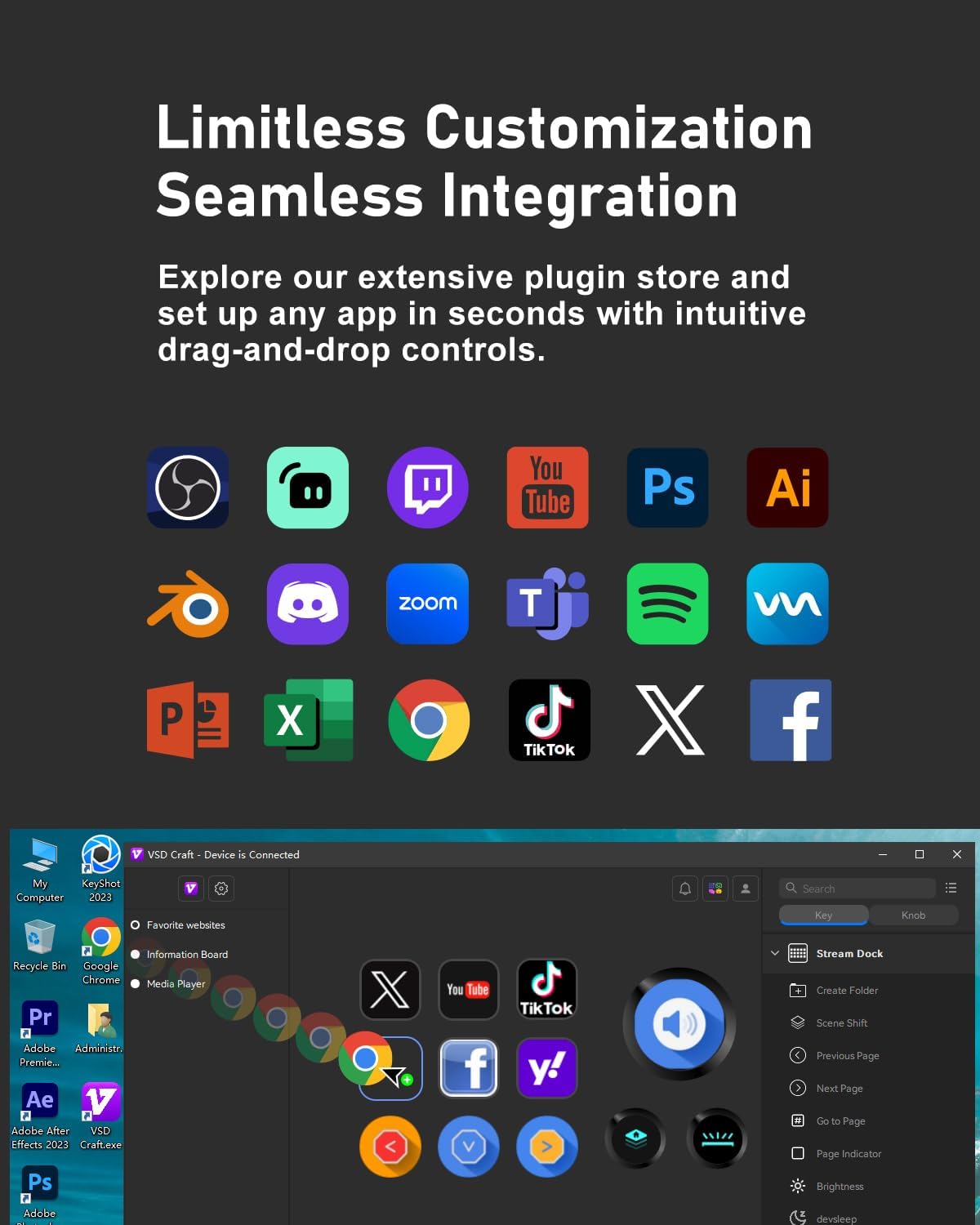
5. Software Features and Customization
The VSDinside software is the central hub for customizing your N3 Stream Controller. It offers a comprehensive suite of tools for personalization.
5.1 VSDinside Marketplace
Access the VSDinside marketplace directly from the software. This marketplace provides a vast library of resources:
- Plugins: Over 200 plugins for controlling various applications and services.
- Icons: A wide selection of static and dynamic icons to personalize your LCD buttons.
- Profiles and Scenes: Pre-configured layouts and scenes for popular use cases.

5.2 Custom Icon Creation
Beyond the marketplace, you can create your own custom icons:
- Local File Selection: Upload images or GIFs from your computer to use as button icons.
- Screen Capture: Directly capture portions of your screen to create icons.
- Icon Library: Utilize the built-in icon library for quick access to common symbols.

5.3 Software Interface Overview

6. Troubleshooting
If you encounter issues with your N3 Stream Controller, refer to the following common problems and solutions.
| Problem | Possible Cause | Solution |
|---|---|---|
| Device not recognized by computer. | Loose USB connection, faulty cable, driver issue. | Ensure the USB-C cable is securely connected to both the device and the computer. Try a different USB port or cable. Reinstall the VSDinside software. |
| Buttons or knobs not responding. | Software not running, incorrect configuration, software glitch. | Ensure the VSDinside software is running in the background. Check your button assignments within the software. Restart the software and/or your computer. |
| LCD buttons are blank or displaying incorrectly. | Software issue, corrupted icon files. | Verify icon assignments in the software. Try re-assigning the icons. Ensure the software is up to date. |
| Spotify integration not working. | No Spotify Premium account. | Spotify integration requires an active Spotify Premium account. |
If you continue to experience issues, please contact technical support.
7. Specifications
| Feature | Detail |
|---|---|
| Model | N3 |
| Color | White |
| Keys | 6 Visual LCD Buttons, 3 Tap Buttons, 3 Rotary Knobs (Total 12 customizable inputs) |
| Connectivity | USB-C |
| Compatible Devices | PC (Windows 10 64-bit+), Mac (macOS Catalina 10.15+) |
| Item Weight | 11.7 ounces (approx. 331 grams) |
| Package Dimensions | 6.65 x 4.96 x 2.64 inches |
| Manufacturer | Shenzhen An Rui Xin Technology Co.,Ltd. |
8. Technical Support and Warranty
8.1 Technical Support
For any technical assistance or inquiries regarding your TreasLin VSDinside Stream Controller Deck N3, please contact our dedicated engineering team. Contact information can typically be found on the official TreasLin website or within the VSDinside software application.
8.2 Warranty Information
Warranty details for the TreasLin VSDinside Stream Controller Deck N3 are provided at the point of purchase or can be found on the official TreasLin website. Please retain your proof of purchase for warranty claims.