
Introduction
Thank you for choosing the Lapcare LOX-096 4G SIM Wi-Fi 6 Router. This device is designed to provide high-speed, reliable internet connectivity for your home or office, leveraging both 4G SIM and WAN connections. With Wi-Fi 6 technology, MU-MIMO, and Beamforming, it ensures faster speeds, lower latency, and better performance across multiple connected devices. This manual will guide you through the setup, operation, and maintenance of your router.

Image: The Lapcare LOX-096 router, highlighting its key features like Wi-Fi 6, 4G LTE, and support for various SIM cards.
Setup Instructions
- Insert Nano SIM Card: Locate the SIM card slot on the back of the router. Gently insert your Nano SIM card into the slot until it clicks into place. Ensure the SIM card is correctly oriented as indicated on the device. The router supports over 3000 APNs for wide compatibility.
- Connect Power: Connect the provided power adapter to the router's DC-IN port and then plug it into a power outlet. The router will power on automatically.
- Wait for Initialization: Allow a few minutes for the router to boot up and establish a connection. The LED indicators on the front panel will show the status of the network connection.
- Connect Devices:
- Wireless Connection: Search for the Wi-Fi network name (SSID) printed on the label at the bottom of your router. Connect to this network using the default Wi-Fi password (also found on the label).
- Wired Connection: For wired devices, connect an Ethernet cable from the router's LAN port to your computer or other network device.
- Access Web Interface (Optional): For advanced settings, open a web browser and enter the default IP address (e.g., 192.168.0.1) found on the router's label. Log in using the default username and password.

Image: Detailed view of the router's rear panel, illustrating the Nano SIM card insertion process and port labels.
Operating Your Router
LED Indicators
The front panel LEDs provide information about the router's status:
- Power LED: Solid green indicates the router is powered on.
- Wi-Fi LED: Solid green indicates Wi-Fi is active. Blinking indicates data transmission.
- 4G/LTE LED: Solid green indicates a stable 4G connection. Blinking indicates connecting or data transmission.
- LAN LED: Solid green indicates a device is connected to the LAN port. Blinking indicates data transmission.
Dual Connectivity (SIM + WAN Failover)
The LOX-096 router supports dual connectivity, allowing it to use either a 4G SIM card or a traditional WAN (broadband) connection. In failover mode, if one connection type becomes unavailable, the router will automatically switch to the other, ensuring continuous internet access. To use WAN, connect your broadband modem to the router's WAN port.
Wi-Fi 6, MU-MIMO, and Beamforming
This router utilizes Wi-Fi 6 (802.11ax) technology for enhanced performance.
- Wi-Fi 6: Provides faster speeds, lower latency, and increased capacity for more devices.
- MU-MIMO (Multi-User, Multiple-Input, Multiple-Output): Allows the router to communicate with multiple devices simultaneously, improving overall network efficiency and speed, especially in busy networks.
- Beamforming: Focuses the Wi-Fi signal directly towards connected devices, improving signal strength and range for each device.
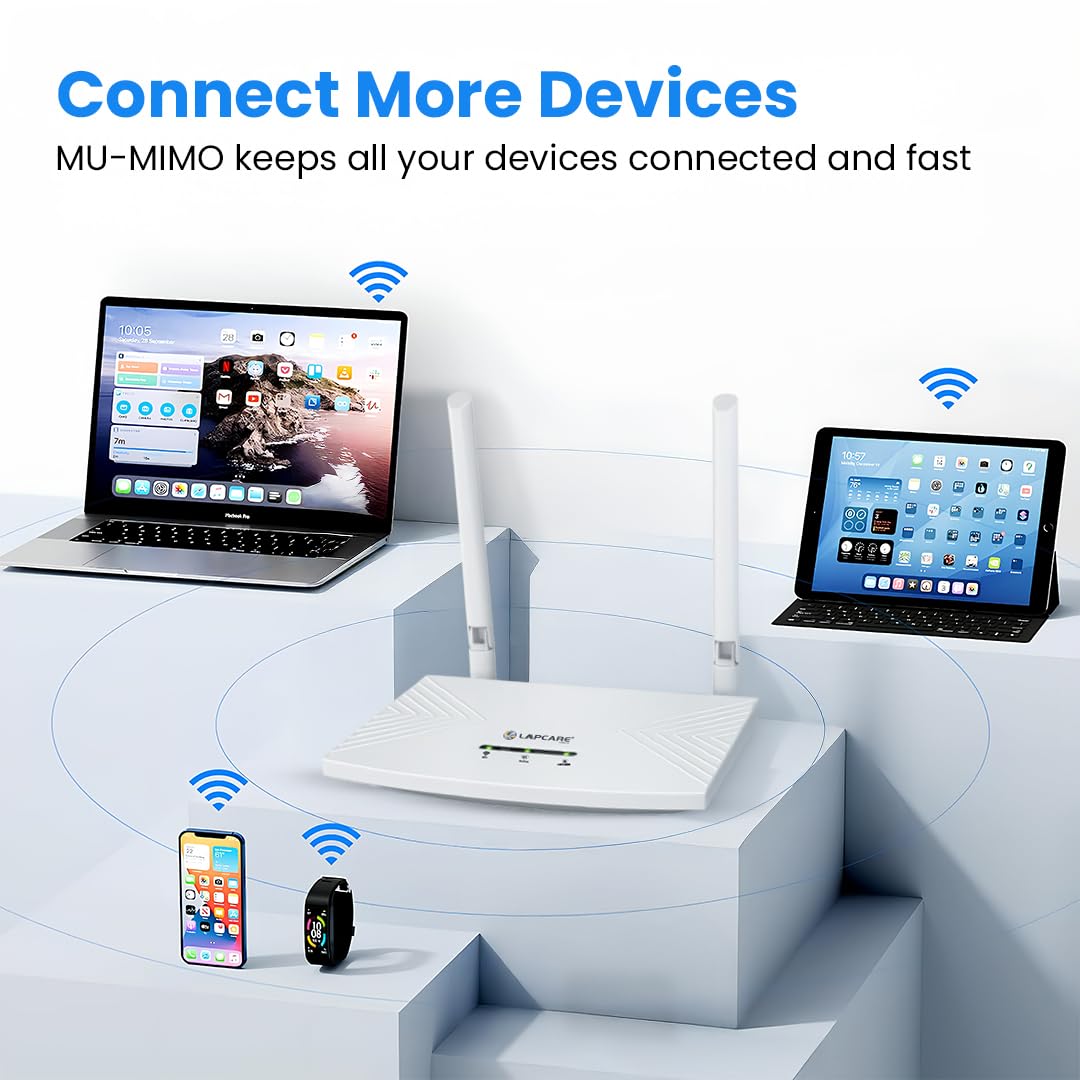
Image: The router efficiently connecting to various devices simultaneously, demonstrating its MU-MIMO feature.

Image: A visual representation of how the router connects to the internet and distributes the signal to various devices.
Maintenance
- Optimal Placement: Place the router in a central location in your home or office, away from obstructions like thick walls, large metal objects, and other electronic devices that may cause interference. This helps maximize Wi-Fi coverage and signal strength.
- Firmware Updates: Periodically check the Lapcare support website for firmware updates. Keeping your router's firmware up-to-date ensures optimal performance, security, and access to new features.
- Cleaning: Keep the router clean and free from dust. Use a soft, dry cloth to wipe the exterior. Do not use liquid cleaners or aerosols.
- Ventilation: Ensure the router has adequate ventilation to prevent overheating. Do not cover the ventilation holes.

Image: Illustration of optimal router placement for wide Wi-Fi coverage within a home environment.
Troubleshooting
- No Internet Connection:
- Check if the 4G/LTE LED is solid green. If not, ensure the SIM card is correctly inserted and active.
- If using WAN, ensure the Ethernet cable is securely connected and your broadband modem is working.
- Restart the router by unplugging the power adapter, waiting 10 seconds, and plugging it back in.
- Slow Wi-Fi Speed:
- Ensure your devices are within optimal range of the router.
- Check for interference from other electronic devices.
- Limit the number of active devices or bandwidth-intensive activities.
- Consider changing the Wi-Fi channel in the router's web interface to avoid congestion.
- Cannot Connect to Wi-Fi:
- Verify you are using the correct Wi-Fi network name (SSID) and password.
- Ensure the Wi-Fi LED on the router is solid green.
- Restart your device and try connecting again.
- Router Not Responding / Forgot Password:
- Use the Reset button on the back of the router (refer to the Setup section image). With the router powered on, use a paperclip to press and hold the Reset button for about 5-10 seconds until the LEDs flash. This will restore the router to factory default settings, including the default Wi-Fi name and password.
Product Specifications
| Brand | Lapcare |
| Model Name | 4G Wireless Router |
| Model Number | LOX-096 |
| Special Features | 3000+ APN Support, Easy Setup, SIM + WAN Failover, Wi-Fi 6 Performance |
| Frequency Band Class | Single-Band (2.4 GHz) |
| Wireless Communication Standard | 802.11ax (Wi-Fi 6) |
| Connectivity Technology | 4G SIM Support, LAN, WAN, Wi-Fi |
| Security Protocol | WPA3 |
| Number of Ports | 1 (LAN/WAN configurable) |
| Data Transfer Rate | Up to 300 Megabits Per Second |
| Compatible Devices | NVR/DVR, Printer, Security Camera, Smart Device |
| Item Dimensions (L x W x H) | 18L x 5W x 17H Centimeters |
| Item Weight | 200 Grams |
| Box Contents | Router |
Warranty Information
The Lapcare LOX-096 4G SIM Wi-Fi 6 Router comes with a 1 Year Manufacturer Warranty from the date of purchase. Please retain your purchase receipt for warranty claims. The warranty covers manufacturing defects but does not cover damage caused by misuse, accidents, unauthorized modifications, or natural disasters.
Customer Support
For technical assistance, troubleshooting, or warranty inquiries, please contact Lapcare customer support.
- Manufacturer: Lapcare
- Manufacturer Contact Information: Lapcare (Refer to product packaging or official Lapcare website for specific contact details like phone number or email.)
- Online Resources: Visit the official Lapcare website for FAQs, updated drivers, and additional support resources.