
Introduction
This manual provides instructions for the Nulea RT07B Wireless Ergonomic Keyboard. Designed for comfort and efficiency, this keyboard features a split layout, integrated wrist rest, and versatile connectivity options to enhance your typing experience across multiple devices.
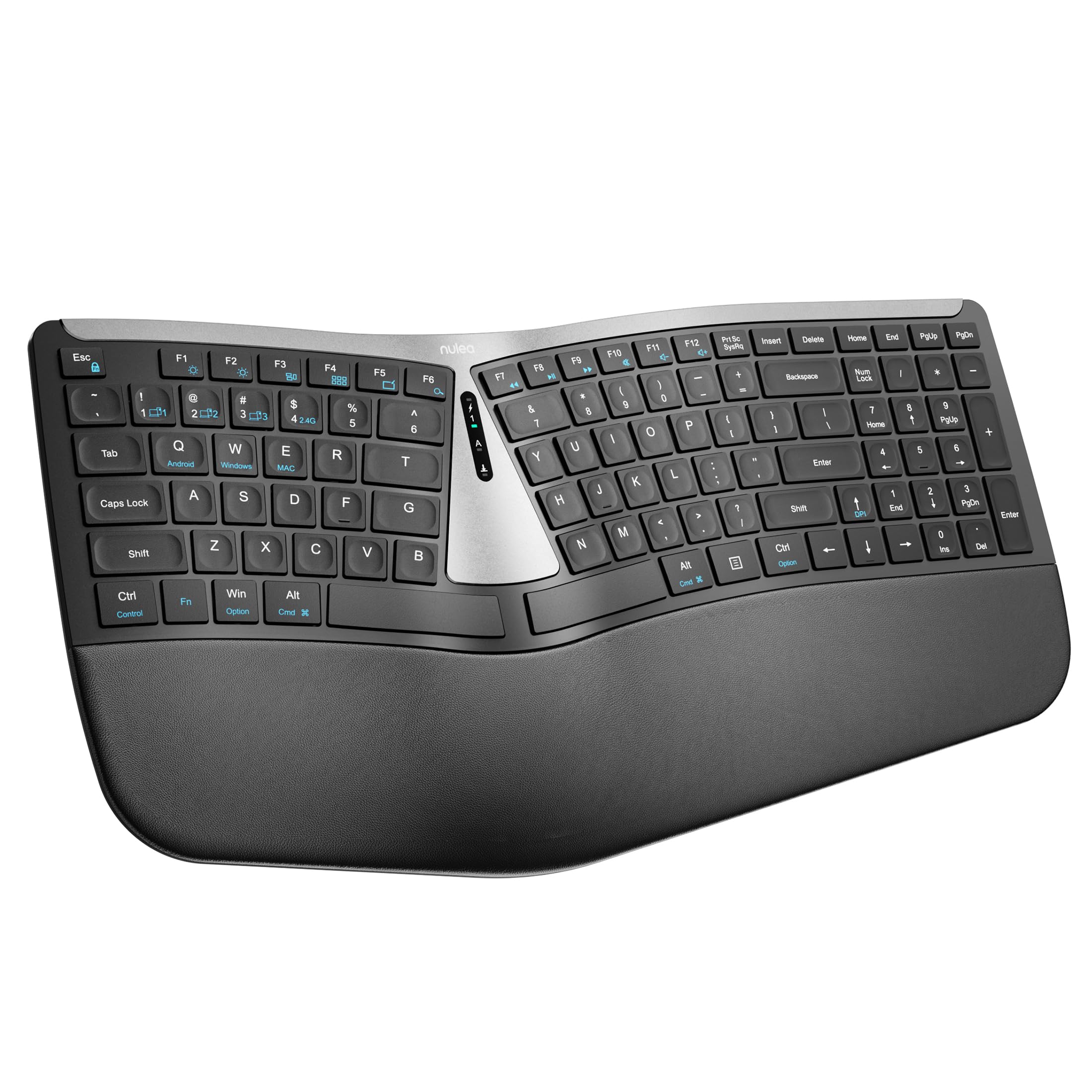
Figure 1: Nulea RT07B Wireless Ergonomic Keyboard
Setup
Package Contents
- Nulea RT07B Wireless Ergonomic Keyboard
- USB 2.4G Receiver (stored in the keyboard's underside)
- USB-C Charging Cable
- User Manual (this document)
Charging the Keyboard
The Nulea RT07B keyboard is equipped with a rechargeable battery. To charge, connect the provided USB-C cable to the keyboard's USB-C port and to a power source (e.g., computer USB port, USB wall adapter). A full charge typically takes 2-3 hours and provides approximately 200 hours of standby time.

Figure 2: USB-C Charging Port
Connectivity Options
The keyboard supports dual-mode wireless connectivity: 2.4G wireless via a USB receiver and Bluetooth. It can connect to up to three devices simultaneously (one 2.4G and two Bluetooth devices).
2.4G Wireless Connection
- Locate the USB 2.4G receiver stored in the compartment on the underside of the keyboard.
- Plug the USB receiver into an available USB port on your computer.
- Turn on the keyboard using the ON/OFF switch located on the top center of the keyboard.
- The keyboard should automatically connect to your device. If not, press Fn + 4 to switch to 2.4G mode.
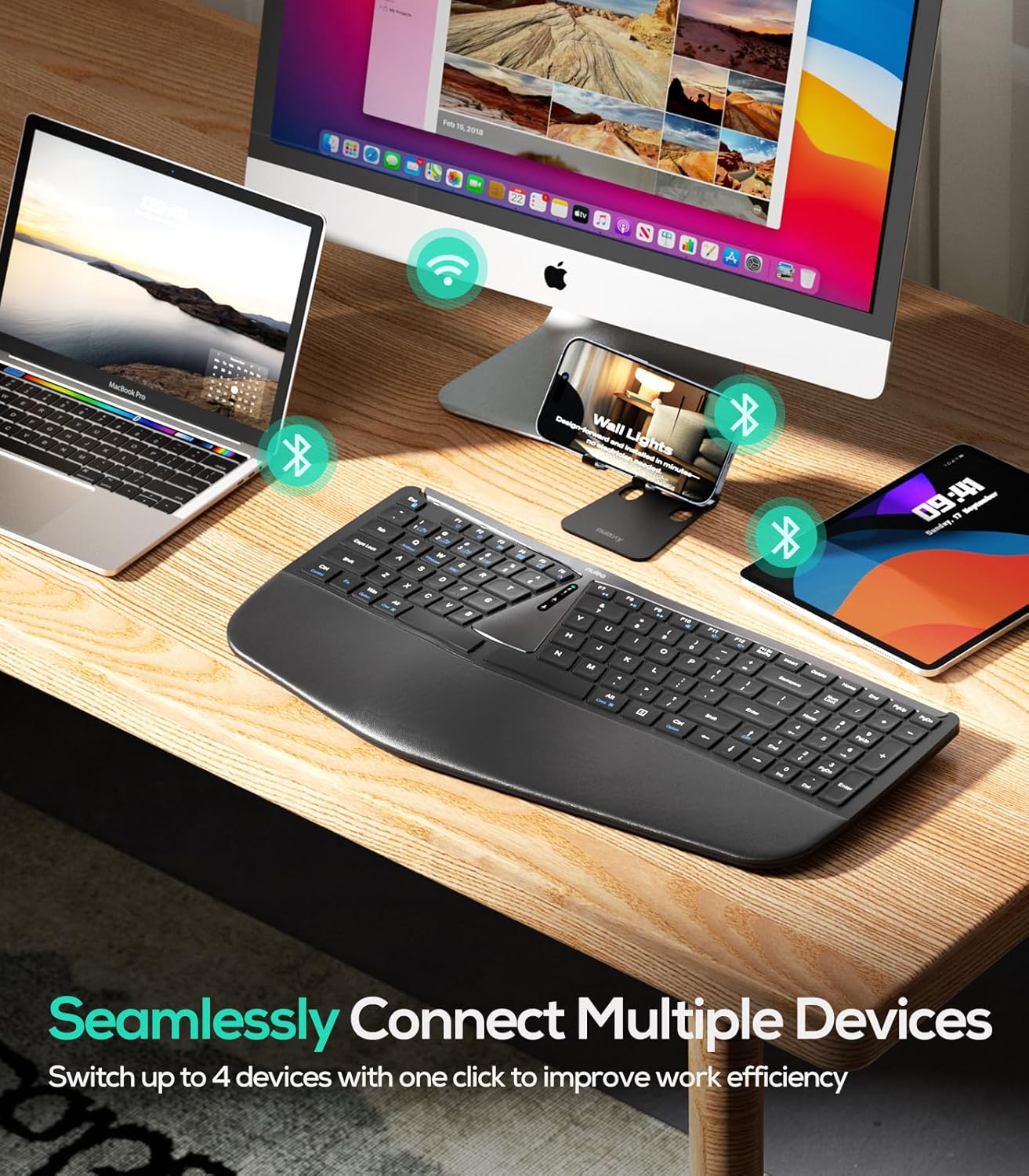
Figure 3: Multi-Device Connectivity
Bluetooth Connection (BT1 / BT2)
- Turn on the keyboard using the ON/OFF switch.
- Press Fn + 1 or Fn + 2 to select a Bluetooth channel (BT1 or BT2). The corresponding indicator light will flash.
- Press and hold Fn + 1 (or Fn + 2) for 3 seconds until the indicator light flashes rapidly, indicating pairing mode.
- On your device (computer, tablet, smartphone), enable Bluetooth and search for "Nulea RT07B".
- Select the keyboard from the list of available devices to complete pairing.
- To switch between connected Bluetooth devices, simply press Fn + 1 or Fn + 2.
Operating Instructions
Ergonomic Design and Comfort
The Nulea RT07B features a split keyboard layout and a comprehensive palm rest designed to promote a natural typing posture. This reduces forearm muscle twisting and wrist strain, contributing to long-term comfort.

Figure 4: Natural Hand Position on Split Keyboard
The integrated palm rest is made with soft material, providing excellent support for your wrists during extended use.

Figure 5: Integrated Palm Rest
Adjustable Tilt Legs
The keyboard includes adjustable tilt legs on both the front and back. These can be used to customize the typing angle for optimal wrist comfort. Raising the front legs can create a negative tilt, which some users find more ergonomic by allowing wrists to remain in a more neutral position.

Figure 6: Adjustable Tilt Legs for Customized Angle
Scissor-Switch Keys
The keyboard utilizes scissor-switch keys, which provide stable, responsive, and quiet typing. This design ensures even pressure distribution and a comfortable tactile feedback with each keystroke.
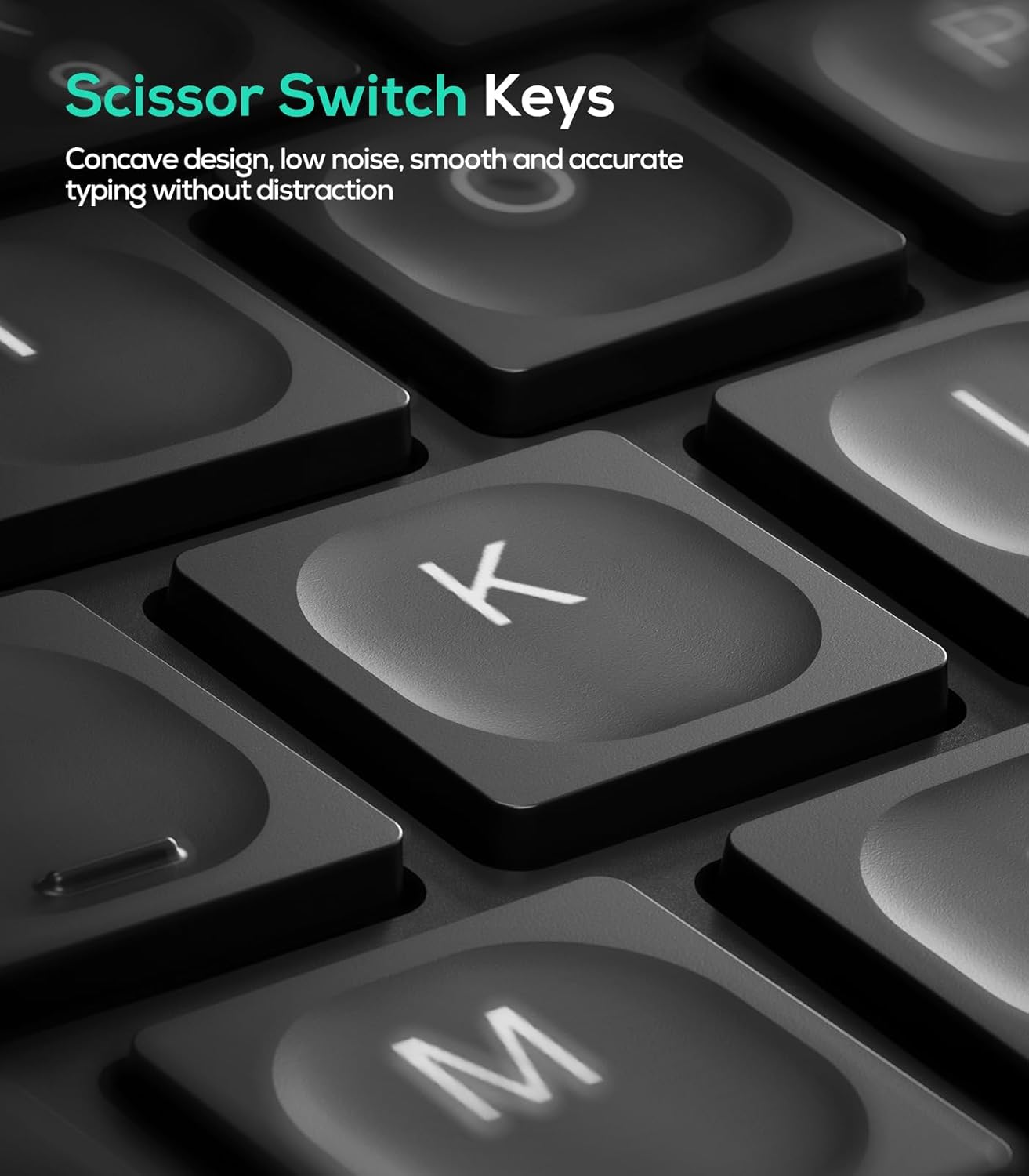
Figure 7: Scissor-Switch Key Mechanism
Operating System Compatibility
The Nulea RT07B keyboard is compatible with Windows and Mac operating systems. Dedicated keys for Windows (Win) and Mac (Option, Cmd) functions are clearly marked on the keyboard.
Function Keys
The top row of keys (F1-F12) includes multimedia and shortcut functions. These functions can be accessed directly or by pressing the Fn key in combination with the desired function key.
Maintenance
To ensure the longevity and optimal performance of your Nulea RT07B keyboard, follow these maintenance guidelines:
- Cleaning: Use a soft, lint-free cloth slightly dampened with water or a mild cleaning solution to wipe the surface of the keyboard. Avoid harsh chemicals or abrasive materials.
- Dust Removal: Use compressed air to remove dust and debris from between the keys.
- Battery Care: Recharge the keyboard when the battery indicator is low. Avoid fully discharging the battery frequently to prolong its lifespan.
- Storage: When not in use for extended periods, store the keyboard in a cool, dry place.
Troubleshooting
| Issue | Possible Cause | Solution |
|---|---|---|
| Keyboard not responding (2.4G) | USB receiver not properly connected; low battery; incorrect mode selected. | Ensure USB receiver is securely plugged in. Charge the keyboard. Press Fn + 4 to select 2.4G mode. |
| Keyboard not responding (Bluetooth) | Not paired; out of range; low battery; incorrect Bluetooth channel selected. | Ensure keyboard is in pairing mode (Fn + 1/2 held for 3s). Check device's Bluetooth settings. Charge the keyboard. Press Fn + 1 or Fn + 2 to select the correct channel. |
| Keys feel unresponsive or sticky | Accumulated dust or debris under keys; low battery. | Clean the keyboard using compressed air. Charge the keyboard. |
| Caps Lock indicator light turns off quickly | Designed behavior to conserve battery. | This is normal operation. The Caps Lock function remains active even if the light turns off. |
Specifications
- Model: RT07B
- Connectivity: 2.4G Wireless, Bluetooth (BT1, BT2)
- Keyboard Type: Ergonomic Split, Membrane, Scissor-Switch
- Compatibility: Windows, Mac, Laptops, PCs, Tablets, Smartphones
- Power Source: USB-C Rechargeable Battery
- Battery Life: Up to 200 hours (standby)
- Material: Plastic or Silicone
- Item Weight: 2.66 pounds
- Dimensions: 17.76 x 9.8 x 2.09 inches
- Included Components: Palm Rest
Official Product Video
Video 1: Overview of the Nulea RT07B Wireless Ergonomic Keyboard, demonstrating its features and ergonomic design.
Warranty and Support
Nulea offers a 12-month hassle-free replacement warranty for this product. For support or warranty claims, please refer to the contact information provided in your product packaging or visit the official Nulea website.
Official Nulea Website: www.nulea.com


