
DIERYA DK81E
DIERYA DK81E 75% Mechanical Gaming Keyboard User Manual
Model: DK81E
Introduction
This manual provides detailed instructions for the DIERYA DK81E 75% Mechanical Gaming Keyboard. Please read this manual thoroughly before using the product to ensure proper setup and operation. Retain this manual for future reference.
The DIERYA DK81E is a compact 75% layout mechanical keyboard designed for gaming and productivity. It features hot-swappable switches, a gasket-mount design with multi-layer sound dampening, customizable RGB backlighting, a dedicated volume knob, and a powerful web-based driver for advanced customization.
Package Contents
- DIERYA DK81E Mechanical Keyboard x 1
- USB-C to USB-A Cable x 1
- Keycap Puller x 1
- Switch Puller x 1
- User Manual x 1

Setup
- Unpack the Keyboard: Carefully remove the DIERYA DK81E keyboard and all accessories from the packaging.
- Connect the USB Cable: Insert the USB-C end of the provided cable into the port on the back of the keyboard. Connect the USB-A end to an available USB port on your computer or gaming console.
- System Recognition: Your operating system (Windows, macOS, Linux) should automatically detect and install the necessary drivers. No additional software installation is required for basic functionality.
- Adjust Keyboard Feet: The keyboard features two-stage adjustable feet. Flip them out to achieve your preferred typing angle. The anti-slip rubber pads on the bottom ensure stability.


Operating Instructions
Basic Keyboard Functions
The DIERYA DK81E operates as a standard 75% layout keyboard. All keys function as labeled. For keys that are typically present on a full-size keyboard but not on a 75% layout (e.g., F-keys, Page Up/Down, Home, End, Delete), they are accessible via the Function (Fn) key combinations. Refer to the keycap legends for specific Fn key functions.
Multimedia Volume Knob
The dedicated metal knob located on the top right of the keyboard provides convenient control over audio and media playback.
- Rotate Clockwise: Increase volume.
- Rotate Counter-clockwise: Decrease volume.
- Press Down: Play/Pause media.

RGB Backlighting Control
The keyboard features vibrant RGB backlighting with 16.8 million colors and over 15 preset lighting effects. Specific key combinations (often involving the Fn key) are used to cycle through effects, adjust brightness, and change colors. Consult the included quick start guide or the web driver for detailed instructions on RGB customization.

Web-Based Driver for Customization
The DIERYA DK81E utilizes a browser-based driver for advanced customization, eliminating the need for software installation and ensuring zero memory footprint. This driver allows for:
- Key remapping
- Macro recording
- Quick shortcuts
- In-depth RGB personalization
To access the web driver, open a web browser and navigate to the address provided in the quick start guide or on the manufacturer's website. The driver is compatible with Windows, macOS, and Linux operating systems.

Key Features
- Hot-Swappable Switches: The DK81E features universal hot-swappable sockets compatible with 3-pin and 5-pin mechanical switches. This allows users to easily change switches without soldering, enabling personalized typing feel and sound.
- Gasket-Mount Design with 6-Layer Dampening Foam: The advanced gasket-mount structure, combined with six layers of sound-absorbing foam, provides a flexible typing experience and a deeper, more satisfying acoustic profile.
- Pre-Lubed Linear Switches: The keyboard comes equipped with factory pre-lubricated linear switches, ensuring a smooth and consistent keystroke experience right out of the box. These switches are rated for 50 million keystrokes.
- Double-Shot Keycaps: The keycaps are manufactured using a double-shot injection molding process, which ensures legends will not fade or wear off over time, maintaining a pristine look and feel.
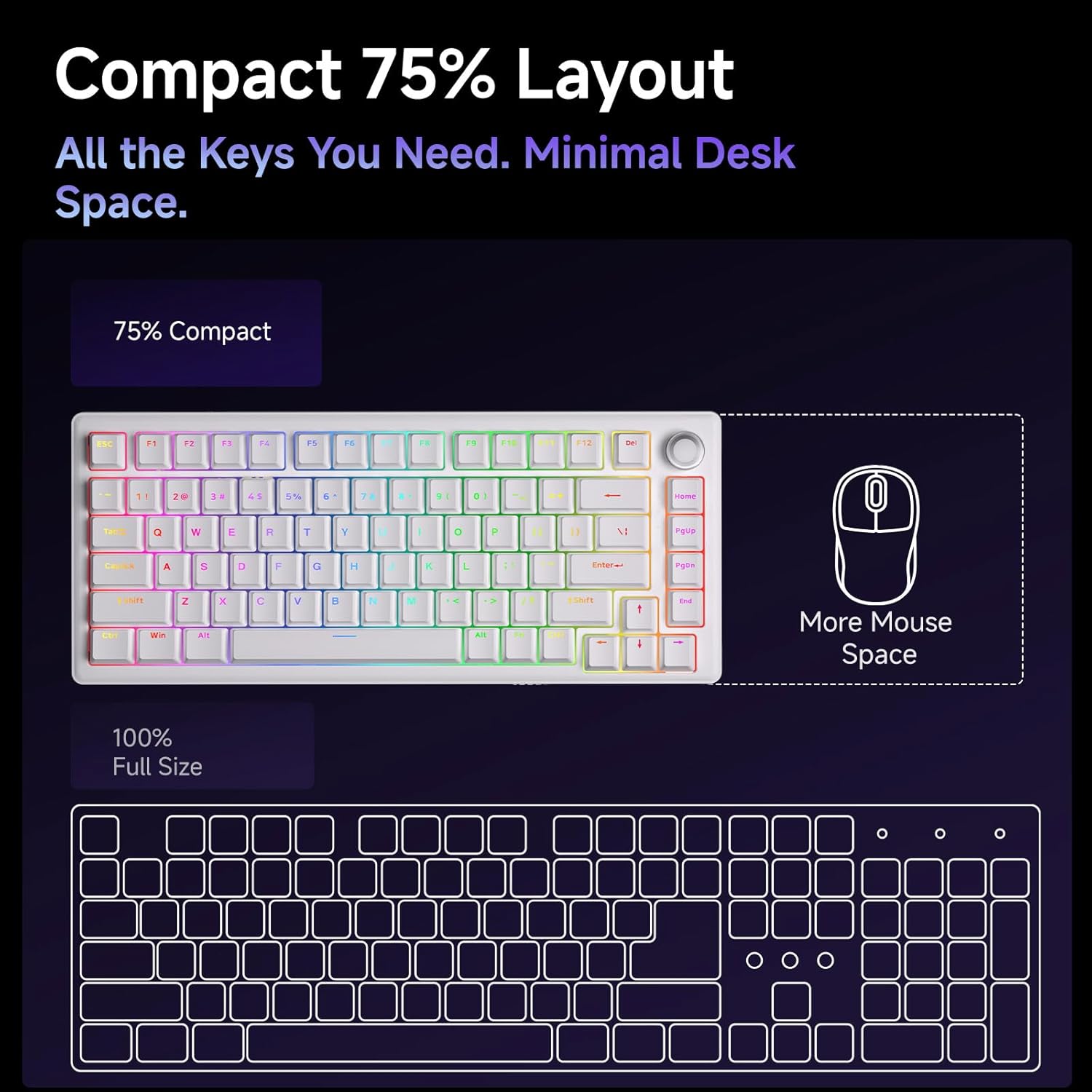
- Compact 75% Layout: The 75% layout provides all essential keys while minimizing desk space, offering more room for mouse movement.



Maintenance
Cleaning the Keyboard
Regular cleaning helps maintain the keyboard's performance and appearance.
- Dust Removal: Use a can of compressed air to blow away dust and debris from between the keycaps.
- Keycap Cleaning: Gently remove keycaps using the provided keycap puller. Clean them with a soft cloth dampened with a mild cleaning solution (e.g., isopropyl alcohol diluted with water). Ensure keycaps are completely dry before reattaching.
- Surface Cleaning: Wipe the keyboard's surface with a soft, lint-free cloth. Avoid harsh chemicals or abrasive materials.
Switch and Keycap Replacement
The hot-swappable design allows for easy replacement of switches and keycaps.
- Removing Keycaps: Use the keycap puller to carefully grip and lift keycaps straight up.
- Removing Switches: Use the switch puller to gently clamp the top and bottom clips of the switch, then pull the switch straight up from the PCB.
- Installing Switches: Align the pins of the new switch with the holes on the PCB. Press down firmly until the switch clicks into place. Ensure pins are not bent.
- Installing Keycaps: Align the keycap stem with the switch stem and press down gently until it is securely seated.
Troubleshooting
- Keyboard Not Responding:
- Ensure the USB-C cable is securely connected to both the keyboard and the computer.
- Try connecting the keyboard to a different USB port on your computer.
- Test the keyboard on another computer to rule out system-specific issues.
- RGB Lights Not Working/Incorrect:
- Check the RGB control key combinations (refer to the quick start guide) to ensure brightness is not set to zero or an incorrect mode is selected.
- Access the web driver to verify RGB settings and apply changes.
- Keys Not Registering:
- If a specific key is not working, carefully remove its keycap and switch. Inspect the switch pins for any bends or damage. Straighten bent pins or replace the switch if damaged.
- Ensure the switch is fully seated in the PCB.
- Volume Knob Not Functioning:
- Verify that the keyboard is properly connected and recognized by the system.
- Test media playback in different applications.
Specifications
| Feature | Detail |
|---|---|
| Model Name | DK81E |
| Brand | DIERYA |
| Layout | 75% |
| Switch Type | Mechanical (Pre-lubed Creamy Linear Switch) |
| Hot-Swappable | Yes (3-pin/5-pin compatible) |
| Mounting Style | Gasket-Mount |
| Dampening | 6-Layer Sound-Absorbing Foam |
| Backlighting | RGB (16.8 Million Colors, 15+ Effects) |
| Keycaps | Double-Shot Injection Molded |
| Connectivity | Wired USB-C (Detachable Cable) |
| Polling Rate | 1000Hz |
| Special Features | Volume Knob, Programmable Web Driver |
| Compatible Devices | Gaming Console, PC |
| Operating Systems | Windows, macOS, Linux |
| Item Weight | 1.96 pounds |
| Package Dimensions | 15.31 x 5.79 x 1.85 inches |
Warranty and Support
Specific warranty information for the DIERYA DK81E keyboard is not provided in this manual. For detailed warranty terms, technical support, or further assistance, please visit the official DIERYA website or contact their customer service directly.
Official DIERYA Website: DIERYA Store on Amazon
Related documentsDK81E


Ask a question about this manual
Ask about setup, troubleshooting, compatibility, parts, safety, or missing instructions. Manuals+ will review the question and use this page’s manual context to help answer it.