
1. Introduction and Overview
This manual provides detailed instructions for the installation, operation, and maintenance of your SIXWIN Android 15 Car Radio, model P4-4+128G Carplay. This unit is specifically designed for Renault Clio 3 vehicles manufactured between 2005 and 2014. It features an Android 15 operating system, 4GB RAM, and 128GB internal storage for high performance and efficient power consumption. The 9-inch HD IN-Cell touchscreen offers a resolution of 1280x720 pixels for a clear and responsive user experience.
Key features include wireless CarPlay and Android Auto, integrated GPS navigation, WiFi connectivity, Bluetooth 5.0, FM/RDS radio, and support for steering wheel controls and a rearview camera.

Image: Comparison of the car dashboard before and after installing the SIXWIN car radio, highlighting the integrated 9-inch touchscreen and various feature icons.
2. Setup and Installation
Careful installation is crucial for optimal performance. Please refer to the included user manual for detailed wiring diagrams and consult a professional if you are unsure about any steps.
2.1 Package Contents
Verify that all components are present in your package:
- 1x Car Player Unit
- 1x GPS Antenna
- 1x Rearview Camera
- 1x Power Cable
- 1x RCA Cable
- 1x Rear Camera Input Cable
- 2x USB Cables
- 1x Set of Mounting Accessories
- 1x User Manual (English language not guaranteed in original packaging, refer to this digital guide)
- 1x Canbus Decoder

Image: Diagram illustrating the dimensions of the car radio and a comprehensive list of all included cables and accessories.
2.2 Steering Wheel Control Troubleshooting (Important)
If your car's original steering wheel buttons are not functioning after installation, please follow these steps to restore their normal operation:
- Insert the small end of your original vehicle's Line 1 into our Line 2 interface, as indicated in the provided diagram.
- After removing the small screen from your original vehicle, reconnect the corresponding cables and then place the small screen back into your car.
- Select the protocol path: Hiworld/Renault/clio3. If this option is not available, please choose Hiworld/Renault/Megane 3.

Image: Visual guide for troubleshooting steering wheel controls, showing cable connections and the reinstallation of the original small screen.
2.3 Rearview Camera Connection
The included HD rearview camera enhances parking safety. Follow these steps to connect it:
- Connect the camera's power wire to the positive pole of your car's reversing light.
- Connect the camera's ground wire to the negative pole of your car's reversing light.
- Connect the camera's video signal cable to the radio's power cable (specifically the pink wire labeled "Reverse / Parking Sensor Control / Back in").

Image: Wiring diagram for connecting the rearview camera, detailing connections to the car's reversing light and the radio unit.
3. Operating Instructions
3.1 Wireless CarPlay and Android Auto
Connect your smartphone wirelessly for seamless integration. CarPlay connects easily via Bluetooth for iOS devices, while Android Auto pairs wirelessly in seconds for Android devices. Use voice commands or the touchscreen to access navigation, make calls, send/receive messages, and play music, maintaining focus on the road.

Image: Illustration of wireless connectivity options including CarPlay, Android Auto, and Mirror Link, demonstrating smartphone integration.
3.2 GPS Navigation
The integrated GPS receiver supports both online and offline maps. Connect the unit to WiFi or a mobile hotspot to access online maps and navigation applications like Google Maps, Waze, or other preferred services. This ensures reliable navigation even in areas with limited cellular coverage.

Image: The car radio screen displaying GPS navigation with a map, distance, and speed indicators.
3.3 Bluetooth 5.0 and FM/RDS Radio
Connect your Android or iOS device via Bluetooth 5.0 for hands-free calls, music streaming, and voice commands with exceptional audio clarity. The FM/RDS radio provides clear reception of local stations, delivering real-time traffic information, news, and weather updates.
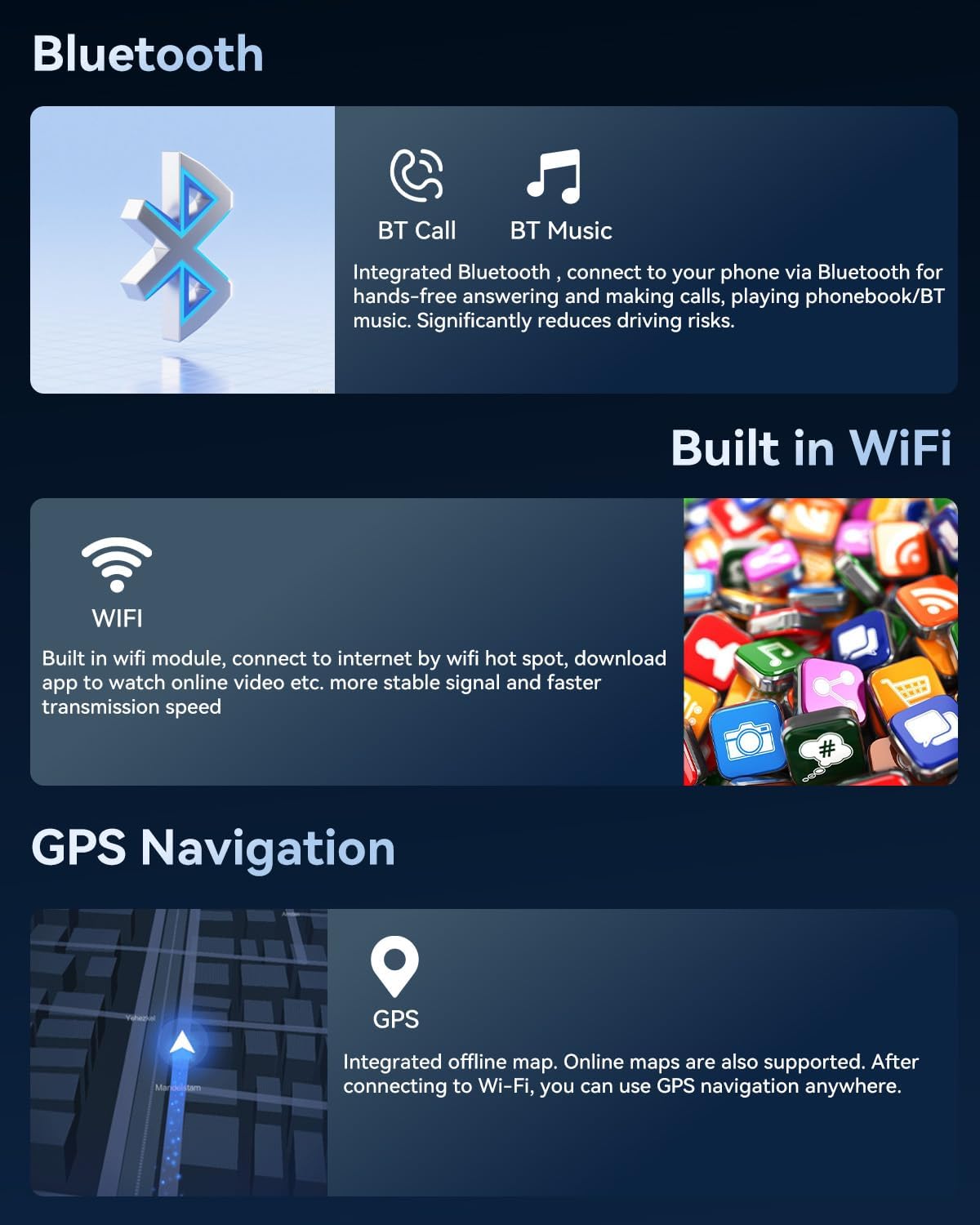
Image: Visual representation of Bluetooth, WiFi, and GPS functionalities.
3.4 Equalizer (EQ) Adjustment
Customize your audio experience with adjustable EQ settings. Tailor the sound to your music preferences and the acoustics of your vehicle for an immersive audio experience.

Image: Displays of the equalizer settings, FM/RDS radio, and other user interface features.
3.5 Split Screen Function and Multiple UI Options
The split-screen function allows you to run two applications simultaneously, such as navigation and music playback. The unit also offers a wide range of customizable user interface themes to personalize the appearance of your device.

Image: Examples of various user interface options available on the car radio.
4. Maintenance
To ensure the longevity and optimal performance of your SIXWIN car radio, follow these general maintenance guidelines:
- Screen Cleaning: Use a soft, lint-free cloth to gently wipe the touchscreen. For stubborn smudges, slightly dampen the cloth with water or a screen-safe cleaner. Avoid harsh chemicals or abrasive materials.
- Software Updates: Periodically check for available software updates through the device's settings menu. Updates can improve performance, add new features, and fix bugs.
- Connection Checks: Occasionally inspect all visible cables and connections to ensure they are secure and free from damage.
- Environmental Care: Avoid exposing the unit to extreme temperatures, direct sunlight for prolonged periods, or excessive moisture.
5. Troubleshooting
If you encounter issues with your car radio, refer to the following common troubleshooting steps:
- Unit Not Powering On: Check all power connections. Ensure the car's ignition is on. Verify the car's fuse box for any blown fuses related to the radio.
- Steering Wheel Controls Not Working: Refer to Section 2.2 for detailed troubleshooting steps regarding steering wheel control configuration. Ensure the Canbus decoder is correctly connected and configured.
- No Sound or Poor Sound Quality: Check speaker connections. Adjust the volume and equalizer settings. Ensure no cables are loose or damaged. If using Bluetooth, ensure the phone's volume is also up.
- Rearview Camera Not Displaying: Verify the camera's power and video signal connections as described in Section 2.3. Ensure the car is in reverse gear.
- GPS Signal Issues: Ensure the GPS antenna is properly installed and has a clear view of the sky. If using online maps, check your WiFi or mobile hotspot connection.
- System Lag or Unresponsiveness: Close any unnecessary background applications. Restart the unit. If issues persist, a factory reset might be necessary (note: this will erase all user data).
- Missing Cables (as per user feedback): Carefully check the package contents against the packing list in Section 2.1. If components are genuinely missing, contact customer support.
6. Specifications
Detailed technical specifications for the SIXWIN Android 15 Car Radio (Model P4-4+128G Carplay):
| Feature | Specification |
|---|---|
| Model Number | P4-4+128G Carplay |
| Operating System | Android 15 |
| RAM | 4GB |
| Internal Storage (ROM) | 128GB |
| Screen Size | 9 Inches |
| Screen Type | IN-Cell HD Touchscreen |
| Resolution | 1280x720 |
| Connectivity Technology | Bluetooth 5.0, USB, Wi-Fi |
| Special Features | Wireless CarPlay, Wireless Android Auto, Mirror Link, GPS Navigation, Integrated Wi-Fi |
| Compatible Devices | Smartphone |
| Connector Type | HDMI, USB, 3.5 mm jack |
| Audio Output Mode | Stereo |
| Surround Sound Channel Config | 5.1 |
| Video Encoding | H.264, H.265/HEVC |
| Output Power (per channel) | 45 Watts |
| Number of Channels | 4 |
| Total Output Wattage | 180 Watts |
| Item Weight | 1.67 Kilograms |
7. Warranty and Support
For warranty information, please refer to the documentation provided at the time of purchase or contact the seller directly. If you require technical assistance or have questions not covered in this manual, please reach out to SIXWIN customer support through the retailer where you purchased the product. Ensure you have your product model number (P4-4+128G Carplay) and purchase details ready for faster service.

