
1. Introduction
This user manual provides essential information for the setup, operation, and maintenance of your HP 24-inch FHD IPS Monitor. Designed for clarity and user comfort, this monitor features a 1920x1080 resolution, 5ms response time, anti-glare coating, flicker-free technology, and a low blue light mode to reduce eye strain. It includes HDMI and VGA connectivity options and integrated 2W speakers.
2. Safety Information
- Ensure the monitor is placed on a stable, flat surface to prevent accidental falls.
- Do not block ventilation openings. Proper airflow is essential to prevent overheating.
- Use only the power adapter and cables provided or approved by HP.
- Avoid exposing the monitor to moisture, rain, or extreme temperatures.
- Disconnect the power cable from the outlet before cleaning or if the monitor will be unused for an extended period.
- Do not attempt to service the monitor yourself. Refer all servicing to qualified service personnel.
3. Package Contents
Verify that all items are present in the package:
- HP 24-inch FHD IPS Monitor
- Monitor Stand (Base and Neck)
- Power Cable
- HDMI Cable
- VGA Cable
- Docztorm USB Port Expander (Special Edition Portable Docztorm Data Hub)
- Documentation (Quick Setup Guide, Warranty Information)
4. Product Overview
4.1 Front View
The front of the monitor features the 24-inch IPS display with a sleek, thin-and-light profile and a 3-sided borderless design.

Figure 1: Front view of the HP 24-inch FHD IPS Monitor, showcasing its display and slim bezels.
4.2 Side View
The side view highlights the monitor's slim design and the adjustable stand.

Figure 2: Side view of the HP 24-inch FHD IPS Monitor, illustrating its thin profile and stand.
4.3 Rear View and Ports
The rear of the monitor provides access to various input and output ports for connectivity.
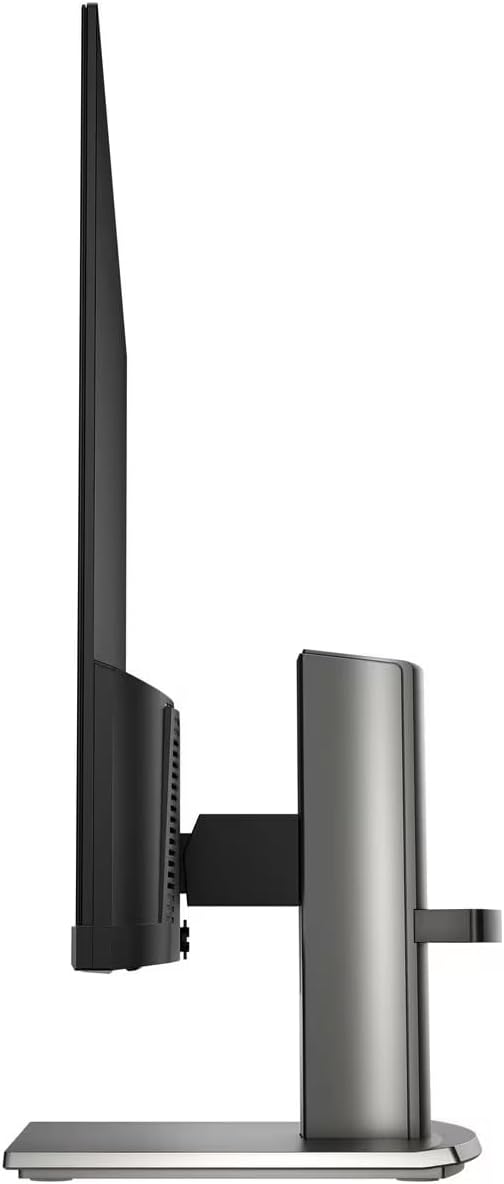
Figure 3: Rear view of the HP 24-inch FHD IPS Monitor, displaying the HDMI, VGA, and audio ports.
Available ports include:
- 1 x HDMI Port
- 1 x VGA Port
- Input/Output Audio Jack ports
- Power Input
5. Setup Instructions
5.1 Assembling the Stand
- Carefully remove the monitor and stand components from the packaging.
- Attach the stand neck to the monitor panel by aligning the tabs and pushing until it clicks into place.
- Attach the stand base to the stand neck, securing it with the captive screw at the bottom of the base.
- Place the assembled monitor on a stable, level surface.

Figure 4: The HP 24-inch monitor fully assembled on its stand.
5.2 Connecting Cables
- Power Connection: Connect the power cable to the monitor's power input and then to a wall outlet.
- Video Connection:
- For HDMI: Connect one end of the HDMI cable to the monitor's HDMI port and the other end to your computer's HDMI output.
- For VGA: Connect one end of the VGA cable to the monitor's VGA port and the other end to your computer's VGA output.
- Audio Connection: If using external speakers or headphones, connect them to the monitor's audio output jack.
- Docztorm USB Port Expander: Connect the Docztorm USB Port Expander to an available USB port on your computer for additional connectivity.
6. Operating Instructions
6.1 Powering On/Off
Press the power button located on the bottom right bezel of the monitor to turn it on or off. The power indicator light will illuminate when the monitor is active.
6.2 Adjusting Monitor Settings
Use the OSD (On-Screen Display) menu buttons, typically located on the bottom bezel, to navigate and adjust settings such as:
- Brightness and Contrast: Adjust these to suit your viewing environment.
- Color Settings: Select from various viewing modes or customize color temperature and saturation.
- Input Selection: Manually switch between HDMI and VGA inputs if auto-switch is off.
- HP Eye Ease (Low Blue Light): This monitor features an always-on low blue light filter that reduces blue light emission without impacting color accuracy, promoting eye comfort.
- Flicker-Free Technology: The monitor is designed to eliminate screen flickering, further reducing eye strain during prolonged use.

Figure 5: Illustration of the HP Eye Ease feature, demonstrating reduced blue light for eye comfort.
6.3 Adjusting Monitor Position
The monitor stand allows for ergonomic adjustments:
- Tilt Adjustment: The screen can be tilted from -5 to +25 degrees to find your optimal viewing angle.
- Height Adjustment: The stand offers 3.9 inches of height adjustment for personalized comfort.
7. Maintenance
7.1 Cleaning the Monitor
- Always power off the monitor and unplug the power cord before cleaning.
- Use a soft, lint-free cloth lightly dampened with water or a non-abrasive screen cleaner.
- Do not spray cleaner directly onto the screen.
- Avoid using harsh chemicals, solvents, or abrasive materials, as these can damage the screen or casing.
7.2 General Care
- Keep the monitor away from direct sunlight and heat sources.
- Ensure adequate ventilation around the monitor.
- Manage cables to prevent tangles and damage.
8. Troubleshooting
| Problem | Possible Cause | Solution |
|---|---|---|
| No image on screen |
|
|
| Poor image quality (blurry, distorted) |
|
|
| No sound from speakers |
|
|
9. Specifications
| Feature | Detail |
|---|---|
| Product Dimensions | 7.9 x 21.09 x 18.1 inches |
| Item Weight | 7.7 pounds |
| Manufacturer | HP |
| Item Model Number | HP 24" FHD Monitor |
| Standing Screen Display Size | 24 Inches |
| Aspect Ratio | 16:9 |
| Resolution | 1920 x 1080 Pixels (FHD 1080p) |
| Image Brightness | 300 nits |
| Screen Surface Description | Matte |
| Response Time | 5ms |
| Connectivity | 1 x HDMI, 1 x VGA, Audio Jack |
| Adjustable Tilt | -5 to +25 degrees |
| Special Features | Anti Glare, Flicker Free, Low Blue Light, Built-in 2W Speakers |
10. Warranty and Support
Your HP 24-inch FHD IPS Monitor is covered by a standard manufacturer's warranty. For detailed warranty terms and conditions, please refer to the warranty documentation included in your product package or visit the official HP support website.
For technical assistance, troubleshooting, or to contact customer support, please visit the HP support portal or contact your local HP service center. Ensure you have your monitor's model number and serial number ready when seeking support.